Up next in 10

Build a React.js Google Maps Autocomplete & Geocoding API to Display Address Details, Photos Data
Dec 10, 2025

Get the full source code of application here:
https://codingshiksha.com/react/build-a-react-js-google-maps-autocomplete-geocoding-api-to-display-address-details-photos-data/
Show More Show Less View Video Transcript
0:00
Uh hello guys, welcome to this video. So
0:02
in this video I will show you how to
0:04
integrate the Google maps autocomplete
0:07
API inside ReactJS application and also
0:10
convert your addresses into latitude and
0:12
longitude using the geocoding API as
0:14
well. So inside the demo you see this
0:16
input field out there. So here you will
0:19
enter your address and then it will also
0:22
show the autocomplete. So as soon as you
0:24
start to type this autocomplete will
0:27
show. It is fetching the suggestions
0:28
from the Google maps JavaScript API, the
0:32
autocomplete API and all these addresses
0:35
will come and as soon as you simply
0:37
select the address, it will display
0:40
convert your address, geocode it and it
0:42
will display the latitude and the
0:44
longitude and you can see that the place
0:48
ID it also uses the places API to fetch
0:50
information about that particular place
0:52
and it shows the full address, the name
0:55
of the place, the full formatted
0:57
address. So I will show you there is a
1:00
specific ReactJS component which allows
1:02
you to make requests to the Google maps
1:05
autocomplete places and geocoding API.
1:09
So you can pick any address here. You
1:11
can see that uh
1:14
so as you type here you will see that
1:16
you can pick any address and then again
1:19
it will convert that to your latitude
1:21
and longitude the place ID formatted
1:24
address the name of the place. So now to
1:26
get started first of all you need to
1:28
create a Google cloud console account. I
1:30
have already created one. So you need to
1:33
have a billing account here. So for that
1:37
you need to go to your credential
1:39
section and just make to you need a API
1:44
key. So inside your dashboard you simply
1:48
click on that section API key and then
1:50
your API key will be created and then
1:52
you need to copy that. Apart from that
1:55
you need to enable the APIs. So just go
1:57
to the library section and here you need
2:00
to search for the APIs. So first of all
2:02
you need to enable the places API which
2:05
is necessary.
2:07
Just enable this. If you go to this you
2:11
will see this enable button. Click on
2:13
that enable button. I've already clicked
2:14
the enable button. So now it has changed
2:16
to manage. The next API that we want to
2:19
enable is the maps JavaScript API. So
2:22
simply select this API and also enable
2:26
this as well.
2:28
So I've already enabled this. So this is
2:30
used for getting the autocomplete
2:32
results. So it's autocomplete API. And
2:35
then lastly the geocoding API which is
2:38
required for converting your address
2:40
into latitude and longitude. So I've
2:43
already enabled this as well. So you
2:45
need to enable all these three APIs. So
2:49
now we come to first of all your uh
2:52
inside your ReactJS project you have
2:54
this main dot index html file the global
2:58
HTML file of your ReactJS project. So
3:00
here you need to paste this script tag.
3:03
I've given all the source code guys in
3:05
the description of the video. So you can
3:07
check out my detailed blog post. So you
3:10
need to add this script tag and
3:14
maps.googleapis.com/maps/api
3:14
googleis.com/maps/appjs
3:19
and after that you need to replace the
3:21
API key. So this section we are loading
3:24
the Google maps API and after this key
3:27
section here you need to paste your API
3:29
keys. So I've already pasted it. So what
3:32
I will do I will simply paste it. So
3:36
now close this file. Come to your
3:39
component and for this specifically
3:41
ReactJS there is a component here that
3:43
you need to install. Uh just go to
3:46
npmjs.com
3:48
and just search for this component which
3:50
is react places autocomplete. So we are
3:53
using this component here. Uh you need
3:55
to just install this by executing a very
3:58
simple command which is npmi react
4:02
places autocomplete.
4:04
So I have already installed it and it's
4:06
almost got 130,000 weekly download. So
4:09
it's a very popular package and they do
4:12
offer a live demo as well. You can check
4:14
out their demo. So now to get started
4:17
here just create a simple functional
4:19
component and first of all we need to
4:22
import this package by using the import
4:24
statement. So we simply say places
4:27
autocomplete which will be coming from
4:29
this package react places autocomplete.
4:32
And apart from that we also need to do
4:35
the geocoding. So there is a geocoding
4:38
packages are also there. Geocode by
4:41
address
4:42
and get latitude and longitude.
4:45
So these two components we also need
4:48
geocoding and get latitude longitude.
4:51
Geocode by address
4:53
and get latitude longitude. So just
4:55
import that. And after this we also need
4:59
to import my CSS file that I styled it.
5:02
So what I will I will simply require it.
5:05
So this app dot CSS code you will find
5:07
out in the description of the video. So
5:09
just also require the CSS code as well.
5:13
So then after that
5:17
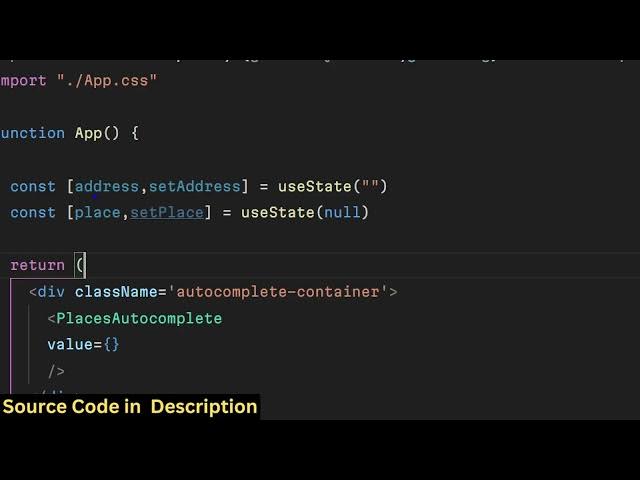
we come to our
5:19
JSX where we need to embed this. So we
5:22
simply
5:24
inside this div section I will align
5:27
give some class name autocomplete
5:31
container
5:33
and then I will embed this Google
5:36
autocomplete component and it actually
5:38
takes some options. So the first option
5:40
is takes is the actual value and for
5:43
this we need to declare some state
5:45
variables. So just go to your state and
5:47
declare some state variables. So this
5:50
one will be for address whatever address
5:52
that the user types we have the state
5:54
variable for this. So for this we are
5:58
using state hook of react chase. So
6:01
initial value will be nothing. Then we
6:04
also need to basically store a variable
6:07
to store the place information and
6:11
initial value will be null. So we have
6:13
declared two variables for the address
6:16
and the place
6:18
and then
6:20
now we need to simply inside your Google
6:24
autocomplete component we directly
6:26
attaching the value here which will be
6:28
the address the user will type and then
6:31
we need to attach an onchange event
6:33
handler. So as soon as the uh address
6:37
changes we are attaching this call back
6:39
function which will execute
6:41
automatically. So handle change. Next as
6:45
soon as you select any
6:48
address from the drop-down this function
6:50
will execute handle select.
6:53
So now we need to define both these
6:56
functions.
6:58
First of all this your handle change.
7:06
So e parameter will get passed as soon
7:09
as you enter something in the input
7:11
field and then handle select.
7:14
So
7:16
here the address will be passed here. So
7:20
the user will select the address from
7:21
the drop-down. So this I think both
7:24
these function will be async. So just
7:26
make sure that you put the async here.
7:29
This one is async function. This one is
7:31
not handle change. So e parameter is
7:33
there. So what we will do set address we
7:37
will pass the address.
7:41
So here will be address will be passed
7:43
here. So just make it. So you're simply
7:46
setting the address whatever address the
7:48
user types right here. And then inside
7:50
handle select what we need to do.
7:55
Inside your handle select
7:58
we need to first of all set the address
8:02
to the selected address.
8:05
And then inside your try catch block we
8:08
will convert this address to the
8:10
latitude and longitude. So you'll make
8:12
the geocoding API request. So for doing
8:15
that we will use this uh component which
8:18
we imported.
8:20
So we'll declare a results variable and
8:23
await
8:24
geo code address. We'll use this
8:26
component and pass this address. You can
8:30
see uh we are passing this geo code by
8:33
address which is coming from react
8:34
places autocomplete. So we are directly
8:36
using this function to convert the
8:38
address into latitude and longitude. So
8:41
now we create a latitude longitude
8:43
variable.
8:44
And we again use this function get
8:47
latitude longitude and whatever results
8:50
are there we are simply passing this.
8:56
So here what we are doing we are first
8:57
of all fetching geocoding the address
9:00
then we are getting this address and
9:02
then we are getting the latitude and
9:03
longitude.
9:05
So now we need to create this place
9:08
using the places API. So we create a
9:10
object place details
9:14
and then it will have the name of the
9:17
place which will be results zero and
9:19
formatted address. Then we have the
9:22
formatted address. We can easily get
9:25
this using
9:27
results
9:29
0 dot
9:32
formatted address.
9:35
And similarly we can get all these
9:37
information which is the place ID. Every
9:40
place in Google maps has a particular
9:42
place ID attached. So place ID. Then we
9:46
can get the geometry which will be the
9:50
latitude and longitude. So we can create
9:52
a location object which will latitude
9:55
longitude.
9:59
We'll store it latitude longitude.
10:10
So all the source code guys is in the
10:12
description. So if you need the source
10:13
code you can go to the descriptions.
10:15
We're creating a location object which
10:16
contains these two properties latitude
10:18
and longitude. So after you do this
10:24
now we simply set the place by using the
10:27
hook function and pass this place
10:29
details. So that's completes your
10:32
function. Now we come to the this this
10:35
one. So
10:39
if you now just see your autocomplete
10:41
will be working. So if you refresh now I
10:45
think let me remove this.
10:51
I think some error has taken place which
10:54
is saying this props
10:57
dot children
11:01
is not a function.
11:13
Okay. Here uh you need to pass the
11:15
suggestions which will be coming. I
11:18
think it is saying that we haven't
11:19
passed this. So the suggestions you need
11:23
to pass. So
11:27
get input props.
11:31
So so let me paste it and then explain
11:33
to you what is happening right here. So
11:34
this autocomplete component expects this
11:38
input props. You can see we are passing
11:41
the suggestions. We are getting the
11:42
suggestions and here you type the get
11:46
input props placeholder enter an address
11:49
autocomplete input. So then we show the
11:51
suggestions. If you refresh it you will
11:54
see the suggestions will come as soon as
11:56
I write the address.
11:59
You can see that. So these suggestions
12:01
are coming and you can select any
12:03
address from this
12:05
and as soon as you select it we are
12:07
displaying these details which is name,
12:09
formatted address, place ID, latitude,
12:12
longitude. So you can go to the
12:14
description link guys if you need the
12:15
full source code. Thank you very much
12:17
for watching this video and also visit
12:20
my website freemediattools.com
12:23
uh which contains thousands of tools
12:26
regarding audio, video and image and I
12:28
will be seeing you guys in the next
12:30
video.