Up next in 10

Preview.js VS Code Extension to Preview React & Vue.js Components inside Editor Full Tutorial
Dec 22, 2025

Get the full source code of application here:
Show More Show Less View Video Transcript
0:07
Uh hello friends, today in this tutorial
0:09
I will be telling you that uh how to
0:11
preview uh ReactJS and Vue.js components
0:15
inside Visual Studio Code Text editor.
0:17
So in this tutorial I will be talking
0:19
about a new extension of Visual Studio
0:22
Code Text editor. So this is called as
0:24
preview.js. If you just write on Google,
0:27
it has its own official website. So
0:30
basically it's a paid extension but it
0:32
offer it also offers a free extension
0:34
free period you can try out. So
0:37
basically whenever you make any sort of
0:40
ReactJS application or Vue.js JS
0:42
application. Basically, if you want to
0:43
view it side by side your text editor
0:47
without having to run the application,
0:50
you can uh use this extension which is a
0:54
very handy extension which is very much
0:56
important for troubleshooting. So these
0:58
are uh you can preview JS component and
1:02
also you can uh view react JS components
1:06
as well. So this is side by side by side
1:08
preview. So inside visual studio code
1:11
text editor. So basically this is the
1:14
extension here. It also offer a pro
1:16
version also which offers all the
1:18
features.
1:20
So it's a free trial is also available
1:23
to you. So anytime you can switch to the
1:25
pro version anytime. So let me show you
1:28
the very basic example of using this
1:30
extension guys. So first of all we will
1:32
make a new project inside uh we will
1:35
make a ReactJS project. So we will just
1:38
make a new directory preview
1:41
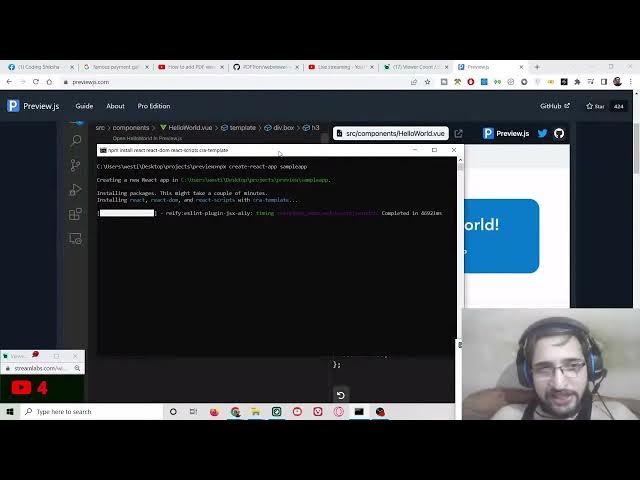
and in order to make a new npx create
1:44
react app. I will just make a new react
1:46
app sample app. So this will make a
1:49
reactjs application inside this uh root
1:52
directory. So it is creating a new react
1:53
app. So in the meanwhile you will see
1:56
that this is the extension guys. It
1:58
offers you to the free preview of uh
2:02
the ReactJS components of Vue.js
2:04
components. So instantly you can view
2:07
your result. Whenever you make any sort
2:09
of changes you on the right hand side
2:11
you will see the properties changing
2:13
here. So also join the Facebook group
2:15
guys. Uh already 260 members have joined
2:18
and this is the coding se official
2:20
Facebook group. I have pinned the
2:22
message in the live chat. If you want to
2:24
join this Facebook group you can join
2:26
it. Also hit the like button. Subscribe
2:28
the channel as well. In the video
2:30
description as well I have given the
2:31
Facebook group link. Already 260 members
2:34
have successfully joined this group. So
2:36
you can also join this group to ask
2:39
questions. I will definitely this group
2:41
is a very engaging group. So definitely
2:43
join this Facebook group. So now coming
2:46
back to the extension guys. So now let's
2:48
suppose our ReactJS application is
2:51
there. It is installing. So just wait.
2:55
So after installation guys we will make
2:58
a simple ReactJS component and we will
3:01
try to preview it using this extension.
3:04
So
3:06
it is just installing it. So just wait.
3:11
So first of all we will install this
3:13
extension. It is very easy. you you need
3:15
to go to the extensions tab and after
3:18
going to extensions tab you can install
3:20
this extension which is a quite a good
3:21
extension in order to preview your
3:23
component which is Vue.js and ReactJS.
3:27
So just wait.
3:33
So it is just installing the packages of
3:36
React applications guys. So just wait.
3:40
It is doing that. In the meanwhile you
3:42
can join the Facebook group. It is
3:43
already 260 members have joined in
3:46
successfully. So I created this group
3:49
two two days back and you can see a lot
3:52
of engagement is there already. You can
3:54
also promote your own stuff also inside
3:56
this group which is related to
3:58
programming and blogging as well. So I
4:00
will approve that post. So basically you
4:03
can join this group. So already I think
4:06
members are there 263 members have
4:08
successfully joined in. So
4:13
now I think it is completed. So now we
4:17
can go back to our application and I can
4:21
open this inside Visual Studio Code
4:23
Textrator guys. So let me open this. So
4:28
so this is extension guys you will see
4:30
that. And now in order to install this
4:32
extension go to the extensions tab here
4:35
guys. Simply go to extensions tab and
4:37
you need to search for this extension
4:39
which is called as preview preview.js.
4:44
So this is the extension. So I have
4:46
already installed this extension. You
4:48
will see that simply you need to click
4:50
the install button to install this
4:52
globally and after that you need to
4:54
restart your system. So just restart the
4:57
editor and you will be able to make
5:00
this. So now go to source and this is
5:02
your uh ReactJS component guys. So
5:05
basically if I this is the arrow here
5:07
you will see that preview open preview.
5:13
So you can see that now you can see this
5:16
is the preview section. It is opening
5:18
right here on the right hand side. So it
5:21
is saying that please com select a
5:23
component. So we have su successfully
5:25
selected app dot uh js. So now it is
5:29
loading this. On the right hand side you
5:30
will see that automatically it has uh
5:33
generated the preview section here. So
5:35
it contains all the properties of this
5:37
component which is there. You will see
5:39
that.
5:41
So we are not running this application.
5:44
You will see we are not running this
5:46
application and still we are able to see
5:48
the result of this component. So let's
5:50
suppose I remove this component uh logo.
5:53
So now you will see automatically it
5:54
will refresh and uh if I save it now you
6:00
will see that
6:02
if I change this one like this
6:05
you can see that so basically it is ch
6:08
making the changes guys instantly you
6:10
can preview your reacts and js
6:12
components re right here inside your
6:14
visual studio code text editor. So let's
6:16
suppose I remove all this. I make a
6:19
simple heading.
6:23
I give a heading position here which is
6:25
H1
6:28
hello world.
6:32
So close this. You will see that now we
6:35
will have a simple hello world
6:38
component. So simply save this.
6:42
So now you will see hello world is
6:44
printed out. you will see that. So
6:47
basically if I want to
6:51
so basically it will also show you the
6:53
errors wherever the errors are taking
6:55
place. So that's a good thing about it.
6:58
So you will see that you can also apply
7:00
some CSS as well. So if you want to you
7:03
can go to app dot CSS and uh you can
7:06
change your uh
7:09
body color background color as well. So
7:12
background color you can change to red.
7:16
So now basically it will change to red
7:18
position red color. If you refresh it
7:22
you will see that
7:25
you can also change the text color.
7:32
I think the color property.
7:36
So now it changes to white. You can
7:38
change to black. any color you can
7:41
change to. So it will change it guys. So
7:44
you will see that automatically it is
7:46
doing this stuff. So this is also valid
7:48
for Vue.js projects as well. So if you
7:50
create a Vue.js project simply you need
7:53
to run this project like this and
7:55
automatically on the right hand side
7:58
preview will be there. So you don't need
8:00
to run the application without running
8:01
the application. We are preview this uh
8:04
components here only. So this is a very
8:06
handy way by which you can troubleshoot
8:08
your ReactJS and Vue.js applications.
8:11
So this is a great extension. So you
8:13
definitely need to install it while
8:15
developing
8:17
the applications of ReactJS and U.JS.
8:24
So you can see that.
8:30
So this is the extension guys. So just
8:34
install it. It has its free version
8:36
also. So if you want to get all the
8:38
features, you can purchase it. So it's a
8:41
very good extension. I will definitely
8:43
recommend you that you should install
8:45
this preview.js. If you want to read
8:47
more about it, go to previewjs.com
8:50
and you can read more about it. It is
8:53
developed by this person. You will see
8:54
that.
8:56
So the documentation is given. It also
8:59
has its own GitHub repository. So you
9:02
can just get more information about it
9:06
right here
9:09
and thanks in much guys for watching
9:10
this live stream and uh please join the
9:13
Facebook group. I have already given the
9:15
link already 263 members have
9:17
successfully joined
9:21
and I will be seeing you in the next
9:23
stream.