Up next in 10

Build a React.js Canva Clone PDF Editor Using PDF-LIB & pdfjs-dist Library in Browser Using TS
Mar 13, 2026

Buy the full source code of application here:
https://procodestore.com/index.php/product/build-a-react-js-canva-clone-pdf-editor-using-pdf-lib-pdfjs-dist-library-in-browser-using-ts/
Show More Show Less View Video Transcript
0:00
Uh hello guys, welcome to this video. So
0:03
in this video, I'll show you a Canva
0:05
clone PDF editor application that I
0:07
developed in ReactJS. I'm just showing
0:09
you the demo right here. So it directly
0:13
executes uh in the browser. It's a
0:15
single page ReactJS application. Canva
0:18
clone PDF editor. So we are running it
0:20
on local host as you can see. So right
0:23
here you will select your PDF file. It
0:25
has this advanced editor where you can
0:28
edit, highlight, annotate your PDF
0:30
files. Once you select your PDF file, it
0:33
will render out. It will view, you can
0:36
read your PDF files directly. So it is
0:39
having total number of pages, previous
0:41
page, next page. Then we have this nice
0:43
little advanced editor. It's entirely
0:46
developed in ReactJS. I've given the
0:48
source code. You can directly purchase
0:50
it. The link is given in the
0:52
description. So after you purchase it,
0:54
you will get actually all the source
0:55
code from Google drive automatically.
0:58
This is a directory structure. Each and
1:00
every file is divided into its
1:02
appropriate uh TypeScript file here. So
1:04
once you get the source code, you will
1:06
able to modify this and add additional
1:08
features as well. So now I'm just
1:11
running it on local host. As you can
1:13
see, we have started this project npm
1:15
run start. So once the project has
1:18
started. So this is you can uh actually
1:22
use these features just click the pencil
1:25
icon and right here you will be able to
1:29
first of all navigate.
1:31
So you can go to the next page like this
1:34
using these buttons
1:38
and then if you want to add some text
1:40
you basically you can add this. As you
1:44
can see, we are adding some text right
1:46
here. We can just place it accordingly.
1:49
And we can even change the phone size as
1:51
well.
1:53
Just select it and just change the phone
1:56
size
1:58
using the color picker. Change the color
2:00
of the text. And then again
2:04
like this. So you can see how easy it
2:06
is.
2:10
So after you add this you can place your
2:13
accordingly. Same goes with images if
2:15
you want to add image in the second
2:17
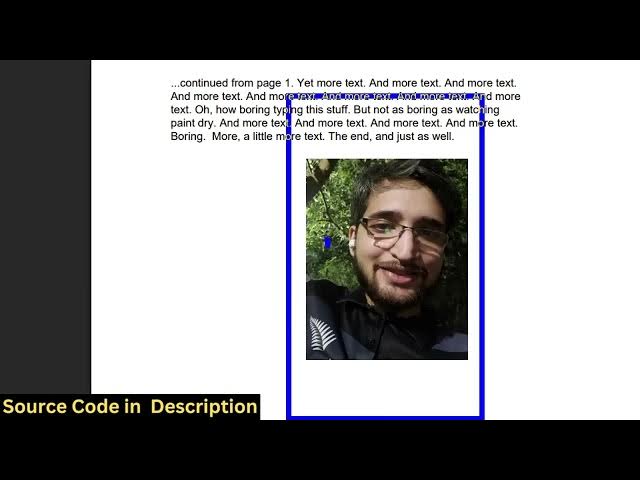
page. So this is the insert image
2:20
button. So right here you will select
2:23
your image
2:25
wherever you need to place this image.
2:27
You can change control the width,
2:29
height, placement
2:32
accordingly. After that uh then we have
2:34
this button of export PDF exporting the
2:38
changes automatically the output file
2:40
will be downloaded. So all the changes
2:42
that you have done such as adding the
2:45
text, highlighting, annotating
2:47
everything is saved. You can see the
2:50
image is also added. This is a complete
2:52
project that I developed in ReactJS. If
2:54
you are interested guys it's a Canva
2:56
clone PDF editor static single page
3:00
application which directly runs in the
3:01
browser. So the link is given in the
3:04
description. So I basically used some
3:06
third party libraries for which is
3:08
fabricjs.
3:10
We have also used pdf lib pdfjs.ist
3:15
and react. We are using the latest
3:17
version. As you can see this is the
3:18
package.json file. So
3:22
pdf lib is a javascript pdf generation
3:26
library. The pdfjs.dist artist is once
3:30
again a very famous PDF related library
3:33
in JavaScript and after all we are also
3:37
using React the latest version fabric
3:41
it's very easy to run this locally and
3:43
also you can deploy this build out this
3:45
project and build out to a real domain
3:48
name as well it's very easy to deploy
3:50
this as well so once you get the source
3:52
code you will be able to modify this
3:54
source code and also add additional
3:57
features is on top of of this project.
4:01
So the application is quite simple. You
4:04
basically
4:08
select your PDF file. It uh will render
4:11
out your PDF file where you can read all
4:14
the pages. You have all these basic
4:17
controls out there.
4:20
You can navigate to the next page
4:24
and
4:27
we can even
4:30
change the background color as well.
4:42
So here you can just need to first of
4:45
all select the phone sites
4:49
and you can just see you also have the
4:52
ability to insert images. So I've shown
4:54
you the full demo. If you're interested
4:56
the link is given in the description you
4:58
can directly purchase it.