Up next in 10

Build a Next.js FFMPEG Canva Clone Video Timeline Editor & Recorder in Browser Using TypeScript
Mar 3, 2026

Buy the full source code of application here:
https://procodestore.com/index.php/product/build-a-next-js-ffmpeg-canva-clone-video-timeline-editor-recorder-in-browser-using-typescript/
Show More Show Less View Video Transcript
0:00
Uh hello guys, welcome to this live
0:02
stream. So in this live stream, I will
0:04
show you a Nex.js Canva clone video
0:07
timeline editor that I built directly in
0:09
the browser. So this basically lets you
0:12
edit your videos directly the browser.
0:15
It's built in nextJS. I'm running this
0:17
locally. As you can see, this is the
0:19
full project here. Let me show you. This
0:21
is a full directory structure. I've
0:23
given the source code in the description
0:25
of the video. You can directly purchase
0:27
the full source code. So once you
0:29
purchase it, you will get this full
0:31
directory structure from Google drive
0:33
automatically. It's built inside
0:34
TypeScript and for building this we have
0:37
used FMPPG web assembly library. So all
0:40
these files are coded inside Typescript.
0:42
So I'm just running this locally here.
0:44
I'm running this npm rendev and this has
0:48
started this project on localhost 4,000.
0:51
So I basically open this URL here and
0:54
this is the actual interface. So now it
0:57
lets you cut and trim your videos
1:00
directly in browser. This is the
1:01
interface. So here you will select your
1:04
MP4 video file. You can have select any
1:07
sort of extension.
1:09
So once you select your video,
1:13
your video will be basically be created
1:16
inside the timeline.
1:17
>> Hello guys. Uh hello guys.
1:20
>> So this is the actual timeline that it
1:22
will create for you. Nice little
1:25
timeline. So using this Canva clone kind
1:28
of a video editor, you'll be able to
1:30
trim and cut your videos whichever
1:32
portion that you want to and right here
1:35
at the bottom side it is selecting the
1:38
starting duration. This is the ending
1:40
duration and how much you want to cut.
1:43
So I just want to cut these 90 19
1:45
seconds. So using this timeline I can
1:47
easily cut the specific portion of the
1:50
video and then I can play this tool and
1:53
you can see. So now we have some options
1:56
here on the right hand side. We can
1:58
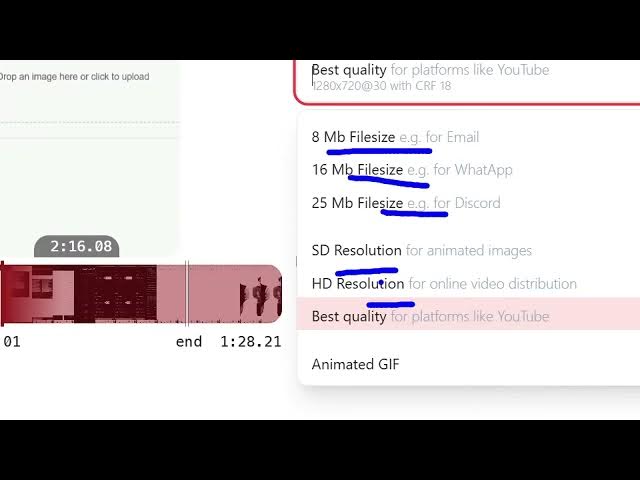
change the quality of the video. So now
2:02
let's suppose you're compressing the
2:04
size of the video. You can even do that
2:05
as well. Inside this select drop-down
2:08
for various social media networks. You
2:11
can change the quality of the video.
2:12
Best quality, HD resolution, HD, 8 MB
2:16
file size, email, WhatsApp, Discord. So
2:19
based upon I selected best quality here
2:22
and also you can remove the audio from
2:24
the video as well by selecting no audio
2:27
and you can even change the quality as
2:29
well. So I will stick to the high
2:30
quality and then I will click the start
2:33
button. So now the processing will
2:35
happen directly in the browser. So this
2:37
is a single page application. It's using
2:39
ffmpg directly in the browser. So no
2:41
serverside code is involved. It is
2:44
directly executing this inside the
2:46
browser. So once it reaches 100% your
2:49
output video file will be created and
2:51
this will save you a lot of time because
2:53
no longer you don't need to use the
2:55
Canva clone video editor rather than you
2:58
can use this application. It will save
3:00
you a lot of time and basically all the
3:04
processing is happening directly in the
3:05
browser. You can see it is processing
3:09
your video second by second and once it
3:11
reaches 100% the processing will be
3:14
completed and you will be seeing the
3:15
output file and then you can download
3:18
this and you can basically purchase this
3:20
overall project guys. We are using
3:22
NextJS as you can see. We are also using
3:25
fmpg web assembly library.
3:29
We using the next
3:32
the latest versions here. And this is a
3:34
complete project. Once you purchase it,
3:36
it will automatically get downloaded
3:38
from Google drive and uh it is basically
3:42
we are using this library. If you don't
3:44
know ffmppg is a very famous library,
3:48
but it is a command line library. So
3:51
ffmpg web assembly allow you to execute
3:54
the same library directly in the
3:55
browser. So we are using this ffmpg web
3:59
assembly library using nextjs and
4:02
directly processing discover. So now the
4:05
output file is ready. Now you can click
4:07
the download button. Click the save
4:10
button and directly this is the output
4:12
file that it has created. So it
4:15
automatically trimmed and cut the video.
4:16
purchased this tool and you can see the
4:19
video is
4:20
>> first of all if you like it so I
4:23
basically created this tool from scratch
4:25
so it's a very fantastic tool if you
4:27
want to do some kind of video cutting
4:29
operation trimming operation with a
4:32
timeline
4:33
and it also have the second feature as
4:35
well you can even record your video
4:38
screen recording click the record screen
4:40
button and then select entire screen or
4:43
any sort of specific screen click on if
4:46
you also want to capture the system
4:48
audio, you can even toggle this option.
4:51
And now it is actually
4:53
uh recording your audio file. Whatever
4:56
you are uh speaking, you are going to
4:58
any menu and click on use recording.
5:02
After that, it will convert your
5:04
recording. And now you can play the
5:06
recording here. So whatever you
5:08
recorded, you can actually
5:12
click the start button. So it will
5:14
actually process everything.
5:16
And once it reaches 100% you can even
5:19
download this as well. So it's an
5:21
ultimate Canva clone video editor with
5:24
timeline. If you are interested in this
5:27
guys uh the link is given in the
5:29
description definitely purchase it. So
5:31
here we can actually
5:34
select any sort of video file and after
5:37
selecting that this will construct a
5:40
nice little timeline where you can
5:42
actually
5:44
>> trim whatever portion that you want to.
5:46
So if you're interested in this the link
5:48
is given in the description.