Up next in 10

Build a React.js Client Side PDF Editor to Annotate,Encrypt & Compress Using jsPDF,PDF LIB in TS
Mar 5, 2026

Buy the full source code of application here:
https://procodestore.com/index.php/product/build-a-react-js-client-side-pdf-editor-to-annotateencrypt-compress-using-jspdfpdf-lib-in-ts/
Show More Show Less View Video Transcript
0:00
Hello [clears throat] guys, in this
0:02
video I'll show you I built out a react
0:04
JS PDF editor
0:06
which we are running it on inside the
0:09
browser. So, let me show you the actual
0:12
demo of the application. So, if you want
0:14
to purchase the source code, the link is
0:16
given in the description.
0:18
So,
0:20
you can see the interface here. So, we
0:22
are running it on localhost
0:24
and it has all the features
0:26
of compressing
0:28
your PDF. You can actually encrypt with
0:31
password as well.
0:34
So, we have quite a number of
0:35
functionalities here, as you will see.
0:37
Compare, rotate, organize, adding page
0:40
numbers to PDF,
0:42
converting PDF to Excel, Microsoft Word.
0:45
So, these are all the tools. It's an
0:47
ultimate PDF editor which has all these
0:49
tools embedded. So, we are using the
0:52
latest version of React here, as you can
0:53
see, React 19. We are also using PDF
0:56
lib, PDF JS, dist as well.
1:00
Um also, we are using file saver, HTML
1:03
to canvas, and JS PDF. So, quite a
1:06
number of open source packages we are
1:07
using here.
1:09
So, once you purchase the source code,
1:11
automatically you will be redirected to
1:12
Google Drive. So, where you will get the
1:14
actual source code. So, each and every
1:16
component, as you will see, it's coded
1:18
right here inside TypeScript. So, it's
1:20
fully customizable. You can even add
1:23
more features on top of this project.
1:25
So, this will save you a lot of time.
1:27
So, let me just show you the demo of the
1:28
actual application.
1:30
So, once you click the convert option,
1:33
so you will have all these tools here.
1:35
So, one of the tools is adding page
1:37
numbers to PDF. So, this is a really
1:40
important operation because if you have
1:43
a long PDF file, you do need to add page
1:45
numbers.
1:46
So,
1:48
and right now, after you select a PDF
1:50
file, you will on the right-hand side,
1:52
you have quite a number of styles here.
1:55
So, using any of the styles, the page
1:58
number should appear right here, top,
2:00
left, bottom.
2:02
So,
2:04
it will appear like this. So, you can
2:06
select page one. So, this These are
2:07
different formats which are there. So,
2:09
the page numbering will appear like
2:11
this. So, as you select, it will
2:14
automatically embed those page numbers.
2:19
So, you just click apply page number and
2:22
automatically output file will get
2:23
downloaded and automatically these page
2:26
numbers will get added.
2:28
These are one of the operations which
2:30
you can do. Again, organize PDF, you can
2:33
reorder the pages
2:35
if you have a long file
2:38
PDF.
2:39
It will load all the pages in whatever
2:41
PDF
2:42
it contain. So, you will basically see
2:45
23 pages. So, right here you can
2:47
actually reorder
2:50
or delete any individual pages by
2:52
clicking the dustbin icon as well. So,
2:55
you can shuffle the numbering of the
2:57
pages as well very easily by simply
3:00
moving it by these buttons that are
3:02
there.
3:03
And then clicking save PDF. So, this is
3:06
another one.
3:07
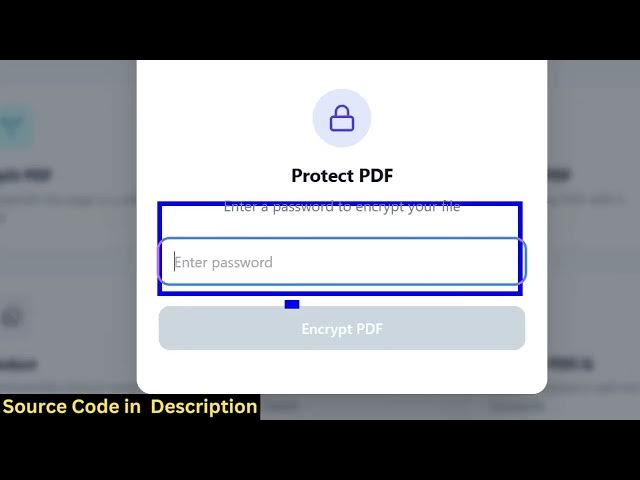
And we also have this encrypting PDF
3:10
which is a very important thing because
3:12
if you want to protect your PDF files
3:14
with a password, so once you select this
3:17
operation, it will ask you to put a
3:18
password here.
3:20
So, you put the password, click on
3:22
encrypt PDF, and now you can download
3:24
that PDF. So, now the PDF will ask you
3:27
to enter a password. So, if your
3:29
password is incorrect, it will give you
3:31
this error.
3:32
So, this is an ultimate PDF editor
3:34
project, guys. It has all these
3:36
features.
3:37
And the link is given, you can directly
3:39
purchase it. So, it's I coded this from
3:41
scratch. So, we have used the latest
3:43
version of React. Apart from that, I
3:46
showed you all the dependencies that we
3:48
have used here with JS PDF, HTML to
3:50
canvas.
3:52
Um mammoth. So,
3:55
you will see that. So,
3:57
it's also very easy for you to deploy
3:59
this project as well. So, once you come
4:01
to the command line, we are running this
4:02
project localhost 3000.
4:05
So, npm run dev. So, you can even deploy
4:08
this by simply running the command npm
4:10
run build.
4:11
So, this will build out the entire
4:13
project and create a public folder where
4:16
you can easily deploy this to a custom
4:18
domain as well.
4:20
So,
4:22
you can even crop the PDF as well. So,
4:24
this is one other operations that you
4:26
have.
4:27
If you want to crop a certain page here,
4:31
so this lets you do this. You can see
4:33
this how easy it is
4:35
to crop the unnecessary portion that you
4:37
don't need in the PDF
4:39
to save space.
4:41
Click crop PDF and now you will see both
4:44
the pages will get cropped.
4:46
So, we crop this. So, it's really easy
4:49
operation. So, without requiring a high
4:51
professional-looking PDF software, you
4:54
can actually use this that I developed
4:56
here.
4:57
And you can merge multiple PDF. This is
5:01
You can compress the PDF file as well.
5:03
So, if you have a long PDF file which
5:06
contains a lot of images,
5:08
you can compress. This is a compress
5:10
tool.
5:12
If you do have to split
5:14
the PDF, you select the PDF file.
5:18
You just select the page numbers.
5:22
You
5:23
just need to define the page range
5:26
and then click apply
5:27
and click split PDF and it will split
5:30
the
5:31
long PDF file.
5:33
And then we also have this operation. If
5:35
you want to convert a series of images
5:38
if you have
5:43
You can actually select a number of
5:45
images, you can convert this into PDF.
5:47
You can also convert your HTML files to
5:50
PDF as well.
5:51
So, right here you upload HTML file and
5:53
it will convert that. So, it's a
5:55
complete website containing
5:57
all these tools. So, once you purchase
6:00
the source code, you will get all these
6:02
tools. It's ready-made project for you.
6:04
You can add more features on top of this
6:06
project as well. So, all the components
6:09
have its own TypeScript file. So, it
6:11
will be easy for you to customize the
6:13
application as well.
6:14
And now, if you do want to
6:17
uh create a PDF,
6:19
you can actually have this interface.
6:23
You can upload a PDF.
6:25
Just select it. So, all the processing
6:27
directly happening in the browser. So,
6:29
it's actually having this editor,
6:32
as you can see. So, right here you can
6:34
select.
6:36
You can annotate, you can highlight, you
6:38
can have the pencil, highlighter, eraser
6:41
tool as well. You can add a text as
6:43
well. So, after making these changes,
6:45
you can click the export button. So,
6:46
this will actually So, it also has its
6:49
own PDF editor as well. Apart from this,
6:52
all these operations that I showed you.
6:55
So, you can just see here. So,
7:02
it's a ready-made PDF project.
7:05
So, we have used quite a number of
7:07
libraries, JS PDF, HTML to canvas.
7:13
Tesseract. So, you will see that. So,
7:15
it's a complete project. And if you
7:16
still face any issues in running or
7:18
deploying the application, you can email
7:20
me. My email address is mentioned on the
7:22
website. So, I will definitely help you.
7:26
So, definitely check out this.