Up next in 10



In this video, I go over the Garmin Forerunner 165 Check out the Garmin Forerunner 165 here https://geni.us/D3FCz Want FREE Shipping With Amazon Prime? Get a 30-DAY FREE TRIAL by signing up here http://www.amazon.com/tryprimefree?tag=thechrisreview-20 DISCLAIMER: This video and description contains affiliate links, which means that if you click on one of the product links, I’ll receive a small commission. This helps support the channel and allows us to continue to make videos like this. Thank you for the support!
Show More Show Less View Video Transcript
0:00
This is the Garmin Forerunner 165 and I want to do a quick unboxing of this
0:03
So it comes in this pretty small package. And at the bottom there's going to be some instruction manuals
0:09
And then finally the watch itself along with the charging cable. And this is going to be USB-C to whatever this proprietary thing is for Garmin
0:18
And the watch is actually going to be strapped up here so I do have to pull it out and unbuckle it
0:22
Alright and there it is. And this feels pretty lightweight. And here's what the backside looks like
0:28
So I guess the charge this just fits right in here. Yeah, you just plug it in just like that
0:32
It's not going to be like MagSafe. This is actually physically connected, so this is not going to come out even if I do this
0:38
Oh, that's pretty tight on there. And let's see how it looks like on my wrist. So this feels pretty good and it doesn't look like it takes up too much space on my wrist either
0:45
And again, I'm coming from an Apple Watch. So in comparison, the Forerunner 165 is going to be much smaller than the Apple Watch Ultra 2
0:53
And this also just kind of feels more comfortable. Also probably because it's round and that's usually how normal watches are anyway
0:59
And it does have this little screen protector that just comes right off. And on the watch itself, there are going to be some three buttons on the left side here
1:05
and then two on the right. And one's going to be for light
1:09
Oh, there it is. I turned on and here's what it looks like. I guess that's like the startup screen
1:15
Forerunner 165 and cool. I got like a little animation going on. And there's a closer look
1:19
So it's time for the setup. And I guess up. Yeah, so this is language
1:23
And of course, I'm going to go to English. And I guess this one would be like start
1:29
So continue that. Yep, that looked like to work it. And now it's time to pair to a phone to enable the feature
1:35
So I'll set it up to my iPhone over here. All right, I got Bluetooth on. And actually, let's press the start button
1:42
Okay, it's a scan with camera. And then it takes me to this Garmin Connect page
1:46
All right, let me download that app. And I think I may have an old account for this. So let's see if I can sign in
1:50
Otherwise, I'll just create a new one. All right, I think I was able to sign in. so let me just allow this for notifications and select my device so this is going to be
1:58
the 165. Alright so it doesn't show up here so let me browse all of them actually. And
2:06
just type 165 and okay there it is so we got two options the regular one and the music
2:10
and I know this is going to be that regular one Alright no Bluetooth connection make sure your device is charged and your phone bluetooth connection is on all right so let me go back to the watch and okay pair phone to enable bluetooth features so yeah and press that green button yeah yeah that
2:25
should be good let me just press that retry button okay there ready to connect so connect it
2:32
all right pair and here we could see it gave me like a little number uh all right yep i'll allow for notifications and next my mail next all right so six foot
2:43
next the 176 next our birthday all right next and when do i typical sleep yeah that's pretty good
2:53
10 a.m 6 a.m yep or 10 p.m i mean all right full calendar access i'm gonna skip this for now
2:58
i'll skip my location for now and i'll uh let's see calendar look yeah i'm just gonna skip these
3:04
permissions just for now are almost done it says sync your device your forerunner 165 will sync
3:10
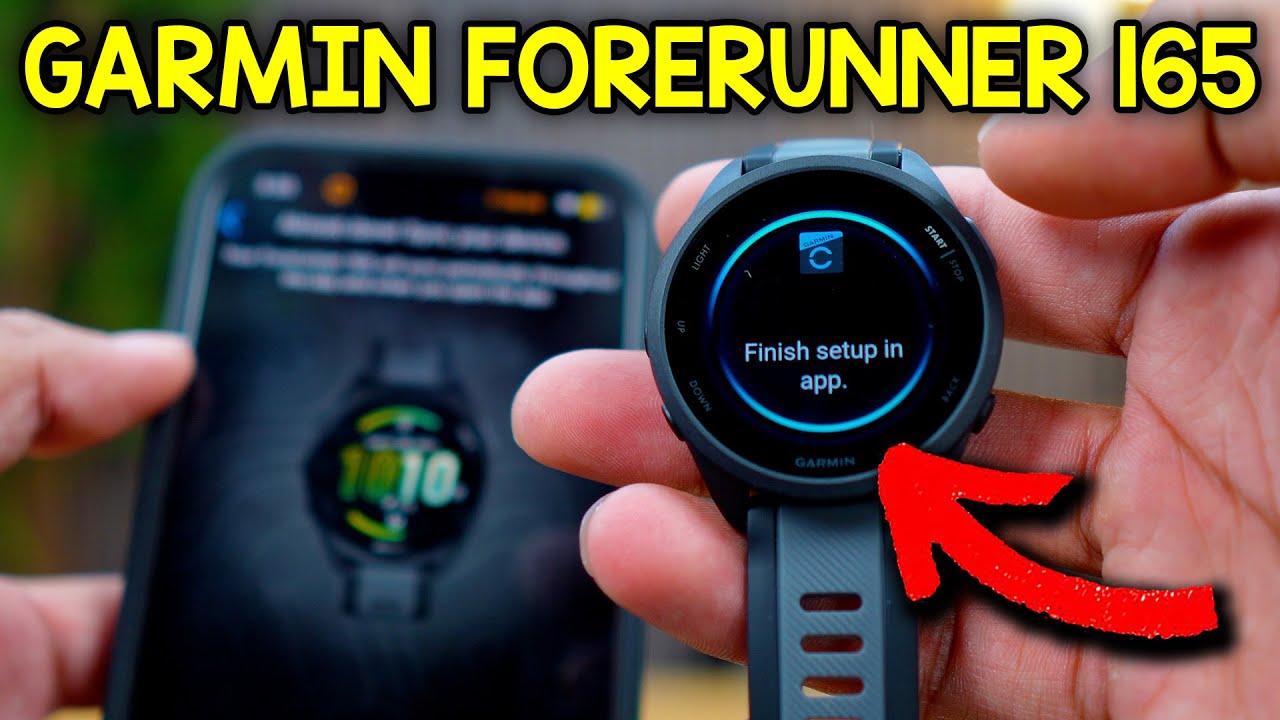
periodically throughout the day and when you open the app and on the watch it says finish setup in
3:16
app so i'll press sync now and yeah it looks like it finished syncing so let me press finish
3:23
all right navigating your forerunner is easy once you learn the basics
3:27
all right so let me click next all right from watch face swipe or scroll up or down to view
3:33
your glances. Alright, now let's walk through how to start a timed activity. Alright, finish
3:42
And okay, yeah, I think that's it for the app for now. And now let's go to the watch itself. So it
3:47
tells me to set a passcode. When you set a passcode, your watch will lock when you remove it from your
3:52
wrist. Alright, that's cool. So I'll just keep it simple. I'll do 0000 for now and re-enter that
3:59
and by the way when I press it this automatically vibrates too
4:03
alright and there it is it's 333 and I can go up and then here we can see a little bit more stats
4:09
so Sunday the 21st 74% battery which gives me wow 9 days of battery life
4:15
my performance of course I mean nothing I just turned this on so recovery nothing HVR nothing
4:21
I have a notification I guess that's from my phone weather music heart rate
4:25
steps, sleep score sleep coach naps last run messages and then back to the regular screen wow this gives me good data And I can go from left to right Nothing happens there
4:38
And then, let's see, this button over here, it says Light, so when I press it
4:47
I guess it just shuts it off, and then I can press the screen again, and it'll turn on
4:52
Well, let's see if I move it. No, it doesn't have any movement thing. Yeah, so I have to physically press the screen
4:56
or if I press the button again, yeah, it'll turn on. So now let me press up
5:02
All right, now it just makes me put my passcode. Oh, okay, this just gives me all the notifications
5:08
that we already went through. And now let me press down. And yeah, just same thing as before
5:16
All right, now back is just back, so I'm probably not going to do anything. And now start, stop
5:21
All right, so here's where I can actually start an activity. We have run
5:26
Oh, oops. Tip, hold for activity settings, training and more. Okay. Back
5:36
Alright, so we have run, track run, treadmill. Oh, and then it goes through different sections
5:43
So bike, pool, swim, walk, cardio, strength, workouts, garment share, IQ store, and that's it
5:52
I can add other stuff. oh that's a bunch so there's running cycling swimming gym outdoor racket sports let's see
6:02
what racket sports is okay yeah this just gives me other options that weren't there before so like
6:07
paddle ball pickleball tennis other let's see what that is oh breath work and then some apps
6:15
oops actually let me press it back all right now let's go to the apps we got clocks weather
6:21
history, calendar, music, pulse ox, sunrise and sunset, moon phase, wallet, broadcast heart
6:29
settings, heart snapshot notifications and messages. Let me go back again. All right
6:35
So yeah, that's pretty much it for this. Now let's go back to the app itself and see what other stuff we can see
6:40
All right. So here's the app. So it says Garmin Connect has a new look. Get started. All right Choose a focus Okay So my focus would be to stay active Next Congratulations on your new Forerunner 165 Make it even more valuable So Garmin K Safety
6:57
LiveTrap Garmin Coach, so I'm not going to do that for now. Already when you are, got it
7:02
Okay, and sweet. And here it'll tell me at a glance, so that's stuff we just went over before
7:07
And let me actually put on the watch itself so it can start giving me some data, such as, I guess
7:12
some steps that I'll take these next few minutes and also my heart rate. All right, there it is
7:16
And then I'll put that password. My heart rate right now, 81 beats per minute, which are 82 now
7:26
which by the way, is not normal for me. I'm moving, I'm talking, I'm standing. So that's okay
7:31
That's probably why it is. And let's see it slowly go down. Okay. Yeah. Feeling a little
7:38
bit more relaxed now. Went to the upper 60s, but let me continue on the app. And by the way
7:43
this feels really good. This feels a lot lighter than the Apple Watch. It feels comfortable. Let me
7:47
put that there. And this also comes in a bunch of different colors, but this is going to be the
7:52
black one. I think this was like the best value for it. And also pretty plain, pretty standard
7:57
and it matches with anything. All right, so now back to the app. So track your fluid intake. So
8:04
not now. Your reminder to complete this later. So I'll just say no thanks. And there, now we can
8:10
see the live stuff. So battery activity and my heart rate, 165. And back to whatever it was
8:18
Calories burned. Okay, I don't know how it calculated that already. 1436. No events
8:24
nothing for Garmin Coach, no challenges. And at the bottom, we have some other options
8:28
which is going to be those challenges. So I guess I can join a bunch of different things it has
8:33
My calendar, which I won't touch for now. My news feed, which there's definitely not anything under there
8:42
Now let's see what's under this more section. Activities, health stats, performance stats, training, planning, gear, insights, connection, groups, contact, safety and tracking, Garmin, dive, IQ store, wallet and Garmin
8:53
And then some other stuff. But yeah, that's pretty much it for the app
8:56
I'm not going to find a race for now. Just press not now. And there it is
9:00
But yeah, that's a quick look. and that's a quick setup of the Garmin Forerunner 165
Computers & Electronics