0:00
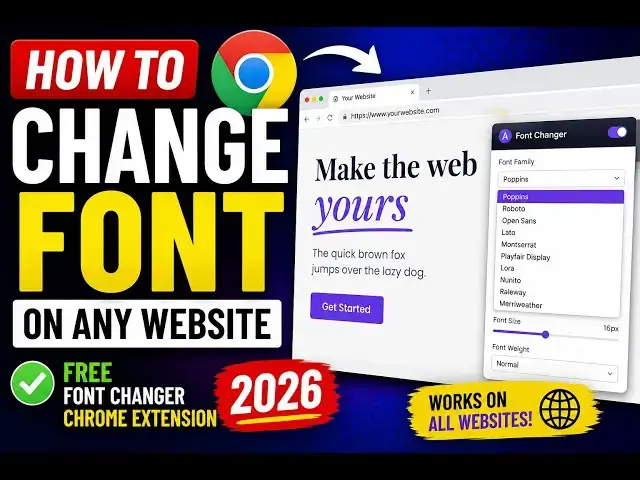
Hello guys, in this video I'll show you
0:02
how to change and customize
0:05
fonts of any website in Google Chrome.
0:08
This is a very useful Google Chrome
0:09
extension. It's called as Fontonic
0:13
change fonts. So if you just copy this
0:15
name, go to the extensions, simply
0:19
This extension would come. 20,000
0:24
I already installed it. So once it get
0:26
installed, this will be icon right here.
0:29
And you simply click on that, this
0:33
And you will be able to customize the
0:36
A drop down window will open.
0:39
Simply click on apply selection.
0:45
you basically first of all open a
0:52
By default the font will be there of the
0:54
website. You open this drop down. You
1:05
Click on apply selection. So you will
1:07
see the website font is successfully
1:17
So many fonts are there as you can see.
1:20
You select it from the drop down.
1:36
So you can see the font is successfully
1:40
And it's really useful. You can see
1:43
You can even click on restore.
1:47
You can refresh the page
1:49
and everything will be reset. You will
1:51
see that. So the original font is there.
1:53
Again you can click on that.
1:56
Select it from the drop down.
2:01
And you can see that.
2:09
So, this is an extension, guys.
2:11
Definitely check this out. Fontonic