0:00
Hello guys, in this video I will show
0:02
you a Google Chrome extension. If you do
0:07
or different messages
0:10
to send out to contacts and groups
0:14
install this extension WhatsApp template
0:16
shortcut. So what this extension does it
0:19
allows you to create custom
0:22
templates of messages.
0:25
So you don't need to type the same
0:26
message again and again. Instead you can
0:30
So simply install this extension and
0:33
activate this. So once you install this
0:36
simply activate this.
0:41
So this appears like this icon. Open
0:54
So basically this actually
1:12
I think you do need to refresh once you
1:16
Just refresh the page
1:18
to actually see all the options that it
1:22
So you will see this option open in the
1:24
right hand corner of the screen.
1:27
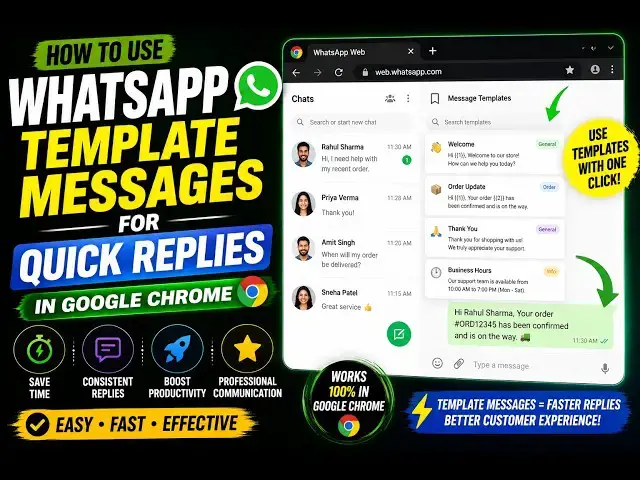
So from here you can create templates.
1:31
So this extension will start. Click on
1:34
this button add template.
1:36
So give a template name. So let me say
1:40
my name is Gautam and my website.
1:49
So you type this message give
1:52
this template a name and click on save.
1:55
So So, message is saved. So now if you
2:00
and try to use this, so automatically
2:02
the message will be automatically
2:06
So, no need to every time
2:09
manually type the message again and
2:11
Instead, you can install this extension.
2:15
Basically, create multiple templates.
2:21
you can create multiple template of
2:25
you can click on any individual and
2:28
just click on that and the message will
2:32
So, this will save you a lot of time,
2:34
guys, and also a lot of
2:37
effort in typing the same message.
2:40
Instead, you can install this extension
2:44
customized messages and save them as a
2:47
template. And then you can use them as a
2:51
by simply inserting them while you are
2:55
So, this will save you a lot of time.
2:57
Thank you very much for watching this.