0:00
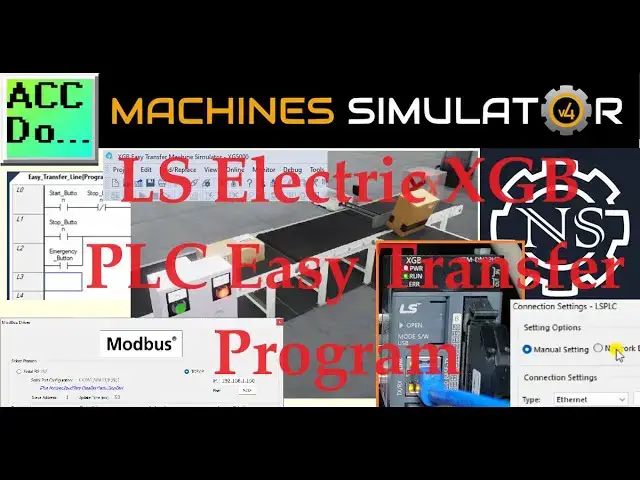
We will use Modbus TCP Ethernet to connect and program the XGB PLC to the Machine Simulator
0:12
Easy Transfer line. The Machine Simulator Easy PLC software suite is a comprehensive package with HMI, PLC
0:21
and Machine Simulator software. It features a Machine Simulator, or MS, that allows virtual communication with many programmable
0:28
logic controllers, or PLCs, in a 3D world with real-time graphics and physical properties
0:34
Our PLC programming example will follow the five steps to PLC program development
0:40
We will use the Simulator's pre-built Easy Transfer line machine to learn PLC programming
0:46
We will develop ladder logic, connect via Modbus TCP, and test our program using the
0:51
free XG5000 PLC programming software and XGB PLC. Let's begin. Detailed information contained in this video can be found at accautomation.ca
1:04
A link has been put in the description below. If you have not watched the other videos yet, there will be links in the description below
1:09
that will start you with video 1. There will be links to the rest of the videos in this series as well
1:17
Step 1. Define the Task The first step of PLC programming development
1:23
is to define the task to determine what must be done. The Machine Simulator or Easy PLC software suite contains the Easy Transfer line example
1:32
in the Machine Simulator. This is just one of many machines with the software so you can learn and develop your
1:37
PLC programming skills. Launch Machine Simulator 4 and access the Machine's menu
1:45
The 01 Easy Transfer Line option will be seen on the pre-configured machines
1:50
We will program this machine. As you move your mouse around the machine picture, you can select the icon on the top
1:58
right side. This will show you the machine description. The photocell detects high boxes and sends them to the second conveyor, using the pneumatic pusher
2:11
Conveyors are activated with digital output 1. They will also include the panel control
2:16
The green start light will be on when the system is ready to run
2:20
When the start is pressed, the stop light will be on to indicate how the system is to
2:24
be stopped. Pressing the emergency stop button will turn off both lights and stop the sequence
2:31
The Machine Simulator has a demo mode for this built-in machine. Select Close from the machine description window
2:39
Select the demo mode for the Easy Transfer Line. This mode shows you the operation so you can better understand what needs to be accomplished
2:49
Press the control buttons in the simulator to operate the machine. Take some time to explore the 3D virtual environment using the navigation menu at the top of the window
2:57
The default selection allows you to move freely without colliding into any components, while
3:01
the first-person and third-person modes provide different perspectives. Exploring the demo mode will help you understand how the Easy Transfer Line operates
3:11
This will help you develop the PLC program to control the machine's actions effectively
3:17
Once we understand the task and have familiarized ourselves with the easy transfer operation
3:22
we can proceed to the next step in developing the XGB PLC program using the XG5000 programming software
3:30
By following these steps and gaining hands-on experience with the Machine Simulator Learning
3:34
Suite and the XGB, you'll be well on your way to mastering PLC programming and applying
3:39
your knowledge to real-world scenarios. So let's continue our journey and move on to the next step in the process
3:48
Step 2 – Define the Inputs and Outputs The written version specifies that we will require 4 digital outputs and 5 digital inputs
3:57
for our Easy Transfer Line. Inputs are signals or data received by the PLC, while outputs are signals or data sent
4:04
by the PLC to control external devices. By understanding the inputs and outputs, you can develop a program that reads the status
4:11
of the inputs and activates the appropriate outputs. While still in demo mode, select the UIO to display the inputs and outputs required for
4:19
this machine. These PLC IOs are for the machine's physical running and do not include the additional
4:25
bits or registers that may be required for programming. This will show you the digital outputs on the left side of the screen and the digital
4:35
inputs on the right side. If you are unsure what an output or input is doing, start the Easy Transfer Line machine
4:43
in Start Mode. Select View I.O. along the top of the Easy Transfer Line Machine Simulator window
4:57
You can manually run the Easy Transfer Line without any control or PLC connection
5:03
Select the outputs on the left to turn on and monitor the inputs on the right
5:09
Defining the inputs and output establishes the communication between the PLC and external devices
5:15
This allows the PLC program to monitor the inputs and continuously decide based on their status
5:21
The program can then activate the appropriate outputs to control the Easy Transfer Line operation
5:28
It is important to note that PLC programs operate cyclically, meaning they continuously
5:33
read the inputs and set the outputs. This ensures that the program is responsive to system changes and can adapt accordingly
5:41
By understanding the inputs and outputs and their relationship to the overall system
5:45
you can develop a logical sequence of operation for the Easy Transfer Line PLC program
5:49
This is our next step. Step 3. Develop the Logical Sequence of Operation
5:59
A flowchart or sequence table is used to understand the processes that need to be controlled thoroughly
6:04
It must also answer questions like the following. What happens when electrical power and or pneumatic air is lost
6:12
What happens when inputs and output devices fail? Do we need redundancy
6:18
Knowing all these answers up front is vital in developing the PLC program
6:22
This is the step where you can save a lot of work by understanding everything about the operation
6:27
It will help prevent you from continuously rewriting the PLC program logic
6:32
Here is a sequence table for the Easy Transfer Line. You read the input conditions and then look to the right hand side for the outputs that
6:40
will be set. The following line will then look for the input conditions again
6:48
As a programmer, it is vital to have a comprehensive understanding of the machine's sequence
6:52
and operation before starting the programming process. This can be achieved by asking questions or reviewing existing documentation to ensure
7:00
a clear understanding of the logical steps involved. This step sets the foundation for the subsequent development of the XGB PLC program which will
7:08
be covered in the next section. Step 4. Develop the PLC Program
7:20
Writing the ladder logic code for the PLC example will be the next step in our program development
7:25
Start the XG5000 programming software and start a new project. This can be done by selecting the new project under the Project tab on the main menu, using
7:35
the shortcut CTRL-N, or the New Project icon on the main ribbon
7:43
We will name the project and select XGB PLC for our program
8:01
Comments can be added for future reference
8:11
Select OK. Our scanned program will be displayed. Under the LS PLC that we selected the program, select Global, Direct Variables
8:22
We can now enter the variables for our machine simulator easy transfer line
8:51
To aid in setting the variables, you can see that once an address is entered, we can
8:56
highlight it, click and drag to populate the other variables below it
9:03
The Modbus addresses that we will use will match the settings for the communication to
9:07
the XGB PLC. Here is the map. These addresses will be written when we set up the communication and Modbus server
9:17
As we program, remember to save your work often. Select the Scan Program tab
9:25
We can now create our ladder logic program using the inputs and output icons on the menu bar
9:31
As we enter the instructions, we can select the variables. Starting and stopping the conveyor is done with the set and reset instruction
10:36
When the emergency stop is activated, both lights are turned off. This indicates to the operator that the emergency stop must be reset
10:54
When the photocell sees the high boxes, this activates the pneumatic pusher
10:58
When the pusher reaches the extended position, it will reset the pneumatic pusher
11:07
An end statement will indicate that this is where the program ends and to repeat the scan
11:12
Save your program. It is important to always save your program during programming
11:18
Double click on the internal FENet or Fast Ethernet network port. This will call up the standard settings for the port
11:28
Under the Basic tab, we can assign the IP address and settings to work with our network
11:40
Select the Smart Server for the server mode. This will include the Modbus server
11:46
Select the Modbus Settings button. Change the default Modbus address settings to those we have selected for our program
12:06
Select OK. We can now connect and transfer the program to our XGB PLC
12:15
If you are unsure of the connection to the XGB, we can use the network browsing to discover
12:19
the IP address. Once the PLC is discovered on our network, we can select OK
12:27
You can now select OK or connect from the Connection Settings window
12:34
You can also use the Connect from the main menu. The bottom bar of the XG5000 programming software will turn green indicating that the PLC is
12:42
connected and in Run mode. Select Write from the Online option in the main menu
12:51
You will then stop the PLC and transfer the program and settings like Modbus into the controller
13:08
We now have the PLC ready to test. Step 5. Test the program
13:20
To ensure the functionality and accuracy of the XG PLC practice program for an EZ-Transfer
13:25
line machine, it is essential to test the program thoroughly. Utilizing Machine Simulator or MS is an effective way
13:35
Using the MS you can simulate the operation of the EZ-Transfer line machine without needing
13:39
physical hardware, minimizing the risk of damage during the testing phase. You will use Modbus TCP on our LS XGB PLC to communicate with the EZ-PLC machine simulator
13:52
Call up the EZ-Transfer line machine simulator in Start mode. The status of the machine simulator will be at the bottom of the screen
14:01
Currently we have no PLC connected. Select I0 Drivers on the top middle of the screen
14:11
The Machine Simulator I0 number will be displayed. Here we select more I0 than is required for the EZ-Transfer line machine
14:18
The EZ-PLC driver is selected by default. Under the driver pulldown, select Modbus driver
14:26
This driver will communicate Modbus TCP or Ethernet in Modbus RTU serial
14:34
Select the configure button. We can now enter the information for our Modbus driver
14:41
Select TCP IP. This means that the Ethernet port on the computer will communicate with the XGB PLC
14:49
The digital inputs from MS to the XGB PLC will be MX3216 to MX3219
14:58
Digital outputs from the MS to the XGB PLC will be MX6416 to MX6420
15:06
Select the OK button. You will now see the inputs and outputs specified for the Modbus driver
15:14
You can now manually assign the driver outputs to the PLC inputs and then the driver inputs
15:19
to the PLC outputs. However, the automatic assignment works well and will save you time
15:25
Select automatic assignment from the driver option in the main menu. This will automatically assign the PLC simulator I0 to the machine simulator I0
15:36
Select Start Driver and exit from the main menu. On the bottom left side of the window, the driver communicates with the XGB PLC with
15:45
a green light. Select View I0 to see the machine simulator's input and output status
15:52
Ensure that the XGB PLC is in Run mode. We can now operate the Easy Transfer Line machine
15:59
The inputs and outputs of the MS will correspond to the PLC controller
16:05
Using Machine Simulator or MS to test the program will ensure that our program works
16:10
Troubleshooting is quickly done without any damage to physical hardware. This testing phase is critical in ensuring the safe and reliable operation of our Easy
16:19
Transfer Line machine. You can practice your modification and debug by modifying the Easy Transfer Line machine
16:27
operation in the following way. Add a counter for the large box conveyor to show the total
16:33
The control panel will need a reset button for this count. Calculate the rate of these boxes and boxes per hour
16:42
Let me know how you made out in the comments below. If you enjoyed this video, please hit the like button below
16:50
If you have any questions about the video, please leave a comment below and I'll do my best to answer it
16:55
If you want more information about us, or you want our free ebooks on numbering systems
16:59
or robust data logging, please click on the link in the description below to get it
17:03
A new video is uploaded every Monday, so make sure you hit the subscribe button to
17:07
get more videos like this in the future. Remember to click the bell beside your subscription to actually receive those notifications
17:14
Thanks so much for watching. I'll see you next time. Stay safe