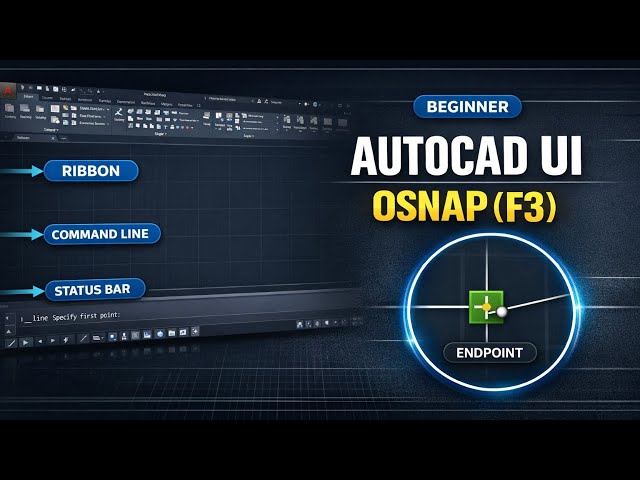

AutoCAD Interface + OSNAP (F3) (Beginner) | Ribbon, Command Line, Status Bar Explained (Part 2)
Jan 25, 2026

AutoCAD beginners: if you feel lost on the screen or your lines don’t connect properly, this video will fix that.
We’ll decode the AutoCAD interface and set up accuracy so your drawings stay clean.
In this lesson we cover:
Application Menu: New, Open, Save, Save As (file discipline)
Ribbon structure: Tabs → Panels → Tools (tool map)
Command Line: what AutoCAD is asking you to do next
Status Bar accuracy: OSNAP (F3), Ortho (F8), Polar (F10), Dynamic Input (F12)
Properties (Ctrl+1): check exact length/angle/layer and correct mistakes
Model vs Layout: basic concept (printing setup later)
Most important: OSNAP.
In CAD, “almost connected” is not connected. OSNAP helps you snap to exact endpoints, midpoints and intersections so you don’t create tiny gaps by mistake.
Next video: hands-on practice with Line, Circle, Rectangle + accuracy exercises.
Follow TheCivilStudies (updates + notes + files):
Instagram: https://www.instagram.com/thecivilstudies/
Website/Notes: https://thecivilstudies.com/
Email (collab/business): [email protected]
Free Resources / Download Links:
AutoCAD Playlist (Part 1 + Part 2): https://www.youtube.com/watch?v=t-crRd2tuNE&list=PLBK2xmUyB-e1SyAF2M_YzDNC3iPjrMCQx
PDF Notes (if any): https://thecivilstudies.com/autocad-interface-2023/
Practice Files (DWG): https://thecivilstudies.com/cad-model-shop/
Show More Show Less #CAD & CAM
#Jobs & Education
#Computer Education