Up next in 10

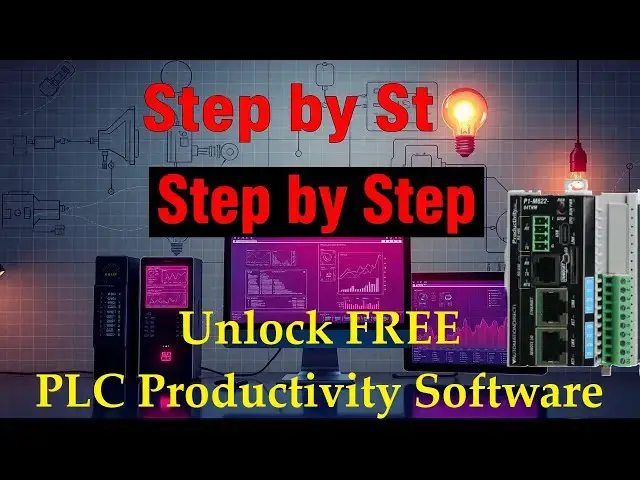
Stop paying for expensive PLC software licenses! Master FREE Productivity Suite installation with simulator access. Finally program without hardware costs.
📖 FULL WRITTEN TUTORIAL + DOWNLOADS
https://accautomation.ca/unlock-free-plc-productivity-programming-software-with-ease-now/
⏱️ TIMESTAMPS
0:00 - Introduction - Why Productivity Suite is FREE
1:08 - System Requirements Check
1:53 - Download the Installer
2:42 - Extract ZIP Files
3:16 - Run Setup as Administrator
3:57 - Accept License Agreement
4:24 - Choose Installation Location
4:57 - Complete Installation Process
5:38 - First Launch and Interface Tour
6:47 - Built-in PLC Simulator Features
7:44 - Connecting to Physical Hardware
8:06 - Ready to Program - Next Steps
📚 WHAT YOU'LL LEARN
Show More Show Less View Video Transcript
0:00
Here's
0:04
something that still catches people off
0:05
guard. The Productivity Suite
0:07
programming software is completely free.
0:10
No demo limitations, no 30-day trials,
0:12
no annual subscriptions eating into your
0:14
budget year after year. Automation
0:17
Direct gives you the full package, every
0:19
feature, every instruction, every tool
0:20
at zero cost. In an industry where
0:23
software licensing fees can rival
0:25
hardware costs, that's not just
0:27
generous, it's revolutionary.
0:29
Whether you're programming a compact
0:31
Productivity 10000 on a packaging line,
0:33
a Productivity 2000 in a water treatment
0:35
facility, or a full-blown Productivity
0:37
3000 system spanning an entire plant,
0:39
you'll use this same software. One
0:42
download, one installation, and you're
0:44
ready to tackle any Productivity PLC
0:46
project that comes your way. Let's walk
0:48
through getting this powerful
0:50
programming environment installed on
0:51
your computer.
0:53
Detailed information contained in this
0:55
video can be found at
0:56
accccclautomation.ca.
0:58
A link has been put in the description
1:00
below. The website offers extensive
1:02
links, references, and coding samples,
1:04
making it a one-stop shop for all your
1:06
automation queries.
1:08
Before you download Productivity
1:10
Software System requirements
1:13
before grabbing the installer, make sure
1:15
your computer meets these minimum
1:16
specifications. The good news is that
1:19
Productivity Suite isn't particularly
1:20
demanding. Most computers will handle it
1:22
just fine. Supported operating systems
1:25
Windows 11, Windows 10.
1:28
Hardware requirements
1:30
and processor multi-core recommended RAM
1:32
8 GB recommended storage 2 GB storage
1:36
space.
1:37
Your display 1024x768
1:40
resolution or higher.
1:42
Connectivity USB port or Ethernet port
1:45
for PLC communication. If you're running
1:48
Windows 11, the software generally works
1:50
without issues.
1:52
Step one, download the installer.
1:55
Head over to the Automation Direct
1:57
support page for software downloads. You
1:59
can find the Productivity Suite
2:01
installer under the software downloads
2:03
under programmable controllers, software
2:05
and firmware downloads. Select
2:07
Productivity Suite to find the download
2:08
link. The file comes as a compressed ZIP
2:11
archive, typically around 400 450
2:13
megabytes depending on the version.
2:15
Clicking the download button opens the
2:16
license agreement popup window. Select
2:19
the I have read and acknowledged and
2:21
select the close button. We can now log
2:22
into our Automation Direct account or
2:24
just enter your email address.
2:28
Select the download button to start the
2:30
download. Save the zip file in a
2:32
location easy to find. I usually create
2:34
a folder called Productivity Suite
2:35
software on my downloads to keep things
2:37
organized. You never know when you'll
2:39
need to reinstall on a different machine
2:41
or help a colleague get set up. Step
2:44
two, extract the zip file.
2:47
Once the download completes, navigate to
2:49
where you saved the file. Right click on
2:50
the zip archive and select extract all
2:52
from the context menu. Windows will ask
2:55
where you want to extract the files. The
2:57
default location works fine, or you can
2:59
choose a specific folder. Wait for the
3:02
extraction to complete. Depending on
3:03
your computer's speed, this might take a
3:05
minute or two. When it finishes, you'll
3:07
have a folder containing the setup
3:09
files.
3:12
[Music]
3:16
Step three, run the setup file,
3:18
Productivity Suite software.
3:21
Open the extracted folder and locate the
3:23
setup executable file. It's usually
3:25
named Pro Suite with a version number.
3:28
In this case, it is Pro Suite 4.5.1.6.
3:32
Right click on the setup file and select
3:34
run as administrator to launch the
3:36
installer. When Windows displays a user
3:38
account control prompt asking if you
3:40
want to allow the program to make
3:41
changes to your computer, click yes to
3:44
proceed. The installation wizard will
3:46
launch, displaying the welcome screen.
3:48
Take a moment to close any other
3:50
applications, especially any previous
3:52
versions of Productivity Suite. If
3:54
you're upgrading before continuing,
3:57
step four, accept the license agreement.
4:00
You can click next on the welcome screen
4:02
to proceed to the license agreement.
4:04
Read through the enduser license
4:06
agreement, EULA. This is standard
4:08
software licensing language covering
4:10
your rights to use the software and
4:12
automation directs terms. Once you've
4:14
reviewed the agreement, select I accept
4:16
the terms of the license agreement and
4:17
click next to continue. You cannot
4:20
proceed without accepting these terms.
4:23
Step five, choose installation location
4:25
and features.
4:28
Since we had a previous version on this
4:29
computer, select replace existing
4:31
instance. The installer will ask where
4:34
you want to install the software. The
4:35
default location is typically C
4:37
back/program files back/automation
4:40
direct back/roductivity suite.
4:44
In our case, we will change the drive to
4:46
D, which has more space. The default
4:48
location works perfectly well most of
4:50
the time. Click next to continue. A
4:52
summary of what and where the software
4:54
will do will be provided.
4:56
Step six, complete the productivity
4:58
software installation.
5:01
Click install to begin copying files to
5:03
your computer. The progress bar shows
5:05
how the installation is progressing.
5:07
This typically takes 5 to 10 minutes
5:09
depending on your system speed. If you
5:11
are enjoying this video, please hit the
5:12
like button below. Keeping up with all
5:15
the latest automation innovations can be
5:17
difficult, so hit the subscribe button.
5:19
Remember to hit the bell beside your
5:21
subscription to receive the
5:22
notifications. After the files are
5:24
copied, you will see the latest version
5:25
release notes. Select next. When the
5:28
installation completes, you'll see a
5:29
confirmation screen. The installer will
5:31
ask you to select done. This will
5:33
install the driver and close the
5:35
installation wizard.
5:37
Step seven, first launch and
5:38
verification.
5:41
Start the productivity suite software
5:43
via the desktop icon or the start menu
5:45
in Windows. When Productivity Suite
5:47
opens for the first time, you'll see a
5:48
splash screen followed by a what's new
5:50
page in the main programming
5:51
environment.
5:54
On the what's new page, you will see the
5:56
latest features of the software. The
5:57
bottom left corner of the screen lets
5:59
you prevent the dialogue from showing on
6:01
startup again. This can always be
6:03
accessed in the help menu.
6:06
A startup dialogue will appear offering
6:08
options to create a new project, open an
6:10
existing project, or read a project from
6:12
a connected CPU.
6:14
Take a moment to explore the interface.
6:16
The workspace is organized into dockable
6:18
panes that you can arrange to suit your
6:20
programming style.
6:23
Key areas include
6:25
project explorer. Navigate your project
6:27
structure.
6:29
Hardware configuration. Define your PLC
6:31
and IO modules.
6:34
Ladder editor. Write and edit your
6:36
control logic.
6:38
Tag database. Manage all your program
6:40
variables.
6:41
Instructions pane. Access the full
6:43
instruction set.
6:47
The built-in simulator. Your secret
6:49
weapon. Here's where things get exciting
6:53
for learners and experienced programmers
6:54
alike. Starting with version 3.8,
6:57
Productivity Suite includes a full PLC
6:59
simulator. No hardware required. The
7:02
simulator emulates Productivity
7:04
Thousand, Productivity 2000 and
7:05
Productivity 3000, CPUs, all basic IO
7:08
modules, both analog and digital Modbus
7:11
TCP server client connections. This
7:14
means you can write, test, and debug
7:15
your programs before you ever connect to
7:17
physical hardware. For those learning
7:19
PLC programming, this removes the
7:21
barrier of needing expensive equipment
7:23
just to practice. For professionals, it
7:26
means you can develop and verify the
7:27
logic before the commissioning day. To
7:29
access the simulator, look for the
7:31
simulator button near the CPU selection
7:33
options in the toolbar. Select your
7:36
target CPU type, configure your virtual
7:38
IO, download your program, and run it,
7:40
all without a physical PLC in sight.
7:43
Connecting to physical hardware.
7:46
When you're ready to work with actual
7:48
PLC's, Productivity Suite makes the
7:50
connection process straightforward. The
7:52
PLC connections dialogue displays all
7:54
available controllers on your network.
7:56
The software even shows PLC's on
7:58
different subnets and lets you change
7:59
their IP addresses directly from within
8:01
the programming environment.
8:06
You're ready to program.
8:08
With Productivity Suite installed, you
8:10
have access to one of the most capable
8:12
PLC programming environments available,
8:14
and it didn't cost you a dime. The
8:16
tagbased architecture means you're not
8:18
fighting with fixed memory addresses.
8:19
The autodiscocovery features save
8:21
configuration time and that integrated
8:23
simulator lets you practice and verify
8:25
without risk. Next time we'll look at
8:28
establishing communication with your
8:30
productivity PLC and creating your first
8:32
program. The Productivity Mini PLC
8:35
series from Automation Direct and
8:37
specifically the P1 M62216DR
8:40
is a compact powerhouse that packs
8:41
serious capability into a surprisingly
8:44
small footprint. To learn more, click
8:46
here. Click here to build digital twins
8:48
of 3D virtual machinery, test control
8:50
logic, and learn automation without
8:52
expensive hardware using machine
8:54
simulator.
#Industrial Materials & Equipment