Up next in 10


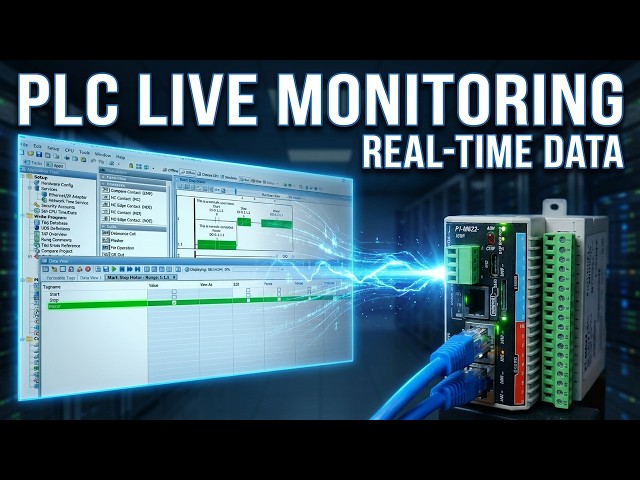
Discover how to monitor and test the program with the Productivity P1-M622-16DR mini PLC. Practical tutorial you can use today.
📖 FULL WRITTEN TUTORIAL + DOWNLOADS
https://accautomation.ca/p1-m622-16dr-mini-plc-monitoring-and-testing-the-program/
⏱️ TIMESTAMPS
0:00 Introduction
0:54 Productivity program monitoring Mini PLC
2:09 Click OK to close the options window. We
3:59 Forcing the IO Mini PLC monitoring
6:17 The toggle IO view lets you test all of
8:21 You will now see that the value went on
📚 WHAT YOU'LL LEARN
• P1-M622-16DR Mini PLC Monitoring and Testing the Program! on the Productivity 1000/2000 PLC
• Practical, hands-on tutorial approach
• Real-world tips from manufacturing experience
🔗 MORE RESOURCES
▶ Series page: https://www.accautomation.ca/series/productivity-1000-plc/
Show More Show Less View Video Transcript
0:04
We will now look at monitoring and
0:06
testing our productivity mini PLC
0:07
program. The productivity suite software
0:09
provides powerful tools for us to
0:11
monitor and test our programs. Last time
0:14
we created our first program, a simple
0:16
start stop motor circuit and transferred
0:18
it to our connected P1 M62216DR
0:21
mini PLC. We will monitor our ladder
0:23
using the ladder editor window and
0:25
display the information in several
0:26
different ways. Data view is a powerful
0:29
tool for testing and viewing our
0:30
program. We will force the IO, toggle
0:32
the IO view, and graph our tags to test
0:34
our PLC logic circuit. Let's get
0:37
started. Detailed information in this
0:39
video is available at acccautomation.ca.
0:42
A link has been put in the description
0:44
below. The website offers extensive
0:46
links, references, and coding samples,
0:48
making it a one-stop shop for all your
0:50
automation queries. accutomation.ca C
0:54
productivity program monitoring mini
0:57
PLC.
0:58
Currently, we are connected to the P1
1:00
mini PLC through our Ethernet port. We
1:03
can select the tag details and
1:04
instruction comment icons on our ladder
1:06
logic diagram. Select the monitor icon
1:09
on the productivity suite programming
1:10
software. This will provide a visual
1:13
indication in the ladder logic diagram
1:14
of the status and values of our program.
1:17
The monitoring mode on the ladder editor
1:19
offers two display modes. The default
1:21
shows the coils with green on or red off
1:25
line color. This may be preferable when
1:27
programming and troubleshooting on a
1:29
desktop. The other monitoring mode is
1:31
called block fill. This will reflect the
1:33
states of your logic with green on fill
1:35
or red off line color for your contacts
1:38
and coils. It will make viewing the
1:40
states of your logic much easier on
1:42
plant floors and when monitoring the
1:44
logic from a distance. Call up the
1:46
options menu by selecting tools options
1:48
ladder tab from the main menu. Select
1:50
the use block fills on contacts and
1:52
coils under the monitor display option.
1:54
Editor display options. While in the
1:56
latter options menu, select rung comment
1:58
and tag detail under editor display
2:00
options.
2:02
This will automatically display the
2:03
documented items. When we open our
2:05
project, click apply to change these
2:07
items.
2:09
Click okay to close the options window.
2:11
We can now see the block fill option in
2:13
action. With our start stop motor
2:14
circuit loaded on the P1 M62216DR,
2:18
the contacts and coils will now show
2:20
solid green when on and red outline when
2:22
off, making it much easier to see the
2:24
logic state at a glance.
2:27
Data view mini PLC monitoring program.
2:30
The data view panel allows you to
2:32
monitor and manipulate tag values in the
2:34
CPU. Multiple data view tables tabs can
2:37
be made within a data view window. We
2:39
can call the data view panel a few
2:41
different ways. Select data view from
2:43
the monitor and debug heading under the
2:45
applications tools. We can also use the
2:47
main menu tools data view. The keyboard
2:50
shortcut is control + shift + f3. Our
2:54
data view window panel will now show on
2:56
our desktop. The forcible tags tab will
2:59
be shown as the default. Some of the
3:00
following parameters are shown. Tag
3:02
name. This is the name that we specified
3:04
in the tag database. Modbus address. If
3:07
a mod bus address was assigned in the
3:09
tag database, it would appear here.
3:11
value. This is on checked or off
3:14
unchecked. Edit. The edit indicates the
3:16
tag name to modify. Force. Forcing the
3:19
tag name will either set or reset the
3:21
current value of the bit.
3:24
If a parameter is not shown, right click
3:26
on the headings. You can now show or
3:28
hide the different parameters. For our
3:31
P1 M62216DR
3:33
mini PLC start stop circuit, you will
3:35
see our tags. DI0.111
3:38
start. DI0112
3:40
stop. DO011.1
3:42
motor. Our program is currently in stop
3:45
mode. This is shown in the status icons
3:47
at the top of our ladder logic program.
3:49
Using the switch on the CPU, change it
3:51
from stop to run.
3:59
Forcing the IO mini PLC monitoring
4:01
program.
4:03
We will force the start bit by checking
4:05
the force. You will notice the lock next
4:07
to the value. This indicates that the
4:09
bit is forced. The actual input status
4:12
does not matter. The force of the bit on
4:14
or off will override. Click the edit.
4:16
This will instruct the software to
4:18
toggle the status from on to off or from
4:20
off to on depending on the current state
4:22
of the forced bit. In our case, the bit
4:25
is off, so we want to force it on.
4:26
Clicking the send edits icon will now
4:28
set the force on the selected bit.
4:30
Start. Our program will now display the
4:32
forced bit indicated by the lock icon
4:34
next to the contact with the start input
4:36
forced on. You will see the start
4:39
contact DI0.181.1
4:41
turns green with a lock icon. The motor
4:43
output DO0.1.1
4:45
turns on and seals in the physical relay
4:47
output on the mini PLC energizes.
4:50
Selecting the edit bit again for the
4:52
start and clicking the send edits will
4:53
force the bit off. Our program will
4:55
reflect the off condition of the force
4:57
but still show the start as being forced
4:58
off by the lock icon. Removing forces.
5:01
To remove a force from a bit, uncheck
5:03
the force checkbox for that tag and
5:05
click send edit. The lock icon will
5:07
disappear and the bit will return to
5:09
reflecting its actual physical state.
5:11
Important note on forcing. Forces are
5:13
powerful troubleshooting tools, but
5:15
always remember to remove them before
5:17
leaving the machine. A forgotten force
5:19
can cause unexpected behavior and safety
5:21
issues.
5:23
Monitor a rung in data view mini PLC.
5:27
The productivity suite software will
5:29
also allow us to create a data view tab
5:31
by selecting the rung or rungs and
5:33
right-clicking to show the menu. Select
5:36
monitor and data view. A window will
5:37
appear allowing you to either create a
5:39
new tab or append to an existing one.
5:41
This will allow us to combine all tag
5:43
names into a single section of our
5:45
program for testing and monitoring. In
5:47
our case, we will create a new tab.
5:49
Select okay. Our tag names for the rungs
5:51
are displayed in a new data view tab for
5:54
our start stop circuit. This includes
5:56
DI0.11.1.1
5:58
start input, DO0.1.1.1
6:01
motor output, seal contact, DI0.1.1.2
6:06
stop input. This is extremely useful
6:08
when troubleshooting. You can see all
6:10
related tags in one organized view. IO
6:13
view mini PLC monitoring program.
6:17
The toggle IO view lets you test all of
6:19
your systems inputs and outputs before
6:21
running your program. Select the plus
6:24
sign next to the base unit name. A
6:26
picture of the P1 mini PLC will be
6:28
displayed. The inputs and outputs for
6:30
this PLC will also be shown. We can set
6:32
the outputs by clicking the output bit.
6:34
For the P1 M622 16DR mini PLC, the IO
6:38
view will show eight DC inputs DI01.1.1
6:42
through DI01.1.8.
6:44
Eight relay outputs DO0.11.1
6:47
through DO0.1.1.8.
6:49
This is a great way to verify your
6:51
wiring before running the actual
6:52
program. You can toggle each physical
6:55
input and watch it change in the IO
6:57
view. Click on outputs in the IO view to
6:59
manually energize the relays. Verify all
7:02
connections are correct before putting
7:03
the system into automatic mode. Graph
7:06
view mini PLC monitoring program.
7:10
The toggle graph view option allows you
7:12
to graph tag values. This is an
7:14
excellent way of troubleshooting your
7:15
PLC logic. Click and drag your tag names
7:18
over to the tags in the graph view to
7:20
start graphing the values. See the help
7:22
menu for all of the different options
7:23
for the graphing functions. The graph
7:26
view is particularly useful for timing
7:28
analysis of your logic, seeing the
7:30
sequence of events when inputs change,
7:32
troubleshooting intermittent issues,
7:34
documenting the behavior of your
7:36
program. For our start stop circuit, you
7:39
could graph all three tags, start, stop,
7:41
motor, and see the exact timing
7:43
relationship between pressing start, the
7:44
motor turning on. The seal contact
7:46
engaging, and the response to the stop
7:48
input. If you are enjoying this video,
7:50
please hit the like button below.
7:52
Keeping up with all the latest
7:53
automation innovations can be difficult,
7:55
so hit the subscribe button. Remember to
7:58
click the bell next to your subscription
7:59
to receive notifications.
8:02
Data view options.
8:04
The data view options menu icon opens
8:07
the options window as we did at the
8:08
beginning of this post. You can change
8:10
different colors and options for the
8:12
data view window. Select use block fills
8:15
on discreet and click apply and then
8:17
okay.
8:21
You will now see that the value when
8:22
unchecked will be a solid green block.
8:25
This makes it much easier to quickly
8:27
scan a list of tags and see which ones
8:29
are active.
8:31
Now that we understand some of the
8:32
monitoring tools, let's put them to use.
8:34
Testing our start stop motor circuit on
8:36
the P1 M62216DR.
8:39
Test one force testing.
8:42
Open data view and find DI0.0.01.
8:45
Start. Check edit and force. Then click
8:48
send edit. Uncheck force and click send
8:51
edit to remove the force. The motor
8:53
should turn off unless physically
8:55
sealed.
8:59
Test two. Stop override.
9:02
Force the start input on. Force the stop
9:05
input on. This simulates pressing stop.
9:08
Verify motor turns off. Stop should
9:10
always override start. Remove all forces
9:13
when done.
9:17
Next time we will look at wiring our
9:19
physical inputs and outputs and monitor
9:21
our ladder logic in the Productivity
9:22
Mini PLC P1 M622 16DR.
9:27
The Productivity Mini PLC series from
9:29
Automation Direct and specifically the
9:31
P1 M622 16DR is a compact powerhouse
9:35
that packs serious capability into a
9:37
surprisingly small footprint. To see our
9:39
first ladder logic, click here. Click
9:41
here to build digital twins of 3D
9:43
virtual machinery, test control logic,
9:45
and learn automation without expensive
9:47
hardware using machine simulator.
#Business & Industrial
#Industrial Materials & Equipment
#Computers & Electronics
#Jobs & Education