0:03
globally airlines handle over 4 billion
0:05
bags annually with 99.6% arriving on
0:09
time learn how to automate airport
0:11
baggage claim systems using PLC
0:13
programming this post will explore using
0:16
programmable logic controllers to
0:18
streamline the baggage handling process
0:19
increasing efficiency and reducing
0:21
delays we'll take you through the
0:23
step-by-step process of designing and
0:25
programming a Click PLC airport baggage
0:28
claim machine this will cover everything
0:30
from setting up the PLC to writing the
0:32
code whether you're a beginner or an
0:34
experienced programmer this method is
0:36
ideal for anyone seeking to enhance
0:38
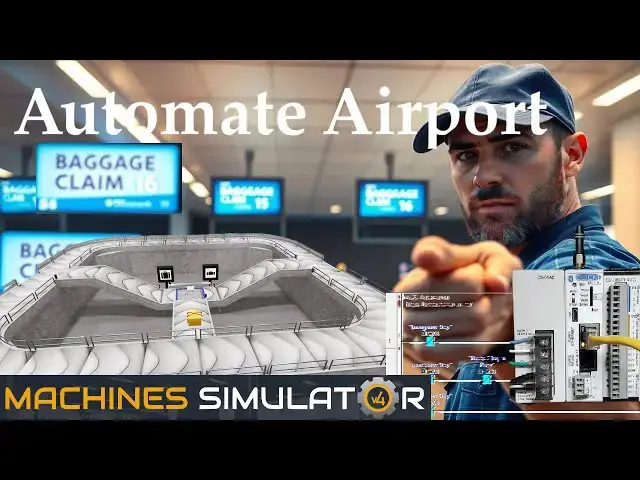
their PLC programming skills the airport
0:41
baggage belt is just one of many
0:42
machines in the machine simulator MS
0:44
also known as easy PLC this baggage belt
0:47
claim features sensors to determine the
0:49
size of the bag and directs it down one
0:51
of two different ramps the click
0:53
programming software will be used to
0:55
program this click plus PLC modbus TCP
0:58
Ethernet will connect the Click to the
1:00
machine simulator easy PLC discrete
1:03
inputs and outputs will be controlled
1:04
from the machine simulator client to the
1:06
Click PLC server we will demonstrate how
1:09
this airport baggage belt is programmed
1:11
using the five-step program development
1:14
process let's get started detailed
1:16
information contained in this video can
1:21
accccautomation.ca a link has been put
1:23
in the description below
1:28
task the first step in developing a
1:30
click or any PLC program is determining
1:33
what must be done start the machine
1:35
simulator MS select the machines button
1:38
on the main page or select machines from
1:39
the main menu at the machine simulator
1:44
window all available pre-built machines
1:47
for practicing PLC programming will now
1:49
be displayed move your mouse over the
1:50
airport baggage machine this is the
1:53
machine that we will be programming
1:54
three items will be displayed click the
1:56
information button on the top right of
1:57
the screen this will show you a
1:59
description of the airport baggage belt
2:05
station select close the airport baggage
2:07
simulator has a demo mode this will
2:10
allow you to observe the machine's
2:11
operation enabling us to understand the
2:13
basics of how it functions select the
2:16
demo mode for the baggage belt station
2:24
the demonstration mode will only show
2:26
you the operation the airport baggage
2:28
belt will manage the bags according to
2:30
the following rules one small bags must
2:33
be sent to the right two big bags must
2:35
be sent to the left programming must be
2:37
created to ensure the output bag doesn't
2:39
collide with the one on the conveyor to
2:46
up to remove the bags pick them up with
2:48
the mouse and put them on the floor move
2:50
around the 3D virtual environment the
2:53
icons at the top of the window enable
2:55
you to navigate this 3D environment the
2:57
first icon is the default selection this
3:00
will allow you to move around without
3:01
bumping into the components the last
3:03
icon will automatically show you around
3:05
this virtual environment the first
3:07
person mode will mimic a person in your
3:09
3D learning world the third person will
3:11
show you an operator and their
3:12
relationship to the bagging belt station
3:14
machine once we understand what needs to
3:16
be done we can proceed to the next step
3:18
in developing the click PLC program
3:48
step two define the inputs and
3:51
outputs at the top of the baggage belt
3:53
simulator window the view IO will
3:55
display the inputs and outputs required
3:57
for this example the outputs are on the
4:00
lefth hand side and the inputs are on
4:02
the right hand side while still in demo
4:04
mode you can see the operation of the
4:05
inputs and outputs the airport baggage
4:08
claim belt will require seven digital
4:10
outputs and 10 digital inputs if you are
4:12
unsure what the output or input is doing
4:14
start the baggage belt station in start
4:42
select view IO at the top middle of the
4:44
sorting station simulator window we can
4:46
manually run the airport baggage claim
4:48
without a control system like a click
4:50
PLC clicking on the outputs will allow
4:53
you to turn them on manually you can
4:55
then monitor the inputs to see their
4:57
operation the restart button at the top
4:59
of the machine simulator window resets
5:01
the scene to its starting point the
5:03
following table defines the inputs and
5:05
outputs IO and Modbus addresses we will
5:08
use in the Click PLC for this program we
5:11
can use the Click PLC software to view
5:13
the address picker and determine the
5:14
program's required Modbus
5:20
addresses step three develop a logical
5:22
sequence of operation
5:25
a flowchart or sequence table is used to
5:28
understand the process that needs to be
5:29
controlled thoroughly it must also
5:32
answer questions like the
5:34
following what happens when electrical
5:37
power and pneumatic air is
5:41
redundancy this step saves you a lot of
5:44
work by helping you understand
5:45
everything about the operation it will
5:47
help prevent you from continually
5:49
rewriting the PLC program logic knowing
5:51
all of these answers up front is vital
5:53
in developing the PLC program
5:56
the emergency stop button will start and
5:58
stop our airport baggage claim station
6:00
the top main conveyor will always be
6:02
running moving the bags around for
6:03
passengers to select their luggage if no
6:06
bags are sensed with photoelectric
6:08
sensors 1 and three a work part output
6:10
will be energized this will create a bag
6:12
and move it to the distribution table
6:13
when photo 2 senses the bag the
6:15
distribution run output will be on as
6:17
the bag moves toward photo 3 if photos
6:20
three and one are on this is a large bag
6:22
the distribution run left will turn on
6:24
sending the bag to the left when photo 9
6:26
sees the bag the left conveyor turns on
6:28
sending it up until it sees photo if
6:30
photo seven or a time delay is not on
6:33
then the bag will enter the top main
6:34
conveyor this is a small bag if photos
6:36
three and not one are on the
6:38
distribution run to the right will turn
6:39
on sending the bag to the right when
6:41
photo 8 sees the bag the right conveyor
6:43
turns on sending it up until it sees
6:45
photo 4 if photo six or a time delay is
6:47
not on then the bag will enter the top
6:49
main conveyor if you are enjoying this
6:51
video please hit the like button below
6:53
keeping up with all the latest
6:54
automation innovations can be difficult
6:56
so hit the subscribe button remember to
6:58
hit the bell beside your subscription to
7:01
notifications creating the sequence of
7:04
operations is the hardest part of the
7:06
programming development process getting
7:08
all of the conditions down for each
7:10
output based on the inputs is critical
7:12
let me know if you agree in the comments
7:16
a PLC programmer must know everything
7:18
about the sequence and operation of the
7:21
programming did you know that an
7:23
estimated 64 million bags are mishandled
7:25
each year at airports imagine the chaos
7:27
that could be avoided with automation
7:29
ask questions or review existing
7:31
documentation to ensure you understand
7:32
the logical steps involved in the
7:35
operation step four develop the PLC
7:39
writing the ladder logic code for our
7:41
click PLC baggage belt station example
7:44
will be the next step in our program
7:45
development we will use the click PLC
7:47
programming software and a click plus
7:57
CPU call up the address picker from the
7:59
home tab select the display modus option
8:01
to see the addresses used for our
8:03
communication we can now enter the names
8:05
for our inputs and outputs from the
8:06
machine simulator for our airport
8:07
baggage claim machine detailed
8:09
information on the click PLC can be
8:11
found in our click PLC series our
8:13
program will be written using ladder
8:14
logic ladder diagram do not worry that
8:17
we do not document all of the names in
8:18
our program this can be added later as
8:20
we need further variables in our
8:27
program save and transfer our program to
8:29
the click PLC it is good practice to
8:32
save often during programming this can
8:33
save you a lot of time if the unexpected
8:35
happens such as a computer crash or a
8:51
outage we will first program the top
8:54
main conveyor the modular conveyor
8:56
advance will be on when the emergency
8:58
stop is not activated the emergency
9:00
button input will be a condition to run
9:02
any rung of our ladder logic
9:14
program when we do not have the photo 3
9:17
bag in place and it is not rotating left
9:19
or right on the distribution table the
9:21
workpl creator will be activated this
9:23
will create the next bag to be placed on
9:25
our airport baggage claim our
9:27
distributed run output will always be on
9:29
when the emergency stop is not
9:43
activated when a bag is in place with
9:45
photo 3 and photo one it indicates a
9:47
large bag and we are not running the
9:49
left conveyor to bring it to the main
9:50
conveyor then set the distribute run
9:52
left output this distributed run left
9:54
will be reset on the trailing edge of
9:56
the photo 9 large bag sensor
10:20
when the distribute rotates left output
10:22
is on we will set an internal bit C1 to
10:24
run the conveyor to the main if the
10:26
internal bit is on and we do not have
10:28
objects in the way to move the bag to
10:30
the main conveyor or not the large bag
10:32
photo end sensor then the modular
10:34
conveyor left will be on our internal C1
10:37
bit will be reset on the trailing edge
10:44
5 this is when the bag leaves the
10:47
conveyor and rotates on the main one
11:11
when a bag is in place with photo 3 and
11:13
not photo one it indicates a small bag
11:15
and we are not running the right
11:17
conveyor to bring it to the main
11:18
conveyor then set the distribution run
11:24
output this distributed run rate will be
11:27
reset on the trailing edge of the photo8
11:33
sensor when the distribute rotates right
11:35
output is on we will set an internal bit
11:37
C2 to run the conveyor to the main if
11:40
the internal bit is on and we do not
11:41
have objects in the way to move the bag
11:43
to the main conveyor or not the small
11:45
bag photo 4N sensor then the modular
11:47
conveyor right will be
12:02
on our internal C2 bit will be reset on
12:05
the trailing edge of photo 4 this is
12:07
when the bag leaves the conveyor and
12:08
rotates on the main one
12:31
the latter logic rung program for the
12:34
objects in the way on the main conveyor
12:36
is similar on the leading edge of photo
12:38
7 and not the time delay we will set the
12:40
internal bit C11 on to indicate objects
12:42
are in the way so no bags must be moved
12:45
to the main conveyor this is for the
12:47
large bags being moved to the main
12:49
conveyor the leading edge oneshot is
12:51
used because the photo7 sensor must be
12:53
moved to allow the program to work
12:54
correctly you will notice that the
12:56
conveyor movement of the large bag will
12:57
sometimes trigger the photo 7 sensor
12:59
before it gets onto the main conveyor
13:01
when photo 6 and not the time delay we
13:04
will set the internal bit C12 on to
13:06
indicate objects are in the way so no
13:08
bags must be moved to the main conveyor
13:10
this is for the small bags being moved
13:12
to the main conveyor
13:16
save and download the PLC
13:25
program our program is now complete you
13:28
can download this program below
13:54
we communicate with the machine
13:55
simulator using Modbus TCP Ethernet or
13:58
wireless the ports will be set up with a
14:00
fixed IP address so the machine
14:02
simulator Modbus client can find the
14:04
Modbus server select Modbus TCP from the
14:07
communication port on the function tab
14:08
of the navigation window you can also
14:10
use the main menu bar setup bar comport
14:13
the comport setup window will now be
14:15
displayed click on the setup button for
14:17
port one you can now set the static IP
14:19
address on the compport setup details
14:21
window make a note of the IP address we
14:23
will need this to connect to our machine
14:41
select Modbus TCP setup from the main
14:44
menu shocks setup ensure the enable
14:46
Modbus TCP server is checked for our
14:48
port ensure that the PLC is in run mode
14:51
select status to see the active status
14:52
of the inputs and outputs on the ladder
14:55
logic step five test the program we will
14:59
use Modbus TCP on our Click Plus PLC to
15:02
communicate with the easy PLC machine
15:04
simulator call up the airport baggage
15:11
the status of the machine simulator will
15:13
be at the bottom left of the screen
15:15
currently we have no PLC connected
15:17
select IO drivers at the top of the
15:19
screen the machine simulator IO number
15:21
will be displayed ensure we select more
15:23
IO than required for our baggage belt
15:25
machine the easy PLC driver is selected
15:27
by default under the driver pulld down
15:29
menu select Modbus driver this driver
15:31
supports both Modbus TCP Ethernet and
15:33
Modbus RTU serial protocols
15:37
select the configure
15:41
button we can now enter the information
15:44
for our Modbus driver select TCP IP this
15:47
means the Ethernet port on the computer
15:49
will communicate with the click PLC the
15:51
digital inputs from MS to the click PLC
15:54
will be C101 to C107 this will start at
15:57
address 16484 due to the offset of 1
16:01
digital outputs from MS to the click PLC
16:04
will be C201 to C2110 this will begin at
16:07
addressing 584 due to the offset of one
16:10
select the okay button you will now see
16:13
the inputs and outputs specified for the
16:15
mod bus driver we can now manually
16:17
assign the driver outputs to the PLC
16:19
inputs and the driver inputs to the PLC
16:24
outputs however the automatic assignment
16:26
works well and will save you time select
16:28
automatic assignment from the driver
16:30
option in the main menu
16:32
this will automatically assign the PLC
16:34
IO to the machine simulator IO select
16:37
start driver and exit from the main
16:45
menu on the bottom left side of the
16:47
window the driver communicates with the
16:51
PLC ensure that the click PLC is in run
16:54
mode we can see the operation of our
16:56
baggage belt machine test the machine to
17:00
we know from our sequence of operation
17:02
that the sensor entry to the main
17:03
conveyor for the large bag will falsely
17:06
trigger on some of the bags mechanically
17:08
this must be moved our program used the
17:10
one shot to compensate for the sensor
17:11
location select view IO to know the
17:13
input and output status of the machine
17:16
simulator the digital inputs and outputs
17:19
of the MS will correspond to the PLC
17:31
using the data view window of the click
17:33
programming software we can also watch
17:35
the input and output
17:39
operations using a machine simulator MS
17:42
to test the program will ensure that our
17:44
program works troubleshooting is quickly
17:46
done without damage to any physical
18:04
you can practice your modification and
18:06
debugging by modifying the sorting
18:08
station operation in the following way
18:10
move the photo before the large bag
18:11
opening to eliminate false triggering
18:13
you will also have to modify the one
18:16
program add a counter for each of the
18:18
sorted bags the counter will show the
18:20
number of large and small bags on the
18:21
appropriate exit conveyor add a reset to
18:25
counters calculate the rate of bags per
18:27
hour this can be calculated using the
18:29
PLC ladder logic and indicate when we
18:31
need additional airport baggage claim
18:34
machines let me know how you make out in
18:36
the comments below to learn more about
18:39
using the machine simulator to develop
18:41
your PLC programming skills click here
18:44
click here to learn more about the Click