0:02
Hello guys, in this live stream I will
0:06
a ultimate VS Code extract extension
0:08
released by Microsoft. It's actually
0:14
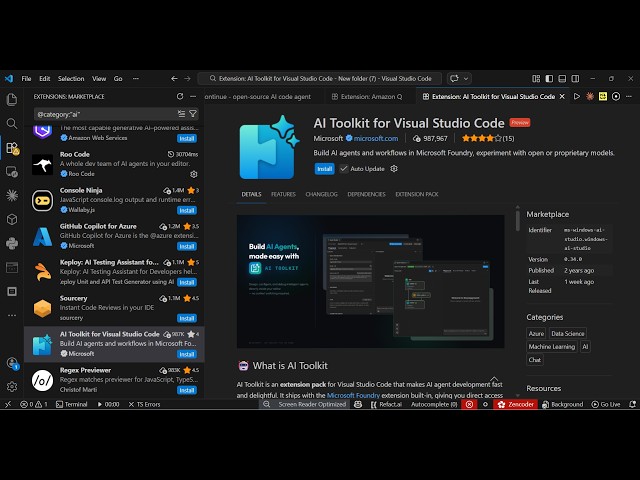
If you simply type AI toolkit,
0:17
uh this extension will come Microsoft AI
0:22
developing applications for VS Code.
0:26
So, it's a verified extension developed
0:27
by Microsoft. It builds out AI agents
0:31
for specifically coding and programming.
0:33
It builds out a complete coding
0:35
application from single prompts.
0:37
So, click on install to simply install
0:43
I personally used this extension. It's
0:45
really good extension.
0:48
It has all the features such as the
0:50
playground section, the agent builders,
0:52
agent inspector, everything.
1:01
So, once it get installed, you can
1:06
see it will appear right here in the
1:22
So, you can see it's still installing
1:25
So, once it completes, you will get the
1:27
notification that it's complete.
1:30
So, now it's successfully installed.
1:32
So, in the sidebar section, you will see
1:39
Right here, AI toolkit. Simply activate
1:43
So, from here you will set
1:48
You can my resources you see right here.
1:51
You can create a new project. Simply
1:58
sign in to Azure account.
2:03
Or you can have developer tools
2:05
like this create agent.
2:11
So, you can create a agent here. Create
2:13
in code with full control.
2:15
Design without code. So,
2:24
So, for this you do need to sign in with
2:29
This is necessary because it's a
2:31
Microsoft product. That's why you do
2:33
need to sign in. You can sign in with
2:36
your GitHub account as well.
2:38
So, totally fine. So, you provide the
3:01
Just wait. Let me complete the
3:03
authentication right here.
3:16
Once you authenticate,
3:19
it will automatically
3:21
complete the authentication. And right
3:23
here you'll be able to
3:25
select your subscription.
3:36
when the image to PDF editor.
3:40
So, yeah. So, this is actually the
3:41
playground section of this extension,
3:44
which is totally free, I think.
3:46
From here you can select whatever GitHub
3:48
account you want to select.
3:59
So, now you can see it's actually
4:07
So, from here you can set the
4:08
instructions. It's actually using the
4:46
So, in this easy way you can generate
4:49
Uh it's a very good extension. So,
4:52
it generated a fully fledged image to
4:54
PDF application for us.
4:57
You can click on new agent to
5:00
deploy another agent.
5:06
This is the extension right here.