Up next in 10

Angular 13 ngx-spinner Example to Show Loading Progressbar or Spinner Animation on Page Load in TS
Dec 22, 2025

Buy the full source code of application here:
https://buy.stripe.com/cN27vMbZv8gMgQ8b9Y
Show More Show Less View Video Transcript
0:06
Uh hello friends today in this tutorial
0:08
I will be showing you that how to show a
0:10
loading progress bar animation on page
0:12
load inside your angular 13 application.
0:16
So basically whenever you develop any
0:18
sort of application you need a some kind
0:20
of animation progress bar to show
0:22
whenever you load load the page for the
0:25
very first time or you retrieve any sort
0:27
of data from a API. So basically we will
0:30
be using this dependency which is called
0:32
as ngx spinner and this is the demo of
0:35
the spinner app uh animation. You will
0:38
see that this is a loading progress bar
0:40
or spinner animation. So this can be of
0:44
any color. You can have white, red,
0:47
green. This will appear for 5 seconds.
0:50
You can just customize all these
0:51
options. You can change the color and
0:53
also you can change the timing of it.
0:55
You can change the text of it also. font
0:58
sizes all the stuff I will be showing
1:00
you in this video step by step. So this
1:03
is the progress bar we will be building
1:04
in this video inside our angular
1:06
application and the dependency which I
1:09
I'm using for this is ngx spinner. I
1:12
have written a complete blog post
1:13
explaining you step by step all the
1:15
instructions for using this dependency.
1:18
So the link will be there inside video
1:20
description. So in order to install this
1:22
simply you need to execute this command
1:24
which is npm ngx spinner. So it has
1:27
various options. It has angular 13x
1:29
support. Custom spinners can be there.
1:32
It also has image support also and uh I
1:37
will be showing you step by step how to
1:39
implement this. So you can just go to
1:42
the edit option and simply you can go to
1:44
the video description to get all the
1:46
source code that I will use in this
1:48
video. So let's get started guys in
1:51
order to build this. So first of all I
1:53
will make a new project.
1:56
So I will make a new directory which is
1:58
spinner. I will cd into this. So I will
2:01
make a new angular js project which is
2:04
custom spinner.
2:07
So this will create a new angular
2:09
project inside this directory. So we
2:12
don't need routing. We will use css. So
2:15
this will install all the packages.
2:18
So if you just go to npmjs.com
2:22
guys and simply search for this
2:23
dependency which is called as ngx
2:26
spinner. So this is the dependency that
2:29
we are using for this tutorial. So it's
2:31
a very popular dependency which is you
2:35
can see 96,000 weekly downloads are
2:38
there. So it is crossplatform every
2:42
browser support it. So various
2:45
animations it supports. So basically
2:49
you can see a demo here. It will tell
2:51
you.
3:06
So you can go to load awesome to get all
3:10
the animations that it supports. So
3:12
these are all the animations that it can
3:15
support. So you just need to include
3:17
their CSS files.
3:19
So we will see inside the code how to
3:22
implement this. So
3:26
let me close all the projects and start
3:28
from scratch. So here you can see that
3:31
guys now it has created this. So we can
3:34
move into the folder
3:36
and open this inside Visual Studio Code
3:38
Text Editor. So this is your brand new
3:41
Angular project. So simply we need to
3:43
first of all install the library. So we
3:45
will simply say npm ngx spinner. So this
3:49
will install this library inside our
3:51
angular project. Now we can start this
3:54
angular project ngs.
3:58
So this will start the project at 4200
4:00
port number. So now the very first thing
4:03
guys we need to do is that we need to
4:05
import this module. So just go to app
4:07
folder go to app domodule.ts ts file and
4:11
right here we need to import the
4:15
ngx spinner module.
4:19
So this needs to be imported from ngx
4:22
spinner which we have installed. You
4:24
will see that.
4:26
And for this guys, we also need the
4:28
built-in browser animation module inside
4:31
Angular
4:33
browser animations
4:37
module.
4:39
So this will be coming from at the rate
4:42
angular
4:49
platform browser.
4:54
animations
4:56
browser animations module. So this is
4:58
built in. You don't need to install
5:00
this. So
5:03
So now we need to import this. So inside
5:06
our imports array, we need to add
5:08
browser animations module and also
5:13
uh ngx spinner module.
5:16
So now the this thing is complete. So
5:18
you can close this file. So now open app
5:20
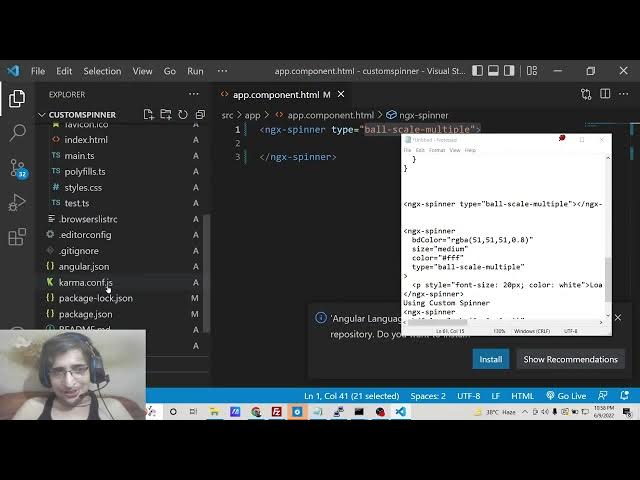
dot component dot html. So right here
5:24
inside this markup you just need to
5:27
include
5:29
the tag which is ngx spinner.
5:34
So now you need to provide the type of
5:37
the animation that you need to execute.
5:39
So inside type parameter so we need to
5:42
show ball scale multiple animation.
5:46
So as I told you these are the
5:48
animations names here you will see that
5:50
all these animations are available to
5:52
you. So you can just select the name
5:55
depending upon which animation that you
5:57
like. So you can just provide the name
6:00
of the animation. So now to import this
6:02
you also need to import it CSS file. So
6:05
right here inside your angular.json file
6:08
you need to import this inside your
6:11
styles array
6:13
right here. So just put a comma and uh
6:20
inside your node modules folder
6:23
you will have ng spinner ngx spinner
6:27
and here inside the animations folder
6:30
you will have all the animations CSS
6:32
files.
6:33
So manually you need to import this CSS
6:37
for which you need to display. So ball
6:40
scale multiple CSS.
6:43
So this is a CSS file that we have
6:45
imported here.
6:47
So in the future if you want to display
6:49
more animations loading bar you need to
6:52
include it CSS file like this. So after
6:56
this
6:58
we now need to go to app do.component.ts
7:01
file.
7:03
So after this what we need to do
7:07
we need to import the ng spinner service
7:19
ng spinner service this needs to be
7:21
imported from ngx spinner.
7:25
So right here inside our component we
7:27
will have our constructor. This service
7:29
will be passed as a private
7:32
service which will be of the type
7:36
this is empty constructor. So you just
7:38
need to initialize this inside our
7:41
constructor. So after this we have this
7:44
life life cycle method which is ng on
7:46
init. So when the component renders on
7:50
the screen this will execute. So now to
7:52
show the spinner when the page loads we
7:56
will use the show method.
7:59
This will actually show the spinner to
8:00
the user and how much you need to show.
8:04
So this can be done using set timeout.
8:06
So we only need to show for 5 seconds.
8:08
So we will pass here 5,000 millisecond.
8:12
This is equivalent to 5 seconds. So here
8:15
you can just show
8:18
after that we need to hide this. So now
8:20
to hide the spinner we will have this
8:23
method which is hide.
8:27
So this dot spinner dot hide.
8:32
So now this is complete guys. So now if
8:34
I
8:36
it is saying that port is already in
8:39
use. So
8:41
so now if you see inside the browser it
8:44
will show this awesome little spinner
8:48
progress bar whenever the page loads. So
8:51
it is compiled successfully. So if you
8:54
now go to
8:56
I think it has started on
8:59
60820.
9:23
I think it is not showing it properly.
9:26
Let me see.
9:34
I think it is because inside our
9:37
app.module.ts
9:39
sorry
9:42
this angular.json JSON. What you need to
9:44
do is that you need to make sure that
9:46
you put this line in the below.
9:50
Just write just move this line which is
9:52
the custom stylesheet
9:57
right here.
9:59
And now compile this.
10:08
If you see here, I have written the
10:10
source code.
10:49
That spinner is not showing here. Uh if
10:52
you just notice here that spinner is not
10:54
showing.
10:57
This can be happen sometimes. But
11:02
you can pass some options to it also. If
11:04
you want to show custom spinner, if you
11:07
want to pass some options to it, you can
11:09
also pass it like this. I need to wrap
11:13
this I think inside
11:20
type
11:26
ball scale multiple Oh.
11:49
So now you can see that this is loading
11:51
is showing showing here which is the
11:53
text here which is written.
11:59
The color is white. So you can change
12:00
the color to any color of your choice.
12:03
So this will change to red.
12:05
The background color you can also
12:07
change.
12:12
But uh this is not applying here because
12:15
I think I have made some kind of
12:16
mistake. And
12:22
so this can happen in programming
12:24
whenever you are doing live programming.
12:26
So
12:28
let me paste it here.
13:04
So the guys the process is same you just
13:08
need to select the animation which you
13:11
need to have.
13:16
So if you now want to include this
13:18
animation, the name is given here which
13:22
is ball spin clockwise.
13:25
So it is very easy. You once again need
13:27
to
13:29
paste the same path.
13:44
And here you need to change the name
13:47
which is ball spin clockwise
14:00
and here also.
14:12
>> [snorts]
14:12
>> So this is a simple way by which you can
14:14
do it.
14:20
And if you face any sort of problem, uh
14:22
there is also a demo which is available
14:25
on this stack blitz website.
14:32
If you just search here NGX spinner.
14:55
So you can see that this is different
14:58
kinds of spinners which are supported
14:59
here. You can see.
15:22
So right here inside angular do.json
15:25
JSON you need to include.
15:36
So in this way guys you can include uh
15:39
loading progress bar using NGX spinner.
15:43
[snorts] So thanks very much for
15:45
watching this video.