Up next in 10

React.js suneditor-react SunEditor WYSIWYG Editor to Embed Images,Text,Video & Audio in TypeScript
Dec 22, 2025

Check the full description to find both links for payment in inr at stripe or usd at paypal all links are there:
Buy the full source code of the application at Stripe in INR Currency here:
https://buy.stripe.com/3cs03kfbH8gMbvO6Ul
Buy the full source code of the application at Paypal in USD Currency here:
https://procodestore.com/index.php/product/react-js-suneditor-react-suneditor-wysiwyg-editor-to-embed-imagestextvideo-audio-in-typescript/
Show More Show Less View Video Transcript
0:06
Uh hello friends today in this video I
0:08
will be showing you a advanc visig
0:11
advanced text editor which is
0:13
specifically for react applications
0:16
there is a special library for it for
0:18
using it inside react application. So
0:21
the visic editor name is set editor.
0:24
So it's a very advanced visic editor
0:28
where you can just embed images, videos
0:30
and uh audio as well. So if you just
0:33
type here sun editor this is the name of
0:36
the vyig editor. This is the editor here
0:39
and it's a lightweight flexible
0:41
customizable visic editor. You can see
0:43
that here you can embed images, videos,
0:46
you can underline the text also change
0:49
the formatting of the text. This is a
0:52
very simple example of uh the Sen
0:55
editor, Vivic editor. It's a completely
0:57
free editor. You don't need to pay and
1:00
uh it's completely open source and you
1:03
can also embed it inside uh your
1:06
JavaScript applications, your angular
1:08
applications. Today itself we will be
1:10
looking at how to embed this inside of a
1:12
ReactJS application. You can also have
1:15
tables, videos, images as well. So you
1:18
can just see here you can also toggle
1:19
full screen as well like this.
1:22
So this is my ReactJS application. You
1:24
will see that I have created a brand new
1:26
ReactJS application and this is the
1:30
widgets that it gives you. You can
1:32
change the size of the text. You can
1:35
change the format as well. You can have
1:37
a heading here. Let's suppose you want
1:39
to write heading, you can write it. You
1:41
can also change the color as well by
1:43
applying custom CSS. So you can see it
1:45
is there inside yellow color. I can
1:48
change the color
1:50
simply. This is a default style which is
1:53
applied to it. So I can change the color
1:55
to red color. So now the color will
1:57
change to red color. So basically you
2:00
can also change the size as I told you.
2:02
Just select it and change the style. And
2:04
now if I write anything here,
2:07
you will see that this is a visic
2:09
editor.
2:14
You can see that.
2:16
And the nice thing about it guys, you
2:18
can also embed tables. You can select
2:20
the grid how much tables you want to
2:22
insert. This is a table. You can give
2:24
number one, number two. You can like
2:26
this. This is a table.
2:30
You can also insert a row like this.
2:33
These are the tables that you can insert
2:35
inside this VIG editor.
2:39
And you can also insert images. So
2:42
either you can choose it from the local
2:43
file system like this
2:47
and click on submit. So this is your
2:49
image. Let me see. Uh it is there
2:53
inside. Let me remove the table first of
2:55
all.
2:58
And now if you want to choose the image.
3:03
So now you can see this is the image
3:05
which is shown to us.
3:07
This is the first image.
3:10
And if you want to embed multiple
3:12
images, you can select
3:14
two images. Let's suppose this one.
3:17
Click on submit. You can see that you
3:19
can also change the height and the width
3:21
of the image. Simply if you select the
3:24
image and here you need to select, you
3:27
can give the custom width and height to
3:29
the image. 600 by 1200 height.
3:35
You can also insert some description
3:36
also like this. So the height will you
3:39
can see that height will change it.
3:43
You can also embed videos as well.
3:47
So you can embed YouTube videos as well.
3:49
So let's suppose you have a YouTube
3:51
video.
3:55
You can go to YouTube here and uh
4:01
you can embed any sort of YouTube video.
4:10
just copy the link address and
4:12
if you just go to it.
4:16
So this is the YouTube video which is
4:18
embedded inside the text editor you can
4:20
see that you can play this video here
4:23
also
4:25
you can edit the options like this.
4:35
You can also rotate it like this.
4:47
So you can also embed audio as well. So
4:50
there's the audio URL option also
4:52
available to you. So these are all the
4:55
advanced option guys. It tells you you
4:57
can also change underline something like
5:00
this. go
5:03
underline it. All the things are
5:05
available to you. So these are some of
5:07
the widgets and things out there inside
5:10
Sun editor. So let us implement this
5:13
from scratch inside the ReactJS
5:15
application.
5:17
So I have written a complete blog post
5:19
on my website which is this blog post.
5:22
So you can copy all the source code with
5:24
the example code. So just go to the
5:27
description of this video and go to the
5:29
blog post.
5:31
So now to create this you simply need to
5:33
go to the
5:37
projects folder. Let me create a new
5:40
project
5:42
editor
5:44
and create a new react app. Create react
5:48
tab.
5:50
So this will create a new react app
5:52
here. So just wait.
6:36
So it is just creating a new react app.
6:38
So just wait.
7:24
So now it has created this. So we can
7:26
move into the folder.
7:32
Open it inside Visual Studio Code text
7:34
editor
7:39
and now we need to install this
7:41
dependency guys. So Suneditor-
7:44
React.
7:46
So this is a specific React dependency.
7:48
So if you search this, so Suneditor
7:51
React, this is the dependency that we
7:53
have installed. So if you want to use it
7:56
inside ReactJS applications, this is the
7:58
module. So 12,000 weekly downloads. So
8:02
after you download this, simply we need
8:04
to include this. So it is very easy. At
8:08
the very top you need to include the
8:11
dependency which is Sun Editor
8:15
from Sun Editor React.
8:22
And then we need to in uh import the CSS
8:26
file.
8:28
So one thing I forgot to tell you this
8:31
you need to just write d-force. So it is
8:35
not compatible with the latest version
8:37
of react. So you just need to write
8:38
d-force. So now you need to import the
8:44
CSS file. It is present inside dist
8:47
folder CSS sun editor dot main dot CSS.
8:54
After that you can initialize the sun
8:56
editor. Just close it. We haven't passed
8:59
any sort of options. So if I just start
9:03
this application you will see a barebone
9:06
vivig editor is there with the default
9:09
options.
9:12
So this will start this at localhost
9:14
3000.
9:26
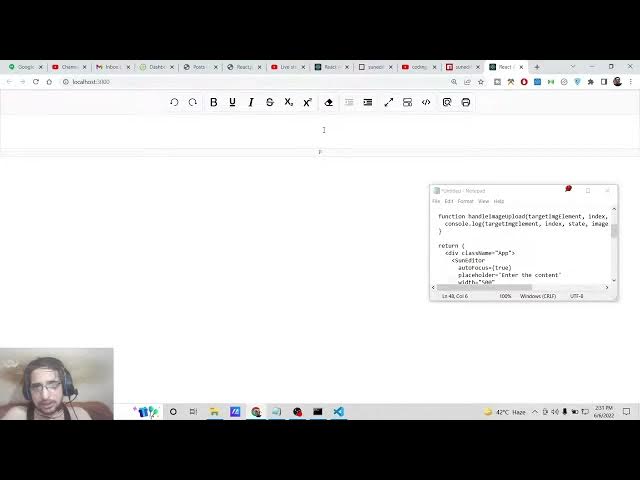
So now you can see this we got this
9:29
editor with the default options. You
9:31
will see we have got the toggle full
9:33
screen option as well.
9:37
So
9:39
so these are the code view option like
9:42
this.
9:47
You can also bold it. Underline this.
10:30
And now we can pass some options guys to
10:32
it. So simply
10:35
there are some options available to us.
10:37
So to make it flexible the first option
10:41
that we will pass is autofocus. So the
10:45
main motive of this option is that when
10:47
we load the application it should
10:48
automatically focus for us. So
10:52
autofocus this takes a boolean
10:54
parameter. So if you make it true then
10:57
it will autofocus. The default value is
10:59
true. If I make it to false,
11:03
so then it will not autofocus. If I
11:05
refresh it
11:08
now, you can see it will not autofocus.
11:11
The next option is that
11:14
you can provide a placeholder text
11:16
inside this. So this will let the user
11:20
know where to type. So there is a option
11:25
which is called as placeholder.
11:28
So we can tell the user by this label
11:31
text, enter the content here.
11:36
So if I refresh it, you will see that
11:38
enter the content here. This is just a
11:41
placeholder text letting the user know.
11:45
And then we got the width and the height
11:47
properties. So this you can control it
11:50
by passing variable width and height
11:58
600 by 200. You will see that you can
12:01
control the width also like this also.
12:05
You can just drag it to control the
12:08
height like this.
12:11
And also guys uh if uh you can also
12:15
change uh onchange event handler is also
12:19
there. So whenever you make something
12:23
when whenever you write inside the
12:24
editor this function will automatically
12:26
trigger. So you can just get the content
12:29
which has been written inside the
12:32
editor like this. You can just print it
12:35
on the console or you can get this
12:36
inside the variable simply like this. So
12:40
now if I write something here and if I
12:43
go in outside editor. So now this
12:46
function will fire and in the console
12:48
you will get all the data which the user
12:50
has written inside the paragraph. You
12:52
will see that. So if I just make it a
12:55
heading let's suppose
12:59
if I underline this. So you can see
13:06
there is been underline. You can see you
13:08
will get the HTML code of this content.
13:11
If I make it bold, you can see strong
13:14
tag will be there.
13:18
So this is meant by this. The next
13:20
option is that guys uh you can change
13:23
the CSS properties of it by using set
13:27
default style property. And this takes
13:30
the CSS property. You can change the
13:32
font family to cursive.
13:35
And also you can change the color of the
13:37
text. Here I tell you uh blue and uh you
13:42
can apply any sort of CSS property to
13:45
the text. You can also change the font
13:47
size to 60 pixel like this.
13:54
So if you refresh it now you will now
13:56
see the uh text color is changed. The
13:59
font size is also been increased. You
14:02
can pass any big value here. 160 pixel
14:05
as well. If I test it now, you will see
14:08
that the text has been increased. You
14:11
can see that.
14:16
So in this way guys, you can do this
14:18
options and uh
14:21
for the plugins option guys. Now to
14:23
embed images, videos and audios, there
14:26
is one such option which is available to
14:28
us which is uh set options. This is the
14:31
way by which you can embed
14:34
inside this there is a button list
14:37
property and this is a array and here
14:41
you can include uh
14:44
bold
14:46
underline.
14:47
So these widgets will be there
14:50
specifically for this uh visic editor.
14:53
italic
14:56
strike
14:58
list.
15:00
So if I just see here it will be added
15:03
inside this editor. You will see that if
15:05
I refresh it
15:07
now there will be a option in order to
15:10
do this list
15:14
set options. So, we need to
15:30
if I paste it, you will see these are
15:33
all the widgets. These are all the
15:35
plugins which are available for this
15:36
Vivig editor. Table, image, video,
15:39
audio. So if I refresh it now,
15:44
you can now see there is this image
15:46
module here. You can just uh select the
15:49
image, whatever image that you want.
15:51
Click on submit. The image is embedded.
15:53
You can also embed a video as well.
15:57
Just uh copy the video that you want to
15:59
embed. Copy link address and paste it
16:02
here. And this is your video is
16:05
embedded. You can also choose the audio
16:08
as well. So in this way guys you can
16:11
select all these widgets. I have shown
16:12
you step by step how to implement this
16:14
inside your ReactJS application. Hope
16:17
you like this video. Please hit the like
16:19
button, subscribe the channel and I will
16:21
be seeing you in the next video. Until
16:23
then thank you very much.