Up next in 10


Get the full source code of application here:
Show More Show Less View Video Transcript
0:02
Hello guys, my name is Goautam and you
0:04
are watching the part second in the
0:06
tutorial series of Google Maps API. So
0:10
basically in the last tutorial we have
0:12
seen how to uh generate a Google map
0:16
onto your web page and we have looked at
0:19
the very basics of using the Google maps
0:22
JavaScript API. So if you have not yet
0:25
checked the last tutorial, I would
0:27
strongly recommend that first of all
0:29
watch the previous tutorial and then
0:31
come to this tutorial. So in this
0:32
tutorial I will be just adding some more
0:35
functionality to our map. So I will be
0:39
adding a small popup window. So such
0:43
that if I click this marker, let's
0:46
suppose I click this, a small pop-up
0:48
window will appear and uh something will
0:51
be written inside it. So, so let me get
0:54
started on it. So, first of all, you
0:57
just have to go to this link that is
0:58
developers.google.com/maps/documentation/javascript/amples/info
1:07
window simple. So, I I have also given
1:10
the link in the description. You can go
1:11
to it and in that documentation it is
1:15
talking about some info windows. you can
1:18
generate some info windows about in the
1:22
map itself. So if you clicked inside the
1:25
map a info window will pop up. So in
1:28
order to add a info window to your own
1:30
map a this amount of code should be
1:34
written. So let me just create a info
1:36
window variable. Let me copy paste the
1:39
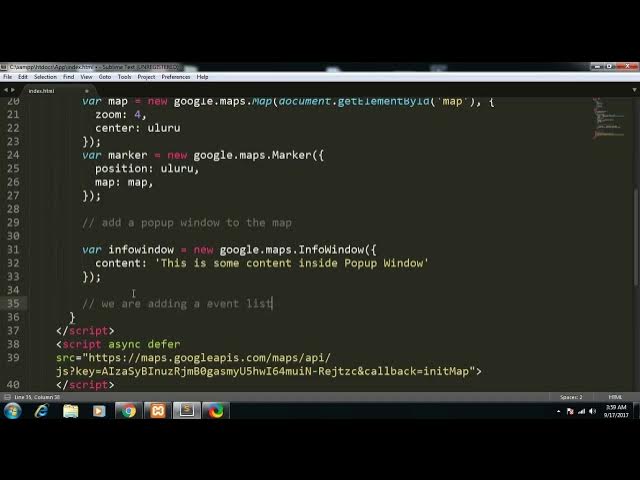
code here. So now you can see here in
1:41
the last tutorial we have
1:44
we have made this very simple map and we
1:48
have our API key there and the call back
1:51
function of init map. So this is the
1:53
function init map function call back
1:55
function. So it is taking some
1:58
coordinates that is latitude and
2:00
longitude and we have declared a map
2:02
variable where we are setting the zoom
2:04
level to four and we are centering it to
2:08
the coordinates that we are measuring
2:09
right now that is latitude and longitude
2:12
and secondly we have created a marker
2:15
and we have
2:17
set the position to the coordinates that
2:19
is specified that is latitude and
2:21
longitude and after that let me just add
2:24
a marker here add
2:27
pop-up
2:30
window to the map. So let me copy paste
2:33
the code here. So we have declared
2:35
another variable of info window new
2:38
Google domaps dot info window and in
2:41
that content you can write any content
2:44
inside it. So let me write in single
2:47
quotes
2:49
this is some content inside
2:54
popup
2:55
window.
2:58
So this will be the content that will be
3:00
displayed inside the info window that
3:02
will be displayed inside the uh map.
3:06
So after that we just need to add a
3:09
listener to our
3:12
map so that we can just uh apply a
3:16
listener event to the map such that we
3:19
click inside the map then we want this
3:22
info window to pop pop up in. So we are
3:29
adding a event listener
3:33
to the map.
3:36
Copy paste the code. So we are just uh
3:39
adding the listener to the marker which
3:41
we have declared. So this is the marker.
3:44
You can see here this is the marker.
3:48
The marker is placed at the position
3:50
that we have specified that is latitude
3:52
and longitude that we have specified.
3:55
And we are just attaching a event
3:56
listener to it that is marker dot add
3:59
listener is the event. We are listening
4:02
listening for the click event. So if I
4:04
click on that marker then this info
4:07
window will pop up and inside this info
4:10
window we will be seeing the contents
4:12
that is this is some content inside
4:14
pop-up window. So we have just attached
4:17
that is info window dot open. So if I
4:19
click inside this marker this info
4:22
window will open. So this is the method
4:25
to just uh open the info window that is
4:28
open method.
4:30
So if I just save this much of code and
4:33
let me just refresh my browser. So now
4:37
if I click onto this red icon red
4:40
marker. So if I click it. So now you can
4:43
see here a pop-up window has been
4:45
generated inside the map and it is
4:47
saying to me that
4:50
this is some content inside pop-up
4:53
window. Now you can see here if I just
4:55
have to close this I can close this and
4:58
I can again click it. So this is the
5:01
very basics of how to generate a pop-up
5:03
window inside the map. Uh so in the next
5:06
coming tutorials I will be just playing
5:07
with this info window example to
5:09
illustrate some more functionality
5:11
regarding this. So thank you guys for
5:14
watching this video. So if you like this
5:15
video please like it and if you have not
5:18
yet subscribed to this channel subscribe
5:20
it and I will be seeing you in the next
5:22
coming videos. Thank you very much.