Up next in 10

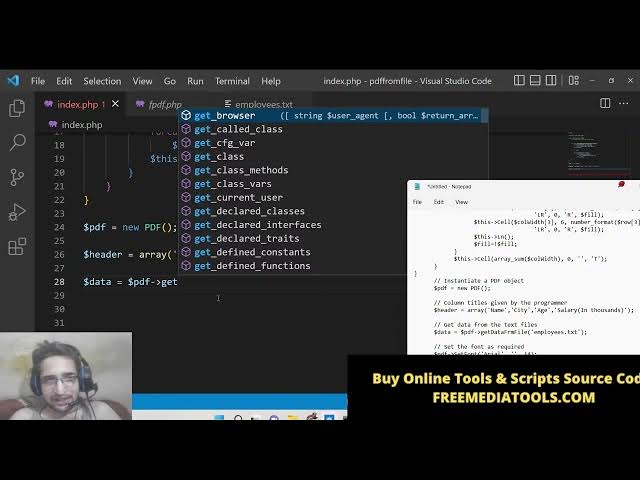
PHP 7 FPDF Example to Create Colorful Table in PDF Document From Text File in Browser
Dec 21, 2025

Buy the full source code of application here:
https://procodestore.com/index.php/product/php-7-fpdf-example-to-create-colorful-table-in-pdf-document-from-text-file-in-browser/
Show More Show Less View Video Transcript
0:07
Uh hello friends today in this tutorial
0:08
I'll be showing you that how to create a
0:10
PDF document inside your PHP application
0:13
using the library called as FPDF. FPDF
0:16
is a very famous library from which you
0:18
can create colorful tables inside your
0:20
PDF document. So in this tutorial I will
0:24
be showing you that how to create
0:26
colorful tables inside uh p P P P P P P
0:29
P P P P P P P P P P P P P P P P P P P P
0:29
P P P P P P P P P P P P P PDF document
0:31
in PHP from external text file. So all
0:35
this data that you see inside this table
0:37
will be there inside a text file. You
0:39
will see that employees data ammon vaner
0:42
C380750.
0:45
So all this data is coming through uh
0:47
inside a text file. Here you can see
0:49
that guys this is a name, this is a
0:51
city, this is a age, this is a salary.
0:53
So you can ask as as as many
0:57
rows that you want to add here inside
0:58
the data. I can even delete some data
1:03
here and refresh it. So now basically
1:05
you will now see this data will be shown
1:07
here. Only four rows are there. Name,
1:10
city, age, salary. So four rows are
1:12
there. Ammon, bina, direct, fanny and
1:15
you can also see this. You can see that
1:18
here we can add some more data. Let's
1:20
suppose John and uh Delhi
1:24
and 45 salary is 56,000.
1:28
So I just need to refresh it. Now
1:30
automatically that data will be
1:32
retrieved. So it is saying that uh
1:34
uncaugh exception FPDF error. Some data
1:37
has already been output. Can't send PDF
1:39
file.
1:42
Uh let me see.
1:45
Oh, sorry. This needs to be semicolon
1:47
guys. So instead of comma. So just make
1:49
sure that you put semicolon not comma.
1:53
Now if you refresh it now you will see
1:55
that John is added here. John Delhi 455
1:58
56,000. So in this way guys you can
2:01
create colorful tables with the data
2:03
coming from a text file inside PHP using
2:05
FPDF library. So this is a PHP script
2:08
which is used here. I have given this
2:10
PHP script in the description of the
2:12
live stream. So this is the live blog
2:14
post I have written on my website
2:16
codingsure.com. So if you want to get
2:17
all the source code you can go to the
2:19
description of the blog post to copy
2:21
paste all the source code. So now let's
2:23
get started by writing this uh PHP
2:27
script. So let me delete this all this
2:29
file. So just create a employees p txt
2:33
file guys. Just have your data inside
2:36
this. And also for this you will need
2:39
FPDF library. FPDF is a very famous
2:42
library PDF generation library. So just
2:44
write here FPDF
2:47
and uh it has its own website. If you
2:50
want to download it, go to the download
2:52
section and create download the latest
2:54
zip file and inside your folder just
2:56
extract all of that. You will get a
2:58
folder like this. You will now see this
3:01
is a FPDF script that we will use inside
3:04
our PHP script. This is a all the
3:06
library code here. So inside index.php
3:10
guys you also need exam control panel
3:12
just start the Apache server http server
3:15
which is listening on port 80. So just
3:18
start this apache server. So the very
3:21
first line we will write inside this php
3:23
script guys. We need to require the
3:30
fpdf/fpdf.tphp.
3:32
This is the pfp script. And here we we
3:35
will be writing the class which will
3:37
extends the FPDF
3:40
functionality. And here we will define
3:43
two methods guys which will be first of
3:45
all we will be having simple table
3:48
inside uh the browser. For the simple
3:51
table we will create a function which is
3:53
simple table or sorry get simple table.
3:56
So first of all hit the like button
3:57
subscribe the channel as well guys if
3:59
you're watching it for the very first
4:01
time. we will be giving a header and the
4:03
data as well which will be coming. So
4:06
this is the function which we have
4:07
written inside this PHP class. So which
4:10
will render a simple table not a
4:12
colorful table. We will use a for each
4:14
loop and inside we will pass header and
4:18
column
4:20
and here we will just say that this
4:25
dot cell and here we will put 40, 7 you
4:31
will put the column one
4:35
and then we will run this this dot ln
4:39
like this. It will set the current
4:41
position. And for the data guys, it is
4:44
very simple. For each loop, we will use
4:48
and here we will be passing data as a
4:50
particular row.
4:53
And again, we will use another for each
4:55
loop. Here
4:57
we will use row as a column.
5:02
And here we will be
5:08
uh having this dot cell. We will create
5:10
a cell here inside the PDF document. 40,
5:14
6. This is X and the Y coordinate and
5:16
column will be one.
5:19
And again we will set this dot. This
5:22
will set the current position
5:24
like this.
5:26
So this completes this function guys. So
5:28
now we rendering a simple table. We need
5:31
to give these two things header and the
5:33
data. So now we will call this function
5:36
right here.
5:38
After this we will call this PDF new
5:41
PDF. We have instantiate a new object of
5:44
this class PHP class. So after having
5:48
this we will provide the data array
5:51
here. This is a header data we will
5:53
provide. This is a column name. You can
5:56
list out name, city
6:00
and age. You can give any column name
6:03
according to your application. It is
6:05
totally up to you. And salary in
6:08
thousands. You can just write salary.
6:12
And uh that's it. Put a semicolon
6:16
and basically now we will provide the
6:19
data from the text file. So basically
6:21
all the data is present inside this text
6:23
file. We will see that employees.txt.
6:26
Now we need to provide this data. So for
6:28
providing it we would use get data.
6:33
Get data from
6:37
file. This is a method guys which allows
6:40
you to get the data from the file. And
6:42
here we will mention the employees.
6:45
TXT. The file name employees.txt as is
6:49
there in the same directory. So we will
6:51
if it is there inside another directory
6:54
we would need to give the full path.
6:59
So after this
7:03
we need to define this function guys. So
7:04
this is a custom function that we are
7:06
writing get data from file
7:10
put a semicolon. So here we need to
7:12
define this functions. So we will write
7:15
get data
7:19
from file. So basically
7:23
here it will be having the path. So
7:26
basically the file name. So now to get
7:28
the data guys it is very simple. We will
7:30
declare a lines variable. We will have
7:33
the file here with a file constructor
7:36
and then we will get the data inside a
7:38
array like structure like this.
7:42
And then we will again use for each loop
7:44
we will have the lines as line.
7:49
And inside this loop guys we will simply
7:52
say that data
7:55
we will use the explode method and then
7:58
put a semicolon here. Oh sorry semicolon
8:01
here and chop
8:06
and line. That's it.
8:10
After this guys, we just need to return
8:12
this.
8:16
Return this data. That's it. Return
8:18
data. That's it. So this will get the
8:21
data here and store it. If you echo out
8:23
the data here, just to clarify if it is
8:26
working or not. If you now execute the
8:28
script here, localhost
8:30
PDF from file.
8:33
So you can see it's a array here.
8:35
Basically it's it is an array. If you
8:38
see we are echoing out the data here. So
8:40
it's an array here. It is showing us.
8:44
So now we need to simply
8:46
uh render this inside the PDF document.
8:49
So what we can do is that after this we
8:51
can set the font which is by using set
8:54
font.
8:57
The font will be AIAL and
9:00
size will be 14.
9:03
And then basically we will add a new
9:05
page in PDF document.
9:08
For adding a new page, we will call add
9:10
page.
9:13
This will add a new page.
9:17
And we forgot the semicolon. That's why
9:19
the error was taken place. And if you
9:22
just say PDF output, if you save this
9:24
file, PDF output.
9:29
So now guys, what will happen? If you
9:31
execute it, one one page will be there,
9:34
empty page. You can see inside PDF
9:36
document. So one page is created. It is
9:38
currently empty. Nothing is present here
9:40
because we added this page here with the
9:43
help of this add page method. If you
9:44
create another page, add page.
9:47
This will add another empty page.
9:51
So now there will be two pages. If you
9:53
refresh it inside, there will be two
9:56
pages which will be currently empty.
9:57
This is the first page. This is the
9:59
second page. So now we need to add the
10:01
table guys which is very simple in the
10:03
first page.
10:06
So we will get the data which is we will
10:08
call this get simple table and here we
10:13
will pass the header and the data which
10:16
we are com getting from the previous
10:19
function.
10:21
That's it. So now if you refresh it guys
10:23
it will add a simple table.
10:27
So now you can see boom your table is
10:29
ready here. Name, city, age, salary. You
10:32
can see that this is a four rows we have
10:34
defined five rows first, second, third,
10:37
fourth, fifth. So this is all fetching
10:39
it from the employees.txt file guys. So
10:42
it is very awesome. You can just copy
10:46
paste a list of data which is there
10:47
inside your records, your company
10:49
records, your employee records. You just
10:52
need to add this
10:54
and basically it will fetch it from this
10:56
table. If you can add add more records
10:59
you can you can see that now we need to
11:02
add some color to it. We will design a
11:05
colorful table now. Now we need to add a
11:08
colorful table. For adding a colorful
11:10
table guys it's very easy. We will now
11:13
add a brand new page. After this we will
11:17
add a new page
11:19
and then we will call a simple method
11:21
which will be get styled table. get
11:27
styled table we will define this we will
11:31
pass the header and the data to it. So
11:33
this will be a colorful table. We need
11:35
to now define this function at the very
11:37
top. So basically this will be a
11:40
colorful table. So function get styled
11:46
table we will get the data header and
11:49
the data.
11:54
So inside this method guys what we need
11:56
to do is that
12:01
so first of all we will be having this
12:04
dot set fill color. This is a method
12:08
which is there here you can put any
12:10
color of your choice
12:13
and this dot
12:15
set text color.
12:19
So this will be for the text color. You
12:21
can provide any value 144 244. This is
12:24
RGB format.
12:27
This dot set draw color.
12:30
So you can just put any color of your
12:33
choice 100 1 0.
12:36
And then we comes the line width. This
12:39
dot set line width
12:42
and this can be 0.5.
12:45
It's very much there. And lastly we can
12:48
set the font for the table. set font
12:52
and uh basically we can say that bold
12:55
this needs to be bold. So capital B.
13:00
So after this guys we will now have uh
13:03
the header of the table.
13:07
So header will be simply we will design
13:09
a column width variable column width
13:13
array. So if you're joining it for the
13:15
very first time guys please hit the like
13:17
button subscribe the channel. 45 40
13:21
45.
13:24
We will have a for loop here which will
13:26
run for i is equal to0
13:28
i uh i less than
13:32
count and we will count the header. How
13:35
much header is there
13:37
rows and then basically we will
13:40
increment it by one i ++. This is a for
13:45
loop that we are running here. And
13:46
inside this for loop guys what we need
13:48
to do we need to create a cell
13:53
uh a column width that we calculated
13:57
like this
14:02
call width like this
14:05
put a seven this is x coordinate and
14:08
then the header we need to put
14:14
like this put comma and then we also
14:18
need to say
14:20
1 comma 0 comma
14:25
C
14:29
1
14:32
uh I think it has created some error
14:35
header
14:39
let me paste this line guys so all the
14:41
source code will be given in the
14:42
description of the live stream so blog
14:45
post
14:46
semicolon is missing I think.
14:54
So now it's looking good. Now you can
14:56
see that no error is there.
15:00
So now we need to after this we need to
15:02
run this this dot.
15:06
This will be setting the current
15:08
pointer. So if you now refresh it guys
15:10
on the second page there will be a
15:12
colorful table here. The headers are
15:14
ready here. name, city, age and salary.
15:18
So you can change the color accordingly.
15:20
You can provide as many colors as you
15:21
want. You can change this color to 100.
15:25
This this will change this color to
15:30
green color, green background color. So
15:33
you can provide any color of your
15:34
choice. This is a text color.
15:38
So this will be black color. You will
15:40
now see the header will be changing to
15:42
black. So you can customize this table
15:44
accordingly. This is a colorful table.
15:47
So basically our headers are ready. Now
15:48
we need to setting the
15:51
background. For now setting the
15:53
background guys it is very easy. We will
15:56
now use this dot set fill color
16:00
and 1.235
16:03
255.
16:05
Uh if you now refresh it your background
16:08
color would be set.
16:11
You can see it is changing to black
16:15
and also this dot set text color
16:20
zero and this dot [snorts] set font
16:26
nothing
16:29
and after that guys now we will be
16:31
filling out the data inside PDF document
16:34
inside this colorful table fill will be
16:37
zero
16:41
After this we will again use a for each
16:43
loop and the data as row.
16:49
Inside this for loop guys we will simply
16:51
need to
16:53
fill out
16:55
using like this. This is a complicated
16:57
code. Let me write it. And uh
17:06
uh uh let me write this. So like
17:12
this will print out all the data as a
17:15
row. So you can change the color
17:18
accordingly whichever color that you
17:20
want. If you refresh it now you will now
17:22
see this is all the columns which are
17:24
ready here. It has got a nice little
17:27
blue background color white as well. So
17:30
all these colors you can definitely
17:32
change guys accordingly.
17:34
After this we also need to write this
17:37
line which is column width
17:43
just to provide the bottom background.
17:46
So bottom border color if you refresh it
17:48
now.
17:50
So the table will be now completed. All
17:52
the borders are there. This is a
17:54
colorful table. This is a simple table.
17:57
So we have shown in this video guys how
17:59
to create a table inside PDF document
18:01
from a text file. All the records are
18:04
available inside the text file here. So
18:07
inside FPDF library inside PHP.
18:10
Hopefully you will like this video.
18:12
Please hit the like button if you like
18:13
it. Please hit the subscribe button
18:16
and if you have any sort of questions
18:18
you can ask in the comment section. I
18:20
will definitely respond to those
18:22
questions.
18:25
And if you don't have any sort of
18:26
questions, I will be seeing you in the
18:28
next live stream.