Up next in 10

This tutorial was contributed by creator Softoni! Subscribe to their channel: https://www.youtube.com/@softonimotion
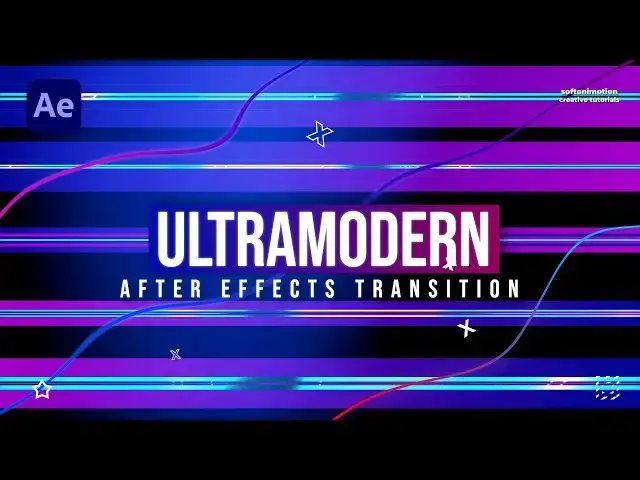
Here's more from the creator: 'Hey everyone, in this after effects tutorial I will show you how to create awesome and creative transition for your own purpose - your slideshows, intros, promos, lower thirds in After Effects without using any plugins. This technique is a cool way to make your videos or images looking even better and to impress your audience. Very easy to make, just follow my steps!'
View Softoni's store here: https://filtergrade.com/vendor/softoni/
View all After Effects Templates on FilterGrade: https://filtergrade.com/product-category/after-effects-templates/
- - - - - - - - - - - - - - - - - - - -
Follow FilterGrade!
Instagram - https://www.instagram.com/filtergrade/
TikTok - https://www.tiktok.com/@filtergrade_
Facebook - https://www.facebook.com/filtergrade
Twitter - https://twitter.com/filtergrade
Pinterest - https://www.pinterest.com/filtergrade/
Newsletter - https://filtergrade.com/filtergrade-newsletter/
- - - - - - - - - - - - - - - - - - - -
Show More Show Less View Video Transcript
0:00
hello guys soft Tony here thank you for
0:02
watching this brand new After Effects
0:04
tutorial and in this one we will be
0:06
creating Ultra Modern and cool
0:08
transition without using any third party
0:10
plugins so let's animate and create this
0:13
eye-catching
0:17
[Music]
0:26
transition all right we're here in After
0:28
Effects and first like always let's
0:30
create a new composition hit control or
0:32
command plus n on your keyboard or this
0:34
little icon this is going to be final
0:36
composition like usual 90/20 x 1080 30
0:40
frames per seconds and M duration is 7
0:43
Seconds long hit okay and go here on the
0:45
rectangle tool double click make sure
0:47
that fill color is set to solid color
0:49
and stroke To None then open up this
0:52
rectangle one option open up this
0:54
rectangle pet like so go to 1 second and
0:57
15 frames here on our timeline uncheck
1:00
this option constraint proportion set up
1:02
the first key frame for size and type
1:05
here
1:05
220 now go here at zero frames and type
1:09
here zero okay now select both of our
1:13
key frames hit F9 to EAS them then go to
1:16
graph editor and just draw a curve like
1:19
this for the speed influence it doesn't
1:21
matter if you can see curve like this go
1:24
right click and you will find edit speed
1:26
graph okay and just draw a curve some
1:29
something like this okay now in our
1:33
finals when we hit zero we have
1:35
something like this okay now let's
1:38
duplicate this shape layer o1 hit
1:40
control+ D and then move it below this
1:43
shape layer o1 and then go here on align
1:46
option and align it to the bottom and
1:49
let's rename this one to shape layer
1:51
five like this duplicate this shape
1:53
layer one once again hit control+ D and
1:57
I have forgotten to say if you can find
1:59
a line option just go window and you
2:01
will find it here okay now go here in
2:03
the Align option again and move it to
2:06
the bottom or align it to the bottom
2:08
this is going to be shape layer 01 this
2:11
second one is third shape layer three
2:14
okay now let's duplicate this first
2:16
shape layer hit control+ D and we will
2:19
rename this one to shape Layer Two
2:21
because this is going to be second layer
2:23
here okay and then use arrows on your
2:26
keyboard and shift to move it below this
2:29
shape layer o1 make sure that our shapes
2:32
are overlapping each other and now let's
2:35
duplicate this shape layer three here in
2:37
the middle hit control plus d this is
2:39
going to be shape layer 4 like this and
2:42
repeat the process move it below this
2:44
shape layer three and now when we hit
2:47
zero we have something like this here in
2:50
the final scene and if you want to
2:52
readjust it you can select them all and
2:55
readjust it a bit more in the finals and
2:57
for now we don't need to do this because
2:59
our shapes are align here perfectly now
3:02
hit here fit up to 100% and let's
3:06
readjust here our shape layers in the
3:09
scene maybe two or three frames ahead
3:12
like so this second one let's move maybe
3:15
three frames ahead third one six frames
3:17
ahead fourth one nine frames ahead and
3:21
this fifth one maybe to around 12 frames
3:24
ahead you can also readjust the shapes
3:27
randomly but when we hit zero this this
3:29
is looking perfect to me now hit
3:33
everything here in the final scene grab
3:35
everything go right click to precompose
3:37
this is going to be mat make sure to
3:40
move all attributes into the new
3:42
composition and then hit okay now let's
3:45
import media here in the timeline just
3:47
drag and drop of course you will import
3:49
your own something like this and then
3:51
duplicate this m layer once hit control
3:53
plus d move it above our media and then
3:56
select media and mat and move it to
3:59
around six frames ahead something like
4:02
this and let's find here blending mode
4:05
for media o1 Alpha met if you can find
4:08
blending modes just go in this little
4:10
icon and find here toggle switches and
4:13
modes to find our blending modes now hit
4:16
on the bottom mat layer go here in the
4:18
effects and preset and find ramp effect
4:21
drag and drop onto the mat layer and
4:23
Here Also let's make a few adjustment
4:26
but before that let's solo it here okay
4:29
for the start of the ramp go upper left
4:31
corner for the end of the ramp lower
4:34
right corner and here let's change
4:36
colors this is going to be according our
4:39
media dark blue colors color like so hit
4:43
okay and for the second color I will do
4:46
pinkish or purple color like this hit
4:50
okay and now when we hit zero we have
4:53
even cool looking scene here in the
4:56
finals just uncheck the solo option hit
4:59
zero
5:00
and this is looking cool for now now
5:03
let's make this scene even better
5:05
looking hit here on this media o1 let's
5:08
add our first effect go here in the
5:10
effects and pres it find Triton effect
5:14
okay drag and drop onto the media and
5:16
let's change color to San blue color hit
5:20
here okay and our next effect that we're
5:22
going to use is caution blur drag and
5:25
drop onto the media 01 for the blur
5:28
let's type one
5:30
100 and also let's add glow effect drag
5:34
and drop here on our media and for the
5:36
glow thr type here 50 also glow radius
5:39
50 you can play around with the options
5:41
and for the glow intensity maybe
5:44
0.8 is looking cool for now now let's
5:48
select this media o1 and mat you can
5:50
also change colors go right click find
5:52
here maybe purple color then hit here
5:55
again hit control+ D and move this new
5:59
Med media and mat layer here to around
6:02
12 frames ahead let's change colors
6:05
again to maybe sand colors hit here on
6:08
our media o1 delete all of these effects
6:11
all of those effects and let's here
6:14
import new effects find here find edges
6:17
drag and drop onto the media o1 select
6:20
this invert option for the blend with
6:22
original you can play around I will do
6:24
maybe to around 10% go and find next
6:27
effect exposure okay drag and drop here
6:31
on our media 01 again for the exposure I
6:34
will do maybe around two and our third
6:37
effect is going to be lens flare effect
6:39
drag and drop here on our media and here
6:42
let's find third option 105 mm Prime and
6:47
now when we hit zero this is looking
6:49
cool to me and for the final step let's
6:53
select this media o1 and met once again
6:55
hit control+ D move it to around 18
6:58
frames
7:00
ahead like so change colors to maybe
7:03
orange and basically just delete all of
7:06
the effects to see our final image here
7:09
in the scene now hit zero to get our
7:12
final result and this is looking awesome
7:16
for the final step let's precompose
7:18
everything select everything go right
7:21
click to precompose this is going to be
7:24
part 01 make sure to move all attributes
7:28
into the new composition hit okay and
7:31
here you can play around with the
7:32
rotation duplicate this part one once
7:35
hit control+ D move it to around three
7:37
frames ahead or so hit R for rotation
7:40
type here
7:42
180 and then duplicate this one once
7:44
again hit control+ D hit R and type here
7:48
zero again and this third one move it to
7:51
around 6 frames ahead and now when we
7:54
hit zero here in our scene we have this
7:57
really awesome and really cool
8:01
transition all right guys as always I
8:04
hope you learned something new from this
8:06
tutorial you can implement this
8:08
technique to your own project to your
8:10
own promos intros slideshows and so many
8:13
more if you haven't subscribed to my
8:15
Channel please hit that subscribe button
8:18
I want to thank you for watching this
8:19
one and to tell you that your support
8:21
means a lot to me let's hit that 1,000
8:25
subscribers so I can be uh even better
8:27
in the future of course you can take a
8:30
look at my portfolio Down Below in the
8:32
description also write me a comment
8:34
share this tutorial and also take a look
8:37
on my channel for more great tutorials
8:40
and until next time stay creative and
8:47
[Music]
8:56
bye-bye
#Arts & Entertainment
#Online Media
#TV & Video
#Multimedia Software