0:00
hello and what's up guys soft Tony here
0:03
welcome back to another video tutorial
0:05
and in today's video Lesson I'll be
0:08
demonstrating an easy technique for
0:10
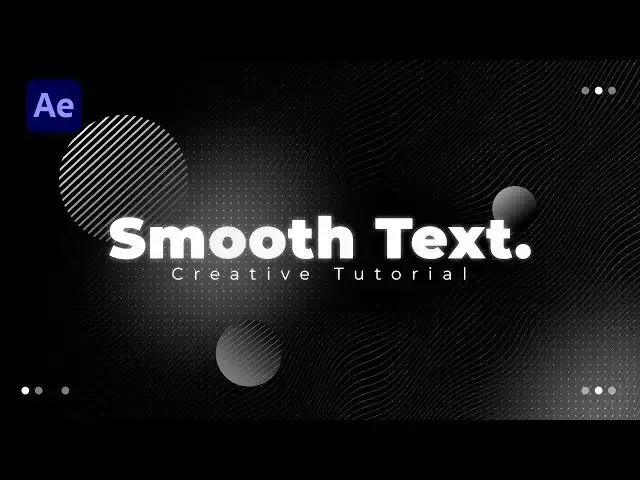
creating captivating text animation here
0:13
in After Effects in just a few simple
0:16
steps you'll learn how to bring your
0:18
text to life and add a professional
0:20
touch to your projects whether you're a
0:22
beginner or an experienced user this
0:24
tutorial is designed to help you enhance
0:26
your skills and unlock your creative
0:28
potential so let's Dive Right In and
0:32
unlock the power of smooth text
0:33
animation in After Effects foreign
0:48
After Effects and first like always
0:50
let's create a new comp hit Control Plus
0:52
and or this little icon here to create a
0:55
new comp I will rename it
0:57
text count with and tight 1920x1080
1:01
frame rates 30 frames per seconds and
1:04
duration maybe it's okay to leave it at
1:07
five seconds but you can type your own
1:08
duration hit OK and now let's create our
1:12
background the right click find here new
1:14
to create a new solid layer I will
1:16
rename it to background
1:19
also 1920 by 1080 you can also do a 4K
1:24
if you want everything is up to you then
1:27
hit OK and now it's time to import our
1:30
first effect to go here in the facts and
1:33
preset and if you can't find it go to
1:35
window and then find it here in the
1:37
facts and preset okay type here ramp
1:40
effect drag and drop onto our background
1:43
and now we will make a few adjustments
1:45
like usual hit here then for the start
1:48
of the ram Cooper left corner for end of
1:51
the ramp lower right one like this for
1:55
the start color find here dark dark gray
1:58
color almost black then hit OK for the
2:03
end color choose here pure a black color
2:05
then also hit ok now we will also add
2:12
noise hls drag and drop onto our
2:16
background and for the Hue lightness and
2:18
saturation type 2 okay now let's add
2:23
another solid layer right click find
2:26
here new a solid layer I'll rename it
2:29
grid also full HD hit OK then go again
2:34
here in the facts and preset find fill
2:36
effect drag and drop onto our grid solid
2:40
layer uh change color to white and then
2:43
add our next effect CC Ball action also
2:48
drag and drop on the grid layer and for
2:50
the grid spacing do maybe around 10 and
2:53
both sides around 20. uh now really
2:57
important step to change blending mode
2:59
from normal to overlays you can't find
3:01
those blending modes hit here toggle
3:04
switches and nodes okay and find here
3:08
overlay as you can see now we see our
3:12
tiny white spot also if you are not
3:15
satisfied with the colors you can always
3:17
go here and change to this one now this
3:22
is looking really cool also you can play
3:24
around with the ball size maybe to do 10
3:27
or 15 everything is up to you alright
3:31
guys that was our first step in this
3:34
tutorial now it's time to create our
3:36
text here in our scene hit Control Plus
3:39
t on your keyboard or go here on this
3:41
little icon horizontal type tool then
3:44
click in our finals I'll just type
3:53
like this then align it to the center if
3:56
you can't find this align go window and
3:59
just click click here find it here okay
4:02
align it to the center like this also
4:06
hit again here hold and control control
4:09
or command on your keyboard and then
4:11
just hit here on this pen behind a tool
4:15
double click just to see our Anchor
4:18
Point here on the center okay now let's
4:22
animate our spot text but before that
4:24
let's add our first effect we'll go
4:27
again here in effect so preset type glow
4:30
drag and drop on our text layer and we
4:33
will also make a few adjustments for the
4:36
glow threshold type 50 glow radius maybe
4:39
around 20 and for the glow intensity
4:42
lower down to 0.3 and now as you can see
4:46
we have this glowy text in our finals
4:50
this is the difference
4:53
okay and now let's animate our smooth
4:56
text open up this Little Triangle here
4:58
go here in the animate find here skew
5:01
and for the SQL parameter you can play
5:04
around for me it's good to go around 40
5:08
for the beginning open up this range
5:10
selector uh here at zero frame setup
5:14
power first the frame for offset type
5:19
go to around 2 seconds or so and type
5:23
here 100 now when we hit 0 we have this
5:26
basic skill animation okay our next step
5:30
is open up to open up this Advanced
5:32
option change this is high and is low to
5:35
around 66 percent and now when we hit
5:38
zero we have something like this also
5:40
for the shape instead of square change
5:43
here to ramp up alright now when we hit
5:46
zero we have something like this okay
5:48
what we can do next is to select our
5:51
both keyframes then hit F9 on your
5:55
keyboard too easy is them go to graph
5:57
editor and if you can see curve like
6:00
this just go right click and hit here
6:03
edit spirograph and draw a curve like
6:08
okay now in our finals we have this cool
6:14
our next property that we're going to
6:16
add is scale parameter uh hit here on
6:19
this animator one then go here add find
6:22
here property a scale property and you
6:26
can play around and if we go here to
6:29
zero now we're getting this really
6:32
really cool and awesome smooth animation
6:36
okay this is already looking really
6:39
awesome and next thing what we're gonna
6:42
do is to add our next animator go here
6:45
in animate find here and find here fill
6:49
color then find here opacity okay for
6:53
the Phil opacity go to around zero uh
6:57
then open up this range selector then go
7:00
here add find here a selector and then
7:03
go here Wiggly now when we hit zero we
7:06
have also this cool Wiggly animation of
7:10
our smooth text also you can play around
7:13
here in animator 2 with our options open
7:18
up this weekly selector mode you can
7:20
change to subtract when we change this
7:23
to subtract this is looking
7:25
something like this you can lower down
7:28
Wiggles per second type maybe 0.3 or 0.4
7:33
and now this is a looking uh even better
7:37
maybe to leave it to two but uh change
7:41
it to intersect again uh as I mentioned
7:43
before everything is up to you this is
7:47
looking really cool to me and if you
7:50
want you can also add a little bit of
7:52
tracking go here text then animate again
7:55
find again here tracking for the
7:59
tracking amount here to zero frame set
8:02
up our first keyframe then go to around
8:04
maybe three or four seconds
8:06
and type 10 or 20 depends on your text
8:10
size and now in our finals we have this
8:15
really really cool animation
8:18
alright guys uh that was everything for
8:21
this smooth text today's tutorial I hope
8:24
you learned something new hope you like
8:27
this video and if you haven't subscribed
8:30
to my Channel please hit that subscribe
8:32
button also write me in the comment
8:34
section below what do you think about
8:36
this tutorial also all your suggestions
8:38
type down there also take a look on my
8:41
profile on my channel for even more
8:43
great tutorials and until next time stay