0:00
hello guys soft Tony here and in today's
0:03
tutorial we will be creating a stunning
0:05
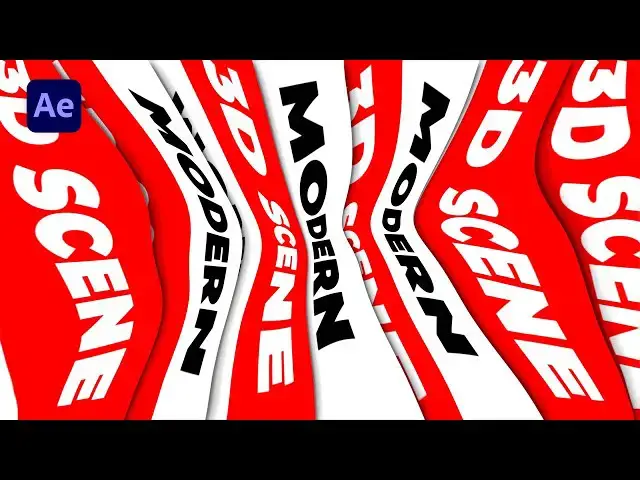
3D text animation here in After Effects
0:08
in just a few steps we will make a 3D
0:10
scene and I will show you how to elevate
0:12
your design to the next level and before
0:14
we start make sure to subscribe to my
0:16
channel if you haven't already hit the
0:18
like button and turn on the notification
0:20
Bell so you don't miss any of my
0:22
upcoming video clips so enough talking
0:25
and let's jump into after effects and
0:27
create this cool 3D text animation
0:42
all right we're here in After Effects
0:44
and first like always let's create new
0:45
composition controll or command plus n
0:47
on your keyboard or hit on this little
0:49
icon of course this is going to be final
0:51
like usual and for the WID and tight
0:53
Let's Go full HD 90/20 by 1080 and for
0:57
the duration type your own number for me
1:00
30 seconds is okay now hit here okay and
1:03
now let's create another composition hit
1:05
on this little icon again and for this
1:07
one let's type text 01 and instead of
1:10
this 9020 let's type here 250 for the
1:14
width hit okay and as you can see now we
1:16
have this new composition and here
1:18
inside this new composition let's create
1:20
background go right click to create new
1:22
solid layer this is going to be text
1:25
background also 250 by 1080 and then hit
1:29
okay go here in the effects and preset
1:31
and if you can't find effects and preset
1:33
just go window and you will find effects
1:35
and presets here now let's type fill
1:37
effect okay drag and drop onto the
1:39
background change color to this to black
1:42
color and then hit okay now let's hit
1:44
ctrl+ t or go here on this little icon
1:47
horizontal type tool and I will type
1:49
just random text but before that I'm
1:52
using this monster at black font for the
1:56
150 and I will just type random text
2:00
and this is looking cool now hit on our
2:03
text hit R for rotation and let's type
2:06
here 90 okay now hit again on our
2:09
creative text go here in align option
2:12
and align it to the center and if you
2:14
can find align option just go window and
2:16
you will find a line here okay now let's
2:19
close this effects control for now also
2:21
this text o1 now open up this final comp
2:24
and drag and drop this text o1 here
2:27
inside of our final composition one
2:30
thing we have forgotten to do open up
2:32
this text o1 select this created text
2:34
again go in effects and PR it and also
2:36
Dragon drob fill effect and now we have
2:38
this cool combination of black and red
2:41
colors okay go back here in final
2:43
composition and make sure that you turn
2:45
on 3D for this text o1 if you can find
2:48
this 3D option hit here tle switches and
2:51
modes turn on 3D option and just change
2:54
here from one view to two views and as
2:56
you can see on our left side we have top
2:59
view now what we can do is to duplicate
3:01
this text o1 hit control+ D or go edit
3:04
and then duplicate and let's change our
3:07
position hit P4 position and also for
3:11
this x parameter let's type here 960 +
3:15
125 also hit R for rotation and let's go
3:19
y rotation to around 90 this is looking
3:22
cool let's duplicate this once again hit
3:24
control+ D hit P for position and
3:28
instead of this number let's type here
3:31
250 and now as you can see we have this
3:34
opposite text o01 and let's also
3:36
duplicate this middle textto one hit
3:38
contrl + D hit P for position for this
3:42
one and let's type here minus
3:45
125 okay and for this upper one hit P4
3:49
position and instead of this minus 125
3:53
here 125 and now as you can see we have
3:57
perfect box of our creative text
4:00
I will switch back to one View and for
4:02
me this is looking cool now let's create
4:05
camera here in our sing go right click
4:07
to create new camera hit okay and also
4:11
let's create camera controller go right
4:13
click to create new null object I'll
4:16
just rename this one to controller okay
4:19
now select all of our text o1 and make
4:22
sure to parent it with our
4:25
controller Next Step that we're going to
4:27
do is to duplicate this text o1 here in
4:29
the project project window hit control+
4:31
D now this is going to be text O2 select
4:34
this first text o1 and the second text
4:37
o1 hold alt on your keyboard and just
4:39
drag and drop here into the timeline now
4:42
we have also text O2 open up this new
4:44
composition and let's change background
4:47
hit F3 to show effects control and
4:49
change color to this pure white color
4:52
hit okay go in the final composition
4:55
select this controller hit P4 position
4:58
and we have forgotten to turn on 3D
5:00
option for this controller and also
5:03
let's change here few settings for the
5:05
orientation let's go to around
5:07
350 hit R for rotation also and let's
5:11
change this x rotation to maybe around
5:13
minus 20 you can play around with those
5:15
parameters I'm just showing you the way
5:17
for the Y rotation let's go to around 20
5:20
now let's also hit P4 position and you
5:23
can reposition this y parameter to maybe
5:26
somewhere around here this is looking
5:29
cool and now let's also precompose
5:32
everything select everything go right
5:34
click and then go to precompose this is
5:37
going to be shape 01 and then hit okay
5:41
now let's go here in effects and pres
5:43
find drop shadow effect okay drag and
5:45
drop onto the shape 01 and for this
5:49
distance let's go to around 10 and for
5:51
the softness go to around 20 now let's
5:53
duplicate this drop shadow once hit
5:55
control+ D or the distance let's go to
5:57
around maybe 50 and and for the softness
6:00
go to around 200 and now as you can see
6:03
we have those cool shadows in our final
6:06
composition now let's duplicate this
6:08
shape o1 for a few times hit control+ D
6:11
select this lower one hit P4 position
6:14
and move it slightly to the right side
6:17
let's also duplicate this shape o one
6:19
once again select this buttom one and
6:22
reposition repeat the procedure like
6:25
before also hit control+ D once again
6:28
and repeat everything until you're
6:30
satisfied with the results and let's
6:32
also duplicate as many times as we need
6:35
to fill out our composition hit control+
6:38
D P4 position and move it to the right
6:41
side something like this now select
6:43
everything hit control+ D once again
6:46
move them above our shape o1 hit P4
6:50
position and move it all the way to the
6:52
left side or something like this and
6:55
when we hit zero in our finals nothing
6:58
happens let's also animate here in our
7:01
shape o1 just double click go here in
7:03
the controller hit R for rotation and
7:06
let's set up the first key frame for y
7:08
rotation here at zero frames and then go
7:11
all the way to 30 seconds and let's type
7:13
here maybe four and now when we hit zero
7:17
as you can see we have this cool
7:18
animation of our creative text one thing
7:22
we have also forgotten to change maybe
7:24
this creative text to maybe tutorial
7:27
just to see different text and go here
7:29
in the final composition hit zero and
7:33
our animation is looking cool now what
7:36
we can do is to reposition here in the
7:38
finals grab random texts something like
7:41
this reposition it play around with
7:44
shapes until you're satisfied with your
7:46
final results I'm just showing you the
7:48
way cool hit zero again and our
7:52
animation is looking great reposition a
7:57
bit more okay and this is looking
8:00
awesome all right guys for the final
8:02
step you can also add adjustment layer
8:04
go right click to create new adjustment
8:06
layer go here in the facts and pres it
8:09
let's type here turbulent displays drag
8:11
and drop onto the adjustment layer and
8:13
if you like this kind of look you can
8:15
play around here with the options
8:18
displacements maybe to go bulge or twist
8:20
play around until you're satisfied with
8:22
your final results okay hit zero and now
8:26
we have something like this what we can
8:28
do also so if you don't like this kind
8:31
of view go here in the effects of preset
8:33
let's type Optics compensation drag and
8:36
drob here on our adjustment layer and
8:39
hit here on this option reverse lens
8:41
Distortion and for the field of fuel
8:43
let's go to around 100 and now we have
8:46
this type of look if you like this one
8:48
you are free to render out something
8:50
like this I'll just turn off this effect
8:53
for now I will show you another one
8:55
let's type here warp effect Dragon drop
8:58
onto our adjustment layer and here for
9:01
the warp style instead of this Arc find
9:04
fish eye and for the band you can go
9:06
this way or what I like to do is to hit
9:08
maybe minus 75 and now we have this type
9:12
of cool look in our final composition
9:17
all right guys I have shown you this
9:18
cool technique you can play around with
9:20
all of the options until you're
9:21
satisfied with your final results in
9:24
every moment you can reposition our
9:26
shape here just play around until you're
9:29
set ified with your own final results
9:32
all right guys that was everything for
9:33
today's tutorial if you found this video
9:35
helpful please hit that like button and
9:38
if you haven't subscribed to my Channel
9:39
please consider to subscribe also take a
9:42
look on my channel for more useful and
9:44
great tutorials and until next time stay