0:05
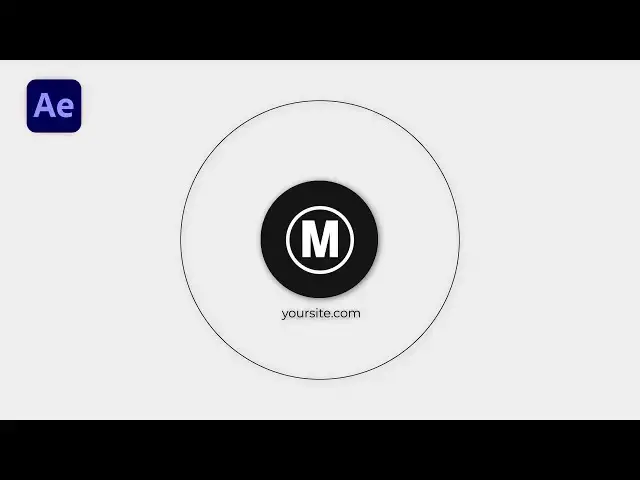
hello guys sof Tony here and in today's
0:08
video we will be creating a minimal and
0:10
clean logo animation inside of After
0:12
Effects step by step and before we begin
0:15
make sure to subscribe to my channel hit
0:17
the like button and turn on the
0:19
notification Bell so you don't miss any
0:21
of my upcoming video clips and without
0:23
any further delay let's dive into after
0:26
effects and start creating this cool and
0:42
animation all right we're here in After
0:44
Effects and first like always let's
0:46
create a new composition hit on this
0:48
little icon or hit control or command
0:50
plus n this is going to be final
0:52
composition 90/20 by 1080 30 frames per
0:55
seconds and for the duration I will go 7
0:58
Seconds long it okay and let's create
1:00
background go right click to create new
1:02
solid layer this is going to be
1:04
background Circle and very important
1:06
step is to go 3840 by 2160 4K solid and
1:10
then hit okay now let's animate this
1:13
background Circle but before that let's
1:14
select this solid layer hit Q on your
1:16
keyboard and turn on titles and action
1:19
save and while you're holding control
1:21
shift and ALT on your keyboard let's go
1:23
and select this ellipse tool control
1:25
shift and ALT and draw a perfect circle
1:28
from the center of our for composition
1:30
let's go somewhere around here okay now
1:33
select this option pen behind or hit Y
1:36
on your keyboard and let's also select
1:38
this background Circle and move the
1:40
Anchor Point to maybe somewhere around
1:43
here okay as you can see my snapping
1:46
option is turned on and now go here to
1:49
around 3 seconds hit R for rotation and
1:52
let's create our first key frame and
1:53
then go to around 0 seconds and let's go
1:57
130 if you want to see opposite
1:59
animation just instead of this 130 type
2:04
130 okay now select both of the key
2:06
frames hit F9 on your keyboard go to
2:09
graph editor and draw a curve like this
2:13
okay and if you can see curve like this
2:15
just go right click and hit here edit
2:18
speed graph okay now select both of the
2:21
key frames hit control+ C to copy go to
2:25
around maybe 4 seconds or somewhere
2:27
around here and hit control+ V to paste
2:30
it and then go right click key frame
2:32
assistance and time reverse key frames
2:35
now let's hit zero to see the animation
2:37
this is our first part and as you can
2:40
see this is our second part and this is
2:43
looking good okay now let's also draw
2:46
Perfect Circle here in the middle of our
2:48
composition hit Q again or go and find
2:51
this ellipse tool make sure that our
2:52
fill color is set to this solid color
2:55
and stroke to none and make sure to
2:57
unselect everything here and go here to
2:59
the to the center of the composition
3:01
hold control shift and ALT and draw a
3:03
perfect circle like this okay and then
3:07
go here and effects and preset type here
3:09
F effect Dragon drop on our shape o1
3:12
let's also rename it Circle o1 okay go
3:16
here in the fail effect and type here 21
3:18
21 and 21 to get this shade of gray
3:22
color hit okay and let's also drag and
3:25
drop this F effect to our background
3:27
Circle and let's type e f EF and EF to
3:31
get this type of white color hit okay
3:34
and now select the circle o1 I will
3:36
close the effects control for now hit Y
3:39
on your keyboard or go here on this span
3:41
behind icon and let's also reposition
3:45
this Anchor Point to maybe somewhere
3:47
around here and as you can see my
3:49
snapping option is turned on now let's
3:52
make this circle o1 smaller maybe from 1
3:55
second and 15 frames okay and now let's
3:57
go to around maybe 2 seconds and 15
4:00
frames hit R for rotation set up the
4:02
first key frame and also while you're
4:04
holding shift hit s to show scale
4:07
parameter set up the key frame also for
4:09
the scale parameter then go to around 1
4:11
second and 15 frames and for the scale
4:14
let's type here zero and for the
4:16
rotation let's go to around 90 okay now
4:19
grab all of the key frames hit F9 go to
4:22
graph editor and let's draw a shape like
4:25
this okay and now let's select all of
4:28
the four key frames hit control+ C then
4:31
go to around 4 seconds and 15 frames and
4:34
paste it h control+ v and let's also go
4:37
right click find here key frame
4:39
assistance and select this option time
4:41
reverse key frames let's also go here to
4:43
the graph editor and draw the same curve
4:46
like before something like
4:49
this okay and now let's hit zero to see
4:52
our animation this is our background
4:54
animation and as you can see our middle
4:57
shape is looking cool now let's select
5:00
the circle o1 again go here in the
5:02
effects and preset find drop shadow
5:04
effect drag and drop onto the circle o1
5:07
and for the distance let's type here 10
5:10
and for the softness let's go to around
5:11
50 and also for the color let's type
5:14
here e f e f e f and then hit okay now
5:20
let's duplicate this circle o1 for a few
5:22
times hit control plus d move two frames
5:25
ahead contrl plus d once again okay two
5:28
frames ahead this is going to to be also
5:30
Circle 04 2 frames ahead and the last
5:34
one Circle 05 also two frames ahead and
5:37
now when we hit zero we have our
5:39
background animation and cool circles in
5:42
the middle of the composition now what
5:44
we can do is to select everything Circle
5:46
01 all the way up to Circle 05 hit you
5:50
to show all of the key frames and for
5:52
this circle O2 reposition the key frames
5:54
to somewhere around here Circle O3 to
5:57
somewhere around here repeat the process
6:02
04 and also for the last one to go
6:06
somewhere around here okay now hit zero
6:10
and we have our animation in order and
6:14
this is looking awesome now what we can
6:16
do is to import our logo here in the
6:18
scene as you can see I already have this
6:21
logo for the example just Dragon drop
6:24
here in the timeline okay make it
6:26
smaller also maybe from 1 second and 15
6:30
okay hit s maybe to go around 20
6:33
according your needs it depends on your
6:36
logo size maybe 21 somewhere around here
6:39
use arrows on your keyboard if you need
6:41
to reposition your logo and let's also
6:43
hit contrl plus d for this circle5 move
6:46
above our logo and this is going to be
6:49
mat okay now let's go here to around 2
6:52
seconds set up the position for our logo
6:55
and set up the first key frame like so
6:58
and move it up for this y parameter to
7:00
maybe somewhere around here and let's go
7:03
to around 3 seconds go right click and
7:06
reset find here reset option also for
7:09
the track met let's go and find Alpha
7:11
mat for this mat option and then select
7:14
all of the key frames hit F9 and go to
7:17
graph editor and draw a curve like this
7:21
okay now let's hit zero to show our
7:24
animation and this is looking awesome
7:28
now what we can do is to select both of
7:29
the key frames hit also control+ C and
7:32
then go to around maybe 3 seconds and 15
7:35
frames paste it and also repeat the
7:38
process go right click key frame
7:39
assistance time reverse key frame and
7:42
now as you can see we have our in
7:44
animation and out animation and this is
7:47
looking awesome now let's also draw
7:50
another shape here in the final
7:52
composition hit Q again or go here on
7:54
this ellipse tool make sure to unselect
7:56
everything then go again here to the
7:59
center of the composition hold control
8:01
shift and ALT and draw also perfect
8:04
circle like this before this one just
8:07
make sure that our stroke is set to two
8:09
pixels and our fill is set to none okay
8:13
our name this one to thin circle like
8:16
this okay now hit s for this circle o1
8:20
copy this scale parameter also make this
8:23
thin circle smaller from maybe 1 second
8:25
and 15 frames and also paste this scale
8:29
parameter for this thin circle okay now
8:32
hit you to show all of the key frames
8:34
and delete those two last key frames and
8:37
now as you can see we have also this
8:39
animation of our another circle now go
8:42
here in effects and preset find F effect
8:44
drag and drop on the thin circle you can
8:47
use also ey dropper to select the same
8:49
color like before or hit
8:52
212121 again here and as you can see our
8:55
animation is looking cool now open up
8:58
this Little Triangle in circle 01 find
9:01
here add and then let's go and find here
9:03
option trim pad go here on 1 second and
9:06
15 frames open up this trim pad option
9:09
set up the first key frame for start
9:11
parameter and then go to 100% And also
9:15
go here to maybe around 3 seconds and
9:18
type here zero now select both of the
9:20
key frames hit F9 go to graph editor and
9:23
draw the same curve like before okay
9:26
this is looking cool hit U again to show
9:29
all the key frames grab just trim pad
9:32
key frames do not go on scale hit
9:34
control+ C and then go to around maybe 4
9:38
seconds and paste it somewhere around
9:41
here also go right click key frame
9:43
assistance and hit here time reversed
9:46
key frames open up graph editor and also
9:50
let's draw the same curve like before
9:54
okay and now in our finals let's hit
10:00
animation and also cool out animation
10:04
this is looking awesome and for the
10:06
final step let's also create here text
10:08
layer hit control+ t or go here on this
10:11
little icon horizontal type tool for the
10:13
font I'm using this moner regular for
10:15
the font size 37 and let's type here
10:22
site. this is just random text of course
10:24
you will type your own text go here in
10:27
the facts and preset find fill again
10:28
drag drop drop onto the yoursite.com
10:30
textt layer and also use ey dropper now
10:33
select this text again go here on align
10:36
and align it to the center and if you
10:38
can't find align option just go window
10:40
and you will find align here use arrows
10:42
on your keyboard to reposition according
10:44
your needs to maybe somewhere around
10:46
here okay now open up this Little
10:49
Triangle go to animate find position and
10:53
now go here on ADD option do not go here
10:56
again on animate go on ADD property and
10:59
find opacity and here let's also make
11:02
further adjustments make this text layer
11:05
smaller to maybe also 1 second and 15
11:08
frames from somewhere around here for
11:10
the position let's go minus
11:12
120 and for the opacity go to zero Now
11:16
open up this animator 01 find your range
11:19
selector and for the offset set up the
11:22
first key frame here at 1 second and 15
11:24
frames okay and let's type Min - 100
11:28
then go to to around maybe 3 seconds
11:31
somewhere around here and let's go to
11:33
around 100 now what we can do is to open
11:37
up this Advanced option for the shape
11:39
instead of square let's go to ramp up
11:42
and for the E high and e low let's go to
11:45
100% if you want to randomize order of
11:48
our animation just hit here on now hit
11:52
zero to show the animation and our
11:55
animation is looking awesome to make
11:58
sure that our animation is inside the
12:00
boundaries of our shapes just hit contrl
12:04
plus d for this circle o1 move this
12:06
above let's rename this one to text mat
12:10
and select this yoursite.com and find
12:13
here Alpha inverted mat and this is
12:16
looking awesome now hit U to show all of
12:18
the key frames again select them hit
12:21
control+ C and here from maybe 3 second
12:24
and 15 frames paste it go right click
12:27
key frame assistance time verse now
12:30
let's hit zero again this is looking
12:33
cool and our nice animation is here
12:37
maybe to move this yoursite.com down a
12:40
bit more and this is looking
12:46
great all right guys that was everything
12:49
for today's tutorial and this was really
12:51
great technique to create your own logo
12:53
animation you can use it of course in
12:55
your own videos in your own project to
12:58
make your video was even better looking
13:00
and if you haven't subscribed to my
13:02
Channel please hit that subscribe button
13:04
and turn on the notification Bell so you
13:06
never miss any of my upcoming video
13:08
tutorials also take a look on my profile
13:10
on my channel to see even more great
13:12
tutorials also you can leave me a
13:14
comment Down Below in the comment
13:16
section all the links are in description
13:19
and until next time stay creative and