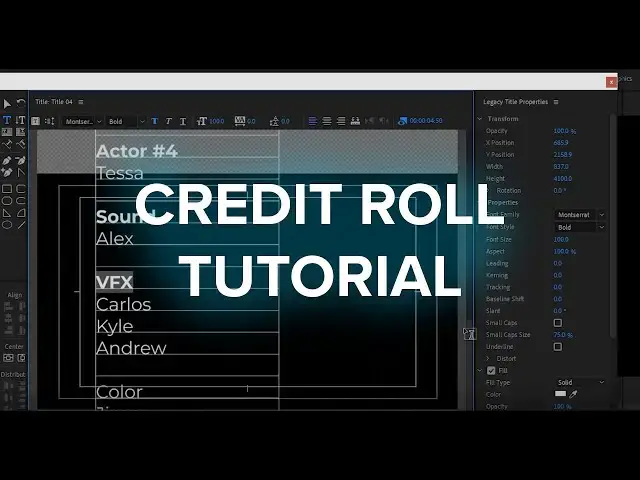

How to Make a Credit Roll in Premiere Pro (Rolling Credits Tutorial)
Sep 11, 2020
The credit roll is one of the most important parts to any movie! This is where you give credit and thanks to the team that helped the project come to life. But if you don’t know what you’re doing, making a credit roll that’s hundreds of lines long probably seems like a daunting task that will be difficult to keep track of while animating. Well, if you’re using Adobe Premiere Pro, that is not the case.
In this video, we have two methods of creating easy credits, and both will result in the same end-product. It just comes down to your personal preference. Whichever method you choose, it will be a lot easier to make your credits if you’ve already typed them up in a word processor and can just copy and paste them into your project. You’ll still need to apply formatting within Premiere Pro, but it’s much easier to have your text prepared.
Premiere Pro Tutorials You Should Watch Next!
1. Premiere Pro Masking Techniques https://www.youtube.com/watch?v=0EL5LhyEWys
2. Easy Pan Whip Transition in Premiere Pro https://www.youtube.com/watch?v=7WR8t7HKO08
3. Motion Tracking Techniques in Premiere Pro https://www.youtube.com/watch?v=6Wp8qHhU-2U
4. Top Shortcuts in Adobe Premiere Pro CC https://www.youtube.com/watch?v=9lYxaiDW0Ns
5. How to Install Premiere Pro Transitions https://www.youtube.com/watch?v=fMZTA1ZXVsY
View all video editing products on FilterGrade: https://filtergrade.com/product-category/video/
*Additional Links and Resources*
View even more: https://filtergrade.com/shop/
Bonus page: https://filtergrade.com/drone-presets/
Check out the free LUTs packs we have available for color grading!!
1. Free Cinematic Video LUTs https://www.youtube.com/watch?v=ScvZ1kud9kE
2. Free Colorful LUTs Pack https://www.youtube.com/watch?v=pltgfL83Gk4
3. Free Film Tone LUTs Pack https://www.youtube.com/watch?v=XmXPdtRSias
- - - - - - - - - - - - - - - - - - - -
Follow FilterGrade!
Facebook - https://www.facebook.com/filtergrade
Twitter - https://twitter.com/filtergrade
Pinterest - https://www.pinterest.com/filtergrade/
Instagram - https://www.instagram.com/filtergrade/
Newsletter - https://filtergrade.com/filtergrade-newsletter/
- - - - - - - - - - - - - - - - - - - -
Subscribe so you can see future video editing videos and color grading tutorials first! #premierepro #tutorial #creditroll
Show More Show Less #Arts & Entertainment
#Entertainment Industry
#TV & Video