0:04
hello guys soft Tony here and welcome
0:07
back to this brand new After Effects
0:09
tutorial in this one we're going to
0:11
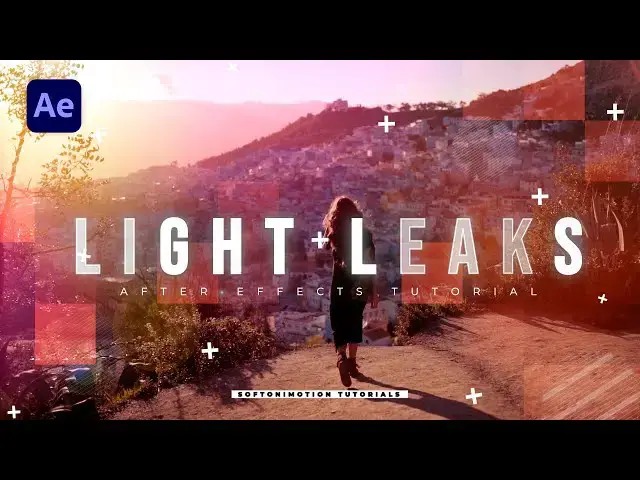
create professional light leaks
0:12
animation without using any third party
0:15
plugins also if you haven't subscribed
0:17
to my Channel please consider to
0:19
subscribe also hit the like button and
0:21
turn on the notification Bell so you
0:23
never miss any of my upcoming video
0:25
tutorials so without any wait let's jump
0:28
into after effects and start
0:42
creating all right we're here in After
0:44
Effects and as you can see I have
0:46
already imported here my media o1 of
0:49
course you will import your own footage
0:51
this is full HD 90/20 x 1080 it doesn't
0:54
matter you can also import 4K or
0:57
whatever fits to you now let's create
0:58
the solid layer go right click to create
1:00
new solid layer this is going to be
1:03
light leaks okay 9020 by 1080 and then
1:06
hit okay now go here in the effects and
1:08
preset and if you can find effects and
1:10
preset just go window and you will find
1:12
effects and preset here now let's type
1:15
fral noise effect drag and drop onto the
1:18
light leaks effect and here let's make a
1:20
few adjustments for this fractal type
1:22
instead of basic let's change to Dynamic
1:24
Progressive for the noise type let's
1:26
change here to block okay for the
1:28
contrast type 200 for the brightness
1:30
minus 80 okay for the complexity lower
1:34
down to one okay open up this transform
1:36
option here you can play around with the
1:38
scale option I will do somewhere around
1:41
275 okay also you can play around with
1:44
the offset turbulence maybe
1:46
55 now let's animate Evolution option
1:49
hold alt on your keyboard and then left
1:51
Mouse click and type here wiggle open
1:54
and close bracket and let's type here
2:00
500 okay hit zero on your keyboard here
2:04
in the finals I'll just turn off the
2:06
sound of this media 01 hit zero and this
2:09
is looking really really awesome for now
2:11
okay now let's import our next effect
2:13
this is going to be colorama effect drag
2:16
and drop onto the light leak solid layer
2:19
okay find here option output cycle and
2:22
for the preset let's find fire and now
2:25
as you can see we have this orange and
2:27
yellow Fire Light leaks in after effects
2:30
okay let's add our next effect this is
2:32
going to be Hue and saturation drag and
2:35
drop onto the light LS effect check this
2:38
option colorize also for the saturation
2:40
instead of 25 let's play around maybe to
2:42
around 80 and let's also animate this
2:45
colorized hu hold alt on your keyboard
2:48
and then also left Mouse click and let's
2:50
type here wiggle again open and close
2:53
bracket 5 comma 50 okay copy this h
2:57
control+ a and then hit control plus C
3:00
we're going this because we will also
3:02
copy this on opacity property hit
3:04
control+ C okay and hit zero on your
3:08
keyboard and as you can see our colors
3:11
are changing this is looking cool hit
3:14
also t on this light cck solid layer
3:16
okay hold alt on your keyboard again and
3:19
let's type here for the opacity again
3:22
wiggle 5 comma 50 hit zero on your
3:25
keyboard and now we have something like
3:27
this our next step is to precompose this
3:29
light cck solid layer hit here then go
3:31
right click to precompose I'll just
3:33
rename this one to light leaks make sure
3:37
that you choose this second option move
3:39
all attributes into the new composition
3:41
and then hit okay now let's play around
3:43
with the blending modes if you can't
3:45
find blending modes just hit here toggle
3:47
switches and modes okay and let's try
3:49
maybe for this first option add blending
3:52
mode and as you can see this is looking
3:54
cool hit T also for opacity and let's
3:57
lower down to maybe 30% hit 0 on your
4:00
keyboard and as you can see we have cool
4:03
block light leaks here in our final
4:05
scene you can also change from light to
4:07
lighten or color Dodge screen whatever
4:10
fits a new just play around until you're
4:12
satisfied with your own result hit also
4:15
t for opacity again you can play around
4:17
here maybe bring this up to around 50%
4:20
and then this is looking cool you can
4:22
also make this blocks even smaller just
4:25
go here on the light leaks and then go
4:27
here again on fractal noise open up this
4:29
trans transform option instead of 275
4:32
you can play around maybe to around 60
4:34
or something like this and light lcks
4:37
will be something like this here in the
4:40
final scene okay I'll just do control+ Z
4:44
okay and in our finals we have this cool
4:47
looking light licks you can also change
4:50
here the shape go here in the fractal
4:52
noise again and instead of this noise
4:55
type block maybe to change to spline
4:57
okay and for the scale here transform
5:00
option instead of 275 let's go around
5:04
1,000 okay and now as you can see we
5:07
have different type of this light leaks
5:09
here in the scene also hit T to play
5:11
around with the opacity hit zero on your
5:14
keyboard and now this is looking cool
5:18
here in the scene all right guys I have
5:21
shown you this cool technique to create
5:22
your light leaks option you can combine
5:25
this option with uh block option also if
5:28
you want to do this just hit control+ D
5:30
on this light clicks again import here
5:33
in the scene okay change blending modes
5:36
to maybe add and then for this light
5:38
leaks O2 hit F3 change back this to
5:42
block okay and for the transform option
5:46
275 again and here in the finals we will
5:49
also have this block light leaks and
5:52
this second one spine and this is
5:55
looking really cool and really awesome
5:58
basically it's up to you to play around
6:02
options okay guys that was everything
6:04
for today's tutorial if you haven't
6:06
subscribed to my Channel please hit that
6:07
subscribe button if you found this video
6:09
helpful please hit that like button also
6:12
all the links are in description you can
6:14
leave me a comment Down Below in the
6:15
comment section also take a look on my
6:17
channel on my profile for more great
6:19
tutorials and until next time stay