0:00
hello and what's up guys soft Tony here
0:02
welcome to another video tutorial and in
0:05
this one we're going to create this film
0:07
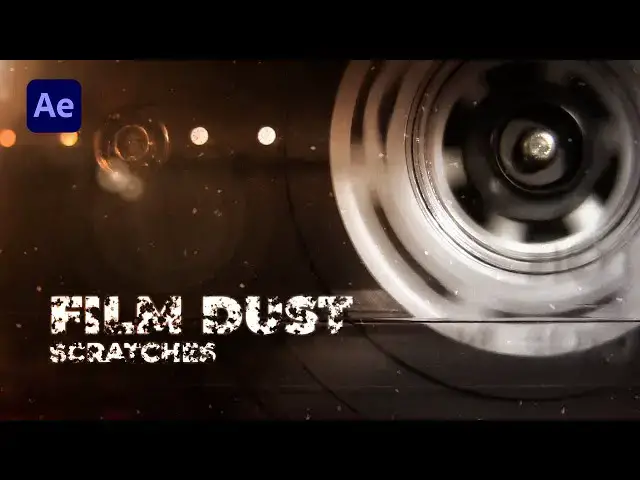
effect and Dusty textures so film dust
0:11
and those scratches are often used to
0:13
recreate the Aesthetics of old movies or
0:16
vintage footage and with this after
0:18
effects tutorial you can achieve this
0:20
effect very easily whether you're a
0:23
filmmaker video editors or simply
0:25
someone who wants to add a unique visual
0:28
element to their project this tutorial
0:30
is perfect for you so without any
0:33
further Ado let's get started and create
0:36
this really cool and awesome effect
0:50
all right we're hearing After Effects
0:52
and first like always let's create a new
0:54
composition hit Control Plus n or
0:56
command plus n to create a new comp or
0:59
this little icon here for the
1:01
composition name you can type whatever
1:02
you want but I will type final a 9020 by
1:06
10 80 30 frames per second duration 10
1:09
seconds long hit OK and now let's create
1:12
our solid layer go right click then go
1:14
new find here solid I will rename it to
1:17
background hit OK then go here in the
1:21
facts and press it and if you can't find
1:23
it go to window and just hit here to
1:26
find it effects and preset type here uh
1:29
fill effect drag and drop onto our first
1:32
layer and let's change our color to dark
1:36
dark gray one like this and then hit ok
1:41
now let's create another solid layer
1:43
right click find here new a new solid
1:46
layer I will rename it too
1:48
fractal noise 01 also full HD hit OK go
1:54
again here in the facts and preset type
1:57
fractal noise drag and drop onto our
2:01
first layer and now it's time to make a
2:03
few adjustments for the contrast instead
2:07
400 and also find another effect here
2:11
and bus effect drag and drop also here
2:14
on fractal noise and you can play around
2:17
with the relief and contrast for the
2:19
relief I will type maybe three contrast
2:22
maybe leave it to 100 or 110 like so and
2:27
also we will animate our Direction hold
2:30
alt here on this little stopwatch and
2:33
then type here time asterisk
2:36
300 or whatever number you want okay now
2:41
when we hit zero on our finals we have
2:43
this kind of movement and also really
2:45
important step is to change our blending
2:48
mode from normal to Overlay or soft
2:51
light you can play around if you can't
2:53
find those blending modes just hit here
2:56
on toggle switches and modes find it and
2:59
now we will change it to Overlay and as
3:02
you can see our background is looking
3:04
really really cool now let's create
3:07
another fractal noise layer and we can
3:09
duplicate this one hit here go edit and
3:12
then duplicate or control plus d on your
3:15
keyboard I will rename this just to see
3:17
the difference instead of fractal noise
3:19
or one change it to fractal noise O2
3:21
okay hit again here delete this and boss
3:25
effect and now we will make a few
3:28
changes here in our fractal noise for
3:30
the fractal type instead of basic change
3:32
here to turbulent smooth for the night
3:35
noise type finds here spline also for
3:38
the contrast instead of 400 type 100 for
3:42
the brightness maybe around minus 50
3:45
also open up these transform options for
3:48
the scale type here maybe around 35 or
3:51
30 like this uh you can leave this to
3:55
overlay but better option is to find
3:57
here another blending mode add or
3:59
lighten like this and now we have this
4:03
kind of movement also now it's time to
4:06
animate our fractal noise to open up
4:09
this Evolution options find here random
4:12
seed uh hit alt on this little stopwatch
4:22
like this now when we hit zero we have
4:26
this fast movement in our finals and
4:29
it's time to add our next effect find
4:32
posterize time drag and drop onto our
4:35
fractal noise O2 and we will lower the
4:38
movement of our scratches uh lower down
4:42
frame rate maybe to around seven or
4:48
and now when we hit zero we have this
4:51
full movement also uh hit again here on
4:54
our fractal noise uh you can play around
4:57
with the relief just like this maybe to
5:00
point two also hit background change a
5:04
color maybe we can do just darker gray
5:09
option like this this is looking really
5:12
awesome and now when we hit zero we have
5:15
something like this also hit again here
5:18
on fractal noise O2 open up this fractal
5:21
noise you can scale down our scratches
5:24
play around with the brightness and
5:27
contrast to get the results that you
5:30
want when you're satisfied just hit OK
5:32
to see the preview this is looking
5:34
really cool to me and it's time to add
5:38
our first adjustment layer right click
5:40
find here adjustments layer I will just
5:43
rename it to nice find here in the facts
5:48
noise hls drag and drop onto our
5:51
adjustment layer and for the Hue
5:53
lightness and saturation type 4. now
5:57
this is looking really really cool
5:59
okay what we can do next to pre-compose
6:03
all of those layers hit control plus a
6:05
or select them all then right click it
6:09
will here pre-compose I will type here
6:11
just one for the composition name of
6:14
course you can type whatever you want
6:16
here hit OK and just to show you I will
6:21
import my media or one here and our next
6:26
step is really important to change this
6:28
blending mode from normal maybe to
6:30
Overlay you can play around or to add
6:34
better option I'll just hit s to scale
6:39
and now when we hit zero we have this
6:42
really really cool old film scratches
6:46
effect of course you can play around
6:48
even more to find here maybe lightning
6:51
find the suitable option for you okay
6:54
what you can do also is to hit T here to
6:58
lower down or up opacity of our best
7:05
all right guys I hope you learned
7:07
something new in this tutorial if you
7:09
found this video helpful please hit that
7:12
like button also if you haven't
7:13
subscribed to my Channel please consider
7:16
to subscribe also take a look on my
7:18
channel for even more great tutorials uh
7:20
one important note uh all the links are
7:23
in description so please take a moment
7:25
to explore my portfolio Pages where you
7:28
can find a vast number of projects
7:30
created in After Effects Premiere Pro
7:32
Cinema 4D and so many more I would also
7:36
appreciate your feedback and suggestions
7:38
for future tutorials down in the comment
7:41
section thank you once again for
7:42
watching this video and for your
7:44
continuous support with your help we're
7:47
growing stronger and will be better in
7:49
the future so until next time stay