0:00
hello guys of Tony here welcome to
0:02
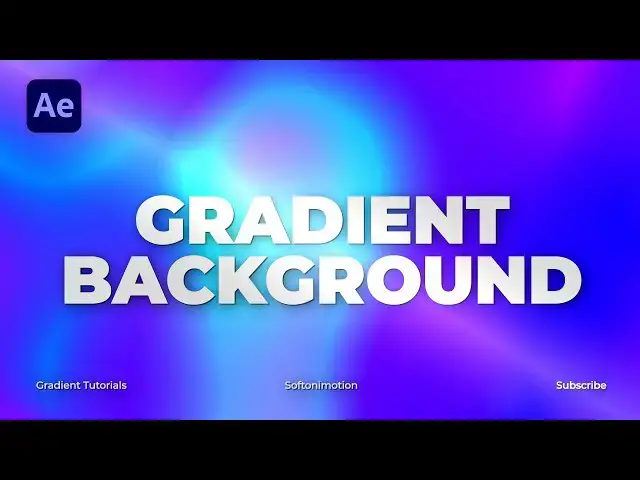
another video tutorial and this one
0:04
we're going to create this awesome and
0:06
cool background so without any further
0:09
Ado let's jump straight into after
0:10
effects and get started
0:24
alright for hearing After Effects and
0:26
first like always let's create a new
0:27
compute Control Plus and on your
0:29
keyboard and for the composition name
0:31
type whatever you want I will type final
0:33
90 20 by 1080 30 frames per seconds 10
0:36
seconds long hit OK and now let's create
0:39
our background go right click find here
0:42
solid layer I'll rename it too
0:44
background BG hit OK and then go here
0:47
and the facts and press it and if you
0:49
can finally just go window and find it
0:53
Four Color gradient drag and drop onto
0:56
our background and now we will animate
0:59
our points but before that let's change
1:01
our colors for this first one you can
1:04
use eyedropper I will use blue one also
1:07
second one I will use this pink one
1:09
maybe to go inside here and select
1:13
this kind of a pink or purple color hit
1:16
okay and now let's create our keyframes
1:20
for the 0.1.2 3 and 4 and then go to
1:24
around 2 seconds and readjust our points
1:27
first one here second one here third
1:31
line like here and fourth one like so
1:34
now when we hit zero in our finals we
1:36
have this movement of our background
1:39
okay now let's duplicate this background
1:42
layer hit here go edit and then
1:44
duplicate or hit Ctrl D and for the
1:47
blending mode find here overlay okay now
1:51
let's create our first adjustment layer
1:53
right click go to new find here
1:54
adjustment layer and let's add our first
1:57
effect go into effects and preset type
1:59
motion tile drag and drop onto our
2:02
adjustment layer and for the width and
2:04
height go to around 400. okay our next
2:07
effect is gonna be turbulent displace
2:10
drag and drop also on our adjustment
2:12
layer and also we will make here few
2:15
adjustments for the amount go to around
2:17
400 size maybe around 200 and now when
2:21
we hit zero we have this cool elements
2:24
and shapes in our finals Also let's
2:26
animate our Evolution hit alt on this
2:30
little stopwatch and type here time
2:33
asterisk 150 you can also type here
2:36
higher or lower number it depends on a
2:39
speed of this cool animation when we hit
2:42
zero in our finals now we have this cool
2:45
background if you don't want to see
2:47
those shapes just hit here on this
2:50
motion tile effect mirror edges I like
2:53
so and now when we hit zero we have this
2:56
uh really cool and really really awesome
2:59
animation okay now let's add another
3:02
adjustment layer code here new find here
3:05
adjustment layer I'll just rename it to
3:08
fractal noise and this one I'm gonna
3:12
rename it to foreign turbulent
3:18
just to see the difference hit here on
3:20
fractal noise gold here and again find
3:22
here fractal noise effect drag and drop
3:25
onto our adjustment layer and also let's
3:28
make a few adjustments here for the
3:30
fractal type change to turbulence mode
3:33
contrast go to around maybe 200
3:37
brightness to maybe around minus 20
3:40
complexity to One open up also this
3:43
transform tab go to 1000 and now let's
3:47
also animate our Evolution hit alt on
3:51
your keyboard left click then type
3:54
time asterisk 100 or 150.
3:59
and now in our scene we have also this
4:02
animation and now really important step
4:04
to change blending mode from normal to
4:06
add and if you can't find blending modes
4:08
just hit here toggle switches and modes
4:11
to find blending modes find here air
4:14
blending mode and now in our finals we
4:17
have this really awesome and really cool
4:19
and modern animation Also let's add our
4:22
next effect find Triton effect drag and
4:26
practical noise and basically you can
4:29
now change here colors of our white
4:32
animation according your needs like this
4:37
also this those mid tones play around
4:40
with the colors until you're satisfied
4:42
with the animation and now in our finals
4:45
when we hit zero we have this really
4:48
cool and really really awesome
4:49
background also in every moment you can
4:52
go here and change the settings from
4:54
contrast also Evolution brightness and
5:00
alright guys that was everything for
5:02
today's tutorial I hope you learned
5:04
something new like always if you like
5:06
this video hit that like button also
5:08
write me comment Down Below in the
5:10
comment section also take a look on my
5:12
channel on my profile for a more great
5:14
tutorials and until next time stay