live_tv
Livestream Starting Soon
00
Hours
:
00
Minutes
:
00
Seconds
Up next in 10

Vue.js 3 vue-ellipse-progress Tutorial to Show Animated Circular Progressbars and Loaders in Browser
Jan 9, 2025

Get the full source code of application here:
https://gist.github.com/gauti123456/94a787661ef2aea44c198db9817e4473
Show More Show Less View Video Transcript
0:00
uh hello guys welcome to this video so
0:02
in this video I will show you a vuejs
0:04
package which is a circular progress bar
0:07
uh you can decrease the progress level
0:09
you will see the you can change the
0:11
color thickness level as well so if I
0:13
click the plus icon it will change the
0:15
percentage dynamically you'll see it is
0:18
animating it so it's a nice little
0:21
progress bar circular progress bar
0:23
ellips you can use this package inside
0:26
VJs 3 very easily you can see the live
0:30
demo so how to integrate this package
0:34
first of all you need to install this so
0:36
just head over to npmjs.com and just
0:40
search for this package which is view
0:42
ellipse
0:44
progress this is actually the package
0:47
name so you just need to install this so
0:50
just using the npm command this is a
0:54
command here you so just install this
0:56
and it's having 5,000 weekly downloads
1:00
so now to configure this so they do
1:02
offer a nice little packaging progress
1:06
pass
1:08
so they do offer their own website as
1:11
well this is their
1:13
website so great documentation they have
1:17
so so just go to
1:19
your app. viw file and initialize your
1:23
template your HTML code so inside the
1:27
div we will just style it
1:34
inside we will change the display to
1:37
flex so that it appears in the center
1:39
position
1:41
so I have given the link in the
1:44
description of this video to get all the
1:46
source
1:47
code so after this we will initialize
1:50
this component but before that inside
1:53
our script
1:57
tag we will first of all import this
2:00
module
2:02
import V
2:05
progress and this will be coming from
2:07
view ellipse
2:10
progress and then we also need to import
2:14
the reference from View and we need to
2:17
now
2:18
register the
2:20
component for registering it first of
2:22
all we need to specify from parameters
2:25
so the progress level so when you
2:28
initialize your application it will be
2:30
at
2:30
50% so we will use this ref
2:36
here and then you also can initialize
2:41
the gradient color so here you will
2:43
specify the radial to be false and here
2:46
you will specify the colors which will
2:49
comprise the gradient so here you can
2:51
specify the base 64 code the area of
2:54
Base 64
2:56
colors like this
3:00
and then we can Define these two methods
3:02
which will be responsible for increasing
3:05
and decreasing the progress levels so
3:07
increase progress and decrease progress
3:10
so the job is simply to increase or
3:13
decrease the progress levels of the
3:15
progress bar so now we have written all
3:17
this JavaScript typescript code now we
3:20
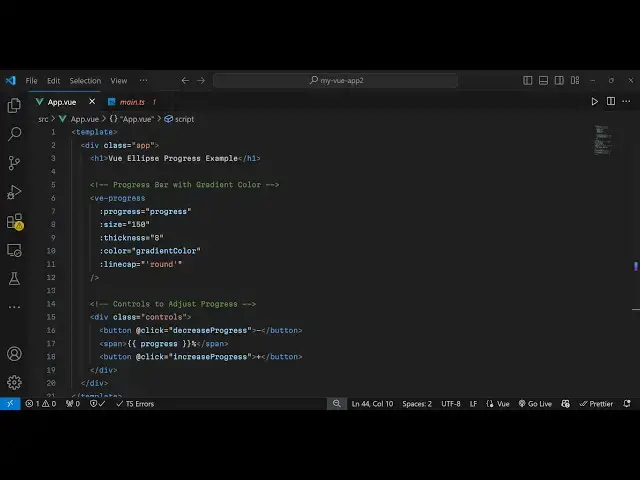
need to initialize the component so
3:22
right in the template itself we will
3:25
initialize this
3:28
component like this and we need to pass
3:30
some options right here so the first
3:33
parameter is your progress so initial
3:36
progress here will be progress variable
3:38
that we
3:40
initialize so initial level will be
3:43
50% and then the next one is the size
3:45
you can control the size here you can
3:47
pass a numeric value 150 and similarly
3:50
for thickness of the progress part again
3:53
it receives numeric value eight and then
3:56
you can control the color so I have
3:59
defined this color gradient color and
4:02
then if you want line cap as well you
4:05
can
4:07
pass round value so these are all
4:10
options that it takes and
4:13
uh
4:18
now uh we just need to after this we
4:21
will have uh two controls two buttons
4:24
which are available so we'll just
4:30
have these two buttons first of all
4:33
for increasing and decreasing so we will
4:36
just bind these on click listener so
4:39
when we click these buttons we will
4:40
execute those functions defined decrease
4:43
progress increase
4:45
progress we have defined these
4:56
methods so I will just
5:01
give setup right here so now just setup
5:04
is important so just give setup so if
5:07
you refresh now you will see initially
5:10
we will have at 50% we have these two
5:13
buttons so we can decrease it it
5:15
decreases by 5% and increase it also by
5:19
5% so you will see the progress bar will
5:22
now get
5:25
animated
5:26
[Music]
5:27
so you can easily change the color
5:30
combination uh by editing
5:33
this
5:35
and all this are customizable you can
5:38
change the size here let's suppose I
5:41
change 350 thickness level I change to
5:46
18 so now you
5:49
see it is all a customizable
5:52
so you can check out their documentation
5:55
it has got a nice little documentation
5:57
as well all sort of progress part are
6:00
available so thank you very much guys
6:02
for watching this video and do check out
6:04
my website as well free mediat tools.com
6:07
uh which contains thousands of tools
6:10
regarding audio video and image and I
6:13
will be seeing you guys in the uh next
6:15
video
#Programming
#Other