Up next in 10

Build a React.js Adobe Acrobat PDF Editor Clone in Browser Using MuPDF.js Library in TypeScript
Mar 12, 2026

Buy the full source code of application here:
https://procodestore.com/index.php/product/build-a-react-js-adobe-acrobat-pdf-editor-clone-in-browser-using-mupdf-js-library-in-typescript/
Show More Show Less View Video Transcript
0:00
Uh hello guys, welcome to this video. So
0:02
in this video I'll show you I built out
0:04
a offline PDF editor something like
0:06
Adobe Acrobat clone in ReactJS using MU
0:10
PDFJS library. So we are running this
0:14
project local locally just to show you
0:18
the demo of this application. Uh this is
0:20
the readym made project here as you can
0:22
see if I show you the package.json JSON
0:24
file. We using this library MUP PDF
0:29
and we are also using the latest version
0:31
of React. So [snorts] if you're
0:33
interested in purchasing this project,
0:35
the link is given in the description.
0:37
After purchasing it, you will get the
0:40
full source code. Each component as you
0:42
can see is divided into its appropriate
0:44
TypeScript file here. So it's fully
0:47
customizable. You can easily customize
0:50
this. and we are running this project on
0:52
local host. It's also very easy for you
0:55
to deploy this as well. So once you
0:57
click the browse file button, you simply
1:00
select whichever PDF file that you want
1:02
to edit. After selecting that, both the
1:05
pages will show right here. All the
1:07
pages in the live preview section. And
1:10
here you can easily have all the options
1:12
right here on the left hand right hand
1:14
side. If you want to add something,
1:18
you basically select this tool. And here
1:21
you have the text field. And here you
1:24
simply add
1:26
it's you can just see here how easy it
1:28
is.
1:30
You can adjust the size as well. The
1:33
color, phone size, everything. So it's
1:35
every tool is there. Uh this is a select
1:39
tool. So here you can actually select
1:42
anything.
1:43
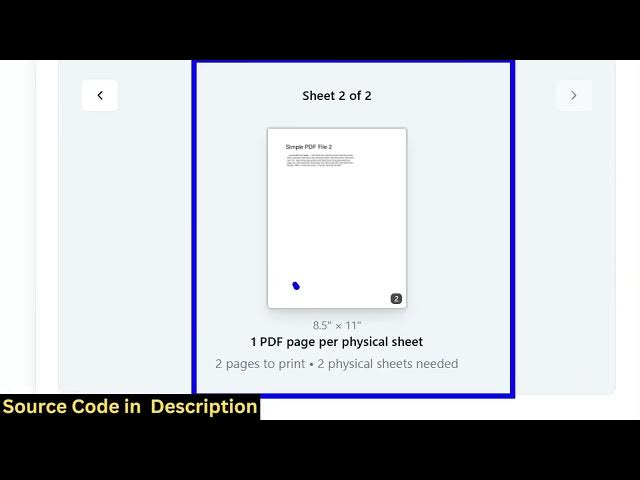
You can also directly print. This is a
1:46
print option which is given if you want
1:47
to print your PDF document. So this
1:50
print window will open and it will
1:53
actually allow you to directly select
1:55
which PDF document that you want to
1:59
print out. All these options are also
2:01
there. So as you click the print button
2:04
the printing will start.
2:06
So as you can just see
2:10
apart from that we also have the option
2:12
to highlight add images as well. So if
2:16
you want to highlight your text, you
2:17
simply select this tool
2:20
and here you can
2:25
select any page.
2:34
Uh
2:35
so it does this editor doesn't require
2:39
internet. That's the main thing. So once
2:41
you actually deploy this it all the
2:44
processing directly takes place in the
2:46
browser. So you select this tool and you
2:50
can easily highlight anything.
2:53
So as you can just see here this is the
2:55
highlighting tool and if you want to
2:58
remove any text from the PDF document
3:01
you use this tool and this will actually
3:04
remove everything. So you will see the
3:06
permanently removed from PDF.
3:11
[snorts] So this is the thing. So here
3:14
you can insert a page, delete a specific
3:17
page as well. This is the total number
3:20
of pages which are shown. So you can
3:22
easily read your PDF file. We have the
3:24
zoom in zoom out control. So this is a
3:28
tool here. If you want to hide
3:29
something, you simply select and this
3:32
magically will remove everything. So now
3:34
you can't see the text.
3:37
Similarly, you go to the next page.
3:39
Simply select the portion that you don't
3:41
want to and easily it removes
3:43
everything.
3:46
So this is
3:50
all the features of this if you are
3:53
interested in this. And then after that
3:56
you can save
4:01
everything will be saved here. You can
4:03
see all the changes that you have done.
4:04
Everything is saved. You can even export
4:06
this to a PNG file as well. Image file.
4:10
So we have all the format here. Text,
4:13
HTML, SVG, WEBP. So all the export
4:17
options are there. So if you're
4:19
interested in this project guys, the
4:21
link is given in the description. It
4:23
will download a zip file which will
4:25
contain both the images.
4:27
So it's a complete PDF editor and viewer
4:30
where you can read your PDF files and
4:32
also at the same time edit them as well
4:34
similar to Adobe Acrobat. So we are
4:36
using this library MU PDF and React.
4:42
So if you're interested in this project
4:45
the link is given you can directly
4:46
purchase it.