Up next in 10

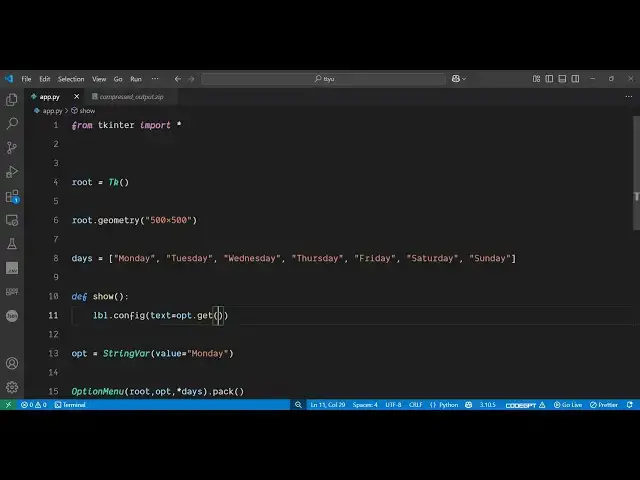
Python 3 Tkinter Script to Build Popup Dropdown Options Menu Widget GUI Desktop App
Jun 3, 2025

Get the full source code of application here:
https://codingshiksha.com/python/python-3-tkinter-script-to-build-popup-dropdown-options-menu-widget-gui-desktop-app/
Show More Show Less View Video Transcript
0:00
uh hello guys welcome to this video so
0:02
in this video I will show you how to
0:04
display a drop-down pop-up menu inside
0:09
the Tweinter desktop application so
0:11
there is a widget that you can use let
0:14
me show you the example so as soon as
0:16
you load this application the
0:18
application will look something like
0:19
this and we have this drop-down menu
0:23
that you can display pop-up drop-down
0:25
menu so you can have different options
0:27
right here you will see Monday Tuesday
0:31
you can take user input like this so if
0:33
you if the users changes this and then
0:36
click on this button you will
0:38
see so if you
0:41
see so I'll show you how to initialize
0:45
this popup drop-down menu inside your
0:47
Twinter application
0:50
so all the source code will be given in
0:53
the description of the videos so first
0:56
of all you need to import everything
0:58
from the trickter
1:00
package and then initialize the
1:04
window and you can set the geometry here
1:07
which is the width and the
1:13
height and then we can initialize this
1:16
widget drop-down widget we can have a
1:19
series of data that you want to display
1:22
so in this case we are displaying the
1:24
seven days in the week we initialize
1:26
this array
1:29
each option you will see we have
1:31
initialize it after that we can
1:36
simply convert this into string values
1:39
um initial value will be Monday inside
1:42
the drop-down widget and we have this
1:45
widget here which is option menu inside
1:48
trick
1:49
enter here we can pass the
1:57
options so like this the
2:00
variable and then we can display this on
2:03
the screen by using the pack method so
2:06
this is essentially this widget which
2:08
contains these three
2:12
options and uh after
2:17
that we display a label on the screen as
2:20
well
2:35
and then we start the main loop here
2:38
root main loop that's all so that's all
2:41
that we need to do uh if you execute
2:45
this application you will see
2:49
that we have
2:58
this then we can even have a button as
3:01
well so as soon as you click the button
3:04
show you will display the value of
3:09
it the actual choice which is selected
3:13
so we can
3:16
simply option dot
3:20
get so whatever option we can get the
3:24
value of it and display this
3:30
so so you'll see that so in this easy
3:33
way you can initialize a pop-up
3:35
drop-down menu and then you can get the
3:38
value as soon as on button click you
3:40
will see we selected this Friday value
3:43
so this is the simplest of tutorials of
3:47
Twinter we have this built-in widget
3:50
which is option menu and you can
3:52
initialize a pop-up drop-down menu very
3:54
easily
3:55
and also check out my website here
3:58
freemediatetoolsh.com
4:00
uh which contains uh thousands of tools