Up next in 10



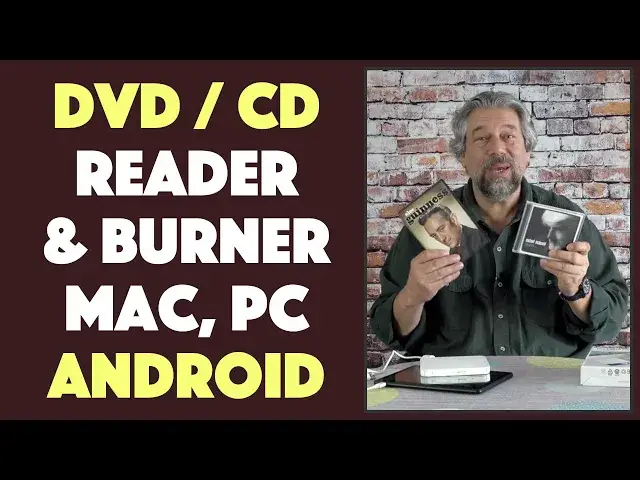
Do you have a box of DVDs in the basement, and another box just full of music CDs? With the HL Data Storage External DVD [model GP96Y] you can now watch those movies and listen to those CDs on your Mac, Windows PC, Android device, and even FireOS Stick! On the Android side, by using the free TrueDVD+ app, you can even rip those CDs to save a copy of the songs on your phone or tablet. As tech expert Dave Taylor of https://www.AskDaveTaylor.com/ demonstrates, you can also watch any DVD movie on your Android device through DiskLink Platinum, and it looks great!
Demo music: "Motown" by Michael McDonald.
Demo movie: "Kind Hearts and Coronets", starring Alec Guinness.
Find it on Amazon: https://amzn.to/2OMtKEd
Show More Show Less View Video Transcript
0:00
An external DVD drive that will even work with your Android devices
0:04
Let's check this out. Dave Taylor here and I'm checking out this
0:15
It's actually pretty cool. This is the HL Data Storage external DVD drive
0:20
and it actually works and lets you read and burn DVDs and music CDs
0:27
on a Mac, on Windows, on Fire OS, if you want to plug it into your smart TV running Android or on an Android device
0:37
Imagine, you can plug this into your Android phone and you can watch an old movie that you have on disk
0:44
Really pretty darn helpful actually. Now, let me start with some specs and then I'll give you all sorts of cool demos
0:50
So, it's a CD and DVD burner, writer and recorder and as a reader, it can write at 8x speed and read at 24x speed
1:00
So, if you plug this into your Mac or PC and want to rip one of your movies
1:06
it can go pretty fast or depending on your software, it can support a pretty fast read speed
1:12
That can be important. I'm not going to give you help on how to rip your CDs or your DVDs
1:18
Actually, CDs are easy. We'll get to that. But that's up to you
1:21
Now, like I said, the software comes with two apps that you get
1:26
You get DiskLink Platinum and TrueDVD+. This is on the Android side
1:31
On the PC or Mac side, you just plug it in and your system knows what to do with it
1:35
To be able to do things like audio rips, which is to copy audio onto your computer
1:41
then you're going to need to use your own software. So, for Android, there are two apps you install and you're ready to rock and roll
1:48
Again, I'll demo that in a minute. It is a multi-region DVD drive
1:55
but you will have to choose your region. You get five times to pick which region you want
2:01
and then it just burns into the hardware. And I think that that's something that is to do with, like
2:06
international standards for counterfeiting and stuff. So, what it means is if you do happen to have a Chinese region
2:14
or a European region disc that you really want to read, even though ultimately you're going to have it set to North America
2:21
you can do that if you do it as one of your very first times using the device
2:27
Once you get to a certain point, you do have to pick which region you're in
2:31
and that's what it is. There's no changing there. Now, it actually has an incredibly simple interface
2:37
It's super light. It's 5.6 inches by 3.4 inches by half an inch thick
2:43
and it's 12 ounces. Honestly, it feels almost like it's just an empty plastic shell
2:48
but there is a DVD drive inside. On the front, there is a button, and as you'll see, a little LED indicator
2:55
And on the back, there's, surprisingly, a micro USB connection. And so, of all the different possibilities, I was surprised to see that
3:03
In the box, you get a micro SD to USB-C, which is helpful
3:09
and a micro SD to USB 3, which can also be helpful
3:14
This is probably more useful for, like, a PC or a Mac
3:19
whereas USB-C is kind of the future. And so, for my test, I have this Dragon Touch 10-inch Android tablet
3:27
very inexpensive, and I'm going to use this as a demo, and it has USB-C
3:34
So, all I have to do is plug the drive into the tablet, run the app, and it works
3:42
It's pretty amazing, actually. Now, what's cool is you can also plug this into your smart TV
3:47
and most smart TV systems will recognize it and let you play old DVDs on your smart TV
3:55
And when I tell you the price, you'll be like, that's all it would cost to have my huge library of DVDs in the basement accessible? Nice
4:03
All right, so, let me just tell you one more thing. HL Data Storage is actually a partnership between Hitachi and LG
4:11
So, this is just one of their companies, and so you know it's going to be really good components inside
4:17
Whatever, right? Okay, cool. All of that is handy and informative. Let's get to some demos
4:24
So, I'll put this down. And first off, I have music. So, I have a Michael McDonald classic CD, him singing Motown songs
4:32
A little bit old, but, I mean, remember these things? Before we had streaming and before we had Spotify and Pandora
4:39
we had actual music on physical devices. So, here's what I'm going to do
4:44
I'm going to turn on my tablet, and then I'm going to start a screen recorder
4:51
and then you'll be able to see everything I do. And I will warn you in advance
4:56
it's going to bounce between horizontal and vertical orientation, depending on what we're doing
5:02
There's just kind of no way to avoid that. But, so, here I have DiscLink Platinum and TrueDVD Plus
5:10
I've already installed them. And I want to show you that the way it all works is that
5:15
as soon as you plug in this drive, then Android recognizes it and launches the appropriate app
5:23
We're going to start with a music CD. So, I push the button on the front
5:27
and then I'm going to actually listen to Michael McDonald's Motown. This is a great CD
5:34
Michael McDonald was part of the Doobie Brothers, and then he did his solo stint and everything
5:38
And he just has a really great voice. So, I put the audio CD in
5:44
and you can see I'm recording my Android screen, hopefully. And as soon as it recognizes that that music CD is in
5:54
it will actually launch DiscLink Platinum. But I can hasten the process by just launching it
6:02
And... Allow it to access the drive. Let's just say, yes, always do that
6:12
That will get it to automatically launch. And it's going to immediately go and launch
6:18
read the disc, and start playing a song. So, this is super easy
6:23
I can bounce to another track. And while I admit my Dragon Touch tablet
6:30
does not have great audio reproduction, the fact is, as you can see
6:35
this is pretty easy to work with. And you can have your headphones plugged in
6:38
or an external speaker, or let's do an audio rip. So, here I'm going to go to Audio CD Ripper
6:46
and let's take that same song that I was just listening to
6:50
and I want to rip it, which means I'm going to make a copy of it
6:54
and save that on my Android device, so that I don't have to actually have the disc
7:00
and the drive and everything every time I want to listen to it. Now, I could choose everything
7:05
with the check mark adjacent to the very top, but instead, I'm going to just choose
7:11
Signed, Sealed, and Delivered. Oops, that's the wrong one. There we go. Nope
7:15
Let's try this. The problem is the controls for the screen recorder
7:22
are getting in the way. So, there we go. So, you know what
7:26
Let's do this. Let's do how sweet it is instead. So, all I have to do is do the right check
7:32
push the plus, push Audio CD Ripping, choose what format I want
7:37
and I would suggest MP3 and middle bitrate setting, and default output
7:45
And so, now it's actually ripping this CD, which is the fancy term for copying the music
7:52
onto my device. Now, worth mentioning is that this is something where you want to be careful
8:00
You don't want to rip a CD and then post that content
8:03
because that's illegal. So, don't do that. But for your own use, I don't see it's a very big deal
8:10
It's obviously going to be much more convenient to have a digital copy of Motown
8:15
than for me to tote this around along with the drive and deal with this every single time I want to listen to it
8:21
Now, while it's doing this reading and prepping, let's have a quick video tour or visual tour
8:28
of the drive itself. So, here's the front of the drive, here's the back of the drive
8:34
and here's the underneath. So, really not super exciting. And so, we're back here
8:41
and now it's encoding the file that it just read so that it's in MP3 format
8:46
Most CDs, most music CDs, I think, are in MP3 format, but I'm not sure about that
8:51
In any case, it moves pretty darn quickly, and it'll zip along, and as soon as it's done
8:57
I now have a digital copy of that track. If I wanted a copy of the entire CD, I could do that
9:04
It takes a little bit longer, probably long enough to go make a cup of tea in the kitchen
9:08
but now it's done. All right, great. So, what I want to do now is let's check out a movie
9:16
So, I'm going to just push the button in the front again, and it ejects
9:20
It only does that if the drive's powered up, by the way. So, you want to make sure you eject your disc
9:26
before you unplug it from your Android device. And for a movie, I have this collection of great old
9:32
Alec Guinness black-and-white comedies. Great, great stuff. And I'm going to choose, we'll pick the top one
9:38
which is Kind Hearts and Carnets. Now, you might know Alec Guinness
9:43
as the older Obi-Wan Kenobi from Star Wars, but he's been in the film industry forever
9:50
And this is one of his first great roles. So, I'm going to put this in
9:54
and then just as I did before, I'm going to just close it
9:58
And this time it will launch TrueDVD Plus, or possibly I can go faster by just tapping on that
10:08
And TrueDVD is started. Allow access. Yes. And now it's looking through this disc
10:15
to figure out what it is. And we start with the warning
10:19
that I can't let you watch the entire movie through this, which I hope is fairly obvious
10:26
So, we get past this, and then we will actually get to the disc menu
10:33
Once we get past the intro from the company that did the reproduction or the digital restoration
10:41
And the audio, the video, it's really clean and eminently watchable. And of course, I can tap on the screen
10:50
and then controls come up, including step to next chapter. So, if I do that, then let's see
10:59
We have an ad for some other movie we don't care about so much
11:04
It's always weird to go watch old DVDs where they have trailers for old movies
11:10
that they haven't released yet, but of course now are super old. Now, here's the beginning
11:15
This is the disc menu for Kind Hearts and Coronets. And you can see it's eminently viewable
11:21
This is really nice. It really is a very pleasant way to watch a movie
11:27
And I'm going to go ahead and pause it. And so, there's my demo
11:33
And actually, I suppose what I should do is stop the screen recording
11:36
That would be good. And if you're seeing an inset of a screen recording
11:45
it worked. Huzzah! In any case, the most important thing is that this drive is really cool
11:52
It really opens up a whole world of sort of old media
11:56
because all the old DVDs, all the old CDs, you can now access
12:01
And of course, you can access them on your Mac or PC or plug it into your smart TV
12:06
And for many smart TVs, it will indeed work just fine. So, that gives you just this world of access to content
12:15
that you probably have figured you'll never be able to view again
12:18
Problem solved. Very handy. But don't forget, if you can find the media
12:24
you can burn CDs and you can burn DVDs, which means you could also use this
12:30
as a really good backup device. Let me get out of this program
12:34
before the movie just randomly starts again. So, you could use this to burn a couple of gig worth of data
12:42
maybe photos, and then just put it on a shelf or in a drawer
12:46
And now you know you have a solid physical backup. So, you're not reliant on that cloud backup
12:52
working in five years. So, pretty handy stuff. I really like having one of these available
12:57
because you just never know when you might need it. So, all that's left then is for us to talk about the price
13:03
And you're going to be like, what? It's that inexpensive? But before we get to the price
13:07
I'm going to ask, if you don't mind, can you join my channel by subscribing
13:11
I really appreciate when you do that. It's just a tap or a click on that red subscribe button
13:16
and boom, we're connected. Great. All right. This is the HL Data Storage external DVD
13:24
It comes in black or white and it's $39.99. But when I recorded this video
13:31
it had a 20% off discount, making it $31.99 at Amazon.com. Now, for $31, don't you think it'd be great for you
13:41
to gain access to all your music and old DVDs? Yeah, it would
13:46
And not only that, but you can get a lot of DVDs from your public library
13:49
if you really want to expand your movie collection, or, sorry, expand your movie horizons
13:55
whether it's even hooked up to your Mac or PC. So, really, there's so much more flexibility this gives you
14:02
It's like a gateway to everything pre-digital, pre-internet, pre-online. So, really, really helpful
14:09
I'm a fan. I will definitely keep this one in my go kit
14:13
That's all I got. I'm going back to that movie, which means I'll catch you in my next video
14:28
I'm going to catch you in my next video. Bye
#CD & Audio Shopping
#Computer Hardware
#Computer Drives & Storage
#TV & Video Equipment
#DVD & Video Shopping
#Media Streaming Devices