Up next in 10



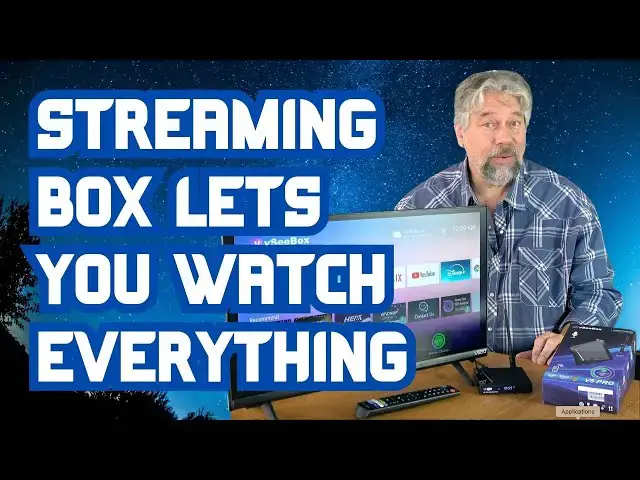
There's more streaming via the Internet than you might realize, but you can tune in to everything from anywhere in the world with the vSeeBox V5 Pro Live TV Streaming Device. Tech expert Dave Taylor walks you through an unboxing and initial setup, including demonstrating a variety of key features and live demos. It's an impressive device.
Disclaimer: As with any Android set top box, you can use this in a variety of ways, some of which might be more, or less, legal than others. Please be thoughtful in how you use the vSeeBox device.
Learn more about it at: https://vseeboxtv.co/products/vseebox-v5-pro
**** TIP: Use code "ASKDAVE" to get 10% off your purchase!
Visit Dave's Q&A Web site at: https://www.AskDaveTaylor.com/
0:00 Introduction
2:00 Unboxing with Close-Ups
3:41 The Remote Control
6:23 Device Setup and Configuration
8:30 On-Screen Feature Exploration
9:32 Video on Demand (VOD) Service
12:15 Live Streaming Options
13:31 Settings and YouTube
15:07 Disney+
15:44 Commentary and Conclusions
Show More Show Less View Video Transcript
0:00
the latest generation streaming box
0:02
let's check this
0:04
[Music]
0:10
out Dave Taylor here with my little Vio
0:13
TV and Vio like so many television
0:17
makers have their own built-in operating
0:19
system which gives you access to a fair
0:22
number of streaming channels but this
0:26
gives us a whole another level of access
0:29
this is the VC box V5 Pro so this is
0:34
their fifth generation device they have
0:36
gone through a lot of evolution since
0:38
they first introduced their product
0:40
about what three years ago and this one
0:43
is a live TV streaming box in the
0:46
industry jargon they call it an OT ipv
0:50
and Ott stands for for no reason I can
0:53
understand over the top it means that
0:56
you can stream directly from the
0:57
internet you don't need to cable you
1:00
don't need an antenna just as long as
1:02
you have a good internet connection this
1:03
thing will interface between your
1:06
internet and your television and give
1:08
you a ton of features and ipv is IP
1:12
television or Internet Protocol so the
1:15
unit runs Android 12 it's a quad core
1:18
arm processor with 4 gig of RAM 32 gig
1:21
of storage and an external USB you can
1:24
plug in it's separate purchase up to 2
1:28
TBT for additional store storage or an
1:31
archive of movies and TV shows that you
1:33
really like so there's more to talk
1:36
about this but I wanted to go through
1:38
the whole unboxing and setup experience
1:40
so I have my unboxing tool be careful if
1:45
you try this at home and it's easy
1:48
enough just obviously cut through the
1:50
plastic I'm sure we've all done this
1:53
plenty of times and we'll go ahead and
1:56
see what's in the
1:58
box one thing right off the bat is I
2:01
like that they have little tiny cutouts
2:03
for your fingers it's a tiny simple
2:07
little feature that makes a world of
2:10
difference when you're unboxing things
2:12
so Props to them for that and then the
2:14
main unit this is actually surprisingly
2:17
small you can see that it's about 4 in
2:20
around and maybe an inch thick and then
2:23
the ports on it let's see it is a V5 Pro
2:27
8K ultra high definition is what it says
2:30
on the front and on the side there is a
2:32
space for a Micro SD card also known as
2:36
a thin film or TF card and there's two
2:39
usba ports and on the back there is
2:43
ethernet and audio visual out and
2:46
Optical out and HDMI out and source for
2:51
your power and of course there's also a
2:54
little tiny antenna option there's going
2:56
to be a lot more in this box let's see
2:58
what else we have so we have a power
3:02
supply that's pretty
3:05
straightforward and then on the other
3:07
side of this we have all right see it's
3:09
underneath oh there's lots of stuff
3:11
under here so there's this 8K HDMI cable
3:15
and I can just pop the ends off because
3:17
we won't need them and then there is a
3:20
tiny antenna so you can put this on and
3:24
that gives you access to some local
3:26
broadcast channels and then we have a
3:29
very nice big remote control there's a
3:32
lot of options here with let me open
3:34
this up shortcut buttons
3:37
for YouTube Netflix Amazon Prime video
3:41
and Disney on the bottom here's a
3:43
closeup put it sideways so you can see
3:45
things bigger but you can see on the top
3:48
there's input options and then there's
3:51
numbers so you can go straight to a
3:53
favorite Channel there's a very typical
3:56
round navigation button and a home
4:00
button and there's a microphone button
4:02
because it allows voice input which is
4:05
fantastic and volume and channel and
4:08
then there looks like those four colored
4:10
buttons are probably user assignable for
4:13
favorite channels and then those those
4:15
four shortcuts for YouTube Netflix Prime
4:17
video and Disney now one thing that I
4:20
did not plan ahead with is that I need
4:23
two AAA batteries and I'm going to also
4:25
need to figure out how to open it I bet
4:27
it goes like this well well I'll put
4:30
batteries in in a moment we'll get there
4:32
but in the box is
4:35
also instructions so that's everything
4:38
that comes in the box and that's pretty
4:41
darn nice so I'm going to go ahead and
4:43
put this box over here to get it out of
4:45
the way and let's maybe move the Vio a
4:47
little bit so rather than use the
4:50
instructions I'm just going to plug the
4:52
darn thing in so let's just see what
4:54
happens so we need to give this power so
4:57
I just happen to have a power cord in
4:58
the back here
5:00
and so now we have that
5:04
and typically setup is going to take
5:07
about five or 10 minutes so probably I
5:10
will be skipping past a couple of the
5:13
more unexciting parts but let's get
5:16
there and see what happens so let's
5:19
see here's my power and we'll plug it in
5:24
and then I'll use the
5:26
HDMI to connect it to my television
5:30
and then I'll have to actually switch
5:32
the input on my Vio so we can actually
5:35
see what the device is sharing with us
5:38
so let's get this un stretched out and I
5:42
will plug this into the
5:44
HDMI and then plug it into my
5:49
television let's see I think we want
5:52
this one
5:53
HDMI1 and then while we're at it why not
5:56
let's go ahead and add that antenna
6:00
so I'll screw that on and then just tilt
6:05
it up and we will hope that that
6:07
actually is
6:09
Meaningful so now let me switch things
6:12
around so you can see what's on the
6:14
screen better and I'll also take
6:16
advantage of this moment to add those
6:18
AAA batteries to the remote control so
6:21
I'll be right back all right batteries
6:23
are in the remote and we're ready to
6:25
switch inputs to HDMI 1 so let's just go
6:29
go to V5 Pro how about that the TV's
6:32
already identified the
6:34
device and now we need to pair the
6:37
remote control with the unit so I'm
6:40
going to
6:41
hold volume down and okay at the same
6:49
time there we go now the remote control
6:52
set up I'm going to pick English
6:56
USA and we'll go next and I'll take this
7:01
but notice that these are all the
7:04
resolution options that's because my
7:06
television that I'm using isn't actually
7:08
a 4K unit they don't make 4K units this
7:11
small so when you plug it into a higher
7:14
resolution television you'll also get a
7:17
higher resolution option
7:19
here and let's see scale 95% we want to
7:23
make sure that those little corner white
7:25
angles are all visible and that all
7:28
looks good so we'll keep moving
7:30
and we are in oh boy this is going to
7:34
take a while for me to find where I am
7:37
cuz we're in GMT +
7:40
5 or actually are we minus five I think
7:43
I'm going in the wrong direction let's
7:45
do Min -
7:48
5 no minus 6 go M daylight time okay
7:52
we're good there now I'm going to use
7:56
Wifi so I'll have to set it up for Wi-Fi
7:59
and I'll come right back once I've
8:01
logged
8:02
in let's see if we'll connect to the
8:04
wireless
8:06
network it is Wi-Fi 6 compatible which
8:09
is good because I have a Wi-Fi 6E mesh
8:13
Network and it looks like it worked with
8:15
it and there's a disclaimer and
8:18
basically they're saying that you use
8:21
this the way you want they are simply
8:23
providing you the hardware I can agree
8:25
with that setting complete okay and what
8:30
happens next and here we go here's the
8:32
home screen so now you can see that
8:36
there are
8:39
pre-installed common and popular
8:41
streaming options we'll get back to
8:43
those and then there are some other
8:45
options you can use including air screen
8:48
which I believe is
8:50
for AirPlay let's see so this would be
8:54
how you would use with okay so AirPlay
8:58
uh chomecast mirrorcast DLNA all of
9:02
those that's really cool but I'm going
9:04
to actually press the home button on the
9:07
remote to get back here and then the
9:12
service they have is called Heat Ultra
9:14
and that offers over 1,300 live
9:18
channels and it gives you HD and 4K
9:21
video on demand content a program guide
9:25
and 7-Day playback so let's see we have
9:28
Heat live we have heat video on demand
9:31
and we have Heat Ultra so let's do Heat
9:34
Ultra and looks like that might need to
9:36
be
9:39
installed looks like we're in the
9:41
installation process and it's receiving
9:43
initial data and notice that the little
9:47
VC box V5 Pro itself is showing me the
9:52
current time and there's a tiny blue
9:54
light that indicates that it is
9:56
successfully working which is great so
9:59
now let's see so it's Ultra so let's see
10:03
what movies there are and so it shows me
10:06
content from different services that
10:09
doesn't mean I have access to them of
10:11
course but some of them are actually
10:14
free so like Pluto TV is free so let's
10:18
choose this and then I'll use and again
10:20
I'm just using the directional arrows on
10:22
the remote and let's choose action genre
10:25
and let's say last year's movies
10:29
and I have to admit I have not heard of
10:32
any of these but let's choose H
10:36
Mulan and now I'm going to press
10:41
play and let's see if it works and I
10:45
actually have my TV muted so let's
10:47
unmute
10:54
it and that's a beautiful picture and it
10:57
was mighty easy to get here so now
10:59
let's go
11:05
back
11:07
and that was movies let's go to TV
11:11
series and see what's on
11:13
there and again we have all these
11:15
options let's just choose
11:18
peacock and go
11:21
to um well not a big fan of most of
11:25
these series but we'll pick Night Court
11:30
and let's just see so this is season 3
11:34
and I'll pick this
11:38
episode
11:41
and I'm unclear whether it will want me
11:43
to log in apparently it doesn't how cool
11:46
is that great well this looks genuinely
11:50
not
11:51
enjoyable sorry that's my taste um so
11:55
now the question would be what do we
11:58
have for live streaming and that let's
12:01
see speed
12:03
test and I don't understand what this is
12:05
on the right so let's choose it and it
12:08
looks like that is just a show that
12:11
they're highlighting so let's go back
12:13
out of video on
12:15
demand and so that's that so let's go to
12:19
Heat live and again it'll probably need
12:22
to do a quick install and this only
12:24
happens the first time you use one of
12:26
these
12:30
and allow Heat live to access photos
12:32
media and files on your device I'll say
12:35
don't allow for now oh I see so I push
12:38
down and it changes what channel I'm on
12:42
but if I choose okay then I can get a
12:46
list of all
12:49
channels and I'm going to actually mute
12:51
this because I don't have rebc right so
12:55
that'll take care of that and now let's
12:58
see so here here's all the different
13:00
program options or Channel options and
13:03
let's see AMC West American movie
13:07
classics
13:09
and well it looks like I actually have
13:12
this channel which is interesting
13:13
because I don't subscribe to it so I
13:15
think part of what VC box is offering
13:18
and this is why they have that
13:20
disclaimer is that they might have
13:22
reverse engineered some of these
13:24
streaming channels so that you have
13:26
access to content that you otherwise
13:28
wouldn't so that's pretty interesting so
13:32
there's system settings Launcher
13:34
settings software update always a good
13:36
thing to do and let's look at system
13:39
info so not a lot of exciting
13:43
information there but this looks pretty
13:46
slick and I will go let's just go into
13:48
YouTube and try that
13:51
option and this is familiar to everyone
13:54
I'm sure and I'm not going to sign in
13:56
I'm just going to go to home oh maybe it
13:59
insists that I do that let's go to
14:04
music um so looks like I can just ignore
14:08
the signin part and I can just step
14:11
through and we can find sure let's try
14:15
Santa Claus is coming to town and again
14:18
I do have this muted so let me unmute
14:20
for a second and of course we have
14:24
ads and it's all absolutely beautiful
14:28
and you can see there's zero lag with
14:31
any of this streaming which is great
14:33
I've REM muted it until the ad's over
14:36
I'm not a big fan of advertising and I
14:39
know I have ads on my
14:41
channel um so let's just get to the
14:45
actual uh
14:49
video
14:53
[Music]
14:55
and okay so that works apparently I have
14:59
have actually chosen a video that's not
15:00
a video it's just a still image which is
15:02
actually kind of funny um but you can
15:04
see that there's an enormous amount of
15:07
flexibility and since I didn't have to
15:09
sign in to TCM let's just see if I have
15:11
to sign in to Disney I would assume I do
15:15
but let's see what happens sorry Disney
15:17
plus not
15:19
Disney so here I can sign up or sign
15:24
into my existing account and then access
15:27
it through this set toop box but let's
15:30
go back to
15:33
home and that's all the key features let
15:37
me jump back on camera and give you a
15:39
little bit more on the specs I have to
15:41
admit I'm really impressed that was easy
15:44
to set up it didn't require me entering
15:47
a credit card or anything and it was
15:49
pretty darn easy to navigate as a
15:51
complete newbie and figure out what was
15:54
where with a little bit of practice
15:56
maybe an hour of just laying on the
15:58
couch and pushing different buttons to
15:59
see what happens I would become an
16:01
absolute Pro and be able to jump to all
16:04
my favorite channels and do some of that
16:06
programming on the remote that might be
16:08
OB uh might be an option I don't know I
16:11
haven't tried it yet but let me tell you
16:12
a little bit more about the Box itself
16:15
so as I said it's a quad core arm
16:18
processor with 4 gig of RAM 32 gig of
16:20
onboard storage so those shows I was
16:23
watching I could have recorded how cool
16:25
is that and there's those USBS on the
16:29
side they're both usba but I can plug in
16:31
up to 2 terabyt of additional storage so
16:35
I could just pick a movie channel for
16:37
example and just record record record
16:39
record and then go to that DVR feature
16:41
and watch it anytime I want it decodes
16:45
h264 10bit HDR so as you saw every
16:49
single image I watched was crystal clear
16:52
it looked beautiful there was Zero
16:54
buffering very impressive actually um it
16:58
can do 6K at 60 frames per second or if
17:01
I had a more capable television 4K Ultra
17:05
HDR Wi-Fi 6 Bluetooth 5.0 so it does do
17:10
Bluetooth which should allow you to hook
17:12
up a pair of bluetooth headphones and
17:15
then watch and listen to content without
17:17
bothering anyone else this is
17:18
particularly useful if you like to watch
17:21
shows late at night and not bother
17:23
anyone else in the house big win with
17:25
Bluetooth and then finally we also saw
17:28
that Heat Ultra and the Heat live and
17:31
the heat video on demand Services which
17:34
are a way to consolidate all of the many
17:37
many many live channels that they have
17:40
and as you saw a lot of video on demand
17:42
content including what looks like it's
17:45
from a lot of pay channels some of which
17:47
required me to log in like I couldn't
17:50
get to Disney plus but some of which
17:52
like AMC was available so that's pretty
17:56
slick now disclaimer I am not endorsing
18:00
you not paying for a subscription
18:02
service if it's something that requires
18:03
a subscription but it's up to you to
18:06
decide how you would want to proceed you
18:08
could simply skip those channels or you
18:11
can watch everything and just sort of
18:13
keep moving forward and don't worry
18:15
about it that much that's up to you
18:17
that's your choice and so some people
18:20
have said they do have some buffering in
18:23
that case I will say that the VC box or
18:26
maybe it's the Heat Ultra service
18:28
whatever it is is they have multiple
18:30
servers around the world and you can
18:32
simply go into settings and try a
18:34
different server and that should get rid
18:36
of your buffering and that's everything
18:39
I think this is a keeper this is
18:41
something I'm going to leave plugged
18:42
into my TV because it gives me so many
18:45
more options and it's so much more
18:47
straightforward in a lot of ways than
18:49
the Vio operating system is so that's
18:52
what I got I really would encourage you
18:54
to check it out and look at the options
18:57
out there for overthe toop ipv or OT ipv
19:02
again I don't know where those acronyms
19:04
come from um but this is one that's
19:07
definitely on the top of the list right
19:09
now and it's fast and it's powerful and
19:11
has a lot of capabilities and as you saw
19:14
it's pretty darn easy to get started so
19:17
just don't feel at all intimidated and
19:19
it comes with this great remote with a
19:21
ton of features so one to check out I am
19:25
going to ask you to subscribe to my
19:27
channel click or tap on that subscribe
19:29
button and then go ahead and hit that
19:32
Bell icon for notifications of my new
19:34
content as you can tell I'm very honest
19:37
I'm very straightforward I don't play
19:39
any tricks just going to tell you the
19:41
good and the bad of the devices that I
19:43
check out and I get my hands on a lot
19:45
give me a thumbs up if you found this of
19:47
value always appreciate that excellent
19:50
now this let me just hold it up this is
19:53
the VC boox V5 Pro live TV streaming box
19:59
and it is
20:01
$339 at VC boox tv.co and that might
20:05
sound a little spendy but this is
20:06
something where you'll be able to use
20:08
this for years and it's entirely
20:11
possible that you won't need to
20:12
subscribe to any other services cuz this
20:14
will give you so many options including
20:17
a ton of video on demand so that's what
20:20
I got I think I'm going to go back and
20:22
Hunt through the channels to try to find
20:23
something I want to watch which means
20:25
I'll catch you in my next video
20:33
[Music]
20:47
he
#Consumer Electronics
#TV & Video Equipment
#Entertainment Media
#Media Streaming Devices
#Virtual Reality Devices