Up next in 10



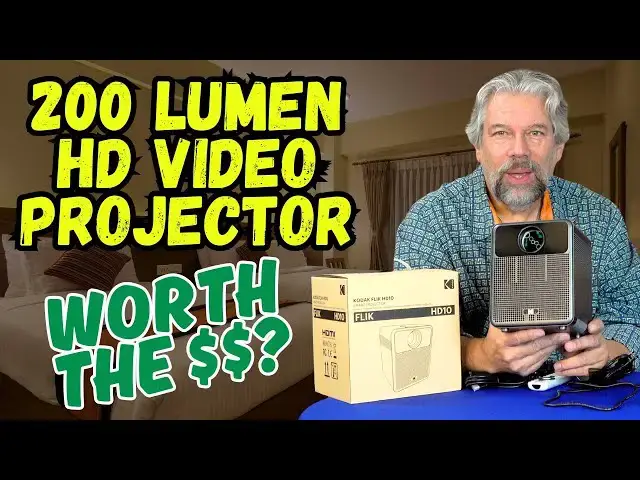
Imagine an all-in-one cube that projects a bright, crisp image onto any wall or flat surface and has a built-in AndroidTV system that includes native support for Netflix, Disney+, YouTube, Prime Video, AppleTV+, and more. It even includes support for international wall outlets. But, as tech expert Dave Taylor demonstrates in this long, detailed review, the Kodak FLIK HD10 AndroidTV Video Projector has great features, but it has some issues too. Is it right for you? Watch this video - with an extensive demo! - to decide.
Check it out at: https://amzn.to/3S7OUcM
Visit Dave's Q&A Web site at: https://www.AskDaveTaylor.com/
0:00 Introduction
1:35 200 Lumens Reality Check
2:55 Tour of the Ports and Controls
4:19 FLIK HD10 Setup Process
5:57 The Home Screen
6:42 Netflix Demo
8:25 Adding HBO Max Streaming App
10:20 FLIK HD10 Settings and Options
12:50 iPhone Screen Mirroring
14:28 Remote Control + Cables
17:00 Commentary & Analysis
18:52 My Limited Endorsement
20:18 Pricing and Conclusion
Show More Show Less View Video Transcript
0:00
a full HD video projector from Kodak But
0:02
is it worth the money Let's check it
0:05
[Music]
0:11
out Dave Taylor here and I'm looking at
0:14
this This is another video projection
0:17
system I've looked at a lot of them This
0:19
is the Kodak Flick HD10 smart HD video
0:24
projector There are two things notable
0:26
about it One is it is a true HD
0:30
1080p projector I will say a lot of
0:33
projectors out there say they can handle
0:36
4K or they can handle HD but they
0:39
actually project a 720p or even lower
0:42
resolution image If you're projecting
0:45
that to be just a couple of feet across
0:48
in front of you not a big deal But the
0:50
larger you make that image the more that
0:53
that becomes a problem that it's lower
0:55
resolution So this is a full 1920x 1080p
1:00
The other notable thing about this is it
1:03
has built-in its own Android TV version
1:07
that includes full support for Netflix
1:10
Again I will tell you a lot of
1:12
projectors don't really play well with
1:15
Netflix which is one of the most popular
1:17
streaming services So it's really nice
1:20
to have this where right out of the box
1:22
Netflix is already installed You log in
1:24
and boom you're ready to project your
1:26
favorite movie TV series whatever it is
1:29
that you enjoy on Netflix This is ready
1:31
to project it onto a flat surface Now
1:35
the sort of reality check here is that
1:38
it's 200 lumens So it's bright but it's
1:42
not really bright So your best results
1:45
are going to be using this in a darkened
1:48
if not fully dark room Again that's true
1:51
of most all projectors to get up to 500
1:55
lumens or more where it's bright enough
1:57
to use in full daylight is pretty spendy
2:01
because it just needs that much more of
2:03
a powerful bulb or or sort of projection
2:06
system So this one's at 200 lumens which
2:09
is better than ones at 50 or 100 lumens
2:12
but the best results come from it being
2:14
in a pretty dark space which means that
2:17
you can be on a trip with your kids and
2:20
you can use this to project their
2:22
favorite cartoons on the hotel wall So
2:25
you you know you'll want to close the
2:26
curtains for that to work well but that
2:28
might work perfectly cuz maybe you'll be
2:30
on the other bed reading your Kindle or
2:32
something So sort of a win-win there As
2:35
I said built-in Android TV which means
2:38
you have native support for Netflix Hulu
2:42
Disney Plus Apple TV Plus HBO Max Amazon
2:47
Prime YouTube lots of stuff You can just
2:49
jump into the Google Play Store and
2:51
download new streaming apps On the input
2:54
side let's have a quick look on the back
2:57
So it includes an IR sensor for the
3:01
remote control We'll come back to that
3:03
in a second DC power a USB port USBA 3.5
3:09
mm headphone jack and an HDMI port
3:13
There's nothing on the sides On the
3:16
bottom there is a 1/4in screw thread if
3:20
you want to put it on a tripod or mount
3:22
it somehow On the front is the lens And
3:26
on the top there is a master power
3:29
button and there's a manual focus And
3:32
you will need to focus this manual It
3:34
doesn't have autofocus It does have auto
3:36
keystone which means if you're
3:38
projecting it at an angle and it looks
3:41
like this it'll correct itself to square
3:43
the image which is pretty
3:46
important Also notable dual 5 watt
3:49
speakers I found them to be entirely
3:51
functional in terms of listening to
3:53
content And in fact I have a very long
3:57
demo I'm sorry this demo I trimmed it
3:59
down as much as I could It's still a
4:01
10-minute demo going through some of the
4:04
setup and then we'll go and look at
4:06
Netflix We'll download another streaming
4:10
app and then I'll even show you how it
4:12
works when I mirror the content
4:14
wirelessly from my iPhone onto the unit
4:18
Let's go ahead and jump in We're at the
4:20
first screen and I'm just projecting
4:22
this onto a wall So we'll see how the
4:25
video quality is but I'm going to go
4:27
through the setup so you can see So
4:29
we'll pick English for United
4:32
States And we can set up the TV with an
4:35
Android phone I don't actually have one
4:37
right here So I'm going to pick my Wi-Fi
4:40
network And enter the
4:42
[Music]
4:45
password And I am in a pretty dark room
4:48
right now but hey look at that We're
4:50
connected to the internet That's a good
4:54
sign And you can hear the music that
4:56
it's playing I haven't adjusted the
4:58
volume So this is the default volume out
5:00
of the box And you can also hear the fan
5:03
We'll have to keep an eye or keep an ear
5:06
on the fan and find out when it turns on
5:10
or off But you know these lenses or I
5:13
should say these bulbs do have
5:16
to stay cool so that they have maximum
5:19
lifespan And so now I have a system
5:22
update And we'll see how long it takes
5:24
to download As is pretty common with
5:26
these system updates it's best to go get
5:29
a cup of coffee or do something else and
5:31
then just come back in a few minutes So
5:33
that's what we're going to
5:34
[Music]
5:41
do All right we're back Looks like we're
5:45
about 6 minutes elaps time for that
5:48
system update but we hopefully won't
5:50
have to do that again for a very long
5:52
time now
5:56
Let me go ahead and sign into my Google
5:58
account We are here and elaps time has
6:02
been about 15 minutes but a big chunk of
6:05
that was just the fact that I had to
6:09
install that firmware update and then I
6:12
had to do a separate restart to be able
6:14
to get it to work properly And you can
6:16
see here it already comes preloaded with
6:19
Netflix and Prime Video and YouTube And
6:22
I let's just choose
6:26
YouTube This is looking
6:30
promising And it wants me to sign into
6:33
YouTube but I don't have to do that I
6:35
can just use YouTube without being
6:38
signed in Let's back up
6:41
further Okay we're back to home So now
6:44
let's go back to Netflix Netflix is one
6:47
that is tricky to get running on a
6:50
projector And most companies that sell
6:53
video projectors at any resolution don't
6:56
work with Netflix native And so they
6:59
basically say "Yeah you should probably
7:01
use something like a stick." But here we
7:05
have Netflix This is looking promising
7:07
It will also want me to sign
7:09
in Um I will do that and I'll be back in
7:12
just a second Netflix has improved the
7:15
sign-in process and actually just shows
7:17
you a QR code So if you have another
7:20
device that's already signed into your
7:22
Netflix account it makes it a breeze And
7:25
so here we can see this is my profile Mr
7:30
Sir and I watch a lot of Korean and
7:34
other Asian and international content So
7:37
I'm in the middle of watching this
7:39
Turkish series Um we won't go there but
7:43
I think I'm in the middle of this very
7:46
funny Indian show So let's see if I can
7:50
get here And of course I can only show a
7:52
couple of seconds of this because I
7:55
don't have rebroadcast rights But what I
7:58
want you to see is the video and hear
8:02
the audio And I'm going to turn the
8:03
volume
8:08
up So that's maximum
8:11
volume This might not be the best audio
8:15
example I'm going to go back to home
8:17
which was probably a mistake cuz now
8:19
I'll have to go back into Netflix But
8:21
you got a little tiny taste of it there
8:24
And so now we're back to the Android TV
8:27
home So what I'd like to do is I would
8:30
like to go and grab another app So let's
8:34
see what else is here We're going to go
8:36
to favorites
8:38
Okay that's not what we want Let's go to
8:40
the Google Play Store And what I'd like
8:43
to get is I would like to drop HBO Max
8:47
onto this So let's see if we can get
8:48
that to work And by the way uh HBO Max
8:52
became Max and now they're rebranding it
8:55
back as HBO Max again So this icon will
8:59
change but we're going to choose it So
9:02
I'm in the Play Store and I'm going to
9:04
choose install And let's see how fast
9:06
this is I have an extremely fast
9:08
internet connection but it all depends
9:12
on how fast this can process that So
9:15
looks like we're downloading at a pretty
9:17
good
9:22
clip All right fully downloaded And now
9:26
that cancel button should change into a
9:29
play button
9:31
Now I should say one thing about the
9:32
sort of philosophy of how I approach
9:34
these devices is that I'm really
9:37
interested in their onboard capabilities
9:40
So yes I could plug in a DVD player and
9:45
there's all sorts of other ways you can
9:46
connect and I'll certainly talk about
9:48
that when I'm on camera again but I'm
9:50
really interested in the box by itself
9:54
What does it actually get you So we're
9:57
installing It's installed We'll choose
10:00
open And I don't actually have a Max
10:04
account right now I sort of have that on
10:06
and off depending on what shows they
10:07
have
10:09
available But you can hear and you can
10:12
see this is working just fine So that
10:16
was a pretty easy way to add an app Now
10:19
let's go and look at settings on this
10:22
device So I'm going to choose the gear
10:26
icon on the remote And then you can see
10:28
everything shows up on the right So
10:30
here's my network Here's my accounts
10:33
I've signed into and apps And let's look
10:36
at device
10:38
preferences And so date and time I
10:41
should probably make sure that's correct
10:43
but it should get that off of the
10:44
internet And keyboard display and sound
10:48
Sure Let's go into display screen
10:51
resolution So it switches to the best
10:54
resolution And it is indeed at 1080p at
10:58
59.94 hertz and it's using that color
11:01
space and it's always HDR which is a
11:05
good thing And screen
11:07
position This is something that is
11:11
important with a projector So I can zoom
11:14
in Maybe I can't zoom in anymore So zoom
11:17
out There we go So sometimes going down
11:20
just a couple of percentage points you
11:22
lose a tiny bit of the size of the
11:24
screen but you often get better results
11:28
And CEC lets the device control things
11:31
like sound bars Let's go into advanced
11:35
sound settings Select formats Let's go
11:38
back further Storage home screen Google
11:42
assistant
11:45
chcast So usage and diagnostics all
11:48
sorts of options here for settings Now
11:51
in Android TV I can just go to apps and
11:54
that's looks like an easy way to get a
11:58
list of every installed app including
12:01
things like
12:03
aircreen So that's apps Let's go to
12:06
discover And I can get personalized
12:08
recommendations Oo And I can go home and
12:12
I can do a search and click to speak So
12:15
let's try
12:20
this Alfred
12:27
Hitchcock Okay So I'm guessing these are
12:30
on YouTube but if I had more logged in
12:35
then I would have more
12:37
options So that's pretty slick and darn
12:41
easy to find that kind of content
12:44
Let's go back and click to type I don't
12:48
want to type So let's see if I can
12:53
actually send something from my phone So
12:57
on my iPhone there's something called
13:00
as-tv stick And I'm going to choose that
13:03
on my screen mirroring options And let's
13:05
see if that then shows up on the Kodak
13:10
projector
13:11
So it thinks that it's connected but I
13:15
don't see on this end that it is Let's
13:20
go to Let's try airc
13:25
screen Oh there it is How about that So
13:28
there's my iPhone And so now I can leave
13:31
this and you can see where I am And we
13:34
can try a game
13:38
And so this is cribage And you can see
13:42
it's a big beautiful crisp image Easy to
13:46
work with I can tap and it's not
13:50
lightning fast in terms of
13:52
responsiveness but it's not bad Let's go
13:55
back to
13:56
home and we will go down here and can't
14:02
watch something on Max but I am signed
14:04
into Netflix so we could look at some of
14:07
that content
14:08
And here's all of these I can customize
14:12
my home screen And let's see I think I'm
14:16
going to stop here because I hope that
14:18
gives you a taste of some of the
14:20
features and some of the challenges of
14:22
this device Now let me jump back on
14:25
camera so we can talk a little bit more
14:27
about the pros and cons One of the
14:29
things that I was using off camera was
14:32
this remote control And I've seen enough
14:34
of these to know that this is really a
14:38
Android TV remote that Kodak has put
14:41
their brand on but it's really sort of a
14:43
generic Android remote which isn't to
14:46
say that it's not perfectly functional
14:48
You'll notice that it has four shortcut
14:50
buttons for YouTube Netflix Prime Video
14:54
and Google Play I kind of wish that I
14:57
could replace Google Play with something
14:58
else but otherwise it's entirely
15:01
functional It does require two AAA
15:03
batteries not included Honestly not a
15:07
big deal So you're wondering perhaps
15:09
what all these wires are There's a lot
15:11
of wires So it comes with an HDMI to
15:14
HDMI and that's HDMI
15:17
1.4 and then it has three different
15:20
power options So depending on where you
15:23
are you can plug it into a US standard
15:27
two-prong or it has various European and
15:31
Asian standard plugs So all of those go
15:35
into this pretty chunky transformer and
15:38
then this plugs into you guessed it the
15:42
actual projector So you wouldn't take
15:44
all three of these with you on a trip
15:46
You would just pick where you're going
15:48
and which one you need And I do
15:50
appreciate that it's an
15:52
internationalfriendly version so I can
15:55
just use it wherever I am It supports
15:58
screen mirroring as we saw This is a
16:01
voice input One of the things I should
16:03
mention is that I can use this to
16:06
actually control quite a lot of Android
16:08
TV And the unit itself is
16:13
5.6x 5.8 by 7.4 in And it's 4.2 pounds
16:19
So it's a little bit on the heavier side
16:22
Certainly if you were packing light for
16:24
a short trip this is kind of a big
16:26
clunker This might be better for camping
16:28
or car camping or if you're on a road
16:30
trip something like this would be easy
16:32
But remember you need this and this and
16:36
at least one of these power options So
16:39
all of this would have to come with even
16:41
if you want to use it unto itself And as
16:44
I said in that extended demo and I
16:47
apologize again that's a long demo
16:50
Should have seen how long it was when I
16:51
started but um as I said during the demo
16:55
I'm really most interested in what these
16:57
devices can do by themselves rather than
17:00
feeling like I have to bring cables I
17:02
have to plug things in I have to figure
17:04
out protocols And this one did a great
17:07
job So we need to talk about the device
17:10
because I'll tell you there's a lot I
17:13
like about it It's a nicely designed
17:15
unit It's very simple There aren't a
17:18
million input ports There's not tons of
17:21
buttons everywhere It's very functional
17:24
The speakers work just fine in a small
17:26
to mediumsiz room And of course you have
17:29
that 3.5 millimeter out And it has
17:31
Bluetooth 5.0 So there's various ways
17:34
you can use an external speaker
17:37
However the processor that it uses is
17:41
pretty darn slow And I think that was a
17:43
theme in the demo too is that I would
17:45
make a choice and then we'd have to wait
17:48
And I sped up a lot of those wait
17:50
periods If you notice little transitions
17:52
So there were times when I'd launch an
17:54
app and it might be 10 seconds or more
17:58
before the first graphic of that app's
18:00
splash screen showed up So little bit on
18:03
the slow side Once you're in your
18:05
streaming app probably not a big deal
18:07
But the whole interface felt a little
18:09
clumsy And I know it's Android TV so
18:12
it's the same interface as other devices
18:15
but this one it's just sort of a mixed
18:18
bag And I will encourage you to go check
18:21
out actual customer reviews too cuz a
18:24
lot of people have frustrations with
18:26
this device They find that they couldn't
18:28
get it to configure They were
18:30
complaining about how long the firmware
18:32
updates were I mean that one I think is
18:35
sort of a bogus complaint because it's
18:36
not like you have to do that every time
18:38
you start it Once every I don't know
18:40
year every six months It takes 15
18:43
minutes Okay So just do that while
18:46
you're out for dinner with the kids and
18:48
then when you come back to the hotel
18:49
it's ready to go Not a big deal But
18:53
there are other things that people
18:54
legitimately have had challenges with
18:56
And you saw that there were things I was
18:58
trying to figure out that weren't so
19:00
easy Like when I had my phone going onto
19:04
the device my phone thought that it was
19:06
mirroring but this thing didn't actually
19:09
show anything until I went into the
19:11
correct app which I didn't know I just
19:13
guessed So maybe with a little more use
19:17
I would get a little more comfortable
19:18
with this and it would be able to be a
19:20
little smoother of a user interaction
19:23
But I'm going to give this a limited
19:25
endorsement because I think that the
19:27
video system's good I really like the
19:30
Android TV that is Netflix compatible
19:33
That's a big deal I've looked at a lot
19:35
of these That's a big deal So it is a
19:38
nice self-contained unit It's also
19:40
pretty big and I'm not sure why it needs
19:43
to be this big though It does have those
19:46
two speakers But this plus this pretty
19:50
sweet However again with this size I
19:52
kind of expected there to be some
19:54
battery So maybe I could use it for a
19:56
couple of hours But if I push on the
19:59
power button while it's
20:01
unplugged nothing happens So there you
20:04
go Sort of the pros and the cons I think
20:06
that this is a good entry I think the
20:09
next generation of this from Kodak or
20:11
maybe two generations down the road is
20:14
going to be considerably better So
20:16
that's what I wanted to share with you
20:18
We do need to talk about the price
20:20
Before we get there I'm going to invite
20:22
you to subscribe to my channel Click or
20:24
tap on that subscribe button Hit that
20:27
bell icon for notifications of my new
20:29
content Give me a thumbs up if you found
20:31
this of value Again I hope it's really
20:34
obvious that I'm very candid with my
20:36
reviews I will tell you the good and the
20:38
not so good So hopefully that's of value
20:42
which means we need to talk about the
20:44
price So this is the Kodak Flick HD10
20:49
smart HD video projector and it is
20:53
$269.99 at
20:55
amazon.com Now there's like I said lots
20:59
going for it but you also probably want
21:01
to read some of the customer reviews and
21:03
decide for yourself whether this is
21:05
going to be a good path for you to
21:07
travel It's what I got Hope to catch you
21:10
in my next video
21:13
[Music]
21:23
Heat Hey Heat
#Consumer Electronics
#TV & Video Equipment
#Media Streaming Devices