Up next in 10



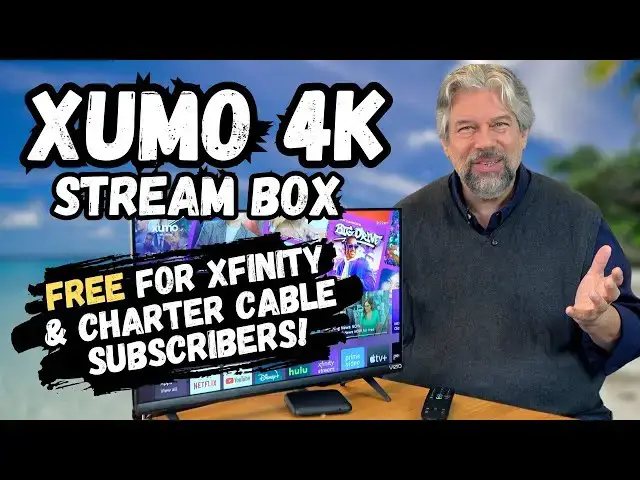
Did you know that if you're a Comcast Xfinity or Charter Spectrum subscriber that you can get a free 4K UHD streaming box that plugs into any TV (or computer display) and offers access to lots of streaming channels and live TV? Tech expert Dave Taylor, an Xfinity Internet subscriber, picked up a Xumo Stream Box to test it out. In this detailed video he opens up the Xumo box, goes through the entire setup process, and shows what's great - and not so great - about this free streaming option.
Check it out at: https://www.Xfinity.com/ or https://www.Spectrum.com/ or https://www.Xumo.com/
Visit Dave's Q&A Web site at: https://www.AskDaveTaylor.com/
0:00 Introduction
2:00 The Great Unboxing
4:16 Considering the Components
6:42 The Setup Process
9:45 The Xfinity Xumo Experience
11:35 Demo: Sports Talk Show
13:22 Demo: Tubi
15:05 Final Thoughts and Commentary
#xumo #streaming #streambox #4kstream #settopbox #xfinity #spectrum #askdavetaylor
Show More Show Less View Video Transcript
0:00
the Zumo is a budget streaming device
0:02
available for Charter and XFinity
0:05
subscribers but is it any good let's set
0:08
it up and check it
0:14
[Music]
0:16
out Dave Taylor here and I admit I used
0:20
to be a cable subscriber and when you
0:22
subscribe to Cable you get a big box
0:25
that's the interface that lets you get
0:26
all your channels and guide and the DVR
0:30
and all sorts of features they're big
0:32
they're clumsy and while some of them
0:35
actually let you run apps and use them
0:38
for streaming they're really not
0:40
designed to be streaming boxes enter
0:43
this this is the Zumo Stream box and
0:47
it's actually from a company called Zumo
0:50
that they develop this in partnership
0:52
with both Comcast Xfinity and Charter
0:56
cable so here's the great news if you're
0:58
an Xfinity subscriber you can get one of
1:00
these for free if you're a charter
1:03
subscriber you can get it for free for a
1:06
year and then it's a couple of bucks a
1:08
month it might have changed but that's
1:10
the last I saw so what I want to do is I
1:13
want to tell you a little bit about it I
1:14
want to plug it in I want to go through
1:16
the whole setup routine and then we'll
1:18
actually have a look at it and see is it
1:21
worth the money and you're thinking it's
1:23
free dude of course it's worth the money
1:25
but not necessarily because there are so
1:27
many streaming devices from Roku all the
1:31
way up to the Apple TV device and
1:34
everything there are a lot of excellent
1:36
choices and a lot of TVs now really
1:39
pretty much all TVs have built-in
1:41
software too so like this uh Vio device
1:46
has its own Smart TV interface that as
1:49
you can see gives me access to a lot of
1:51
streaming services so it's not this
1:54
versus nothing it's this versus all the
1:57
other choices so let me open this box up
2:02
and let's see what's
2:03
inside and so it's a pretty cool design
2:07
for a
2:09
box so here's the unit itself so this is
2:12
a pretty slim device there not a lot
2:16
going on there are no buttons on it
2:19
honestly it looks like a
2:21
coaster and on the back gigabyte
2:23
ethernet HDMI
2:26
2.1 and there is a plug for power that's
2:30
it there's no USB there are no
2:34
additional inputs or outputs there's no
2:36
interface with Optical for a high-end
2:38
Soundbar it's a pretty barebone
2:41
streaming device so let's put that aside
2:44
see what else is in the box we have uh
2:48
information from Xfinity on the various
2:51
things you can do and quick start on how
2:55
to hook it up in English e espanol so
2:59
that's handy
3:00
and then when I open the box okay let's
3:03
see what else is in here I'm going to
3:06
just put the Box aside so we have an
3:10
HDMI cable very helpful we're going to
3:12
use that and power it's a sort of old
3:16
dorky looking Transformer here that I'm
3:19
going to plug into the wall but that's
3:21
okay cuz all it needs to do is power our
3:23
streaming device and then in this bag
3:26
and it's actually a paper bag is
3:31
our remote
3:33
control if it comes
3:35
out oh all right so I have never seen a
3:39
remote package this way so this is a
3:41
paper bag and in the paper bag wrapped
3:44
in
3:45
tissue is the Zumo remote and it's a
3:50
pretty nice looking design it looks like
3:52
this is the second generation of the
3:54
remote based on what I've seen online
3:57
and there's a little tab on the bottom
3:59
which tells me that there should be
4:01
batteries in it and this is simply
4:03
stopping the batteries from being active
4:05
so I'm just going to pull this and we'll
4:07
just assume that when the time comes
4:10
this will be ready to use so that's
4:13
everything in the Box let's move the box
4:15
out of the way because we don't need it
4:19
and I'm going to actually prep this
4:23
HDMI so we'll be ready to use it when we
4:26
get there but let me tell you a little
4:27
bit more about it so as I said
4:30
the box is a joint venture between
4:32
Comcast Charter and Zumo which is kind
4:36
of interesting that those companies
4:38
chose to work together and it offers you
4:42
4K UHD streaming at 60 HZ so it
4:46
definitely can drive a 4K television
4:49
which is pretty much the Modern Standard
4:52
and it supports Dolby Vision hdr10 hdr10
4:57
Plus Dolby Atmos is it's using HDMI 2.1
5:02
so it should be a higher quality signal
5:04
going down this very wire and like I
5:07
said it's a gigabyte or gigabit Ethernet
5:10
so it should work via Wi-Fi but we might
5:13
have to use ethernet pretty sure that
5:15
it's a Wi-Fi device we'll get there when
5:17
we do the settings and Bluetooth 5.0
5:20
which means you could use this with
5:21
earbuds or headphones which is fantastic
5:23
if you like to watch TV late at night
5:26
and your roommates or your partner or
5:29
your neighbors are like seriously it's 1
5:31
in the morning turn off your television
5:34
you don't have to worry about that
5:35
because you can use Bluetooth so it's a
5:38
voice activated remote here's a closeup
5:41
of the remote and you can see that blue
5:43
button right in the center there is a
5:45
microphone and that should mean that if
5:47
I push and hold that it will actually
5:50
let me talk and say something like play
5:53
football or something like that and then
5:54
it will find football and show that for
5:56
me we'll get there also support some
5:59
playable games we'll have a look at that
6:02
briefly and one of the things I do like
6:05
is that it does theoretically have um
6:08
HDMI C support and that should mean that
6:12
this remote should let me also control
6:15
the TV and if I had a soundbar it would
6:17
let me control the Soundbar so c means
6:20
that like if you turn this on the TV
6:22
automatically turns on too so that's a
6:24
good feature you always want to enable
6:26
that um there are going to be some
6:28
issues in itations but I think we're
6:31
ready to hook things up and I'm going to
6:33
move the camera around so you can see
6:35
the screen better as I go through the
6:37
setup process so let's do
6:41
that we have a logo let's see what
6:46
happens all right we're going to select
6:49
English and we yes want to continue in
6:52
English we do not want voice guidance
6:56
sheesh that's nice that they have that
6:59
but I don't think I need
7:01
it let's see we're going to do WiFi
7:04
using
7:05
password so definitely need to set that
7:08
up and I'll be right back with my Wi-Fi
7:13
connected and we're connecting to
7:21
Wii and looks like it had a little bit
7:23
of a problem there I got confused but
7:26
we're good to go and of course the very
7:28
first thing the these devices do is they
7:30
update their firmware or software so I'm
7:34
going to just skip past
7:41
this all right we're ready to
7:44
proceed and this time there shouldn't be
7:46
a software update so let's see what
7:50
transpires use this remote to control
7:52
your TV
7:53
yes connect to your TV have we found the
7:57
correct model
8:00
try changing the volume I'll do that on
8:02
my
8:04
remote and it is indeed changing the
8:06
volume huzzah so it has used that c
8:10
feature to be able to communicate with
8:13
the television identify what it needs to
8:16
do and now I can actually adjust the
8:19
volume remotely and I don't have
8:22
separate speakers
8:24
so it's interesting it doesn't seem to
8:27
offer me the chance to skip this
8:30
so we'll just call our
8:33
speakers
8:35
no
8:37
oh my brand is not
8:40
listed
8:42
continue and we have a privacy policy
8:45
which as
8:47
usual I'm not going to read and this is
8:51
me so I'm going to have this hook into
8:53
my Xfinity account and now I have a pin
8:58
which is the last 4 digits of the
9:00
primary phone number so I'm going to
9:02
enter that and I'll just jump
9:09
forward and TV is in the
9:14
kitchen and time zone should be able to
9:17
get that honestly from my
9:20
account now we're getting the setup data
9:23
from Xfinity my guess is this will
9:25
include some default streaming channels
9:28
and apps
9:30
but it's only going to take a moment so
9:32
shouldn't take us long to get past here
9:35
share your watch history no I don't
9:38
think
9:39
so and so this means I won't be able to
9:42
resume if I'm halfway through a program
9:44
but I can always change that notice it's
9:47
picked up the time on the right and it
9:50
looks like we're good to
9:54
go and we have audio and there's a mute
9:57
button which I will use and that mute
10:00
button works correctly with the TV and
10:02
now let's just move around a little bit
10:04
so we have it all set up that was pretty
10:06
painless if you ask me people have
10:08
complained that this is an extremely
10:10
complex device to set up but certainly
10:13
the Xfinity version was super easy here
10:16
you saw that every step is slow cuz the
10:20
processor is slow but there weren't that
10:22
many steps and most of them it was just
10:24
a matter of moving forward so Netflix
10:28
YouTube Hulu
10:30
Xfinity stream not sure what that is but
10:32
I think that is just tied to me being an
10:34
Xfinity subscriber Amazon Prime video
10:38
Apple TV plus Discovery Zumo has its own
10:43
channel sling gives me access to
10:46
broadcast channels so there's lots and
10:49
lots you can get with a sling
10:51
subscription and let's see we have my
10:54
list TV shows movies Sports
11:00
news let's go to
11:03
sports and then here's a guide we can
11:06
view
11:10
everything and there's lots of stuff
11:13
going on here on the sports side let's
11:16
try this one Mexican
11:18
baseball let's
11:20
see
11:21
[Music]
11:23
and well how do we get to here I mean I
11:27
don't have a subscription to
11:29
ESPN so I'm not surprised that it didn't
11:33
find that but let's just try one of
11:36
these and this is on xinity and
11:40
fox and I still have the mute button
11:43
pressed
11:44
so we shouldn't hear anything but I can
11:47
unmute it for a
11:51
moment so we got a little buffering
11:57
there there we go
12:00
um that buffering could be my
12:03
Wi-Fi but that is something worth noting
12:07
there is a home button on the remote so
12:09
if I push home then we get right back
12:12
here so now apparently I'm on Xfinity
12:15
stream so let's go here into this app
12:19
and we're back to that channel we were
12:21
just watching and I can go back and
12:24
watch for free and I want to see if they
12:27
have let's see I'm curious about tub
12:31
which is one of the newer streaming
12:34
options that I really like so let's go
12:37
into manage apps and see if we can find
12:39
it and these are all the different
12:42
channels that are available and you'll
12:44
notice it's not the smoothest scroll or
12:47
anything it's not a super fast processor
12:52
which is certainly one of the things
12:53
people have complained about but notice
12:56
things like crunchy row or crunchy roll
12:58
is right there
12:59
I have read online complaints that it
13:01
doesn't include that channel obviously
13:03
it does include that Channel crossy Road
13:06
and crossy word are actual games that I
13:09
can play on this device but I'm not
13:12
seeing tub there are a lot of choices
13:15
here though if you can't find something
13:18
to watch across all of these different
13:19
streaming options then you are an
13:21
extremely picky viewer and nothing wrong
13:25
with that
13:26
but let's try using the voice voice
13:29
interface so I'm going to push the voice
13:31
button on the remote
13:35
Tob and let's see so we have that same
13:38
thing sure this time I'll let it share
13:41
and what's happened it
13:46
is launching tuby I
13:53
hope there it is we're on tub so that
13:56
was pretty darn easy so let's just
13:59
give this a shot secret life of pets 2
14:02
great movie super funny and let's see
14:05
how it
14:11
looks and I will unmute
14:15
it and this little TV has pretty poor
14:18
sound but you know that's that's not a
14:22
Zumo issue that's a TV issue but as you
14:24
can see this looks great now I do have
14:28
play anduse so let's see what happens
14:30
when I push
14:31
pause it pauses and then when I push
14:34
play it
14:36
resumes how fantastic is that so I'm
14:39
going to go back and
14:41
back and back and so now we're at the
14:44
home screen for
14:46
tuby
14:49
and it's a pretty darn solid streaming
14:52
box so you've seen some Basics I've
14:55
shown you the live stream options and
14:58
choosing between them we've gone into
15:00
tub I've used the voice remote let me
15:02
jump back on camera and give you some
15:04
final thoughts on this that was a lot
15:06
smoother than I expected I have to admit
15:09
things are slow on this device versus
15:12
the other streaming devices that I've
15:14
looked at over many years but if you can
15:17
accept that like when you turn it on
15:19
it's going to take 60 seconds before you
15:21
can start watching and that's easily
15:23
done turn it on go in the kitchen grab a
15:26
cup of tea come back it's ready to go
15:28
right so that's easy to deal with and
15:30
you saw I couldn't find tub so I just
15:34
used the voice button on the remote to
15:36
ask for that particular Channel and it
15:39
just jumped me right there and with a
15:41
button press or two I was actually able
15:43
to watch some programming wirelessly via
15:47
my internet so super easy and again that
15:51
setup people have complained a lot about
15:53
the setup but this might be a second
15:56
generation unit certainly the remote is
15:58
different and that setup with Xfinity
16:01
was pretty darn easy I showed you every
16:04
step so you can you know you saw it
16:07
wasn't this big onerous 20 plus step
16:10
task it very straightforward now I gave
16:14
you all the specs we at least saw that
16:16
there were some games in the lineup
16:18
though didn't actually try any um I know
16:20
this is a super long video but I really
16:22
wanted to give you a sense of the sort
16:24
of pros and cons of the Zumo one thing I
16:28
will note is it doesn't have user
16:30
profiles so you can't like turn it on
16:33
and then say well mom's watching now so
16:36
give me my you know default set of
16:38
streaming channels or apps and then when
16:41
the kids watch it's different so you
16:43
just get this sort of generic experience
16:45
which is exactly the experience you
16:47
would have if you just use my Vio TV
16:49
directly or your Samsung or your LG or
16:53
your high sense all of them have very
16:55
basic sort of smart TV interfaces and
16:58
this gives you the ability to add that
17:01
to any TV so if you have an older TV
17:04
that just doesn't have any smarts at all
17:06
all you need is an HDMI input if you
17:09
have one that's older but has a smart TV
17:12
interface it might be out of date or
17:14
that might be from a company that no
17:16
longer supports that device this gives
17:18
you the ability for free to move up into
17:22
the 21st
17:24
century so I think that there's a lot to
17:27
like here I am more impressed than I
17:30
expected to be and again the remote
17:32
control has been redesigned by Zumo so
17:36
IT addresses some of the concerns people
17:38
had and I'll tell you that my daughter
17:41
has a Roku and the Roku remote has
17:44
volume on the side and I can't stand it
17:47
because when I pick up the remote I
17:49
inadvertently am changing the volume on
17:51
my content so having the volume here is
17:55
a much smarter move so that's everything
17:59
I got it it has the best price tag of
18:01
all it's free again as I said at the
18:04
beginning as of right now it's free for
18:08
Xfinity subscribers because they want
18:10
you to be in their world even if you're
18:12
using just internet rather than cable TV
18:15
and it's free for Charter subscribers I
18:18
believe just for the first year and then
18:20
it's a couple of dollars a month you can
18:22
probably negotiate that down with your
18:24
local salesperson in any case that's a
18:28
simple small box this could be a perfect
18:30
thing to have at a vacation home or a
18:32
cabin in the woods where you have enough
18:35
internet that you can watch content and
18:37
maybe you have an older smaller more
18:40
modest television it's going to work
18:42
fine as you saw this is my not even 4K
18:45
little mini Vio TV looks really good so
18:49
it's everything I got encourage you to
18:51
check it out if you are an Xfinity
18:53
subscriber just go to xfinity.com and
18:55
sign up and they'll either send you or
18:57
you can just drive buy one of their
18:59
stores and pick up a Zumo box and then
19:02
there you are you're plugged in and
19:04
you're watching so that's what I got I'm
19:07
going to get back to secret life of pets
19:09
2 so I want to catch you in my next
19:12
video
19:17
[Music]
19:31
he
#Consumer Electronics
#Media Streaming Devices