Up next in 10



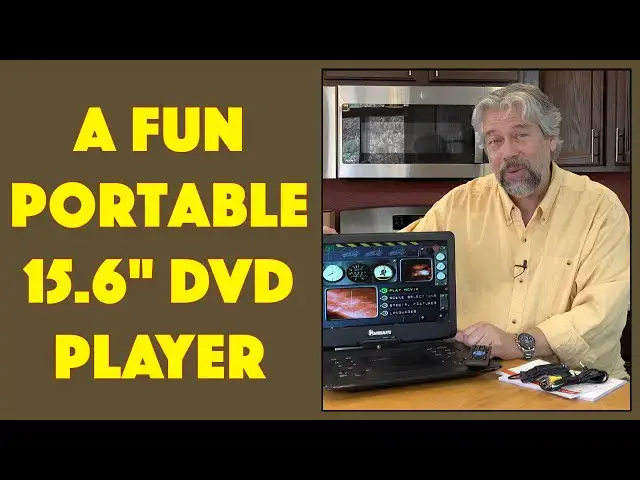
Have a pile of old DVDs you'd like to rewatch but can't because your computer no longer has a DVD drive? Want to let the kids watch movies while on a drive? Need an alternative media device while you're at a hotel? All of these are covered by the cool NAVISKAUTO 15.6" Portable DVD Player. Tech expert and movie buff Dave Taylor shows off all the features and capabilities of the NAVISKAUTO unit, and talks about a few of its shortcomings too.
Featured film: The Adventures of Buckaroo Banzai Across the 8th Dimension
Check it out at: https://amzn.to/3Tv5bc6
Visit Dave's Q&A Web site at: https://www.AskDaveTaylor.com/
#naviskauto #portabledvd #dvdplayer #askdavetaylor
Show More Show Less View Video Transcript
0:00
A portable DVD player with some pretty cool tricks up its sleeve. Let's check it out
0:11
Dave Taylor here and I have to admit I do a lot of streaming. I have a media server but I also
0:18
have a ton of DVDs and there are times when I just want to go back to my original laser media
0:25
and just play a DVD. Now I can do that on my TV with my DVD player but if I'm on the road or if
0:33
I'm in the car or if I'm on a train or something then the choices become considerably more limited
0:39
because modern laptops no longer have optical players. Enter this. This is the Naviscato
0:47
15.6 inch portable DVD player and as you can see it's actually playing a DVD right now. So
0:54
in fact let me go ahead and just push the button on the front and you can see the DVD spinning
1:01
in the drive and I will close it again to get it to spin back up and it's actually really pretty
1:08
straightforward to use. So you can see there are big big controls on the front surface
1:14
A cool feature is that you can actually spin it so you can do this for example. Whoops going the
1:21
wrong way. Let's go in the other direction and I can spin it all the way around
1:28
So like this I'm now able to watch it in a better ergonomic design but I can also tilt it back
1:37
so I can watch it this way and as all this is happening there we go the DVD is playing and it is
1:43
advancing. So I'm on the DVD menu for The Adventures of Buckaroo Bonsai. One of those
1:50
boxes over there and it is honestly a favorite of mine but it also makes for a great demo. Now
1:57
one of the other cool things this can do is that it has a remote control and I'm going to have to
2:03
see what's on screen. So let me just show you super quick. I can choose modes. There we go
2:09
Let's see mode and I can switch because I also have my computer plugged in via HDMI. So you can
2:18
see I'm using this as a second monitor on my MacBook by just having an HDMI wire coming on
2:25
which is super convenient too because through this I could then stream something like Netflix
2:33
or Apple TV or Peacock or Hulu on my computer having it on this display. So now I have that
2:41
second display but now I'm also accessing a whole lot of other media. Now let me switch back to
2:49
the DVD and let's see one of those is going to do it. There we go. So now I'll get back to the DVD
2:59
and while that's happening let me just turn it here it's muted but let me also point out
3:05
that if I actually unmute it with the remote control then it will give us music because
3:14
there is music during that DVD menu. Now while all this is happening and it's not the most fast
3:19
device in the world as you can tell there's our music. Okay so let's just listen for a second
3:27
So it takes a little while to get to the right spot on the DVD. This is sort of the nature of
3:38
DVDs which is why streaming is such a nice delight nowadays. Everything's just instantaneous
3:43
There we go. So there's my music but I don't have the license rights to play this so I'm actually
3:49
going to mute it again but suffice to say it does have audio. Now it's a 1600 by 900 resolution
3:58
which means it's not quite HD because HD would have the vertical of 1080 versus 1920. So it's not
4:06
HD but it's definitely as good as an older television and you could see the rotation. You
4:12
can rotate it 270 degrees and you could do that 180 degree flip if I want to do it like this and
4:19
just have it sitting on my lap. I can do that or I can just tilt it back up. And stereo speakers
4:27
It has a 5000 milliamp hour battery which gives you somewhere between one and two movies in actual
4:34
use. And then the controls. Let me spin this back around and I suspect I'm not the only one who has
4:42
to try to figure out which way is the full spin. So if I spin this all around
4:50
then you can see there are a lot of buttons on the front and they're really big which makes it
4:57
really easy to work with. If your grandpa really wants to watch some of those old war movies or
5:02
something then he's going to be able to handle this even if he has poor eyesight. And it gets
5:08
plenty loud so it's really a personal audio and video environment for him. And the controls. There's
5:16
a lot of like toggles and buttons where one side does one thing the other side does the other
5:22
In the center is the actual DVD player and I should point out that it is a region-free DVD
5:29
player. So if you pick up some DVDs from Japan or from Germany on your last trip there or even from
5:35
Africa or India then all of them should work with this device. It also reads and displays CDR, CDRW
5:44
DVDR, DVDRW. So all these different formats where you can actually burn your own DVDs. If you have
5:52
those from like the old days when you had an optical drive or if you're still burning these
5:58
then this will work with all of them. Now what's really cool is it has lots of other inputs too
6:04
So let me give you a close-up of the side where all the plugs are. Left to right you can see
6:10
there's a USB you could put in a thumb drive for example. There is audio out 3.5 millimeter and
6:18
that's perfect if you want to use headphones. And then there's AV out and I'll show you that cable
6:23
in just a moment. There's a micro SD or TF drive and then HDMI. There's an on-off switch so you can
6:32
make sure it doesn't accidentally turn on if you don't want it to turn on. And finally there's that
6:38
power and it comes with a couple of different ways to power it. So one way is you can just plug it
6:46
into a regular outlet. So that's what I have here and notice it didn't die because battery right. So
6:54
I can plug it in to power and that works easily but it also includes a what is this 12 volt
7:03
cigarette lighter adapter. I know they don't call them cigarette lighters anymore but in your car
7:07
you probably still have one of these somewhere and you can use that to power this device. Now
7:13
that can be a game changer if you have kids and you just have an older car or you didn't spring
7:19
for the built-in displays on the back of the car seats or something which tends to be like three
7:25
thousand dollars. This is considerably less expensive and if they're halfway through the
7:30
movie they can bring it in to the hotel and watch the rest of it. So that's pretty nice. Now it also
7:37
comes with this AV cable and this gives you the ability to plug into that AV port which I showed
7:44
you on the side and then you have left and right audio and video sorry left and right audio and
7:52
video. So on older televisions you can plug those in as what they call an AV or RCA input and this
7:59
will give you the ability to push the screen signal onto a different screen. That's a pretty
8:06
nice little trick. Now the remote control has a ton of buttons and features and one of the ones
8:13
that I find really useful is zoom. So let's just jump into this movie for a minute and again I have
8:21
to be careful because I don't have the rights to broadcast the film so we'll just do it in very
8:27
quick little snippets. So let's see if we can get to let's see where are we up here we go so we'll
8:37
go here and then we'll go here and so now here's the scene we're at and again I've muted the audio
8:46
but notice that it's letterboxed. If you don't like letterbox one of the features on the remote is zoom
8:53
so you can zoom 2x you can zoom 3x you can zoom 4x to get much more on the screen or you can go
9:02
and actually say I really want to see everything on the sides too because that's what the film
9:07
maker intended and you can even go smaller than that so you can go to one third and one out of
9:13
you know one fourth which I'm not sure when you would use this but it is kind of fun or you can
9:19
just go back to normal if where's there we go and I tend to leave it at 1x zoom or 2x zoom like that
9:28
so it's not quite all of the image on the screen but it's pretty close. Now there is also setup
9:36
there's all sorts of things you can do to fine-tune this experience and have it work just
9:42
for you so lots going on here comes with a quick start guide it comes with an extensive user manual
9:50
which gives you a lot of information on all of its different features including those inputs and
9:56
outputs that you can explore but what I'm going to do is I'm actually going to just close it because
10:01
I also want to show you that it's really just kind of a chunky laptop and with a 15.6 inch screen
10:08
it really is the size of like a macbook or a larger windows pc computer and it's a bit thick
10:15
and that's because of that dvd player which is sort of this part in the center here and otherwise
10:22
it has a bunch of feet to give you stability and I haven't figured out yet I think that they use
10:27
the same mold for a different model because there's this side here which looks like there
10:32
should be some sort of output jack or something but there's nothing on this side at all and all
10:37
the cables are on this side and then finally notice there are some lights that give you some status
10:43
but you can imagine like in a hotel room or something that you can just have this on the bed
10:48
with you and you can just be super comfy and not worried about like oh well I brought a bunch of
10:55
dvds how do I play them on a hotel television the answer is you don't so let me get out of the menu
11:02
let's see if we go here maybe and the one thing I will say is that
11:14
there's a lot of menu buttons let's see how do I get back to the original movie I'm not sure how
11:24
to get back to the movies titles this one oh that looks like the right button so one thing I will
11:36
say that I think was a bit of a design hiccup is that this in the front where it shows you those
11:41
status lights is also the receiver for the remote control so if you have it spun around then your
11:50
remote control isn't pointing at the receiver so you saw that I was already sort of struggling
11:56
trying to get it to point in the right direction so that's an argument for you to watch it in this
12:01
orientation with the display and all the controls in front but that's probably going to give you
12:07
better sound anyway so there's really not a whole lot of problems there now what else can I tell you
12:13
is that comes with an 18 month warranty and like I said remote control all the different cables and
12:22
power options and it does have a battery and weight wise it's actually lighter than you might expect
12:28
it's 5.8 pounds according to them but it actually feels lighter than that I think it'd be really
12:34
really easy and I'm going to just go ahead and turn off the LCD one of the handy features
12:40
and it'd be really easy to just tote this around and what I would do is I would go buy
12:46
an inexpensive laptop case or a laptop envelope style case and put it in that to give it a little
12:53
protection but you know this is something obviously I'm easily able to tote it around so
12:58
you can imagine that if you have someone in your family or you and you want to have all the
13:04
flexibility of being able to go to somewhere like Walmart or Target and pick up DVDs for a
13:10
Bucca movie and then be able to watch them and it's a really nice looking screen the sounds
13:15
actually pretty decent for a couple of built-in speakers on a device like this and of course
13:21
there's that 3.5 millimeter audio out so you could plug it in to a different sound system or plug it
13:27
into some nice headphones and get really nice sound there too so there's really a lot to like
13:33
it's a surprisingly useful and flexible device I'm actually pretty psyched to have this in my
13:38
inventory of all of the different screens I have so one worth checking out especially if you have
13:45
a backlog and a collection of DVDs then this is like oh all of a sudden I can watch them again
13:51
so nice now we should talk about the price because it's actually less expensive than you're going to
13:57
expect but before we get there I'm going to invite you to subscribe to my channel just click on that
14:02
subscribe button also tap on or click on the bell icon for notifications and give me a thumbs up if
14:09
you found this to be useful I hope you did and then let's talk about this this is the Navs Auto
14:17
15.6 inch portable DVD player and it is $139.99 currently discounted down to $99.99 and then
14:29
there's a $10 additional discount dropping it down to $89.99 at amazon.com that is a pretty cool
14:37
price for a DVD player that you can plug into a television or something but that you can use to
14:44
watch DVDs in the car on the train on a commute you can use them in a hotel room you know you just
14:53
have all these old DVDs if you're like me and this just brings them all back to life so
14:58
lots to like here and as for me you know what I'm going to say I need to get back to Buckaroo Banzai
15:06
so I'll catch you in my next video so
#Movies
#Consumer Electronics
#TV & Video Equipment
#DVD & Video Shopping
#Gadgets & Portable Electronics
#Media Streaming Devices
#Virtual Reality Devices