Up next in 10



If you're still getting copies of keys cut to give to your friends and family, it really is time to upgrade to a smartlock! But smartlocks and smart deadbolts aren't all the same, some offer Bluetooth connectivity but no Wi-Fi, some offer Wi-Fi but with a separate "bridge" you have to plug in too, while others feature great flexibility with connection, including smarthome control systems like Google Home and Alexa, smartphone apps, and much more.
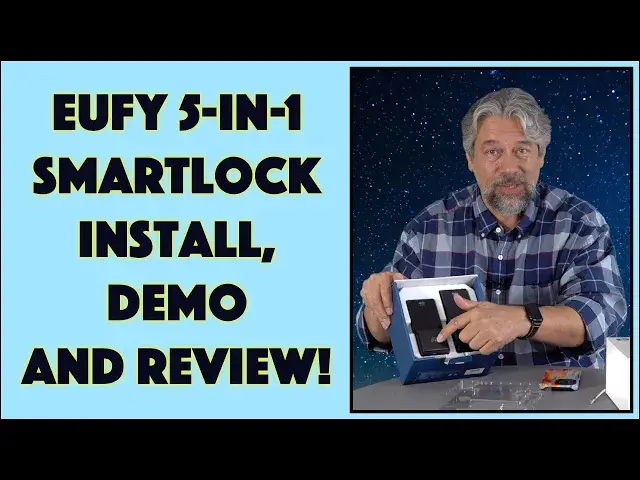
Tech expert and smarthome aficionado Dave Taylor checked out the Eufo Security 5-in-1 Smartlock C210/E110 and found it one of the easiest to install and configure, and at a remarkably affordable price. This detailed video shows the entire install and configuration process, including adding a custom security code directly from the mobile app.
Check it out on Amazon at: https://amzn.to/3Mmr0IB
Visit Dave's Q&A Web site at: https://www.AskDaveTaylor.com/
#eufy #smartlock #smarthome #deadbolt #wifi #bhma #c210 #e110 #unboxing #install #askdavetaylor
Show More Show Less View Video Transcript
0:00
Time to upgrade my front door with this smart deadbolt. Let's install it
0:11
Dave Taylor here with this. This is the Eufy Security 5-in-1 Smart Lock. It goes by two
0:18
different model numbers. It's C210 in some regions and E110 in other regions. So don't
0:25
get confused if you have either number. You got the same thing. This is a pretty nice unit. It
0:30
is a Wi-Fi deadbolt with no bridge required. You're thinking, what's a bridge? So a lot of
0:36
these devices have Wi-Fi, but you have a separate unit. You have to plug into the wall within a
0:42
couple of feet of the deadbolt and that's how it talks to Wi-Fi, which is then how you have
0:47
access to it from an app and such. The alternative is Bluetooth, which is even more frustrating
0:52
because then you have to be within like 10 or 15 feet of the lock to use the app to control it. So
0:59
this is a built-in all-in-one unit where once I get this all hooked up and configured
1:06
then I'll be able to check the status of my lock, add new codes, or lock my door from anywhere in
1:12
the world. That's pretty sweet. It's also an entry-level unit, so the pricing is far less
1:18
expensive than you might be afraid it might be. So touchscreen keypad, there's an app on your phone
1:25
that gives you tons of control, and it's BHMA certified. BHMA is the Builders Hardware Manufacturing
1:32
Association, and they check for security, durability, and finish. So if it gets a BHMA certification
1:40
then you know it's a pretty solid piece of hardware, which is important. It's also IPX3 weather
1:45
resistant, so if you have some crazy weather or if it gets super cold, this is going to do fine. Now
1:52
what I want to do is I want to unbox it real quick so you see everything in the box, and then we're
1:58
going to switch everything around, and I'm going to show you how I do the install, and then we're
2:03
going to come back and we'll do some programming on the phone to get it to work just right. And
2:08
then finally we'll go back to the lock and look at how that all works. So pretty complicated. You ready
2:15
Let's get started with the box. To do that, it's easy enough. Just open up the box, and let's see
2:23
So they have a really nice presentation, and as you can see, this side, let me take this piece off
2:30
that's the actual exterior of your lock, and that is a touchpad, and there's a key override in case
2:37
of emergencies, which is handy. And then this side is going to be on the interior of your door, and
2:43
you'll be able to lock or unlock it by simply revolving that to the right direction. So you know
2:49
if you're going to bed and you want to make sure it's locked, you can just walk up and spin that to
2:53
the correct spot. Easy enough. Now let's take this out and see what's underneath, because there's a
2:59
little more to a deadbolt than that. And there's a little package, and in the package is, let's see
3:08
a little brochure on eufy security itself, and a drilling template. But don't let that intimidate
3:16
you, because the vast majority of deadbolts use the exact same size hole and orientation
3:22
so you probably won't need this. I've never needed to re-drill a door hole. And then there's a quick
3:28
start guide, which will be very important when I get to the actual install. Finally, in the box
3:34
there are a couple more things. There's the actual deadbolt itself, and there's a way, usually you
3:41
can spin these, right, so you can adjust it for different depth doors. And then you can take a
3:47
screwdriver and put it in this part and actually test extend the deadbolt to make sure it works
3:53
We'll do that as part of the install. And then there's a little bit of hardware in a bag. This
3:59
includes keys and a plate and a bunch of different size screws. Again, the install is pretty
4:06
straightforward on these things. And then finally, four AA batteries. And I should say that these AA
4:13
batteries are going to power the lock for what they say is about 1,200 lock events. So if you use it
4:20
10 times a day, you're going to be replacing the lock every four months. But if like me, it's once
4:26
or twice a day, and sometimes entire days, you never use the electronics at all, because you just
4:31
lock it and unlock it manually. In that case, this can easily last you six months. Now, I don't know
4:38
because obviously I don't have it installed yet. But hopefully, if other people are watching this
4:43
and have this lock, they can pipe up and say what their experience is with battery life. So that's
4:49
just about everything. And you can see here that touch panel is fairly complicated looking, but
4:57
there's no way around it. It is crummy weather. It's raining outside, but it's time to change my
5:04
deadbolt. So let me get in front of my door. And what I'm going to do is I'm going to actually do
5:10
like a narrated slideshow. If I videotape me doing it, it's going to take a long time because I have
5:16
to keep moving around camera angles. You don't want to see that. So let's just jump into what
5:22
it's like to actually install this in a door. The first step is to take the old lock out. And you
5:28
can see from both the inside and the outside, it's a big hole with a little hole on the side
5:34
and a recessed area with two screw holes. The deadbolt is actually going to be on the side
5:40
and then the lock mechanism will be obviously on the inside and outside. So the first step is to
5:47
actually install the deadbolt and notice it says top. You want to have that no surprise on the top
5:54
and you want to adjust it so that it is centered in that hole. That's really important. And then
6:01
you just screw in the sides of the plate. So once you have that, you can actually test it by closing
6:08
your door and using a screwdriver to make sure the bolt is lined up. I had that work perfectly
6:15
so no issue there. And then it was time to put the exterior unit on. And the trick here is you want to
6:24
feed it through so that the wire goes underneath the deadbolt, but the actual metal piece that's
6:31
that sort of T-shape goes in the hole of the deadbolt so that it will be able to lock and unlock
6:39
the door. Then you put the back plate on, feeding that wire through that side hole as you can see
6:47
here. And there are two screws you use to actually make sure that it stays on your interior door
6:55
There's a third screw you can use optionally. I didn't actually use it because I didn't want to
7:00
drill another hole in my door, but you can if you want. And then it's time to plug in that wire
7:08
And notice that there is a red side on both the plug and the socket. Make sure both show red
7:16
put them in very gently, and then you actually place that on the door. And there's a little bit
7:22
of trickiness here because you have to actually hold it in place. But then on the bottom down here
7:29
there's a screw you put in, and that's the first screw. Now there are two more screws you need to
7:34
put in, and it isn't obvious where they are, but you have to peel away the stickers on the left and
7:42
right side of the battery compartment. And then two screws go in there. And then when you're done
7:48
with that, yes, you put in the batteries, which means that you're just about done. In fact, if we
7:54
go to the outside, it is done, and now I can test it with my key. So that means it's time to do the
8:01
initial pairing with the app. Let's do that. I'm going to go through this really fast. I'm in the
8:06
eufy app. I tap add device. It gives me lots of different devices. This company makes a lot of
8:12
smart home gear. I will choose smart lock. I will choose smart lock from this list. I will then pick
8:19
that it's for my home since I've already used the eufy system, or you might have to add a new
8:24
address. It's smart to do this clean and organized because it'll make more sense later. And then
8:30
there's a QR code on the top of the battery compartment, and let the program scan that code
8:37
and it will immediately be able to figure out the lock and start communicating. And then at this
8:43
point, you can say, yeah, yeah, yeah, I've already finished the installation. And then there's a
8:49
little button you push just below all the batteries, and that's the sync button. Push it. It took about
8:55
two seconds to do a beep, and then I tapped next, and then it wanted to use Bluetooth
9:02
And then I picked my Wi-Fi connection, and it's sharing this Wi-Fi information with the lock
9:08
itself. So that's really important. And then, lo and behold, my new eufy security lock is actually
9:17
connecting to the Wi-Fi network, and I get to choose what I'm going to call it. I called it
9:23
front door. Then it just calibrates the lock, locking and unlocking it, and you just confirm
9:28
that it worked. Just about done. Now we just need to set our admin passcode, and I recommend something
9:34
six to eight digits. Don't do something really short, because longer passcodes, as it says
9:40
are more secure. Enter that, and lo and behold, setup is complete, and you're ready to go. Now, let me
9:46
jump back on camera. It's fully installed, and that wasn't actually as onerous as I was afraid it would
9:53
be, and the setup on the app was actually really easy. The key is not to put the cover on your
9:59
battery, because there's a tiny little QR code that the app can scan, which gets you most of the
10:05
way there pretty fast. Now, as you can see, I have the app in displayed. So let's go ahead, and I'm
10:11
going to, here's the lock. I'm going to actually lock it. So I'm going to just drag this down to there
10:18
and you barely heard it. As I said, it is raining today, so it's a little noisy
10:23
but I can unlock it just the same way, and it'll unlock, and did you see that notification that came
10:30
down? So we'll get another live notification, but I also programmed in a code. So let's go ahead, and
10:38
I'm going to go back to here, and we're going to go and enter the code, and my code's not very
10:43
complicated, because it's for a demo. So light it up, and then, and when you see the numbers go around in that fun little circle, it worked, and I got the
10:56
notification that I just locked the door using that demo passcode. So let's say I want to add
11:02
another passcode. So I can just go to manage access, and you'll see that there are the two
11:10
codes I have, which is my own plus the demo one. I'm going to add another one, and we'll call this
11:16
test, and I'm going to go, and I'm going to do just a one-time code, and it's going to only work
11:24
today. So by tomorrow, it's going to be expired, right? So that looks good, and now all I have to
11:31
do is enter the actual code, and it's a little picky. You can't just do like one, two, three
11:35
four, five. So I will do instead five, five, four, four, three. So I can check it. Yep, that looks good. Save
11:46
and looks good, and done, and that's it. So now, let's try it out and see if it'll unlock the door. So
11:56
light it up, and then push the shield icon. Looks like it hasn't gotten that data yet, so
12:05
I did enter that correctly, didn't I? Let's try again. So there we go. See, now it worked, and the door is unlocked, which is great. I mean, this is really
12:20
everything that you need. You have the app. There is a key if you need to have it if there's an
12:26
emergency, but there's also a USB-C port underneath. So in an absolute pinch, you could also use like a
12:35
phone remote charger, and you can plug it in, and that'll give it enough juice for you to get in the
12:40
house, and then you just change those double A's. So really, that's pretty much everything. Let me
12:46
come back to that final spot to give you some final thoughts about this, but so far, gotta say
12:51
this is pretty sweet. So that's the install and me setting up a couple of special codes and such
12:57
I have to say, I've done a lot of these. This one's really easy to install and super easy to program
13:04
I have had, with other vendors, a little bit of a challenge getting the app to know that the device
13:10
exists and to have that then be able to connect on Wi-Fi, but eufy's got that all figured out
13:16
The app made it really easy. Key to note is that there's a tiny QR code on the top of the battery
13:23
compartment area, and if you let your phone's app scan that, that does all the heavy lifting. It
13:29
makes it really easy for you to proceed. So I'm really impressed. This is really one where it's
13:36
just ready to go on my phone. Easy for me to understand how to add or delete codes, how to
13:41
limit things by time. I really like the notifications. I like that it's on Wi-Fi and that I don't have to
13:48
have a separate bridge or separate device or anything. Lots to like here. I am curious to
13:54
find out how it goes with the lifespan of those AA batteries, but you know, for AA batteries, I'm
14:00
sure it's going to keep reporting to the device. So I'm expecting it'll give me a notification when
14:05
I need to change them, and I'm okay with that. Now, in terms of tools, the main tool you need is a
14:11
Phillips screwdriver. I use this one, and I also used my flathead just when I was testing the
14:18
initial deadbolt to make sure it was all lined up properly. You don't really need to do that, and so
14:23
I don't know that this is a requirement to have one of these, but if you like to be very methodical
14:28
as I do, that's a solution. Now, I am left with keys. Kind of old school, but sometimes that's what you
14:35
need. So not a terrible thing to have this as an override. So this might be something I have stashed
14:41
in my car without a label or something. So in an emergency when the batteries are dead and I'm just
14:47
exhausted and don't want to think about plugging something in or anything, I can use this to unlock
14:53
my door. Handy. Now, you never need it on the inside because, of course, the inside doesn't have a keyhole
14:58
because it just has that convenient control that you can use to lock and unlock. So that's really
15:05
everything. Really hope you found this to be informative and interesting. We do need to talk
15:11
about the price, but before we get to the price, I'm going to ask if you could subscribe to my channel
15:16
Click or tap on that subscribe button, and then go ahead and hit that bell icon for notifications too
15:22
and we're connected. Great. And if you found this to be helpful, useful, interesting, educational
15:27
or even just entertaining, it was a bit of a task, then go ahead and give me a like or thumbs up
15:34
Really appreciate that. All right. Well, this is all that remains of the now installed
15:40
eufy security 5-in-1 smart lock model C210 slash E110, and it is $139.99. And when I checked
15:51
it's actually $119.99 at amazon.com for $120. This is a smart lock with an app. I can pair it with
16:00
Alexa. I can pair it with Google Home. There's a lot of ways you can use this. I can literally just
16:06
say, Alexa lock front door, and it will do that. Now it won't unlock because if you think about
16:11
that, you don't want someone yelling through your window to unlock your door, but certainly locks and
16:17
such, it's really helpful to be able to have all of those as additional ways to interact with the
16:22
device. But most importantly, it installs easy, it's easy to program, and that's really what you
16:28
want. So that's all I got. And I'll hope to catch you in my next video
#Home Safety & Security
#Home Automation
#Locks & Locksmiths
#Home Alarm & Security Systems