Up next in 10



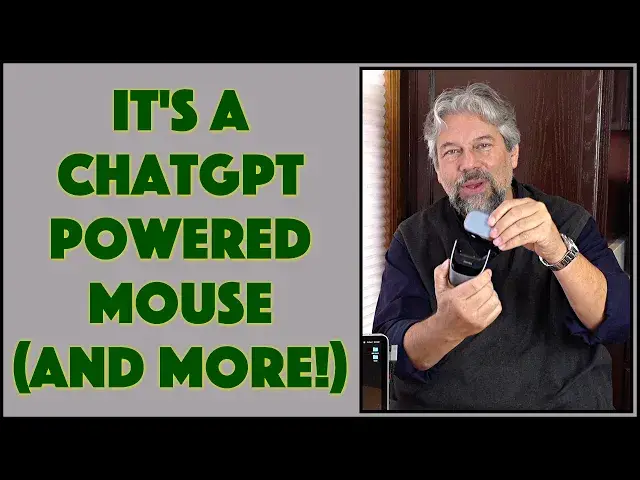
Imagine a Bluetooth mouse that can also be used as a powerful presentation tool, complete with built-in laser pointer and "spotlight" feature on the connected computer. Now imagine that it has a microphone and can record what you say and let you interact directly with ChatGPT, no keyboard required. That's the amazing Cheerdots2 ChatGPT-Powered presentation tool and mouse. Tech expert Dave Taylor got his hands on a prototype and offers this insightful preview of all the key features and capabilities.
Intrigued? Check it out on Kickstarter while you can:
https://www.kickstarter.com/projects/cheertok/cheerdots-2-chatgpt-enabled-ai-recording-mouse
Visit Dave's Q&A Web site at: https://www.AskDaveTaylor.com/
#cheerdots2 #chatgpt #mouse #presentation #ai #cheerdots #preview #prototype #askdavetaylor
Show More Show Less View Video Transcript
0:00
It's a mouse pointer, a presentation tool, and it's AI powered
0:05
Let's check this thing out. Dave Taylor here and I'm checking out a production prototype of this
0:18
This, let me pull this off, is the CheerDots 2 chat GPT powered pointer and presentation tool
0:27
And at its most basic, it is a mouse you can use and you might be able to see on the screen
0:34
here that I can move things around and I can make different choices by clicking all of
0:40
those basic functions. So it is a Bluetooth pointing device and I have it hooked up to my Macintosh
0:47
I had to download the CheerDots 2 app, which is what you're seeing on the screen
0:53
But where this really gets fun is when we take it off of that and now it's a little
0:59
handheld pointer and presentation tool. But to get it to work properly, I need to flip a little switch on the bottom
1:07
And as you can see in this close up, there's a lot of switches on the bottom
1:11
On the left, you can choose from two different Bluetooth modes so you can pair it with different devices
1:17
And then the middle part is actually the laser system for it to track when you're moving
1:23
it on a surface in desktop mode. And then on the right, we go from ground to air and I'm going to flip that up to air
1:32
And then the rightmost actually lets you adjust its resolution. But I'm not going to worry about that
1:39
So now I am in presentation mode. And so one of the things I can do is, I hope you can see that
1:47
There's a laser pointer here, somewhere here. Oh, I think maybe this way
1:53
There we go. So there's a laser pointer and probably not great for my lens to do that
1:58
But it is tricky. This is, you know, you're going to have to learn how to use this because they have so
2:03
many features. So on the right hand side, if you push and hold, you get that laser pointer
2:10
But if you double push, watch the screen, then I get this sort of spotlight
2:17
And if I double push again, then it goes to this red little highlight mode, which is pretty cool
2:25
And then if I double push again, then I'm just back into a regular mode
2:30
Now, if I go down to the air mode, and so here, and you can see in this screenshot that
2:36
it gives you mouse status. You have the three different modes. I just showed you those
2:40
You can also specify where you want things like the spotlight and such
2:46
But while we're at it, let's look at a screen capture of desktop mode
2:51
And so that gives you the ability to do different gestures. And you can see you can customize it quite a bit, including adjusting its DPI or sensitivity
3:00
And then where this gets really fun is voice settings. So right now I have it recognizing English
3:07
Yes, it actually has a voice interface system. It's going to recognize English
3:13
And if I push on the voice thing, it's going to get me into chat GPT
3:17
So what does that look like? Well, let me just demonstrate that
3:21
So on the left side, there's another button. So if I push the button, then it gets me into that chat GPT, but it's not listening
3:30
So if I push and hold, then tell me more about the fall of the Roman Empire
3:39
And then I let go. And so you can see it says more about the fall of the Roman Empire
3:45
That is amazing. This is the world's easiest way to interact with chat GPT
3:49
And that gives you all sorts of really interesting possibilities. While you're making a presentation, you might suddenly say, oh, hang on
3:56
Let me just go ahead and look this up super quick. But if I go back, and notice I can also just use my regular mouse
4:04
If I go speech to text, and then let's switch out and switch back, I've found that tends
4:09
to work a little better. And now this time when I push and hold, you can see that down here it says speaking, and
4:17
it's capturing the words that I'm saying. So you can imagine I could be making a presentation and recording myself
4:25
And when I let go, then it not only will have that transcript, but it should be, let's
4:32
look in recordings there. So it has recorded what I've done, so I can go back and review it later
4:39
And again, I don't know why I'm talking to this. Let me just run down some of the specs here
4:45
Because in desktop mode, it is obviously, and it has a magnet
4:49
So all I have to do is switch that back to desktop
4:53
And now I'm ready to use it, and this works absolutely flawlessly
4:57
I think all the new AI and voice stuff is where this is all new, and so they're ironing
5:02
out the edges. So this, super easy, nice little touch pad here, and you can click to actually have things happen
5:10
But when you get to presentation mode, then that's when you take this out and it's your
5:15
presentation tool. And you have to orient it correctly. It is a little tricky to get the hang of it, but it is an air mouse and touch pad and
5:24
laser pointer and gives you that spotlight and indicator light. And you will need the Cheer Dots 2 app
5:33
And again, this isn't even a 1.0 release of the app yet
5:37
So it is super fun. I'm really intrigued by this. It has a USB-C for charging
5:43
The final product will include a USB-C charging cable. And once you have it fully charged, which doesn't take very long in my experience, then
5:52
it can run up to 21 days on a charge, which means you can charge it and then go away for
5:58
the weekend and give your presentation at that trade show and then do another presentation
6:03
to the investors and come back into your hotel room and then use it as a desktop pointer
6:09
to be super productive. And all of that without ever having to worry about charging it again
6:15
Very nice. So that's really where things are with this. And I think that once they get this all dialed in, this is going to be an amazing device
6:24
and really fun because it gives you all of that sort of presentation and desktop mouse
6:29
features and there's a whole voice AI system here, too, that gives you a lot of intriguing
6:35
additional capabilities. Will you use them every single time? Maybe not, but it's super easy to access these things
6:44
And if you record a presentation, it can also automatically generate a summary, which
6:49
you could then copy and paste into an email and send to people that didn't make it
6:53
So that's about as easy as it gets. Now we should talk about the price because it's currently on Kickstarter and there's
7:00
two versions of this. There's the version that's just the presentation tool and the desktop mouse and doesn't have
7:06
the voice and AI features. That's what they call the basic unit and that's less expensive
7:12
But I'm going to talk about the CheerDots 2, which is the advanced version or pro version
7:18
and that has a manufacturer's suggested retail price of $129. But right now on Kickstarter, it's running for about another month or so
7:28
You can pick it up for $69. Now you'll have to wait a little while because it's obviously not a production unit and it's
7:35
not shipping and they're not coming out of the warehouse in increments of a thousand
7:40
But they're going to get there and by the time the Kickstarter campaign closes, you'll
7:45
have probably just a little bit of time to wait and then you'll have this in your hands
7:49
in black or silver and you will have all sorts of fun trying to figure out how to get it
7:55
to work for how you make presentations or how you work with your computer and stuff
8:01
So really one to check out. I have the link to the Kickstarter campaign in the video description, so please check
8:08
it out. And again, this is the CheerDots 2 chat GPT powered pointer and presentation tool
8:17
That's all I got. I'll hope to catch you in my next video
#Online Media
#Consumer Electronics
#Voice & Video Chat
#Gadgets & Portable Electronics
#Home Automation
#Intelligent Personal Assistants