Up next in 10



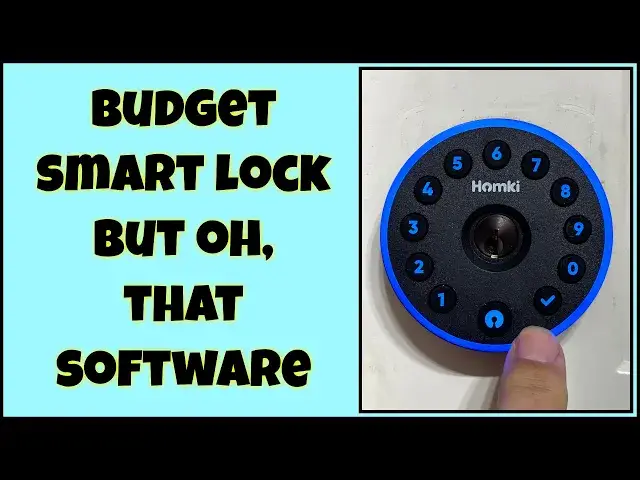
[DISCOUNT BELOW] There's a lot to like with the budget HOMKI Smart Deadbolt 1.0 and it really does install pretty darn quickly. But that pairing process, and the software itself all could do with some updates, as tech expert Dave Taylor demonstrates in this full install + setup review video. Is it the right deadbolt for your home? Quite possibly, but you'll want to know what's good and what's not so good at all...
Check it out at: https://www.ihomki.com/
**** Homki 1.0 50% OFF Discount ****
**** Multi-code: 54O9ROKO
**** Reg Price:$69.99 Deal price: $34.99 [expires 4/4/23 @ midnight PDT]
**** Link: https://www.amazon.com/HOMKI-Keyless-Entry-Door-Lock/dp/B0BL7LPFBZ
Visit Dave's Q&A Web site at: https://www.AskDaveTaylor.com/
#homki #smarthome #smartlock #deadbolt #askdavetaylor
Show More Show Less View Video Transcript
0:00
You won't believe the price of this smart deadbolt
0:02
Let's do an install and check it out. Dave Taylor here, and I'm in my garage checking out this
0:15
This is the Home Key Smart Deadbolt 1.0. And they say that it's super easy to install, and it certainly has a remarkably affordable price
0:25
It is IPX4 weatherproof, so you can use it as an outside deadbolt on your front
0:29
door, but I'm in my garage and I'm going to actually go ahead and install it on my garage door
0:36
Now, you'll notice there's a hole here. So I've already pulled out the previous deadbolt
0:42
which makes the install obviously a whole lot easier. It's pretty darn easy to pull out an old
0:47
deadbolt. And then all we're going to have to do is put this in, which involves a couple of steps
0:52
There's a bunch of different pieces, but one of which is the actual bolt itself. So we're going to
0:57
slide that in and then this goes in the front and it will go through this little slot
1:04
Well, it'll be easier to do when I'm doing it properly. It'll go through the slot and then
1:10
this will fit onto the back and this also includes space for batteries and everything
1:17
So we're going to do the full install. They say five minutes. I'm not going to time myself
1:22
because I like to take my time and not be stressed about it. But I'm expecting a pretty easy
1:27
install. So let's go. I'm going to do this by actually doing a slideshow because that's a whole
1:34
lot less stressful than actually live videoing it. But you'll get to see every single step along the way
1:39
Now, before I do that, let me tell you that, as I said, it's IPX4 weatherproof. So you can use it
1:46
from minus 22 Fahrenheit to 140 Fahrenheit. It'll work just fine. It is a Bluetooth-based device
1:54
So Android or iPhone, you'll get the app, you'll actually pair the two, and then from Bluetooth, you'll be able to do a variety of different things like set access codes
2:05
It supports 150 access codes that can be either permanent or scheduled or temporary
2:13
So a scheduled code might be between 9 a.m. and noon, this person can come in
2:18
And a temporary one might be, while you're visiting me, you're going to have this door code, but the day you leave
2:24
it's just going to vanish again so you can't sneak back two weeks later and come in again
2:28
It has, like I said, a five-minute install. It is a peak-proof password. We'll have to figure out
2:34
what that is, but I think that's something to do with how you punch in the code. And there's
2:38
no key needed, but there is a key for backup, and it does ship with a pair of keys that are
2:46
keyed to the lock. That's obviously important. And there is also on the very bottom
2:52
It's easier to see now than later. There's a USBC. So the reason for that is if the battery totally dies and you don't have a key
3:02
you can plug in USBC power to the bottom and it will power the lock enough
3:08
but you'll be able to unlock it. It is Bluetooth. It is not Wi-Fi
3:13
That's a super important point because Bluetooth means that you'll only be able to use the app
3:19
when you're within about 10 feet of the lock. that's something where you'll use it for configuration and such
3:25
but you can't be at work and then go ahead and set a new code for someone to be able to access your home
3:32
It doesn't work that way. It's not Wi-Fi, but when I tell you the price, you'll be like
3:36
oh, wow, that's incredibly inexpensive. So I can probably live without that feature
3:41
Now, it's powered by four AA batteries, and they say that each set of batteries runs about six to eight months
3:49
I won't have time to test that, but hopefully that proves to be. be true. So that means roughly twice a year you're going to want to go ahead and change all the batteries
3:58
That should be pretty easy to do once it's all installed. But hey, enough talk. Let's jump into that install
4:04
The very first step is to slide that deadbolt in from the edge of your door And it actually twists to make it the right length You want it to be centered in the hole and you want the word top to be no surprise on top
4:19
Then you put the plate on the edge with the screws and you can see here they did a really good job of labeling all the screws and that works pretty well through the install
4:30
except at one point you find out there are two different lengths of H screws or H-bush
4:35
bolts as the case may be. But this one goes on pretty easy. And then you can use a screwdriver to
4:41
double check that the bolt does go into your door as appropriate and as necessary by just simply
4:48
putting it in the middle and then turning it up and down sort of horizontal and vertical
4:53
And that worked well for me. So the next step was to slide the front part of the lock
4:59
through that little slot I just used with the screwdriver. And then I had to get
5:05
it a couple of gentle hits to get it to actually fully seat in that circle. Some people
5:10
have reported they had to actually enlarge it just a tiny bit with a file. Hopefully
5:15
you won't have to do that but it's pretty straightforward. Then it's all set and flush
5:20
and ready to proceed. So now I go to the other side of my door. And on this side there's a mounting
5:28
plate and here are those H bolts that were actually two different lengths. So I tried the shorter
5:34
ones first and they worked great and that's all mounted and notice I've slid that wire underneath
5:42
and through the slot in that mounting plate so then you pick up the back part of the deadbolt
5:50
and you have to plug that little wire into the circuit board and here's the trick I'm showing it from
5:58
the top but in fact you want to plug it in from the lower portion and then it'll fit and you
6:04
won't be frustrated. Not really clear. That's the case, but I'm telling you, have it come in from
6:09
underneath, and now that's plugged in, and you just basically align it on the mounting plate
6:17
screw in those J bolts, and they're actually really short, so they go deep into those holes. So you'll
6:25
definitely want a good screwdriver for that. And notice there are three. There's two just below
6:30
the batteries, and there's one on the very bottom. And then finally
6:34
Finally, I put in some batteries and you can see the plate actually lights up
6:41
So that's very promising. And I can push the bottom button and that will actually close the deadbolt
6:48
And then it comes with the default code of one, two, three, four, five, six
6:52
So I can also use that to test locking it. And finally, when I mount the battery plate over the actual batteries, then here's what that looks like
7:04
You'll notice that little slider on the bottom. I have it on green, which means it's functional
7:09
But if I slide that to red, then it will defeat the keypad
7:13
And that's a way to make sure no one's coming in. So if you're worried, someone has a code and you don't want them to access the code at 2 in the morning
7:20
you can slide that little switch over and you don't have to fuss with the software at all
7:25
Now, speaking of the software, let's go into the pairing process and then the programming process
7:32
because that is non-trivial. But let's have a look. It's all installed, but now I have a challenge
7:39
because what the documentation says is that if you press 2-2 checkmark
7:44
it goes into pairing mode. But listen to what happened when I do that. So I reached out to Homekey support
7:54
and they told me, here's the deal. You need to change your admin password on the lock as a first step
8:01
Now, I don't see that anywhere in the documentation. but we're going to go through the process they suggested which starts with a long press on the check mark
8:09
So please enter six to eight digit password entered by hashtag so Please enter six to eight digit password entered by hashtag So password one two three four five six
8:25
By hashtag, I assume they mean check mark. So now I can enter my new admin password and I will do one, two, three, one, two, three, check
8:41
And then enter again. Then I think we have a new admin password
8:55
So now I should be able to enter 2-2 check mark and let's see what happens
9:00
And then it says please verify administrator, which I did
9:14
Okay, and now let's get my phone going because I think it's all working and looking good
9:20
So on my phone, I'm in the Home Life app and it's already popped up, device to be added
9:26
That just came up instantly, which was great. So now I'm going to go ahead and add it and it says being added
9:35
Added successfully. Done. That's about as easy as it could possibly get
9:40
And here's my lock. So let's try it. Let's try unlocking it. Let's see. Maybe, let's see we do this
9:47
No, let's see. Oh, I see. So you drag this to the side. So it's locked. And then I can drag it to this side
9:58
And it unlocks. Isn't that nice? Now, let's get to the one thing I really want to change, which is I really want to change the audio
10:09
So lock volume. Let's just mute it. Yes. There's a little. a lot going on in my text messages too
10:16
Okay, lock volume. So now let's go back and let's try doing it
10:21
So still have that same code as my unlocked code. Okay, not sure why that didn't work
10:36
So maybe what happens is that I've lost that temporary code. So that's okay
10:41
So let's go ahead and we're going to add a code. code. We have a paired and I've figured out the app. It's not super obvious, but I'm going to go
10:50
ahead and add another code. So I'm going to tap to connect to the device. You can see it in
10:55
the little inset. And I am now connected to the lock and I can verify that by dragging to unlock it
11:04
Might already be unlocked. Let's try dragging to lock it. There we go. And now I'm
11:10
trapped here, so I better figure out a code. So I'm going to go temporary code
11:14
And what seems to be really important is that you give it a name. It says the name is optional, but it seems like that is critical
11:21
So I'm going to do custom. And we'll do 654, 321. So there's our code
11:29
And then we need to put an expiration time. And I'll just do, I don't know, many, many years into the future
11:36
Okay. And then I'm going to give it a name and we'll call it count down
11:43
That seems good. Done. So that all looks good in the app and I'm going to save it
11:51
And so now you can see there's a little timer saying connecting
11:56
Bluetooth Connect success. And at this point I think it's actually saved, but I'm going to press save again
12:03
And now it says it's an error because it's already in use. So let's assume that it worked
12:09
And let's see what happens. And what did I do? Six. Six, five, four, three
12:14
three, two, one, check. And I in the operating log and nothing happened Let try it again and that didn work so that kind of frustrating
12:38
unless it's already unlocked and it's not so let's go there and look again and see what happened
12:43
and this is where this app gets very confusing so i'm going to try again 6 5 4 321 okay we'll give
12:51
a different name um we'll call it two we'll have a expiration date of some years in the future and we'll try saving it and probably it'll complain
13:03
because now it's saying that code's already in use but 654 321 isn't working so let's try again
13:10
didn't work but I did enter a different code so let's try this one one two three one two three one two three
13:25
check. So that one worked. So the moral of the story is that the device does work, the
13:35
software needs some help and hopefully they'll watch this video and they'll say
13:38
oh, there's some things we can change to make this experience a lot more logical
13:43
But if you can go through this sort of hassle of figuring out how to add more
13:48
codes, then it really is a remarkable solution and it is incredibly affordable. So
13:54
So again, the most important thing to remember with this is that it is running Bluetooth
14:00
It does not connect to Wi-Fi, which means I can use it with my phone if I'm really close
14:07
But if I'm further away, like I'm out, even on the other side of my house, I really can't
14:13
get to the actual lock with my phone. So you've got to get it all set up the way you want
14:20
And then there is no remote access. Not necessarily a problem, just something to know about because there's two categories of smart dead bolts
14:29
There's ones that are Bluetooth, like this one, and there are ones that are Wi-Fi, which gives you access from around the world
14:36
but they're more expensive because they either need a separate gateway device or they need to have more circuitry inside the lock
14:44
So either way, you know, this one I think is really good as it is
14:49
once you get over the hurdles of the software, and that's something that's an easily solvable problem
14:55
from their perspective. So we do need to talk about the price
14:58
Hopefully, I haven't scared you off. I think it's a really cool looking lock
15:03
There's a lot I really like about it. I think that the user experience could be improved
15:09
But you can get there. You can get this all to work, and I'm going to tell you the price
15:13
and you're going to say, holy cow, that's all it is. But before we get there, I'm going to ask if you could subscribe to my channel
15:19
As you can tell from this video, I'm really detailed and I'm honest and I'll tell you and show you the straight scoop
15:27
So I don't sugarcoat anything. I'll just let you see the pros and the cons, the good and the bad
15:32
So if you'd like to subscribe, I invite you to by clicking on that subscribe button
15:37
and then click on the little bell icon, which also turns on notifications so you know about my new videos
15:43
Finally, if this was helpful and valuable to you, then go ahead and give me a thumbs up or a like
15:48
That really helps. I really appreciate that. All right, this is the Homekey Smart Deadbolt 1.0, and it is 6999 at Amazon.com
16:00
The software app is free. Hopefully there'll be some tweaks to make it a little easier to use
16:06
But that's everything I got. This lock is all set up. I'm now going to enter my actual codes because, you know what
16:12
I'm not going to show you my actual codes. So that's all I got
16:16
And I'll hope to catch you in my next week
#Home Improvement
#Home Automation
#Locks & Locksmiths
#Home Alarm & Security Systems