Up next in 10

Javascript Google Places API Project to Plot Nearby Places on Maps Using Autocomplete Location
Dec 10, 2025

Buy the full source code of the application here:
https://procodestore.com/index.php/product/javascript-google-places-api-project-to-plot-nearby-places-on-maps-using-autocomplete-location/
Show More Show Less View Video Transcript
0:00
Uh hello friends today in this tutorial
0:02
I will be showing you that how basically
0:04
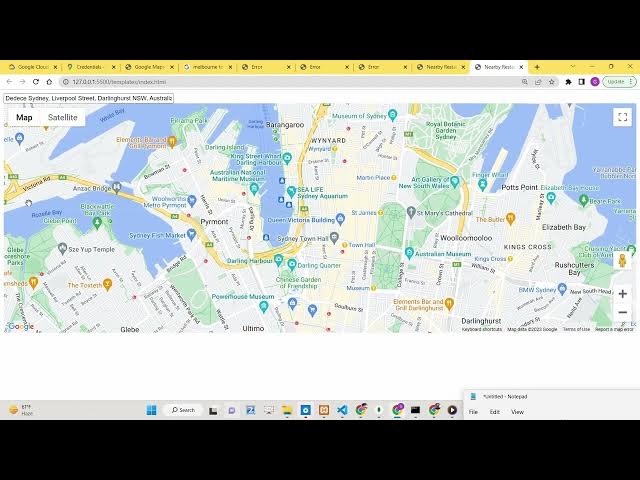
you can plot the any nearby places or
0:07
any restaurants any parks inside your
0:10
Google map using Google places API and
0:13
Google autocomplete API that offers you
0:15
can see we are displaying the Google
0:17
maps here and basically we have a
0:19
autocomplete search field out there here
0:21
you can enter any location around the
0:23
world and basically it will tell you the
0:26
top 10 nearby places locations or any
0:29
sort of paraks or restaurants
0:32
you will see Google places API provides
0:35
these places types you can provide here
0:37
parak here you can provide here let's
0:39
suppose schools
0:41
so if I just provide school here then I
0:45
will write any location here let's
0:47
suppose if I write any location
0:50
let's suppose if I write a here
0:55
and you will see top 10 schools will be
0:57
listed out here you will see it will
0:58
plot
0:59
by these red marks markers out there and
1:02
if I individually hit any of these
1:03
markers out there it will give me the
1:05
place name here you will see New Zealand
1:07
International College and then it will
1:09
also I think if any sort of image is
1:12
also there it will also open the images
1:14
as well you will see that
1:17
if any of the places have the images
1:19
they will also open the images also you
1:21
will see the places images you will see
1:24
that so if any location has some images
1:27
they will also So open it in the new
1:29
tab. So you can do this for any location
1:32
out there guys. You'll see that
1:33
basically it will now open. You can
1:35
write any location here. Let's suppose
1:37
if I write my nearby location
1:41
I live in the so if I write here uh
1:49
like this here. So you will now see it
1:51
will give you the top 10 schools out
1:53
there. You will see that.
1:56
So basically each and every location has
1:58
some place ID. You will see that. So
2:00
these images are fetching from the
2:02
Google places API guys. You will see
2:04
that these uh images that you are seeing
2:07
right here. Basically these are fetched.
2:09
These names and images are fetched from
2:12
the Google places API. You will see that
2:15
basically you can do this for any
2:17
location out there. There's this
2:19
autocomplete box out there. You can
2:21
repeat this for any location. And you
2:23
will see that you can put any location
2:26
here and then it will give you the top
2:29
locations, top nearby places. And if you
2:32
go to the Google places API
2:33
documentation, then it provides these
2:36
places types. You can just give the
2:39
nearby accounting places, airports as
2:41
well, amusement, park, aquarium, art
2:44
gallery, ATM, bakery. So let's suppose
2:46
if I want to get the top 10 ATMs in a
2:50
radius of locations I will provide here
2:52
I type to ATM. So now if I want to find
2:55
out the locations like suppose I I'm
2:59
living in a location here
3:01
and I'll write this location.
3:05
So it will give me these top ATMs which
3:08
are located inside this. You will see
3:10
that
3:12
you can see that. So now it is giving me
3:15
ATMs as well. So basically places can be
3:18
of any type. It can be ATM, it can be
3:20
pars, it can be restaurants, it can be
3:23
anything. And basically you will see
3:26
that.
3:28
So you can go to the places uh types
3:31
guys. You will see police stations,
3:32
churches, city halls, clothing store,
3:34
convenience store. So secondary school,
3:38
shoe store, shopping malls as well. You
3:40
will see if I paste shopping mall here.
3:45
So you can do this all the source code
3:47
that I have written for this application
3:49
I have written uh given in the
3:51
description of this video. I have
3:52
written a complete blog post on my
3:54
tutorial website where I have explained
3:56
each instruction in detail. So you will
3:58
find out all the source code in the
4:00
description of the video.
4:06
So if I paste it here you will see that
4:08
basically these are
4:13
you can see that basically it will give
4:15
you the full screenshot of all the
4:16
markets you will see that basically
4:20
so it's a nice little places API it
4:23
gives you the screenshot as well
4:25
basically you will see that
4:28
you can give you can see that
4:34
you can see that so we will be building
4:37
this application guys I have shown you
4:39
the demo of this application how it is
4:41
built so you can go to the description
4:43
of this video to get all the source code
4:45
so now to build this application it's
4:47
very simple you need to go to your
4:48
Google cloud console to get the
4:50
information to get the API keys and also
4:55
first of all you'll be need to enable
4:56
two APIs for this application first is
4:59
the Google places API and the Google
5:01
JavaScript maps API. So go go to Google
5:04
Maps platform and enable these APIs.
5:08
First is this Google Places API. You
5:10
need to enable this API and this maps
5:13
JavaScript API. So these two APIs are
5:16
needed for this. So just enable this and
5:18
go to credentials and here you need to
5:22
just copy paste your own your own API
5:24
key. So simply click on create
5:26
credentials and select API key here and
5:29
select and paste it here. So that's all.
5:32
So I have given this source code in the
5:34
description of this video. So basically
5:36
I will now write this source code step
5:38
by step so that you will understand each
5:40
instruction that I have written right
5:42
now.
5:44
So first of all you need to enable this
5:46
http maps google apis.com maps api js
5:51
and here you need to paste your API key
5:53
and then we are loading the libraries
5:56
which is places API. So that's all.
5:58
After this script tag we have this
6:00
simple input field out there guys. Here
6:02
will be the autocomplete text field
6:04
where you will write your address. So
6:06
this will translate into latitude and
6:08
longitude and depending upon your
6:10
address you will be showing the top
6:11
nearby places. And then we have the
6:14
simple map location where we will be
6:15
displaying the map. So right here we
6:18
will be writing the custom JavaScript
6:20
code for our application. So first of
6:22
all guys what we will do here we will
6:24
simply declare three variables out there
6:26
for the map service and the info window.
6:31
So here we will be initializing our map
6:33
here.
6:35
So I can even
6:40
just initialize this initialize.
6:44
Just write this function
6:46
initialize. Yeah. Initialize.
6:49
So basically guys this function will be
6:52
executed whenever.
6:56
Yeah. So basically we will be adding
6:59
this function whenever you load your
7:01
map. So google.maps.event event and
7:04
there is a DOM listener out there. So
7:07
there is event out there we can we can
7:12
the event is load event and here we are
7:14
uh calling this function which is
7:16
initialize. So we are calling this
7:18
function whenever your Google maps
7:20
library loads out there. So inside this
7:22
library guys what we need to do is that
7:24
we just need to basically uh load our
7:27
Google map and here basically we will
7:30
provide the latitude and the longitude.
7:32
So we are using the latitude longitude
7:34
and this is latitude this is longitude.
7:37
After this we will initialize our map
7:39
here. So this is new google dot maps and
7:42
here we will be initializing our map on
7:45
this uh element which has got the id of
7:48
map and the second is our we are
7:50
providing the center which is this one
7:53
and zoom level we are providing is 15
7:55
that's all. So what will happen guys if
7:58
you now load your application your
7:59
Google map will be loaded here. If you
8:01
refresh here, you will see that your
8:03
Google map is loaded at this latitude
8:05
and longitude. Now, we just need to
8:07
basically uh you will also see your
8:11
basically input field out there. If I
8:13
show you this input field, so nothing is
8:16
happening right here. If I write inside
8:18
this input field, nothing is there. So,
8:20
we need to load the autocomplete results
8:22
out there. For doing this, it's very
8:24
simple. We will get the reference to
8:26
this input field right here by the ID
8:29
that we have given. And you will see
8:30
search text field. We have given the ID
8:32
and after this we simply need to get the
8:35
autocomplete results. So for this we
8:38
will be initializing the library which
8:39
is new Google maps places and basically
8:43
there is a feature called as
8:44
autocomplete out there. So we will be
8:47
initializing binding this autocomplete
8:49
and we will pass the reference which is
8:51
input that's all. And now we just simply
8:55
need to say autocomplete
8:57
bind to there is this method out there
8:59
and we will bind to this uh bounds here
9:01
which is the map that's all.
9:05
And now if you write these two lines of
9:07
code guys if you now refresh your
9:08
application so what will happen here if
9:10
you type any sort of location here you
9:12
will see that these autocomplete results
9:14
will there come here. You will see as
9:16
you write your location out there it
9:18
will show you. Now we need to place the
9:20
red markers out there guys. Depending
9:22
upon the location that you have written
9:23
we need to show the nearby places out
9:25
there. For that we will be making again
9:27
request to Google places API for this.
9:30
So here we will be basically
9:33
declare a marker here. So we will place
9:36
the marker using google.maps dot marker
9:41
and inside this we will pass the map
9:43
reference stat it. So we need to place
9:45
markers on these locations. So here in
9:48
order to basically we will place markers
9:52
whenever you click on the map. So we
9:54
will be binding this event add listener
9:56
to the map here.
9:59
So whenever we will say autocomplete
10:01
event is there and whenever the place is
10:04
changed. So basically this is the event
10:06
guys whenever your place is changed
10:09
whenever you write a location inside
10:10
your autocomplete this event
10:13
automatically fires. So whenever your
10:15
place is changed so this call back
10:17
function will execute here and inside
10:20
this what we need to say is that we need
10:22
to get the place. So now we can get the
10:24
place using this function which is
10:26
autocomplete dot get place. So this will
10:30
get the actual place which the user has
10:33
written and after this we can console
10:35
log it just to get information about it
10:38
and also we will be showing uh the
10:40
photographs as well. So now to show the
10:43
photographs we will get place dot photos
10:46
zero. It will have multiple photographs
10:48
but we will be only be showing the first
10:50
one. So we will get the URL of that
10:52
photograph.
10:56
So what will happen guys if you now
10:58
refresh your application and now if I
11:00
inspect element if I go to console if I
11:03
write a location here let's suppose this
11:05
location you will see basically these uh
11:09
addresses returned out there. these
11:12
properties returned here which is
11:13
address components, formatted address,
11:15
geometry, HTML attributes and this is
11:18
the basically the
11:20
pick of the address that I have written
11:22
here. You will see all this information
11:24
is returned to us using the Google
11:25
places API. Now we just need to place
11:28
the markers on the screen. It's very
11:30
simple. We will have a simple if
11:32
condition here. We will have place dot
11:35
geometry if this property exist.
11:38
place dot geometry
11:41
dot viewport. So in that case we just
11:44
need to say map dot fitbounds. So
11:47
basically this we will be placing the
11:50
markers. So this will be place geometry
11:52
viewport that's all. And in the else
11:55
block we will set the center of the map.
11:58
If this doesn't exist in that case
12:02
place dot geometry location
12:07
and then we will set the zoom level of
12:10
the map to 17. You can also change the
12:12
zoom level by using this method set
12:14
zoom. That's all.
12:17
And now we simply need to change the
12:20
visibility of the marker by
12:23
first of all we will set the position of
12:24
the marker to place.loation. dot
12:27
location. This will set the marker and
12:30
now we change need to change the
12:31
visibility of the marker to true. So set
12:34
visible to true. That's all. So now it
12:37
will also show the marker to you. So now
12:40
if you place the location here, pass the
12:43
location. Now you will see that one
12:45
marker is shown to you only one marker.
12:47
So now we need to show the top 10 nearby
12:50
places. For that it's very simple. After
12:53
that you do this. After you change this
12:57
visibility to true. We will make a
12:59
request to this uh location API sorry
13:03
Google places API this request will
13:06
contain basically three options. First
13:08
is the location which we got from this
13:10
previous step. Now in the second step we
13:13
will put the radius. So radius you can
13:16
customize. I will provide 500 m. In 500
13:19
m of the location that I have written, I
13:22
need to get the top 10 restaurants or
13:24
parks or ATMs. You will provide here ATM
13:27
here. Let's suppose and then basically
13:30
we will uh execute this new Google maps
13:34
places dot and basically this contains a
13:37
service out there guys which is called
13:40
as
13:42
places services. So this is places
13:46
service and here we will pass our map
13:50
that's all
13:53
and after this we just need to say
13:55
service dot nearby and this is the
13:58
method guys which lets you get the
14:00
nearby places. So nearby search and here
14:03
we will pass a request alongside with
14:07
the call back function. So this call
14:08
back function will execute guys whenever
14:10
this request is successful. Now we just
14:13
need to write this uh call back function
14:15
guys. So right here we will basically
14:18
write this call back function. So this
14:20
is function call back. So inside this
14:22
function guys you will get your results
14:24
out there and the status you will get
14:28
depending upon how many places are
14:30
returned to you and uh let me just copy
14:34
paste this code here. You will get all
14:35
the source code in the description. So
14:37
inside this if condition we are checking
14:39
for the status property here and
14:41
depending upon that we are looping
14:42
through the length of the results out
14:44
there. So let's suppose 10 results are
14:46
returned. So we will be placing 10
14:48
markers. So we are created this method
14:51
out there which is called as create
14:52
marker and uh with the help of this we
14:56
will be simply
14:58
let me paste this method out there. So
15:01
depending upon the place which is
15:02
returned to you. So here we will be
15:05
writing a simple method to create the
15:07
marker. You will see basically inside
15:08
the argument the place is passed as an
15:11
argument and depending upon the marker
15:13
we are placing the position we are
15:15
placing the marker on the given
15:18
position. So we have also binded an
15:21
event as well which is it will open this
15:25
uh photograph. When you open that red
15:28
marker it will open the photograph. It
15:30
will also give you the name of the
15:32
location using place name and place.
15:35
That's all. Just delete this line. So
15:38
now if you open this application guys,
15:41
so application is complete. Now if you
15:43
enter the address here, let's suppose if
15:45
I write uh Krishna,
15:50
if you see, you will see that
15:53
this is basically the name of the ATM
15:56
and this is basically the photograph.
15:58
You will see that.
16:05
So in this way guys, you can build up
16:07
build out this awesome little nearby
16:10
places application using Google places
16:12
API and Google maps JavaScript API in
16:15
pure JavaScript in the browser. I have
16:16
shown you the demo. All the source code
16:18
is given in the description of this
16:19
video. Please hit that like button,
16:21
subscribe the channel and I will be
16:23
seeing you in the next