Up next in 10

How to Setup Tailwind CSS 4 in Nuxt Project in Visual Studio Code Full Project For Beginners
Feb 12, 2025

Get the full source code of application here:
Hi Join the official discord server to resolve doubts here:
https://discord.gg/cRnjhk6nzW
Visit my Online Free Media Tool Website
https://freemediatools.com/
Buy Premium Scripts and Apps Here:
https://procodestore.com/
Show More Show Less View Video Transcript
0:00
uh hello guys welcome to this video so
0:02
in this video I will show you how to
0:04
integrate the latest version of tailin
0:07
CSS 4 inside your next
0:11
application so next is a framework very
0:14
famous framework of vuejs on the server
0:18
side similar to nextjs so I am there
0:21
inside the official documentation of
0:23
Tailwind css.com so we are just
0:24
following this official blog they have
0:26
given the step-by-step instruction so
0:30
the very first command it given so we
0:32
need to create a brand new project of
0:34
next by this command npx nxi in it and
0:39
then the project name so let me change
0:41
the project
0:45
name and enter it so it will now install
0:49
the modules and the packages which are
0:51
required so it will ask you for some
0:52
questions need to install the following
0:55
package so just press Y and then it will
0:58
install and it will
1:00
ask you which package manager you would
1:02
you like to use I will say npm so it is
1:06
now installing the dependencies so just
1:08
wait for the installation to finish and
1:11
then we will open the folder inside vs
1:15
code so recently Tailwind has released
1:18
the 4.0 version which is drastically
1:22
different from the previous version so
1:24
that's why many developers are facing
1:27
problem how to integrate the Tailwind CS
1:29
SS 4 in different
1:32
Frameworks so I'm just showing you from
1:34
scratch in next how to integrate this so
1:37
just wait it is installing the
1:56
dependencies so it typically takes uh
1:58
around uh 30 to 35
2:09
seconds so it is asking that if you want
2:12
to initialize a get depository I will
2:16
say okay yes and then it is telling you
2:19
to go to that project folder and then
2:22
run the project so I will go to the
2:24
project
2:25
folder and then open it inside the vs
2:29
code so visual studio code text editor
2:32
so this is your sample next
2:36
project and we have this file N.C config
2:39
do
2:40
typescript we have this app. viw file
2:43
and inside the package.json we are using
2:46
the latest version if you see of next
2:49
which is 3.15 which is
2:52
view3 so now the next step is if you see
2:55
the documentation
2:57
that need to execute this command
3:00
to install tailin CSS so the command is
3:03
simple npmi tailin CSS and at theate
3:07
tailin CSS or the V plug-in so just
3:10
enter it so it will install this latest
3:13
version of Tailwind CSS and add this
3:15
inside your dependency
3:17
section
3:19
so you can see the installation is
3:22
complete so we have install the latest
3:24
version which is
3:26
4.0.5 and also this plugin as well 4.0
3:30
.5 so after that the next step you need
3:33
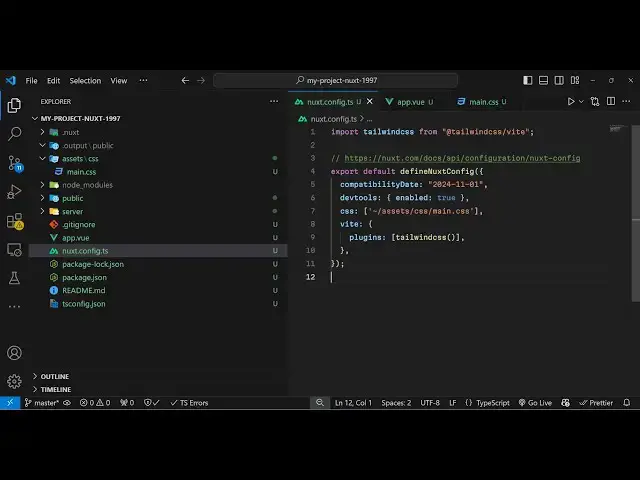
to open your next config file and add
3:36
this code so this file I'm talking about
3:40
which is your configuration file N.C
3:42
config do typescript file and here you
3:45
need to add this
3:47
code so first of all we need to import
3:50
this at the very top the tailin
3:54
plug-in and uh inside this we need to
3:58
put
4:00
the
4:02
vat object just put a comma right here
4:05
and paste it so here we are passing this
4:08
configuration we are importing this
4:09
Tailwind CSS plugin from this and we are
4:13
passing this as a plugin inside the V
4:15
object so Tailwind CSS so after that you
4:19
need to open your CSS
4:22
file which is located in the assets
4:28
folder so if the
4:30
file is not present then I think you can
4:34
create that file uh in our case the file
4:38
is not
4:42
present you can even add this file
4:45
globally as well
4:49
so so in the next config dots file we
4:53
can pass a CSS property so here
4:59
we can create
5:01
a in the public folder we can create
5:04
this folder which is assets and then you
5:07
can create a CSS
5:10
folder and then inside this we can
5:13
create main.css
5:17
so just follow this directory structure
5:20
in the public directory you need to
5:21
create a assets directory and then the
5:23
CSS directory and inside this main. CSS
5:27
and here you need to paste this code
5:29
here which they this line here at theate
5:33
import Tailwind
5:36
CSS so that's all that we need to do
5:39
right here and after that you can run
5:41
your
5:42
project and just paste the sample code
5:45
inside
5:48
your
5:51
file which is app. view so right here in
5:55
the template we can paste this we using
5:58
the sample t CSS classes right here so
6:01
if you want to run this project just
6:04
type the command here npm run def this
6:07
will start the development server on
6:09
Local Host 3000 so now you can go to the
6:13
browser and open this application and
6:21
check so it is telling you that uh this
6:26
file assets CSS main. CSS is not present
6:30
I think you need to create this file in
6:32
the root directory I
6:35
think okay I you need to create right
6:43
here and then just
6:46
create sorry the CSS folder inside this
7:01
just based this code so I think you need
7:04
to create this folder outside the
7:07
project don't need to create in the
7:09
public so delete it from
7:19
here so you need to create it outside
7:23
the project directory just create this
7:25
asset directory and here we are
7:27
referencing it in the next config
7:30
asset CSS main. CSS and if you just
7:40
refresh
7:57
just uh just wait is this starting the
8:00
application uh so now you will see that
8:03
your hello world message is showing
8:05
right here and we applied these uh ta
8:08
Tailwind classes so if I make so just
8:11
you don't need to create it in the
8:12
public directory just outside the
8:15
project directory the parent project
8:17
directory just create this assets folder
8:19
and then you need to reference it inside
8:21
your next config in the CSS object right
8:24
here and uh now if I make any sort of
8:27
change here let's suppose I change this
8:29
to five so this will make this heading
8:32
larger if I remove the underline class
8:35
the underline will be removed so we can
8:38
even copy paste somewhat Advanced
8:41
example which will be a simple card
8:44
likee structure in the center of the
8:47
screen this is also built using Tailwind
8:50
so you will see that so in this way you
8:54
can
9:00
uh
9:02
integrate
9:05
the Tailwind CSS inside your next
9:08
application so just follow the
9:10
stepbystep video I've shown you full
9:12
inst full instructions so for for the
9:15
reference you can follow their official
9:17
talks we followed this talks in this
9:20
video and thank you very much for
9:22
watching this video and also check out
9:24
my website as well free mediat tools.com
9:26
uh which contains thousands of tools
9:28
regarding audio video and image and I
9:31
will be seeing you in the next video
#Programming
#Education