0:02
Uh, hello guys. In this live stream, I
0:04
will show you another AI coding
0:08
for building coding applications through
0:10
AI. It's called as continue
0:15
AI. So, if you simply type on continue
0:17
AI on Google, the very first result
0:20
which comes, this is continue.dev.
0:25
it's completely open source. So, this is
0:29
their official website, continue.dev.
0:31
It's a AI source coding agent.
0:34
So, now to get started, it's simply easy
0:37
for you. You can continue using your
0:42
So, it's also available as a VS Code
0:46
You can directly install that extension
0:50
directly in VS Code to create your
0:57
successfully logged in,
1:17
set up your workplace. You'll be
1:19
redirected to the dashboard area. So,
1:21
from here you need to connect your
1:25
So, you need to have a GitHub account
1:54
So, there you can see it's a act
2:03
these are some of the tasks you can run.
2:10
So, you need to set up your GitHub
2:14
Grant all the permission. So, click on
2:42
So, once you will be connected, you will
2:43
get a notification that you are
2:45
successfully connected.
2:57
So, you can click on new agent to deploy
3:02
It actually uses the Claude Sonnet 4.6
3:08
So, right here you will write the
3:09
prompt, whatever prompt you want to
3:10
write, or you can specifically select
3:15
uh GitHub repo that you have created.
3:19
Make some changes to it. Automatically
3:21
does select your any single GitHub repo.
3:25
Write your prompt, whatever thing that
3:28
you want to change or fix anything.
3:30
And click on create agent.
3:33
Uh, in this easy way you can do that. We
3:38
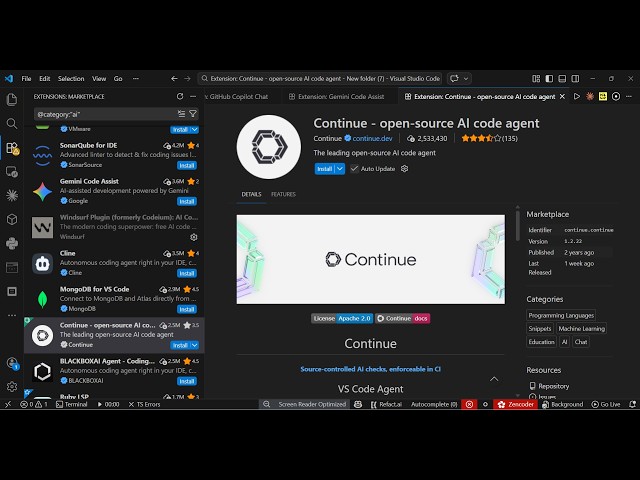
a VS Code extension of this. So, if you
3:41
search on VS Code, continue,
3:44
this also available directly inside VS
3:50
So, you can see it's an open source AI
3:56
So, once you click the install button,
4:20
you will see this appearing. So, click
4:27
So, right here you simply type protect.
4:30
It uses DeepSeek. You can even add your
4:32
own chat model as well.
4:34
So, by default it uses DeepSeek. So, I
4:36
will simply say build a image to PDF web
4:44
So, you simply enter it and
4:47
first of all, you do need to set up the
4:51
So, from here you simply local
4:53
assistant, change the name, provider,
4:56
everything, API key, everything. Paste
5:01
And then you can use this properly.
5:05
So, it's a good good AI coding agent.