Up next in 10


Buy the full source code of application here:
https://bit.ly/3FFcQyB
Show More Show Less View Video Transcript
0:00
Uh hi friends today in this tutorial I
0:02
will be telling you that how to download
0:04
a image from a URL and save it onto your
0:07
Google drive using Google app script. So
0:10
first of all you need to create a new
0:11
brand new project here and it will
0:13
redirect you to the this IDE where you
0:16
will be writing your code. So first of
0:17
all let me just zoom in so that you can
0:19
see and now we will be declaring a URL
0:21
variable. So basically this on this URL
0:25
the image will be there. So let me just
0:27
go to my personal website codingsure.com
0:34
and on this website I have some im
0:36
images that I can download.
0:40
So let me just download my profile
0:42
picture here which is there. If I right
0:45
click here about me section here. So
0:48
just wait.
0:51
So if I right click copy image address.
0:54
So this will give me the full URL. And
0:56
now let me just paste this address here.
0:58
And now we just need to download this
1:00
image onto a Google drive. So for that
1:02
first of all we just need to make a
1:04
request here which will be URL fetch app
1:11
and there is a fetch method. We need to
1:14
pass the URL and then we just need to
1:15
get the blob. So we will be calling this
1:18
method get blob. So it will get the
1:20
image and now we just need to store it
1:22
inside your Google drive. So we will be
1:24
using drive app
1:27
and we will be invoking a method which
1:29
will be
1:33
uh let me just see the method which is
1:34
create file. In order to create a file
1:37
we will be using this method create file
1:40
and we will pass our response object.
1:44
That's it. And now if I run this
1:46
function you will see that onto my
1:49
Google drive it will create this
1:50
photograph. First of all I need to save
1:52
this. So let me just give download blob.
1:57
Click on okay. And uh now I need to
2:01
grant permissions also. So for the very
2:03
first time if you run this project you
2:05
need to grant permissions. So click on
2:07
this button and then we will be signing
2:10
in into my account. So after this click
2:15
on advanc option. Click this and also
2:19
you need to grant these permissions.
2:22
Click on allow. And now it will run this
2:25
function. It will fetch this photograph
2:28
and it will create this photograph
2:30
inside my Google drive. So just wait. It
2:33
will create it. And now you will see
2:36
that guys you see this photograph
2:37
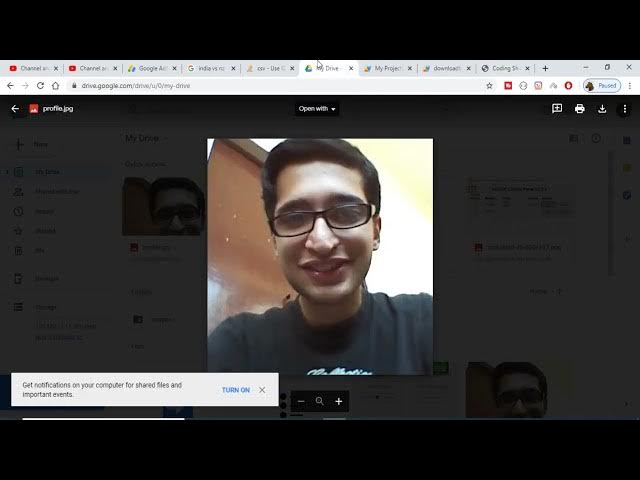
appearing here profile. JPG. This is the
2:40
file. And now if I just refresh it my
2:43
drive, it will be coming inside.
2:48
You will see that you uploaded today
2:50
here. So if I open this
2:53
image
2:54
you can see that the same image is
2:56
there. I have downloaded this image
2:58
automatically inside my Google drive
3:00
using Google appcript.
3:02
So basically this is the three lines of
3:04
code which is necessary. Let me explain
3:06
you once again. We had declared a URL on
3:09
this URL. This image is there. Now if I
3:12
just copy this URL and show to you. If I
3:15
copy this and open this you will find
3:17
this. If you open this URL, this is the
3:19
image that we are downloading. First of
3:22
all, we have declared this inside the
3:24
URL variable. Now, we have made a very
3:26
simple fetch request on to using Google
3:29
Appcript which is URL fetch app. It
3:32
contains a method fetch and we have
3:33
passed the URL and then we have getting
3:35
the blob object. So, blob here generally
3:38
means the picture and after getting the
3:40
picture, we just need to create a simple
3:42
file onto a Google Drive. So the method
3:44
is responsible which is create file. And
3:46
here we are just pass the blob object.
3:49
So basically it will create this file. I
3:53
can take another example. Let's suppose
3:56
I need to download a some other image.
3:59
Let's suppose I take this image. Copy
4:02
the image address. If I open this image,
4:04
you will see that if I open this now,
4:08
this image will open. This is the image
4:10
I need to download. And once again I can
4:13
just
4:16
copy this address and once again run
4:18
this. Now it will not ask for the
4:20
permissions. It will run this
4:22
automatically.
4:25
So now you will see that this is a
4:27
picture being uploaded. You can see that
4:30
if I refresh it, it will be coming after
4:33
the profile or jpg. So you can see that.
4:36
So in this easy way you can um download
4:39
any sort of image file from the internet
4:41
to your Google drive using Google
4:43
appcript. So thanks very much for
4:45
watching this video.