Up next in 10

Build a Python Flask Google OAuth2 Login and Logout System With Sessions and MySQL in Browser
Jan 9, 2025

Buy the full source code of application here:
https://procodestore.com/index.php/product/build-a-python-flask-google-oauth2-login-and-logout-system-with-sessions-and-mysql-in-browser/
Show More Show Less View Video Transcript
0:00
uh Hello friends welcome to this video so in this video we will actually build out a Google login and log out
0:06
application in flask in Python which is actually a web application framework for
0:12
building web applications in browser so this is actually the demo that you are seeing on your screen right here we have
0:19
a button out there with login with Google so if you basically click this button you will be able to login with
0:24
your Google account and we will be displaying the details in the browser such as profile picture email address
0:30
and the display name of the user and we will be storing all these details in the MySQL table right here I have already
0:36
created this table you will see ID is the primary key this is the email address name and the profile picture so
0:43
we'll be storing these details so you will see currently this table is empty right here nothing is present and also
0:49
if I just show you we are also having sessions variable as well so if I just run this application for the very first
0:55
time what you will see python app.py on the left hand side a folder will be
1:01
created which will be sessions so I think yeah flask Lo login project I need
1:06
to run this file python app.py so now this folder flask uncore session will be
1:14
created you will see that so now your app is running on Local Host 5000 so I
1:19
will simply go to this and click on this button login with Google so what will happen guys it will
1:26
actually log in with my Google account and it will actually see the profile picture this is actually the display
1:32
name email address and a log out button as well if I refresh the table right here you'll see entry will be added
1:38
right here which will be all this information will be coming from Google O2 this is the ID email address this is
1:45
display name and this is actually the profile picture URL so we are simply showing these details from the my SQL
1:51
table so if I close this browser reopen it once again it will automatically detect that we are already logged in so
1:59
you will see that so if I again open any another browser window and uh go to
2:08
that I open a new browser window right here again go to Local Host 5,000 will
2:13
automatically detect I'm already logged in you will see that so we now have a log out button right here if I actually
2:20
click this log out button I will be redirected to the homepage now you can see that if I close this window it will
2:26
automatically detect that I already logged out so that's why it will show me this login to continue button so in this
2:35
way you can do that and all the session information is stor stored inside this uh folder guys you will see every time a
2:42
user logs in it creates a new session and it stores inside this file right here that is automatically created let's
2:49
suppose I uh login with a different Google account right here let me have a
2:54
different account uh Local Host 5,000 and you you can also see the
3:00
authorization flow as well if you're doing it for the very first time it will actually asking you to select your
3:07
account you will select your account you need to Grant the permission click on continue after doing that you will be
3:13
able to see your information this is actually the display picture uh profile picture display name and email address
3:20
and if you see now there will be a second entry added inside the flask uncore session folder and if I also show
3:27
you the table right here a second entry will be added right here you will see that so in this way guys it will be a
3:35
full compete complete google2 authentication system we will be developing it with sessions and storing
3:42
it in my SQL database in flask in Python so all the source code is given in the
3:48
description of the video guys if you need the full source code with full documentation and support you can go to
3:53
the description and purchase the full source code from my website Pro cod.com and after you purchase it you will be
4:00
redirected to Google Drive where you can actually download the zip file after the payment is done so the link is given in
4:06
the description you will actually need to purchase it if you are interested so now let's get started I will show you
4:13
step by step instruction on how to basically build this application so what I will do right here I will simply
4:20
create a new folder right here go into my YP projects directory
4:26
and CD into a new file I will say Flash
4:36
login and open this folder inside vs code currently you will see that
4:42
currently it is empty so you need to have python installed on your machine guys already have the latest version
4:48
installed so you need to have python installed on your machine
4:54
so we are using the latest version which is 3.1.2 point2 at the time of recording
5:00
this video so it's a latest version so now we what we need to do right here we
5:06
do need to install some dependencies as you know flask is a web application framework you do need to install this
5:13
module as well which is a p install pip is actually a dependency manager where
5:18
we can actually install modules flask is the actual web framework flax MySQL DB
5:27
this is actually the package which allows to connect your application to my SQL database so flask is the actual web
5:33
application framework you need to install this then we have flask Dash
5:39
session so this is required for managing the session inside your flask application to actually store the
5:46
information in a session then we have oo lib oo lib is required guys because we
5:53
are making Google authentication request this is required then we also need the
5:58
request module as well because we are actually making a request to the API of Google that's why we need this module
6:05
and also we need request o lip this is another module that we need because we
6:11
are actually making request to a Authentication Protocol these are the dependencies we will need flask flash my
6:18
SQL DB flash session o lip request and request o lip simply enter it and I have
6:25
already installed these modules so it will hardly Take 5 to 10 seconds and it will install it now you just need to
6:31
make a file inside your root directory app.py so right inside this
6:37
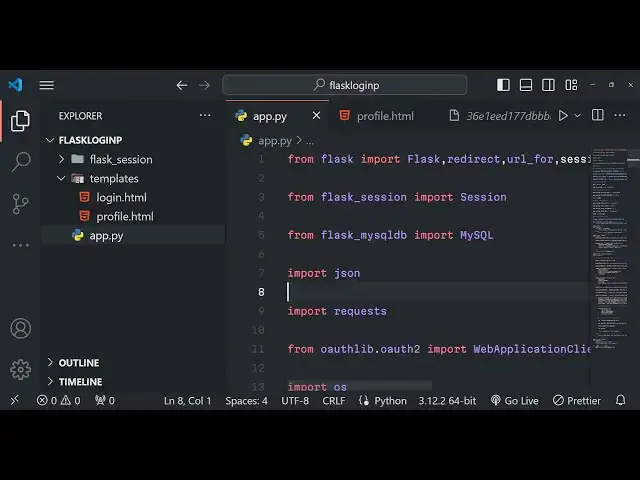
file we need to first of all import the flask module and we need to here import
6:44
the base flask module and we also need
6:50
to now after we do
6:56
this so what I will do is that I will first of all import all the dependencies
7:02
so right here if you see we are importing flask we also need to import the redirect module as well we also need
7:09
URL uncore for and also session and also we need request module
7:17
as well from this base jfi jfi and render template these are all the
7:23
modules that we need from flask library and from flask underscore
7:29
session we need to import the base session class and from flask my SQL DB we need
7:37
to import the base MySQL class to actually make the connection to the database and then the buil-in module
7:43
which is Json which is built-in python module we need not have to install it and also we need to import the request
7:50
module as well that we installed now to make request and then from o lib o to O
8:00
to we here need to import a class which is called as web application client we
8:07
need to import this and also we need to import the base operating system module as well we need this we need to set a
8:14
simple environment variable right here to actually
8:19
enable HTTP which is insecure because we are building it on Local Host that's why
8:25
if you don't just set this environment variable you will get a error that you need to have https so while we are
8:32
developing it we can enable this unsecure so if you're doing it for production just remove this
8:38
line so we do need to set this environment variable which
8:43
is OS environment so this will be a simple
8:50
variable o Leb insecure underscore transport
8:59
is equal to one in single quotes you need to just write here so that's all
9:05
and now we just need to get some information right here this is Google client ID all this information you will
9:11
get from Google Cloud console I will just show you just wait and we will
9:17
basically also have one more variable for storing the Google client unor
9:25
secret and also we will also have this Google Discovery uncore URL this will be
9:34
constant and uh this will be actually be equal to https
9:40
accounts. google.com/ wellknown slop ID configuration so this will be
9:49
constant you just need to write this it will be redirected to you once you want to uh do the authentication it you will
9:56
be redirected to this URL and now we just need to make a simple flask app so
10:03
app is equal to flask the base and here we need to pass the name of the app as
10:09
an argument and then we need to set a secret key right here for the session app doore secret key and we will
10:16
use the base operating system module and we will use this Ur random method and 24
10:22
so what it will do it will actually generate a 24 digigit random key and it
10:27
will set this to the secret key of the app app this is really useful because we are using session here flask uncore
10:34
session so this secret key is required if you don't set it you will get error so after you do this we also need to do
10:41
the session configuration as well the session
10:49
configuration so these are some of the settings that you need to just do app.
10:54
config and here what we will do session uncore type this type will be we will be
11:00
storing the session information in the file system in a folder so file system is there so it
11:07
will actually create a folder right here in the root directory where we'll be storing all the session details app.
11:13
config one other setting is session uncore
11:19
permanent this is actually a Boolean value either it can be true or false we don't want to store the information for
11:26
permanently wice you can even set this to true as well that in that case your
11:31
session information will be stored permanently but in we don't want to store it permanently that's why we'll
11:37
put false right here and then you start the session by using session class and passing the app reference as an argument
11:44
this will now start the session so what it will do right here if you just
11:52
see if you now run this project let me just start this application first of all
11:58
and tell you if you want to start this application
12:03
you will write uh a the main function which is required
12:09
for every python application so if name double equal
12:16
to main then we need to run this
12:22
application on code number uh 5,000
12:29
like this so if you just see here if I run this application a folder will be created on the left hand side I
12:38
think you will now see a folder is created which is flask uncore session so
12:44
this is coming because we have set this uh to file system because the information of the session will be
12:49
storing on the a folder it this folder will automatically gets created this is
12:54
happening because of this module flask underscore session so it has automatically created this folder as we
13:01
run this code so now what we need to do right here we now need to actually
13:06
create a database so for managing our database we are actually using PHP my
13:12
admin which comes with the exam control panel which is part of aache server MySQL whenever you are building PHP
13:19
applications we develop we download exam control panel say crossplatform software
13:25
if you just write here exam control panel download it is available for Windows Linux and Mac the very first
13:31
link which comes right here just install it for your respective operating system Ive already installed it so we started
13:38
this Apache server and my SQL go to admin section right here and right here
13:44
go to SQL we will write some SQL query right here to actually create a database so what I
13:51
will do I will say create database and I will call this as flask login
13:59
semicolon and then we will use this database flask login and inside this
14:04
database we'll create a table create table
14:16
users so so far guys we have written three lines of code first of all we are
14:21
creating this database flas login and then we are using this database and then inside that database we are creating the
14:28
table which is is called as users so right inside this you will mention ID
14:33
will be actually the primary key so warar and 255 variable
14:39
correctors and it will be not null and it will be the primary key of
14:44
the table it will be unique every time then we have the email which is again will be a
14:53
vchart the length here will be 255 and it will be not null
15:02
and then we hold basically our name again this will be vchart
15:09
255 lastly we will hold actually the profile picture
15:20
link bar 255 so that's all guys you will see uh we have storing uh four fields
15:27
which is ID key here email display name and profile picture so there is actually
15:35
a go button right here if you execute the SQL query your database will get
15:40
created if you see uh flask login where is this this is actually database
15:46
created inside that database we have a table also created automatically and
15:51
inside if I show you the structure of the table we have four Fields right here ID is the primary key email address name
15:58
and profile picture so now our database and table has been created now we can
16:03
actually make a connection right here inside the flash cap so we need to write some code for this so after you define
16:09
your session information right here just after this session we will now be
16:14
writing a simple comment for configuring our MySQL configuration so right here we
16:21
need to set some variables for this so app.config we need to set the host information we are developing it on the
16:28
local environment so this will be Local Host and then we have to set
16:35
the usern name and password so default username for examp is root if you
16:41
haven't changed the settings the default settings are root and uh the password
16:47
will be nothing default password is nothing so I
16:52
will sa and then we need to define the database name so so whatever
16:59
database that you have defined my SQL DB so my database name is flask
17:06
login and then we will make the connection we'll call the base MySQL
17:13
class and pass the app reference right here can see that so we have set all
17:19
these variables and then we pass this as a reference to the MySQL connection class that we imported at the very top
17:25
from flascore my SQL DB so
17:30
after you make the connection now what we can do right here we can actually or to client setup we need to
17:37
get this information which is client ID and client secret now to make a new client we'll invoke the web application
17:43
client class that we imported and pass the Google unor client ID so first of all we need to get both
17:51
this Google client ID and client secret so we are developing our application on
17:56
Local Host let me change this to 3,000 so this application now will run on
18:02
Local Host
18:08
3000 so if I restart the application right here if I make the
18:15
changes so now you will see the app will listend on local 3,000 this is actually the base URL of the application now you
18:22
need to go to Google Cloud console and you need to have a simple project Creator right here so the very first
18:29
link which comes right here simply click and go to Google Cloud console and
18:35
you do do need to have a project created I've already have a project and go to
18:41
the menu right here it is totally free you don't need to pay any side of money for this go to apis and credentials go
18:49
to credentials and right here uh just create your client ID click on this
18:54
button create a credentials and O client ID and here you need to select your
19:00
application type so this will be a application simply select here you need
19:06
to paste your base URL in my case it will be htgp unor localhost 3000 if you
19:14
developing it for production you need to Simply pres paste your url of your production level website so this will be
19:21
HTTP Local Host 3000 and then the redirect URI redirect URI I will simply
19:27
say slash login / callback this will be the actual call back URL whenever you
19:35
grant the access what URL your application will redirect so I will simply make this URL pattern SL l/
19:42
callback later on whenever we do the call back configuration so this will be
19:48
our call back URL of the application so after you do this simply click on Create
19:53
and uh now it will give you your information client ID and client Secret
20:00
so don't copy this information this is unique to every user so simply paste it and
20:13
uh so I've already pasted the Google client ID client secret now what we need
20:18
to do we need to Simply Define a route inside our web application so app dot
20:26
route if someone goes to the homepage what they see we'll Define a function which will be index and uh here we will
20:34
basically return a template to the user so we will use basically the render
20:41
template and we will show the login. HTML page to the user as someone goes to the homepage now we need to create a
20:48
templates folder by default all the templates are stored inside this folder flask will look inside this folder
20:55
whenever a index route is hit right here so this render template will look inside
21:00
the templates folder now we just need to Define this login. HTML file and we will
21:06
using a Tailwind CSS for styling purposes so you'll say flask Google
21:16
oo login and log out system so here we do need to paste
21:24
Tailwind CSS if you don't know about Tailwind it's actually a very good utility based classes framework where
21:32
you don't need to write CSS you can attach pre-build classes to
21:37
your HTML paste the CDN here for Tailwind now what we need to do uh it's
21:43
very easy uh after you do this uh we need to
21:49
attach some classes to the body which is background BG cray these are classes
21:55
shade here 100 Flex items Center justify center edge
22:03
screen so inside this we will actually be defining a div which will have a background color white padding 8 p8
22:11
rounded on large devices and it will have a shadow on medium devices Max
22:19
width on small devices and width will be full text Center so these are you can
22:25
see all these classes are pre-built and inside the this we will have a text
22:32
heading 2XL font bold
22:37
mb6 we'll simply say login with login to continue or login with
22:43
Google so if you just now uh refresh the
22:49
application if I go to Local Host 3000 what we will see if I just
22:57
refresh uh I just need to refresh the application first of all
23:03
uh you'll actually see login with Google right here if you see we do need to
23:09
Center this out
23:17
uh uh BG gray 100 Flex item Center
23:22
justify sorry justify Center not dou R was the mistake and if you just refresh
23:28
right
23:36
here I think there is a additional setting that you can do right here inside
23:42
this debug to true I think you can pass this setting and if you make any sort of
23:48
changes it will automatically refresh so you don't need to restart the server once again you will see uh if you make
23:55
any sort of changes right here you login with Google and if I go to the login
24:00
HTML and if I let's suppose if I make a change I think it will automatically detected you will see that
24:07
so just pass this option of debug to true for local it's very
24:13
helpful and uh go to here uh after doing this we will actually be
24:26
having so we can basically give this heading right here login to continue and then we will actually be
24:33
having a hre tab which will go to/ login and this will actually say to the
24:39
user that login with Google you will have to have some classes right here Tailwind
24:45
classes BG blue 500 uh when we hover onto this button the BG blue will change
24:52
to 700 text will be white font bard py2
25:00
PX4 and it will be rounded so these are all the classes that we attached right
25:06
here you will say/ login is not defined we need to Define this route right here inside our
25:12
app.py file so right here we will Define this request which will be coming from
25:19
the slash login so now we need to Define this route slash login slash
25:27
login so this will be a method Define login now here we need to Simply Define
25:34
a variable here Google _ provider configuration settings CFG so you will say
25:42
getor Google so we need to Define this method which will actually get these settings
25:49
for us get Google unor provider CFG so we need need to Define this
25:55
method right here at the top
26:00
so what I will do right here uh just
26:25
see uh I think this method is a available right here if you see a
26:31
original code right here where is this
26:53
method yeah this is actually the method we need to Define right here
26:58
uh just after you do this this is actually the method that you see right
27:05
here so what this method will do it will actually go to this URL that we Define which is Google unor Discovery URL and
27:13
it will actually get the Json of it we are using the request module request. getet Google Discovery URL that we
27:19
defined early on if you see Google Discovery URL and it will go to this URL
27:29
so basically if you go to this URL it will actually show you all the accounts that you have all this information that
27:35
you have it will actually need to get this Json information right here so we are actually going to this URL
27:41
programmatically and getting all this Json data and we are actually returning it from this function so you will see
27:48
that so so we are getting this information
27:54
inside this variable Google unor provider configuration now what we need to do right here we
28:02
need to actually have a authorization endpoint where we can actually get the
28:07
authorization code so Google uncore provider configuration and here we need
28:13
to get this authorization
28:20
endpoint and then we need to Simply set the request URL so client do prepare
28:29
these are different methods available pre-built inside this Library if you want to get the access token if you want
28:35
to get the authorization code we need to get the authorization code for this we need simply say prepared request
28:45
URI prepare request URI and right here you need to pass the authorization end
28:51
point we need to say redirection URI is equal to the request. base URL
29:00
plus we need to Simply say SL call back and then we need to say the scope so
29:06
what sort of information that you are need to
29:11
get so we need to get the profile and the email of the user so we'll say
29:18
scope we need to get the open ID we need to get the email address we need to get
29:23
the profile of the user so these three things we need and after that
29:31
we need to return this redirect we need to redirect the user to this request
29:40
URI so now if you click this button if you go to Local Host
29:47
3000 if you click this button right here we need to restart the application
30:06
sorry this is Local Host 3000 click on this button and you will be redirected to your set of Google
30:13
accounts that you can select right here and uh so now if I select this account right
30:20
here and Grant the permission so what it will do it will try to access the call
30:25
back URL that you provided inside your Google Cent console so you will actually see it will go to this URL but it is
30:32
saying that not found if you see the address bar/ login /all back and it is
30:37
returning this authorization code right here this is actually the value that we need so now we need to get the access
30:43
token using this authorization code so access token is really important because in order to access any Google API you
30:49
need the access token now how we can get that access token we need to get this authorization code value that you see
30:55
right here and exchange it for Access token so it's very easy um we need to
31:00
Define this callback URL so right here app. route and uh SL
31:08
login / callback and uh we will actually be defining this we
31:14
need to get the authorization code
31:22
value from the URL so now to get that value we Define the code store
31:28
request. arguments. getet and that was the code
31:34
argument we'll stor in the authorization code in this variable and then simply say Google uncore provider uncore
31:43
CFG get Google configuration we again call this
31:49
function and token uncore endpoint and
31:56
Google underscore provid configuration and we need to now get this URL which is token uncore
32:04
endpoint in order to get the access token so token _
32:09
URL headers body and here we need to prepare
32:15
it for now the token request we now need to get the access
32:24
token for getting the access token we need to provide the token and point we need to provide the
32:30
authorization response which will be equal to the request underscore request. URL and then we need
32:38
to say redirection URL will be request. base do base URL and the code authorization
32:46
code we need to provide so this will be equal to code is equal to code and then
32:52
after that our token response what will be the token response coming we now need
32:57
to make make a post request using this information that we got which is the
33:02
token URL and the headers will be equal to
33:08
headers the data will be equal to which is available inside the body that we defined if you
33:15
see the body and then the authorization so this will be equal to we are
33:20
providing the Google client ID Google client secret to get the Excel token so
33:27
now we need to make this request client. par request body response and here we
33:35
will say json. dumps token response.
33:42
Json so after you get this you will actually get your user information User
33:49
information endpoint we will say Google provider configuration now here we need
33:54
to get the user info endpoint we need to get the endpoint where we can
33:59
request the user information so we can simply say here URI headers body and you
34:06
say client. add token user info
34:13
dopo so user info response you say request.
34:20
get URI headers is equal to headers and data is equal to body
34:28
so here we actually have a if condition right here if user info response Json
34:35
contains if you want to get only the verified email address so if this
34:41
contains a property called as email verified in that case only we need to get the information so unique ID we will
34:48
get which it is user info response Json and we need to have
34:56
this property which will be
35:01
sub similarly we'll get the email address display name and the profile
35:06
picture which will user email user info response.
35:21
Json so what I will do uh I will simply copy this two more time for that profile
35:28
picture and the username this will be
35:38
picture and this will be given name the display name of the user of the account and I will say users
35:47
name so now we need to actually store this
35:54
information in the session so you B basically make a session variable
36:00
session user uh this will be a object we'll
36:06
store the ID of the user which is unique ID we'll store the email address which
36:12
will be users email and we will store the display
36:20
name which is users name we will store the picture as well
36:27
which is actually the
36:33
picture so after you store this information guys we do need to also
36:38
store this user info in database as well so for storing it uh
36:45
we actually need to say C uh MySQL do connection we need to make the
36:51
connection first of all cursor this is the actual method after we do this we need to EXE give a very
36:58
simple command which is uh replace into the table name which is users ID email
37:05
name picture and then followed by the values so whatever is the values we actually
37:12
need to give the placeholders
37:28
like this and here we just need to give
37:36
the comma right here and then we need to
37:42
say unique ID users email
37:48
users and just you need to close this I think I forgot to do
37:55
this and right here un ID users
38:00
name users sorry users email users name
38:07
and picture that's all after this my SQL do
38:14
connection and we need to commit and close the connection cursor
38:21
close and then we need to redirect the user back to the
38:28
the index route or
38:34
else there is also else block as well because we have that if block right here
38:40
if if request so if the email is not verified in the else blog we can simply
38:46
say that uh user email not
38:53
available or not verified by Google so so we are only taking the verified
38:58
emails only we will return a 400 request that's
39:05
all so now we just need to modify the index route right here just a little bit
39:11
so whenever someone goes to the homepage we just need to check right here if they are in the session or not so you'll
39:17
actually have a condition right here just to check that if the user is if the
39:23
currently logged in user is logged in or not it is available in session or not if
39:29
they in session in that case you will return a different template which will be profile. HTML you'll pass the user
39:37
which will be coming from the session so session user so now if they are not in the
39:42
session in the else blog we can show this login page so conditionally we are
39:48
rendering it based upon if the user is available in session then we show the profile HTML if they are not in session
39:54
then we show the login. HTML now we know need to Define this
39:59
uh a this file which is profile.
40:05
HTML so this will also be the profile page of the user once
40:11
they are authenticated we again need to use the Tailwind CSS uh CDN of Simply
40:18
copy this and simply after the title paste it so right here uh for displaying
40:23
the user information it's very easy again you'll use the same Tailwind
40:29
classes BG gray 100 Flex item
40:35
Center justify Center horizontal screen and here you'll
40:50
simply LG shadow
41:04
these are all the Tailwind classes that we give early on as well so inside this
41:11
uh we will actually displaying the profile picture of the user which will be coming dynamically user. picture so
41:19
this user object that we are passing it if you see we passing this from the session so this user is available inside
41:26
profile HTM you're using double curly bracket to actually embed the variable user uncore picture so in flask you can
41:33
do this and we can actually give it a rounded full W 24 WID 24 horizont height
41:41
will be MX
41:47
uh h24 MX
41:54
Auto margin 4 so after this Prof uh profile picture is
42:02
there we need to also give it a
42:10
heading so here we need to display the usern name of the user display name
42:19
user. name
42:29
then we need to give it a paragraph here we can actually show show the this uh
42:36
email address of the user
42:44
and so if you just uh refresh now uh try to go to
42:53
this if I go to Local Host 3,000
43:00
click on this button so you'll be directed to your selecting your account and click on continue and uh it will
43:08
actually show you profile picture it will redirect you to the Local Host 3000 so you will see that
43:15
so if I actually show you the table as well uh one entry will be added right
43:21
here you'll see automatically the previous entry was there you already logged in with this account and now this
43:26
second second account is also inserted so if I go to this Local Host 3000 it
43:32
will automatically detect I'm already logged in it will show first of all you need to log in right here so you will
43:40
see that the information is displaying successfully and if I close this now
43:46
once again open this it is stored inside the session so it will retain this
43:51
information you will see that so in the file system it has created Flash session so all this session information is
43:57
stored inside the file system in this folder so now at last we just need a log
44:03
out button to actually let the user log out or delete it from the session so SL log
44:11
out so here we can simply say log out and give it a button BG red
44:23
500 these are all Tailwind classes guys so uh this tutorial is about last not tail
44:30
V so you can read more about their
44:37
documentation so there will be this button added log out and uh we do need to
44:43
actually make this log out request which is very simple code right
44:52
here if you simply go to this it will be not found so just go to app.py and just
44:59
Define this request also at last ab. rout SL
45:11
logout so here what we need to do we need to clear out the session it contains pop method you need to delete
45:17
the session delete the user from the session and then redirect the user
45:24
to the index route so in that scenario the user session will not be available
45:30
in that case it will actually go to the homepage Home Route and now it will show
45:35
the login. HTML so click on log out we do need to restart the
45:43
application for this so it will automatically detect if
45:49
I say login if I click log out it will
45:55
redirect me to the homepage you will now see if I close
46:03
this so you can see that so in this way guys you can actually build out this complete user Google user o to login and
46:11
log out system in flask in Python we have shown you how to display it from step by step and we are storing this
46:17
information in my SQL database as well so if you are interested the full source code with documentation is present you
46:23
can purchase it from my website Pro Cod store.com the link is given in the description and thank you very much for
46:30
watching this video please hit that like button subscribe the channel as well and I will be seeing you in the next video