Up next in 10

Angular 14 simple-ng-loader Example to Show Loading Spinner Progressbar After HTTP Requests to API
Dec 22, 2025

Get the full source code of application here:
Show More Show Less View Video Transcript
0:04
Uh hello friends today in this uh
0:07
tutorial I will be showing you that how
0:09
to show
0:11
uh loading spinner or progress bar
0:13
inside your angular 14 application. So
0:16
whenever you make any sort of uh HTTP
0:19
request to rest API to get data or
0:22
display data inside your angular
0:24
application. So for this purpose we will
0:27
be using this package which is called a
0:31
simple ng loader. So this is a package
0:34
which is used to show the progress per
0:36
animation or loading spinner app
0:39
animation. Before you make any sort of
0:41
HTTP request it will just be required
0:44
for user experience. So whenever user is
0:46
visiting your website whenever they
0:48
press a button that it will be showing
0:51
some kind of loading spinner kind of an
0:53
applic uh animation. So this is a
0:55
package used here simple ng loader. Let
0:58
me show you a simple demo of what we
1:00
will be building in this tutorial. So
1:02
basically let me show you this is the
1:04
button here. If I click this button just
1:07
see the in the console. If I click this
1:10
button now basically what you will see
1:12
here. Let me change this to uh circle.
1:17
So now there will be a circle animation
1:20
playing here.
1:22
So you can now see this is a circle
1:24
progress bar or loading spinner which is
1:26
displaying here and it will display it
1:29
for 5 seconds. And now then you can see
1:31
the data is returned to us. You can see
1:32
this is the JSON data which is returned
1:34
to us. Five objects. [snorts] This is
1:37
avatar email address first name ID last
1:40
name.
1:41
So basically it supports circle bar and
1:45
uh dots as well. So it also supports
1:48
dots
1:49
animations as well. So basically now if
1:52
I hit this button so there will be a dot
1:55
progress bar or loading spinner. You can
1:57
see that this is you can control it how
2:00
much second it will have delay time.
2:02
This is a second attribute. If you
2:04
change it it takes uh in millisecond. So
2:08
5,000 millisecond is equal to 5 seconds.
2:11
So basically if I provide here 6,000 it
2:14
will appear for 6 seconds and then it
2:16
will go away after your data will be
2:19
there. You can see that. So in this way
2:22
guys, you can uh display a nice little
2:24
progress per [laughter] spinner progress
2:27
per animation inside your angular 14
2:29
application using this dependency which
2:31
is simple ng loader. So now I will be
2:34
telling you in this live stream how to
2:36
step by step uh implement this inside
2:39
your angular 14 application. So I'm
2:42
using this uh website which is called as
2:44
stackplits.com. So with the help of this
2:47
website you don't no longer need to
2:49
develop this angular project inside your
2:52
machine. Simply go to it create an
2:54
account by GitHub and simply create a
2:57
project.
2:59
[snorts] So basically
3:02
I have told you the package name which
3:04
is simple - ng loader. So this is a
3:07
package just install this. It will
3:10
automatically install the dependencies.
3:12
So this is a package. It's a brand new
3:15
package. Only three weekly downloads are
3:17
there. So after installation guys, it
3:19
will simply
3:26
after you download this. So let me
3:28
refresh it.
3:34
Let me uh delete all the code and start
3:37
from scratch. So after you download this
3:40
what you need to do is that just go to
3:42
your app.module.ts
3:44
file. So inside your app domodule.ts
3:47
file so you need to import this module
3:49
at the very top. So you will write here
3:52
import
3:53
simple
3:55
ng loader module
3:58
and this will be coming from simple ng
4:02
loader. And now you need to import this.
4:05
So
4:09
inside your imports array you need to
4:12
import this. So just put a comma and
4:16
import this. So simple
4:18
ngrotor module. So now close this file.
4:21
So we no longer need this file. So now
4:24
you need to go to app do.component.html
4:27
file. [snorts] So basically
4:32
here you will
4:35
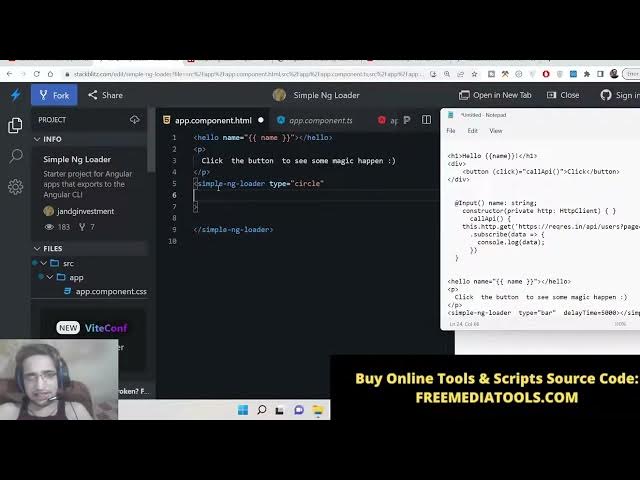
embed your component. So basically the
4:37
component will be here [laughter] simple
4:40
ng loader.
4:44
So close this. So this takes two
4:46
options. So first is the type of
4:48
animation that you want to show. So
4:50
there is a type parameter. This can
4:53
expect three parameters either bar,
4:55
circle or dot. So depending upon which
4:59
animation you want to show, I will stick
5:01
to the circle one. And the second
5:03
parameter is the delay. How much delay
5:05
time that you want to put. So this is in
5:08
millisecond. So I will put here 5,000
5:10
millisecond. So this is equal to 5
5:12
second. So now this is over. Close this
5:16
file as well. So now we will go to our
5:18
uh
5:22
this file. So basically inside this file
5:25
we will have uh a simple
5:29
all the source code is given in the
5:30
description of the live stream. So don't
5:32
worry. So here we will be having a
5:35
simple button. So when we click the
5:37
button
5:39
[snorts] so we will bind on click. So
5:42
when we click this button we will call
5:44
this method which is call API like this.
5:49
So the label of the button will be
5:51
simply here click.
5:54
So now we will go to this we will define
5:56
this method here right here.
6:02
So basically first of all we will get
6:03
the reference. So by add the rate input.
6:08
So [snorts] now to get the reference
6:10
input here and then we will followed by
6:13
name which will be of the type of
6:15
string.
6:19
So here you need to import this. So it
6:23
will be imported at the very top.
6:31
So we need to call the decorator here.
6:33
That's it. So it's a decorator. [gasps]
6:35
So we will call the constructor. So
6:38
private HTTP
6:42
HTTP client.
6:45
So this will be imported here. You can
6:47
see that HTTP client. This is necessary
6:50
to make uh request to the API. So here
6:54
we will define the method guys. So call
6:56
API. So inside this we will simply make
6:58
the request. HTTP dot get. And basically
7:02
we will make this request to this
7:04
endpoint which is request response in
7:07
API users
7:10
page is equal to
7:13
two.
7:14
Here we need to subscribe to this. So
7:17
when the data is coming back
7:22
so we will console log the data.
7:28
So [snorts] that's it. This completes
7:29
the application. So right here on the
7:31
right hand side if I click you will now
7:34
see this will appear for 5 seconds. So
7:37
you can see the data coming here in the
7:39
console. This is the data having six
7:42
objects.
7:44
So you can even change this to
7:49
it is totally up to you. You can also
7:52
change it to dot. So this will now show
7:54
dot animation.
8:02
Sorry, this needs to be dots.
8:05
You can see the dots. This is the dots
8:08
animation.
8:11
So, in this way guys, you can display
8:13
this loading spinner uh animation inside
8:16
your Angular 14 application. So,
8:18
[snorts] thanks so much for watching
8:19
this video. Please hit the like button,
8:21
subscribe the channel and I will be
8:22
seeing you in the next live stream.