Up next in 10


DJI Mini 5 Pro Quick Transfer to a Phone
Show More Show Less View Video Transcript
0:01
Quick transfer is an alternative method
0:04
for wirelessly transferring files from
0:06
the SD card or the internal memory to a
0:09
smartphone or tablet.
0:14
This method cannot be used to transfer
0:16
file to a computer in which case one of
0:18
the two methods shown in the previous
0:20
chapter should be applied.
0:23
There are two different methods for
0:24
quick transfer both involving the DJI
0:27
Fly app. Let's start with the
0:29
traditional one.
0:32
After launching the DJI Fly app on the
0:35
remote device, turn on the Mini5 Pro.
0:38
Make sure that Bluetooth and Wi-Fi are
0:40
enabled on the device.
0:43
If you're using the Mini 5 Pro for the
0:45
first time, the drone must be paired to
0:47
the device. Simply follow the onscreen
0:50
instructions.
0:53
On the left of the screen, a message
0:55
notified that the Mini4 Pro has been
0:57
detected.
0:59
We can now press the button on the left
1:01
of the aircraft.
1:05
We are prompted to connect the aircraft
1:06
to the device.
1:10
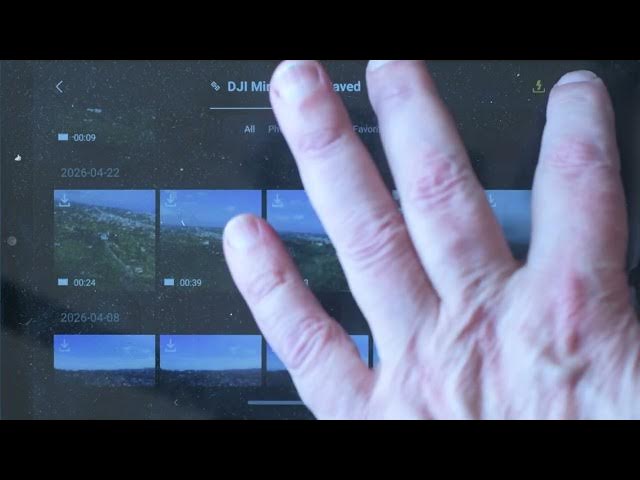
Once the connection is established, all
1:12
the file available on the internal
1:14
memory and SD card are shown.
1:18
At the top we can select option to show
1:21
only the videos, only the photos or only
1:24
the favorites.
1:28
We can select a file by long pressing
1:30
for viewing the clip or downloading it
1:33
by tapping the icon in the lower right
1:35
corner.
1:39
A window proposes a choice between full
1:42
or trim download. With the second
1:45
option, we can set a start and an ending
1:47
point for downloading only a portion of
1:50
the clip. This is useful when we want to
1:53
transfer just a short clip to share
1:56
immediately, while the full files will
1:58
be edited later at home on a computer.
2:05
The icon at the top right activates
2:07
batch select to choose several file by
2:10
tapping the empty square at the top
2:12
right of each thumbnail.
2:16
The top of the window displays the
2:18
number of selected file and the
2:20
resulting sides.
2:22
Finally, we can hit the download icon at
2:25
the bottom right.
2:28
With this method, at the moment, only
2:30
footage taken in H.264 264 format can be
2:33
transferred. So, make sure to select
2:36
this format in the camera settings.
2:39
Video shot in H.265 format can only be
2:42
transferred to a computer.
2:44
When it comes to photos, only JPEG files
2:47
can be transferred.
2:49
To exit quick transfer, tap the lighting
2:52
icon to the left of the one for batch
2:54
select.
2:58
The Unifi Pro introduces a second
3:00
transfer method not available in
3:02
previous light well models named quick
3:05
transfer in sleep.
3:09
This method must be enabled at the
3:11
bottom of the camera tab of the
3:12
settings.
3:16
Now we can launch DJI Fly app without
3:19
powering the drone.
3:24
on the left of the screen under quick
3:26
transfer. The aircraft has been
3:27
detected.
3:30
Tap on it to connect the Mini Pro to the
3:32
Wi-Fi network.
3:37
The gallery view of all the files
3:39
appears and we can download any of them
3:42
using the same method described above.
3:46
With this method, we don't need to power
3:47
on the drone. It is useful when we want
3:50
to download in the car or while sipping
3:53
an exotic drink in a bar as the aircraft
3:56
can be left in his bag.
3:59
It will remain in sleep mode for
4:01
approximately 12 hours as long as we
4:04
don't change the battery.
People & Society