0:06
Hello everyone, welcome to automation
0:08
community. Today in this video we are
0:11
going to discuss an example in which we
0:14
will be controlling two buzzers using
0:19
So let's look at the example first.
0:22
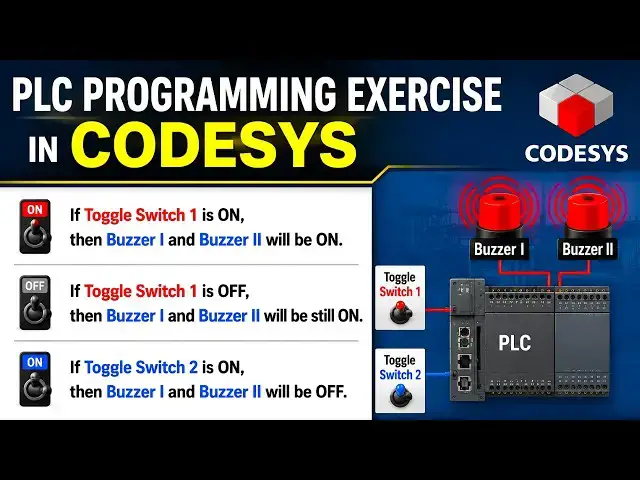
Example 10. If toggle switch one is on,
0:26
then buzzer one and buzzer two will be
0:28
on. If toggle switch one is off, then
0:31
buzzer one and buzzer two will be still
0:34
on. If toggle switch two is on, then
0:37
buzzer one and buzzer two will be off.
0:41
So for this example, we will be using
0:44
normally open contacts, set coils and
0:47
reset coils. So we will be using set
0:51
coils to keep the buzzers on even when
0:54
we turn off toggle switch one. and we
0:58
will use reset coils to turn off the
1:01
buzzers using toggle switch two.
1:05
So let's move to cortices where we will
1:07
draw a ladder diagram for this example.
1:11
So I will open codices here.
1:26
Firstly, we need to create a new
1:28
project. Click here and then you can
1:31
type the name of the project. Here we
1:36
10. And we uh you can select template as
1:39
standard project. You can also select
1:41
the location where this file will be
1:44
saved and then click on okay.
1:48
After that we can select the device from
1:51
this drop-own list and we can also
1:53
select the PLC programming language.
1:56
Let's keep it ladder logic diagram and
2:02
And after that click here that is PLC
2:04
programming. So here we will be drawing
2:07
lighter diagram. So firstly we will
2:10
insert a normally open contact for the
2:13
toggle switch one. I will write toggle
2:19
switch one. Enter. Okay.
2:26
and then we insert two set coils. So
2:30
here is the uh option to insert set
2:33
coil. I will insert a set coil and then
2:36
we need to insert one more set coil
2:38
here. So I will insert branch below and
2:42
insert one more set coil. So this set
2:51
Okay. and second one second uh this set
2:55
coil will be for buzzer two. Okay. So
3:01
when toggle switch one is turned on the
3:04
signal will pass through this. Okay. So
3:06
buzzer one will turn on and also this
3:09
buzzer two will be on.
3:12
And then when we will turn off uh this
3:18
this buzzer one and buzzer two will
3:20
remain on. Why? Because we have used set
3:24
coils instead of normal coils. So these
3:28
set coils keep the output through even
3:32
when the input is paused. So we need to
3:35
turn on the input once and then the
3:39
outputs will remain on even when we turn
3:42
off the output. So for now when toggle
3:46
switch one is turned on buzzer one and
3:48
buzzer two gets on and when toggle
3:50
switch one is turned off buzzer one and
3:53
buzzer two remains on and then we need
3:57
to turn off these two buzzers with one
4:00
more toggle switch that is toggle switch
4:02
two. For that we will insert one more
4:05
network below this network.
4:17
For that I will right click here and
4:20
insert network below. And here we will
4:23
insert a contact and normally open
4:25
contact that will be for toggle
4:30
switch to enter. Okay. And then we we uh
4:35
we will insert two reset coils. one for
4:38
buzzer one and other for buzzer two. So
4:41
we will insert reset coils here. So here
4:44
you can insert reset coils. Click here
4:48
and then we need to insert branch and
4:53
insert reset coil again to insert one
4:56
more reset coil. So this will be buzzer
5:02
and this will be buzzer two.
5:06
So now when we will turn on the this
5:10
toggle switch two this buzzer one will
5:13
get off and also this buzzer two will
5:16
also get off. So how so for buzzer one
5:21
and buzzer two we have used reset coils.
5:24
So these reset coils are used to turn
5:27
off the outputs okay that are made on by
5:32
the reset by the set coils. So here you
5:35
can see buzzer one and buzzer two are
5:38
are on and to turn them off we use these
5:42
reset coils. Okay. So that is the these
5:46
buzzer one and buzzer two are turned off
5:49
by toggle switch two and by using these
5:53
reset cos. Okay. So for now we will
5:57
generate code here. Click here
6:10
and after that we need to go to online
6:16
and then we need to log in. Yes.
6:23
And then we need to start.
6:27
So for now both the toggle switches are
6:30
off and you can see both the buzzers are
6:33
also off. So buzzer one is false and
6:36
buzzer two is also false. So to turn on
6:39
buzzer one and buzzer two we need to
6:41
turn on the toggle switch one. So
6:45
initially the state uh the state of
6:48
toggle switch one is false. We need to
6:50
make it true. So we will click here. So
6:53
you can see here it's true. But we need
6:55
to go to debug and write values. You can
6:59
see toggle switch one. The value of the
7:01
toggle switch one is true. The state of
7:03
the toggle switch one is true. And which
7:07
this toggle switch one made this buzzer
7:09
one and buzzer two true. Okay. So when
7:12
we turn on this toggle switch one, it
7:15
turned on buzzer one and buzzer two. And
7:18
then we need to turn off this toggle
7:20
switch one. We will change the state of
7:22
this toggle switch one. So we will click
7:25
here when false appears there and we
7:28
will go to debug and write values. So
7:31
now the state of the toggle switch one
7:34
is false but buzzer one and buzzer two
7:37
are still on are still true. Why?
7:40
Because of the set coils we have used
7:42
for buzzer one and buzzer two. So toggle
7:45
switch one turn on buzzers and the set
7:49
coils keep them through even when toggle
7:52
switch one is turned off. So to turn off
7:56
these buzzers we have one more toggle
7:58
switch but with that we have used reset
8:01
coils for these buzzers. So for that to
8:04
turn off these buzzers we will uh we
8:07
will turn on toggle switch two. So we
8:10
need to make it true. I will click here.
8:13
Uh the true appears here. And we will go
8:16
to debug and write values. And you can
8:18
see here when toggle switch two is true,
8:21
buzzer one and buzzer two both of them
8:24
gets false. Both them both of them turns
8:27
off. It was all about this example.
8:30
Thank you for watching.