0:00
hello guys soft Tony here welcome to
0:03
another After Effects tutorial and in
0:05
this video Lesson we're going to create
0:06
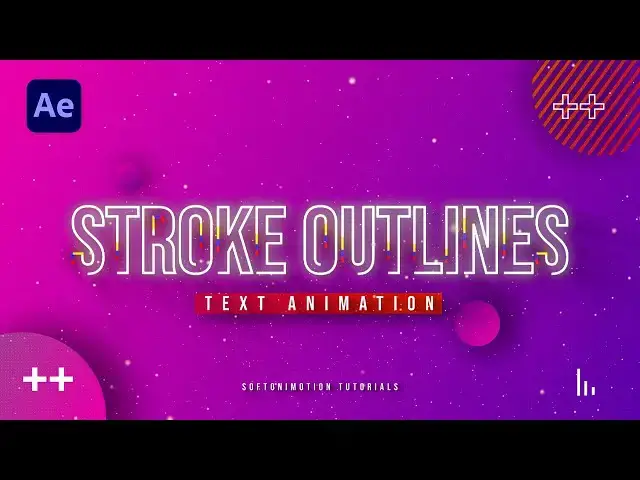
this easy to follow stroke animation
0:09
text so without wasting any more time
0:12
let's jump straight into after effects
0:28
all right we're hearing After Effects
0:29
and first like always let's create a new
0:31
composition hit Control Plus n or this
0:33
little icon here this is going to be
0:35
final comp of course you can type your
0:37
own text 9020 by 1080 60 frames per
0:41
seconds and duration 4 seconds long hit
0:43
OK and now let's create our background
0:45
goal right click find here new solid
0:47
layer I will rename this one too
0:49
background of course you can type your
0:52
own text 9020 by 1080 hit OK and now
0:55
it's time to add our first effect here
0:57
on background layer go here in the
0:59
faction preset and if you can't find
1:01
them just go window and you will find
1:03
them here okay now type here ramp effect
1:06
drag and drop onto our background layer
1:08
and now let's readjust our start of the
1:11
ramp upper left corner end of the ramp
1:14
lower right corner and change colors
1:16
according your needs for this particular
1:18
tutorial I will do maybe this type of
1:21
pink or purple color like this hit OK
1:25
and for the second color maybe dark dark
1:28
blue of course you will play around in
1:32
every moment later you can change the
1:34
colors hit OK I will close this effects
1:37
control for now and now let's create
1:39
another solid layer go right click find
1:41
here solid rename this to grid also 90
1:44
20 by 1080 hit OK and then go here in
1:47
the facts and preset and find grid
1:49
effect drag and drop onto our grid layer
1:52
like so change the size from from corner
1:55
point to with slider and type here for
1:57
the width 10 and also for the Border 10.
2:01
also select this option invert grid and
2:03
now as you can see in our final scene we
2:06
have these tiny dots on our background
2:09
also what we can do is to change our
2:10
blending mode if you can't find blending
2:13
mode just hit here toggle switches and
2:15
modes to find them and let's change this
2:17
to Overlay and now what you can do is to
2:21
duplicate this grid solid layer once
2:24
to see even better our tiny Dots here in
2:28
our final scene okay now let's create
2:31
text layer here on our final scene let's
2:33
hit Control Plus t or go here on this
2:35
little icon I will just type
2:39
outlines of course you will type your
2:41
own text I'm using this Baba's my phone
2:44
200 font size okay align it to the
2:47
center go here file align if you can
2:49
find the line just go window and you
2:51
will find it here now let's swap fill
2:54
and stroke for our stroke outlines
2:56
double click here go here on this
2:58
character option and just hit this
3:01
little icon to swap fill and stroke now
3:03
you can play around with the stroke
3:05
width like so and for this particular
3:08
tutorial I will do maybe four now let's
3:11
convert stroke out outlines in shapes go
3:14
right click find here create and select
3:17
this option create shapes from text now
3:20
you can delete these stroke outlines
3:22
lower option like so open up this Little
3:25
Triangle pull here on ADD find here trim
3:28
pads go at maybe 2 seconds open up these
3:32
trim pads option set a power first
3:34
keyframe for and go at zero frames and
3:36
type here zero okay now grab both of our
3:40
keyframes hit F9 on your keyboard go to
3:44
graph editor and let's draw a curve like
3:48
and if you can't find curve like this
3:50
just go right click and find here edit
3:53
speed graph now in our final scene when
3:55
we hit 0 we have this cool animation of
3:58
our stroke text okay now what we can do
4:02
is to duplicate this once hit control
4:04
plus d move upper text maybe two frames
4:11
okay duplicate this once again move this
4:14
maybe four frames ahead once again six
4:17
frames ahead now select our first three
4:20
stroke texts go here in the facts and
4:24
fill effect double click and now as you
4:27
can see we have this Red Stroke outline
4:30
text that we're going to also change to
4:33
another colors for the first let's leave
4:36
it to red color for the second one let's
4:38
change to maybe dark blue color like
4:41
this hit OK and for the third one let's
4:43
change to maybe yellow color hit OK and
4:46
now when we hit zero we have this really
4:48
cool and awesome animation of our stroke
4:52
text also what we can do for our upper
4:55
text go here in the facts and preset
4:57
find glow drag and drop onto our first
5:01
text and for the glow threshold type
5:03
here 50 radius also 50 and glow
5:07
intensity 0.5 and now we also have this
5:12
glowy final text in our final scene
5:16
okay for the final step we can
5:19
pre-compose text select them all then go
5:21
right click select here pre-compose I
5:23
will rename this one to text o1 hit OK
5:26
and now let's duplicate this one once
5:29
again hit Ctrl D for the lower text or
5:35
fast blur drag and drop onto our text o1
5:39
and here basically you can play around
5:41
with the options for this Center do
5:44
something like this for the amount let's
5:46
go to around maybe 85 and also type here
5:51
effect drag and drop above our radial
5:54
fast blur effect and here basically you
5:56
can play around with the option to
5:58
change colors of these Shadows according
6:01
your needs I will do black color hit OK
6:03
you can also find here overlay blending
6:06
mode play around or leave it to normal
6:09
duplicate once again if you need and now
6:12
when we hit zero in our finals we have
6:15
also this cool shadows of our stroke
6:19
outlines text you can also if you want
6:22
animate this Center option to get your
6:25
own results okay now when we hit 0 we
6:29
have this really cool and nice stroke
6:34
alright guys that was everything for
6:36
today's tutorial hope you learned
6:38
something new like always if you haven't
6:40
subscribed to my Channel please hit that
6:42
subscribe button also turn on the
6:44
notification Bell so you never miss any
6:46
of my future content also take a look on
6:48
my channel for even more great tutorials
6:51
all the links are in description and
6:53
until next time stay creative and bye