0:02
hi I'm photoi and I'm here to show you
0:04
how I use filter grade to take my images
0:07
to the next level now I was suffering
0:10
from inconsistencies in my coloring
0:12
before I got filter grade and now that I
0:14
have it I couldn't be more pleased with
0:17
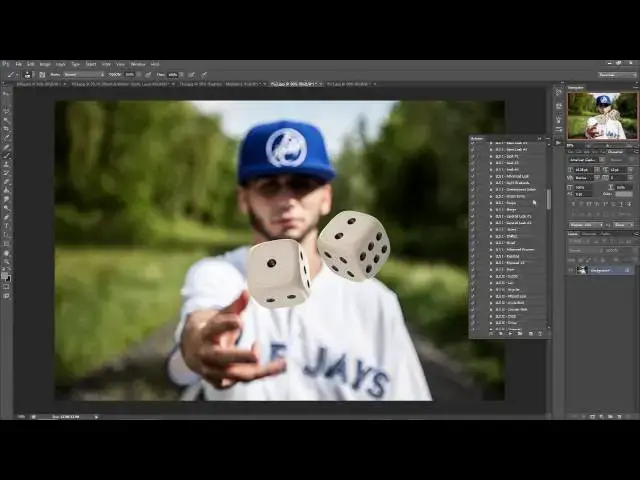
it if you go under your actions bar
0:20
you'll see the filter grade bundle that
0:21
I have installed now if you can't find
0:24
it it's underneath window and actions
0:26
should be right there at the
0:28
top so if I open up the filter grade
0:31
bundle you're going to see that it has
0:33
retro series light leaks film chill
0:37
light seasonal black and white fashion
0:39
and photo retouch now for this one I'm
0:42
going to play all for the black and
0:44
white and it's going to play all of the
0:46
different actions that it has for black
0:50
white now after you get used to the
0:52
program you'll get to get your favorites
0:55
and you'll know which one to go to I'm
0:57
just going to show you that play all is
0:59
how you look learn I toggle them on and
1:02
off to look at them and I hit the delete
1:04
button on my keyboard to delete them
1:07
away so here I am just toggling them on
1:09
and deleting them away just to show you
1:12
quickly that they all look
1:15
different and they all have different
1:17
applications but I have my favorites and
1:19
I'm sure that you'll find
1:21
yours for black and white I was looking
1:23
for the advanced which is right here and
1:25
I'm going to get rid of these other
1:27
ones now when you open it up you can see
1:29
the different adjustment layers that
1:31
filter grade put onto the
1:33
image as well as that there's layer
1:36
masks on each one of them now you can
1:38
customize each of the filter grade
1:41
actions as you can see I'm taking
1:44
away the black and white and revealing
1:46
the color but I'm just looking for black
1:49
and white I was doing that for show
1:51
purposes so this image is done looks
1:54
great moving on to the next
1:57
one here I was looking just to get a
2:00
little bit more color a little bit
2:02
deeper and for that I was going to go to
2:08
one specifically fashion midnight so I'm
2:12
going to scroll down here and look for
2:16
it so I don't have to hit play all I
2:18
know which one I'm going for fashion
2:20
midnight right here and you can see all
2:23
the adjustment layers and settings so
2:25
I'm just going to hit
2:35
great really pumped it up and as you can
2:39
see I can lower the opacity on each one
2:42
of them or I could use the layer masks
2:50
areas toggle it on and off you can see
2:55
changing P it back a little
2:58
bit and it's right about where I want
3:09
beautiful all right moving on to the
3:12
here now I'm going to show you some
3:23
leaks for show purpose I'm going to show
3:26
you all the light leaks series 2
3:31
so I just hit play there I let it play
3:34
through have a sip of your
3:42
coffee now I know the first one is the
3:47
here but I'm going to toggle on some
3:49
other ones here to show you just the
3:52
variety that they have with Filter grade
3:54
I mean all of these work for different
3:58
images after a while you're going to get
4:09
them here we go I'm going to delete them
4:11
all because this is the one I'm after
4:13
now I'm going to go in and specifically
4:16
tweak the gradient here because I'm not
4:21
color and there you go so I just changed
4:24
the gradient and it completely changed
4:26
the color of the light
4:27
leak as as you can see see totally
4:30
changed the attitude of the image now
4:33
I'm going to take out the
4:35
gradient and the photo filter just
4:37
because I want those whites in it
4:40
still but as you can see completely
4:44
changed the image looks
4:48
great and now for this final image I'm
4:50
going to show you how I combine two of
4:55
actions and two of them that I use
4:57
frequently are in the Retro series so
5:03
one and I'll press play on the second
5:10
one now I'm going to lower down the
5:12
opacity just so that both of them show
5:20
through now it's a little bit too purple
5:23
for me in the area of the jacket
5:27
so what I have to do is layer mask some
5:33
away I like the purple on the rest of
5:35
the image just not on the jacket so
5:37
there we go but I need a little bit more
5:40
blacks so I'm going to go into the
5:45
down I love how easy it is to adjust all
5:50
of these specifically to each
5:53
image that way I can get a consistent
5:57
look but specific for each image and
6:00
that is thanks to filter grade easy
6:04
powerful I suggest filter grade it
6:07
really up to my game and I'm thankful