0:00
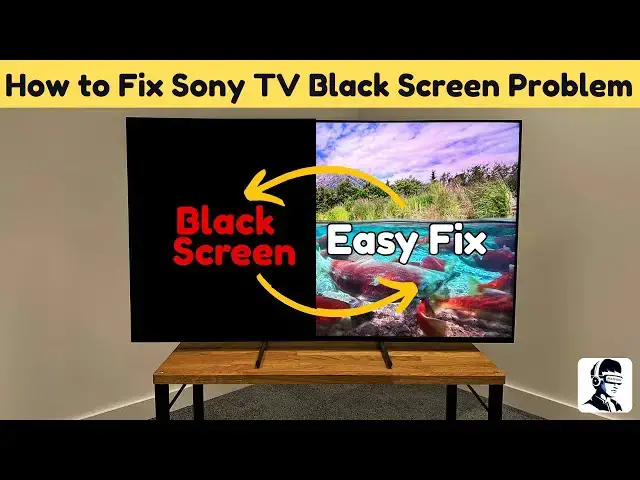
Does your Sony TV turn on and play sound
0:02
but leave you staring at a completely
0:04
black screen? Don't panic. You don't
0:06
need expensive repairs just yet. In this
0:08
video, I'll walk you through safe and
0:10
simple steps you can try right now at
0:12
home to bring the picture back. These
0:14
methods are easy, require no tools, and
0:16
don't involve opening the TV. Let's get
0:19
started. The first thing to try is a
0:20
basic power reset. Unplug your Sony TV
0:23
from the wall socket and leave it
0:24
unplugged for about 2 minutes. This
0:26
allows the system to fully shut down and
0:28
clear temporary glitches. After that,
0:30
plug it back in and turn it on.
0:32
Sometimes this quick reset alone is
0:34
enough to bring the picture back. If the
0:36
screen is still black, don't worry.
0:37
We've got a stronger option. While the
0:39
TV is still unplugged, press and hold
0:41
the physical power button on the TV
0:42
itself, not the remote, for about 15
0:45
seconds. This drains any leftover
0:47
electricity stored inside the circuits.
0:49
Once you've done that, wait about 30
0:51
minutes before plugging the TV back in
0:53
and powering it on again. If your TV
0:55
does respond to the remote, you can also
0:57
try pressing and holding the power
0:58
button on the remote until the TV
1:00
restarts. This soft reset often works if
1:03
the system just needed a quick refresh.
1:05
If the picture still hasn't returned,
1:07
it's time to check your external
1:08
connections. Turn off the TV and unplug
1:10
all external devices like HDMI cables,
1:13
USB drives, or streaming sticks.
1:15
Carefully inspect the cables and ports
1:17
to make sure nothing is bent, damaged,
1:19
or dusty. Then, reconnect only the power
1:21
cable and turn the TV on. If the picture
1:24
comes back, one of the external devices
1:25
or cables was causing the problem.
1:27
Reconnect them one at a time to figure
1:29
out which one. If your TV still has
1:31
sound but no picture, try the flashlight
1:33
test. Turn the TV on, then shine a
1:35
flashlight or your phone's torch very
1:37
close to the screen at an angle. Look
1:39
carefully for faint images or movement.
1:41
If you see them, that means the TV is
1:43
working, but the backlight, the part
1:44
that lights up the screen, isn't turning
1:46
on. Since fixing the backlight requires
1:48
opening the TV, this is the point where
1:50
you should contact a professional repair
1:52
service rather than trying to fix it
1:54
yourself. Before you do that, there's
1:56
one more option you can try at home. A
1:58
factory reset using the TV's physical
2:00
buttons. First, make sure the TV is
2:02
unplugged. Find the power button and the
2:04
volume down button on the TV itself.
2:06
Press and hold both at the same time.
2:08
While still holding them, plug the TV
2:10
back in and continue holding until you
2:12
see the Sony logo appear on the screen.
2:14
Once the logo shows, let go of the
2:16
buttons and wait as the TV resets
2:19
itself. This clears out software errors
2:21
that might be causing the black screen
2:23
problem. If none of these steps work,
2:24
the issue is likely hardware related and
2:27
should be handled by a technician. To
2:29
help prevent future issues, keep your TV
2:31
well ventilated. Use a stable power
2:33
source and check for updates regularly.
2:35
That's it for this video on fixing a
2:37
Sony TV with sound but no picture.
2:39
Hopefully, one of these methods got your
2:40
screen working again. If it did, drop a
2:43
comment and let me know which one. It
2:45
might help someone else, too. Don't
2:46
forget to like this video if it helped
2:48
and subscribe for more quick,
2:49
money-saving tech fixes. Thanks for
2:51
watching, and I'll see you in the next