0:00
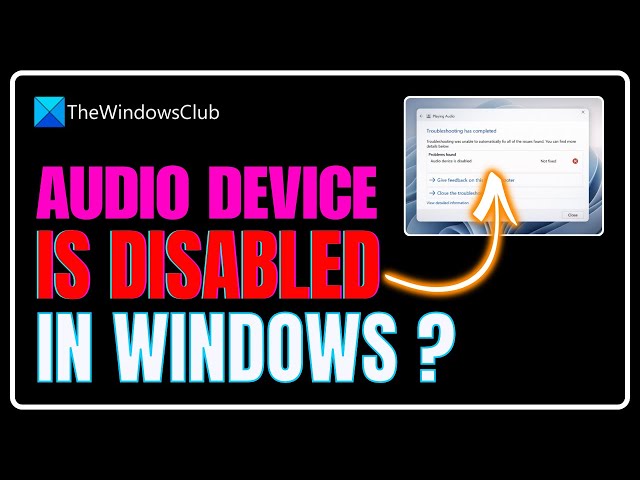
Are you getting error message that your audio device is disabled in Windows 11?
0:04
Then you are at the right place as here is how to fix the issue.
0:07
Let’s get started. This is The Windows Club.
0:15
According to some users, the audio on their Windows computer stopped working
0:18
after a recent Windows Update. To solve that issue, they ran the
0:22
Playing Audio troubleshooter but instead of fixing the problem, the troubleshooter
0:25
displayed the error that the Audio device is disabled on their Windows computer. If such
0:30
a problem happens with you also, this video might help you fix it. Let’s get started!
0:42
Right-click on the Sound icon in the notification area or system tray.
0:45
Click on Sound settings from the menu. Then select More Sound Settings.
0:48
Click on the Playback tab. See if your audio device is listed
0:52
there. If not, right-click on the empty space, and select the Show Disabled Devices option.
0:57
This will show your audio device Right-click on the audio device
1:00
Select the Enable option After enabling the audio device, you can also set
1:04
it as default. For this, right-click on the device again and select the Set as Default Device option
1:09
Click on the Apply button Click on the OK button.
1:12
Now, check if the issue is fixed. Open Sound settings of your Windows computer
1:24
Go to More Sound Settings. Access the Playback tab
1:27
Right-click on your speaker from the list
1:29
Select the Configure Speakers option. It will open the Speaker Setup box
1:33
In that box, click on the Test button to check the functionality of both of your connected speakers
1:38
Click on the Next button Press the Finish button to
1:40
complete the configuration. This might fix the problem.
1:50
Click on the Search box of your Windows computer Type device manager in the Search box
1:55
Press the enter key to open the Device Manager window
1:57
Expand the Sound, video and game controllers section
2:00
Right-click on your sound card driver Select Uninstall device option. This
2:04
will open an Uninstall Device box Press the Uninstall button in that box
2:08
After uninstalling the driver, restart your computer.
2:11
After restart, Windows will automatically detect the hardware changes and install the
2:15
latest version of your sound card driver. If the issue persists, download the latest
2:20
version of your sound card driver from the manufacturer’s website and install it. Or else,
2:25
you can also download and install the driver using the Settings app of your Windows computer.
2:30
So, that's it. Subscribe to The Windows Club for all
2:32
your tech solutions related to Windows. Thanks for