Up next in 10



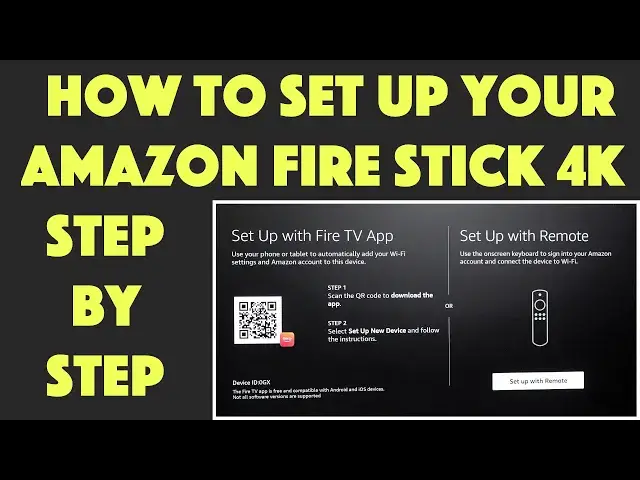
So ya got yourself an Amazon Fire Stick 4K, uhhh, Fire TV Stick 4K streaming device. Great. Here's how to get everything out of the box, hook it up to your TV or computer monitor, and then go through all the steps needed to have it up and running. This is a detailed step-by-step with tech expert Dave Taylor.
*** Tip: Grab the Fire TV app fo your smartphone before you start.
Check it out at: https://amzn.to/3rNlB5P
Visit Dave's Q&A Web site at: https://www.AskDaveTaylor.com/
#firetv #firestick #firestick4k #firetv4k #4k #streaming #settop #amazon #askdavetaylor
Show More Show Less View Video Transcript
0:00
An Amazon Fire Stick 4K? Let's set this thing up
0:11
Dave Taylor here, and I got an Amazon Fire Stick 4K streaming device at this
0:16
screaming good price from Amazon. So I figured, well, obviously, first thing you got to do is
0:21
take it out of the box and set it up. So that's what this video is about. And all I need is the
0:28
Fire Stick 4K includes everything you need, including its batteries and a TV or monitor
0:36
that has HDMI in and ideally is a 4K unit to give you the best possible results. So before I get
0:44
started, let me give you just a super quick rundown that this is 4K Ultra HD, supports Ultra
0:49
Vision, HDR 10+, Dolby Atmos, 7.1 audio. I mean, it's a really remarkable little device. In fact
0:57
why don't I just start opening it while we talk? Let's see. So there's a strip here and
1:04
this might or might not be the right thing to do, but here we go. So I like that you don't
1:10
need knives or anything to open things. So it's just a piece of plastic and then should open up
1:17
There we go. And Amazon's put a lot of effort into more environmentally friendly packaging
1:22
which I appreciate. That is a pretty compact package for how many different things are inside
1:28
So let's see. This is actually the unit itself, the Fire Stick 4K, and it comes
1:37
safely ensconced in plastic, which will obviously have to take off. And you can see it's pretty big
1:44
and it has that HDMI on the end. Now this, once we get it all hooked up, supports Netflix
1:51
Prime Video, Disney, Apple TV, Peacock, you name it, they probably have support for it. It even
1:58
comes with, currently at least, a six month MGM Plus subscription for free. You can also use this
2:05
for live TV with subscription probably. And there are streaming channels too, like Pluto TV and the
2:13
horribly named Freevi, which is another free television system from Amazon. Not only that
2:21
but did you know this is a gaming device? All right, it's not a PS5, but Amazon Luna supports
2:28
streaming games and you can download the game and use this for some limited gaming. I think this
2:35
also is compatible with their game controller, but mostly for this you'll be using this remote
2:42
control. And so this one requires those two AAA batteries, which Amazon says is in the box. We'll
2:50
have to, let's see, if I were batteries, where would I be? Well, we got this power plug. Oh
2:57
and here we go. Two batteries. Like I said, this is quite the little puzzle box here to get
3:02
everything out of it. And then there's instructions. And finally, there's a cable because the Fire
3:11
Stick itself needs separate power, but there's a trick you can do with that. So let's see if I can
3:17
get this piece out. This last piece that either is pushed or pulled out. This last piece is a
3:26
HDMI extender in case your TV or monitor is configured such that you can't just use it
3:34
by plugging this directly in. My monitor should work fine, but here we go. It's that HDMI extender
3:40
So that's everything. I'm going to fold this up. I'm going to get all the plastic. I'm going to
3:44
just put it all right back in the original box if it will fit. You never really know how things are
3:51
going to go. So we'll do that. And so there's that. And now it does have a little hello instruction
3:59
but we're going to try something different. Now, first off, let me spin this monitor around so you
4:04
can see the back. A lot of monitors actually have USB-A plugs, and that makes it super easy
4:12
because then you can use the included cable to go from USB-A to power your Fire Stick. So there's a
4:18
lot of wires you'd end up with on the back, but no other power source needed. Since I don't have that
4:24
I'm going to have to use the power adapter included, which means I'm going to have to bring
4:29
another wire in to be able to plug this into something. When I've done that, I'm going to have
4:34
this plugged in like this, and then the other end, which is a micro USB, Amazon upgrade, and a micro
4:44
USB will actually power the Fire Stick itself. Now, let's see. I told you a bunch of stuff
4:49
including gaming. Let me tell you with this remote control, which has yet another layer of plastic on
4:55
it, so I'll take that off too. The remote control, let's see. So the back opens up and there's space
5:04
for the two batteries that are included. That's easy enough. Let's see. Looks like it's this
5:12
orientation, so hopefully I got it right. And this remote control also has Alexa, and it's also a
5:20
voice remote. Now, this is pretty common nowadays, but as you can see, the remote, whoops, well
5:28
hopefully still functional. The remote has a ton of buttons, including, most notably, a couple of
5:34
shortcut buttons to get you straight to your favorite video sources. Very helpful. Bluetooth
5:40
5.0, and so this is Bluetooth 5.0, which means it's actually compatible right out of the box
5:46
with Bluetooth speakers and Bluetooth headphones and earbuds, which is great, because that's
5:51
another usage case here, is you actually use this for, like, watching TV and everyone else is asleep
6:00
so you're using this, and then you're using your own headphones, so you don't have to bother everyone
6:04
No additional hardware needed. You just need to get it all set up. So speaking of getting it all
6:10
set up, I'm going to switch so you can see what's on screen, and I'll talk you through my setup. So
6:16
let's get that all on screen. I have everything plugged into my monitor, and I do want to
6:21
highlight that you can also plug this into a television, even an old clunker of a TV that
6:26
you might have. So, I'm using a monitor, but there are plenty of other devices this is going to work
6:32
for, and now it's basically telling me, in a lot of languages, to pick up the remote, and I assume
6:39
push the power button. So, let's see what happens. There we go. Push pause play to start
6:50
Choose my language. Easy enough. Set up with Fire TV app, or set up with remote. Well, the app is
6:58
going to be way more convenient, so I'm going to grab my phone, and my phone is already logged in
7:05
to my Amazon account. So, I'm just going to go ahead and scan that QR code, which
7:11
works even this far away, and scan the QR code. Choose set up new device
7:21
Let's see. Oh, you know what? I don't have the Fire TV app, so I need to get that, and I'll just
7:27
take a moment or two. Now, I'm going to zoom out a little bit so I can superimpose the app on the
7:34
side. So, let me just switch this around a bit. And here, I'm going to choose set up new device
7:46
Then it wants two-step verification, and we'll do that. There's my code. So, now I can just enter it. I don't need it again. Sign in. So, we're getting
8:00
there. I'm almost set up here. So, set up new device, and then what do we have here? We have a
8:08
Fire TV blaster, or remote. I think we just need set up new device, and Fire TV
8:18
Searching for Fire TV. Looking for Wi-Fi. I'm sorry that the video isn't very exciting, but we should be there momentarily
8:36
Should not take this long to connect to my network, but you know. Oh, there we go. That
8:41
looks good. Your Fire TV was added to complete setup. Follow the steps on your TV. Continue
8:48
All right. So, now I could use my phone as a remote, but I'm not going to worry about that
8:53
I'm going to go ahead and shut down my phone, and we're going to just switch to the remote
9:00
which means I am going to go ahead and reframe the image just a bit so that you can have it
9:07
as big as possible. I'm also going to skip the download the latest software
9:17
which is not very exciting. So, I'll be back in just a moment
9:24
Finishing updates. Connected to Amazon. Successfully registered. So exciting. So, let's see. This will be registered to your account. Okay
9:34
Your Fire Stick is designed with kids in mind, but we're not going to use any of the parental
9:38
controls because I just want to get to the home screen. And you'll note, as I've gone along
9:44
the setup is really a breeze. The key here is to get your phone set up. So
9:51
now let's hear that we get some audio. Toggle the volume up and volume down. Did the music change and come out? No, because this unit
10:04
doesn't actually have speakers, but we can fix that. I'll plug in speakers later. So
10:08
I'm just going to say, yes, it's all good. Your remote is now set up. Optimizing
10:14
And it's worth noting that a lot of computer monitors don't have any built-in speakers
10:19
but they do have audio out. So, that does give you a different way to get to it. So
10:24
the circuitry works and it can see the audio signal. It just doesn't have any speakers to
10:29
play it. A world of kid-friendly content? No. Okay. So, let's see
10:37
See the audio signal. It just doesn't have any speakers to play it. A world of kid-friendly
10:42
content? No. Choose your streaming services. Get started. No, thanks. Let's just go and get to
10:49
that home screen already. So, easily navigate, personalize with profiles, decide what to watch
10:56
customize the apps in your main menu. All of that sounds good. And finally, who's watching it? Me
11:05
Finally, maybe. Here we go. Finally, we are on the home screen. And as you can see
11:12
it is a clean, crisp picture. And I can use the remote control to navigate around and to go to
11:20
different apps and different channels and different shows. And if I want, I can actually go to the app
11:28
store. And along the top here, you can see if I want to go to Netflix, I can do that. And
11:38
it loaded pretty darn fast, right? Download. I already own it. So, let's just download it onto
11:44
the stick. And then while I'm at it, let's go ahead and get Disney, which I also have. Okay
11:51
And so, this should give me the same option of downloading it, which sounds good. And
11:59
then I can go to... Let's see. Well, let's grab Hulu. So, at this point, you don't need to really
12:10
watch me set up every single channel and everything. But suffice to say, it's pretty darn easy to work
12:15
with. And if we go back to the home, which we can easily get to with the home button
12:20
that then if we look here, live, home, find. So, there's lots of options. And if I go to live
12:28
just to have a quick glance at that, here you can see that here are prime channels, live coverage
12:36
live TV channels. If I go to, for example, Pluto TV, then once I click on that, I can see
12:44
then once it loads. And again, notice that it is pretty quick to move around here
12:52
So, that one's queued. But once I get that downloaded, I can then get that sort of
12:56
traditional grid of TV programs and decide what I want to watch. Now, that's really everything. So
13:03
what I will say is that this Amazon 4K Fire... Sorry, the Amazon Fire Stick Fire TV 4K unit
13:13
is at an extraordinary price right now on Amazon. It's normally $49.99. And I picked this up for
13:20
$22.99. So, for $22, imagine having this all configured and ready to go with all your apps
13:27
downloaded. And then when you go to a hotel, switch Wi-Fi using your smartphone because it
13:33
can pair with the device. And now you have your own world of video content at a hotel instead of
13:39
being stuck with their poor choices. This obviously also works for dorms. This could
13:45
work in your office. Just plug it into the back of your computer monitor. So much flexibility
13:51
so many different options. And let's have a quick look at Pluto. And that's really all that I have to share with you. I hope that you watched this and found it
14:02
helpful and that you can see that it's really pretty darn easy to get rolling with this Amazon
14:09
Fire Stick. So, that's everything. Let's skip this. Well, it looks like we finally got to the
14:15
grid on Pluto TV, but that's really everything I've got to share with you. And I'll just say
14:22
that I hope you found this to be helpful and I'll hope to catch you in my next video
14:39
Bye
Consumer Electronics
Game Systems & Consoles
Science
Media Streaming Devices